
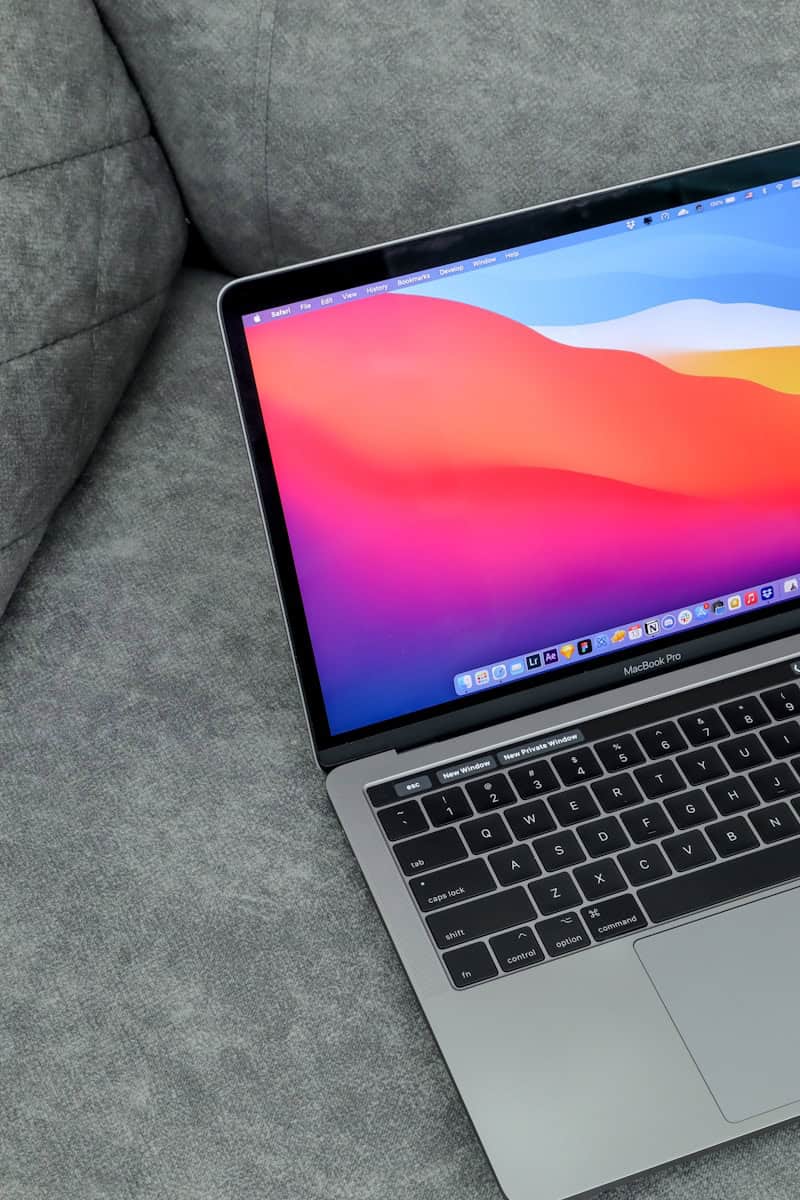
There are times when one might need to download an older version of macOS. This could be for reasons such as software compatibility or a preference for a previous iteration’s interface. Apple provides ways to acquire current and previous versions of their operating system for compatible Mac computers.
Installing an older macOS can seem like a daunting task but it is quite straightforward once you understand the process. You can find previous macOS versions directly through the App Store, Apple Support, or via other Apple resources. Before starting, make sure your Mac is compatible with the macOS version you need and you have a backup of your current system.
How To Download an Old Mac OS Version
Sometimes you need an older version of macOS to run legacy software, support older hardware, or troubleshoot issues. Apple still provides official ways to download many previous macOS releases—you just need to know where to look.
Below is a step‑by‑step guide on how to safely download old macOS versions from Apple.
Important Things to Know Before You Start
- ✅ Always download macOS from Apple to avoid malware.
- 💻 Check compatibility: Not all Macs support all macOS versions.
- 🔌 Have enough storage: macOS installers can be 10–15 GB.
- 📦 You may need an Apple ID to download from the App Store.
Method 1: Download Old macOS Versions from Apple’s Official Links (Recommended)
Apple provides direct App Store or installer links for many older macOS versions.
Available macOS Versions
Apple commonly provides official downloads for:
- macOS Sonoma
- macOS Ventura
- macOS Monterey
- macOS Big Sur
- macOS Catalina
- macOS Mojave
- macOS High Sierra
- macOS Sierra
- OS X El Capitan
- OS X Yosemite
Steps
- Open Apple’s official macOS download page:
https://support.apple.com/en-us/HT211683 - Find the macOS version you want.
- Click Download.
- The Mac App Store will open (or a direct installer will download).
- Once downloaded, the installer will appear in your Applications folder.
💡 Tip: If the installer launches automatically, quit it if you don’t want to install immediately.
Method 2: Download Using the Mac App Store (If Previously Downloaded)
If you’ve downloaded a macOS version before using your Apple ID, it may still be available.
Steps
- Open the App Store.
- Click your profile picture (bottom-left).
- Go to Purchased.
- Look for the macOS version you want.
- Click Download.
Method 3: Download via Terminal (Advanced Users)
For newer Macs running modern macOS versions, you can use Terminal to fetch older installers.
Steps
- Open Terminal.
- Run:
softwareupdate --list-full-installers - Find the version you want, then run:
softwareupdate --fetch-full-installer --full-installer-version 12.6.1(Replace the version number with your desired one.) - The installer will download to your Applications folder.
Creating a Bootable Installer (Optional)
If you plan to install macOS on multiple Macs or perform a clean install:
- Insert a USB drive (16 GB or larger).
- Use Apple’s
createinstallmediacommand in Terminal. - Follow Apple’s guide:
https://support.apple.com/en-us/HT201372
Common Issues & Fixes
“This version of macOS is not compatible with this computer”
- Your Mac does not support that macOS version.
- Check Apple’s compatibility list for your model.
Installer won’t open
- Make sure the installer is in the Applications folder.
- Ensure you’re signed in with an Apple ID.
Download not available
- Some very old versions are no longer hosted in the App Store.
- Use Apple’s direct installer links instead.
Final Tips
- ✅ Always back up your Mac before installing an older OS.
- ⚠️ Older macOS versions may no longer receive security updates.
- 🔄 Consider using an older macOS in a virtual machine if possible.
Key Takeaways
- Older macOS versions can be obtained for reasons like software compatibility.
- Check compatibility and back up your current system before downloading.
- Older macOS installations are available through the App Store and Apple Support.
Preparing to Download Older macOS Versions
Before attempting to download an older version of macOS, it’s essential to ensure that your Mac is compatible and that you properly back up your data. This process involves checking system requirements, locating the macOS version you need, and securing your current system’s state.
Verifying Compatibility
Not all Macs work with every version of macOS. Check Apple’s website for compatibility lists or use your Mac’s “About This Mac” section to determine the exact model. For older versions like macOS Catalina, macOS Sierra, and OS X Lion, verify whether your computer has an Intel processor or Apple Silicon. Most older macOS versions were designed for Intel Macs, and compatibility with Apple Silicon is limited.
Finding the Right macOS Version
To find and download an older macOS version, visit the Purchased tab in the Mac App Store if you’ve previously installed that version. If not, a download code or a direct download from the Apple support site may be necessary. Popular older versions, such as macOS Catalina, macOS Big Sur, macOS Mojave, and macOS High Sierra, are usually available through these channels.
Backup Before Downgrading
It is crucial to back up your data before installing an older macOS. Use Time Machine or another backup method to save your current system’s state. This step prevents data loss and allows a return to the existing OS version if needed. A full backup ensures that documents, apps, and personal settings are not lost during the downgrade process.
Downloading and Installing Older macOS Versions
For those who need to download and install an older version of macOS, whether for compatibility reasons or preference, there are specific steps to follow. This guide will walk through using official Apple resources, creating a bootable installer, and executing the installation process.
Using Official Apple Resources
Officially, Apple provides access to certain previous macOS versions through the App Store or their support website. Users can find and download installers of macOS, including but not limited to versions like Sierra, Mojave, Catalina, Big Sur, or Mountain Lion. To locate these files, use the search function within the App Store or visit the macOS page on Apple Support’s website. The downloaded file will typically be a disk image or a package which can be used to create a bootable installer.
Creating a Bootable Installer
To install an older macOS, users may need to create a bootable installer on an external drive or USB stick. First, ensure the drive is formatted for Mac using Disk Utility. Then, using Terminal, enter a command specific to the macOS version to create the installer. The command syntax usually includes createinstallmedia followed by volume and application path options. Ensure the bootable installer is prepared on an Intel-based Mac if the older macOS is not compatible with Apple’s M1 chip.
Performing the Installation Process
With the bootable installer ready, connect it to the Mac and restart the machine while holding down the Option (Alt) key for Intel-powered Mac or holding the power button for M1-based Mac to open the startup manager. Select the bootable drive from the list shown. After macOS loads, users may need to choose a language before selecting ‘Disk Utility’ from the ‘Utilities’ menu. From here, they can erase the Mac’s main disk, ensuring it is ready for a clean installation. Finally, close Disk Utility, return to the ‘Utilities’ menu, select ‘Install macOS’, and follow the on-screen instructions to complete the installation process. It is important to stay connected to a power source throughout the process, and entering an admin password when prompted is necessary to proceed with the installation.





