
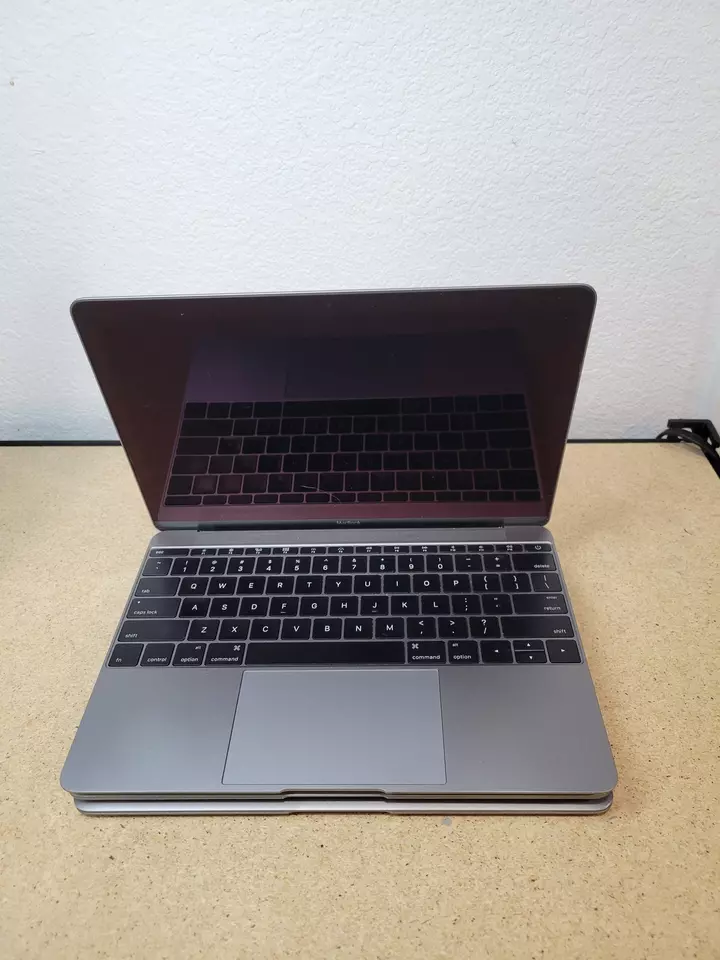
Protecting the private information on your MacBook is essential in today’s interconnected world. A key part of securing your device involves knowing how to lock it effectively. Locking your MacBook prevents unauthorized access and protects your personal data when you are away from the keyboard. Whether you’re stepping away for a coffee break or securing your computer after work, locking your screen is a straightforward but crucial security step.
Adjusting your security settings is a proactive measure you can take to enhance the protection of your MacBook. MacOS provides several options to secure your device, including requiring a password immediately after sleep or screen saver begins. Setting this up can be done through the Security & Privacy pane in System Preferences.
How to Lock a MacBook
Locking your MacBook keeps your files and personal information secure when you step away. macOS offers several easy ways to lock your screen, whether you’re at home, work, or in public.
Why Lock Your MacBook?
- Prevent unauthorized access
- Protect sensitive data
- Maintain privacy in shared spaces
- Quickly resume work without closing apps
Method 1: Use a Keyboard Shortcut (Fastest Way)
The quickest way to lock your MacBook is with a keyboard shortcut.
Steps:
- Press Control (⌃) + Command (⌘) + Q
- Your screen will immediately lock
✅ Works on most modern versions of macOS.
Method 2: Lock from the Apple Menu
You can also lock your MacBook using the menu bar.
Steps:
- Click the Apple () icon in the top‑left corner
- Select Lock Screen
- Your MacBook locks instantly
Method 3: Use Touch ID (If Available)
If your MacBook has Touch ID, you can lock and unlock it quickly.
To lock:
- Use Control + Command + Q, or
- Let the Mac sleep by closing the lid
To unlock:
- Place your registered finger on the Touch ID sensor
Method 4: Lock Automatically When Idle
You can set your MacBook to lock itself after a period of inactivity.
Steps:
- Open System Settings
- Go to Lock Screen
- Set “Require password after screen saver begins or display is turned off”
- Choose a time (e.g., immediately, 1 minute, 5 minutes)
This ensures your Mac locks itself if you forget.
Method 5: Use Hot Corners (Optional)
Hot Corners let you lock your screen by moving your cursor to a corner.
Steps:
- Open System Settings
- Go to Desktop & Dock
- Click Hot Corners
- Assign Lock Screen to a corner
- Move your cursor to that corner to lock
Method 6: Lock by Closing the Lid
On MacBooks, simply closing the lid puts the computer to sleep and locks it automatically (as long as a password is required on wake).
Tips for Extra Security
- Always set a strong login password
- Enable FileVault for disk encryption
- Turn on Find My Mac in case your device is lost or stolen
Summary
| Method | Best For |
|---|---|
| Keyboard Shortcut | Fastest option |
| Apple Menu | Mouse users |
| Touch ID | Convenience |
| Auto‑Lock | Forgetful moments |
| Hot Corners | Power users |
| Closing the Lid | On-the-go use |
Locking your MacBook takes only seconds and can save you from serious privacy issues. Make it a habit whenever you step away.
Key Takeaways
- Locking your Mac helps protect privacy and data security.
- Users should set necessary security preferences on their Mac.
- There are different locking mechanisms available for MacBooks.
Setting Up Security Preferences
Keeping a MacBook secure means setting preferences that guard against unauthorized access. This involves configuring system settings and adjusting password controls. These steps ensure that private information remains safe when the device is at rest or when you step away.
Configuring System Preferences
Access system preferences from the Apple menu by selecting System Settings. Here, you will find options to modify how your Mac behaves in sleep mode. Make sure to set your Mac to require a password immediately after sleep or screen saver begins. This setting is vital for security whenever your Mac enters sleep mode. To do this, navigate to the Security & Privacy section and find the option that controls password timing.
Utilizing Passwords and Privacy Controls
Creating a strong login password is the first line of defense for your MacBook. Go to Users & Groups under system preferences. Here, you can manage your account and ensure passwords are in place. Avoid using automatic login features, especially on shared or easily accessible Macs. Security & Privacy settings also let you control other privacy options to keep your data secure. Always keep your macOS version up to date to take advantage of the latest security features.
Locking and Unlocking Mechanisms
Locking your MacBook ensures that your sensitive data stays private while unlocking provides swift access to your tasks. The following subsections describe the specific key combinations and features that maintain the security of your MacBook.
Keyboard Shortcuts and Lock Screen Tips
Using key combinations offers a quick way to lock your Mac. Press Control + Command + Q to immediately switch to the lock screen. If your MacBook goes idle, you can set it to activate a screensaver or demand a password upon return. Set this up via Apple Menu > System Preferences > Security & Privacy. Shortcut keys for starting a screensaver include Control + Shift + Eject or Control + Shift + Power, depending on your MacBook model.
Advanced Lock Options and Features
For advanced settings, you can enable features like FileVault for encryption and Touch ID for fingerprint access, both found in the Security & Privacy settings. Configure your Control Strip to include a lock button for quick access. Users with an Apple Watch can set their Mac to unlock automatically when the watch is nearby. Enable Fast User Switching in Users & Groups to seamlessly switch between multiple user accounts without logging out. You can also use Keychain Access to lock the screen but this requires using the Terminal.





