
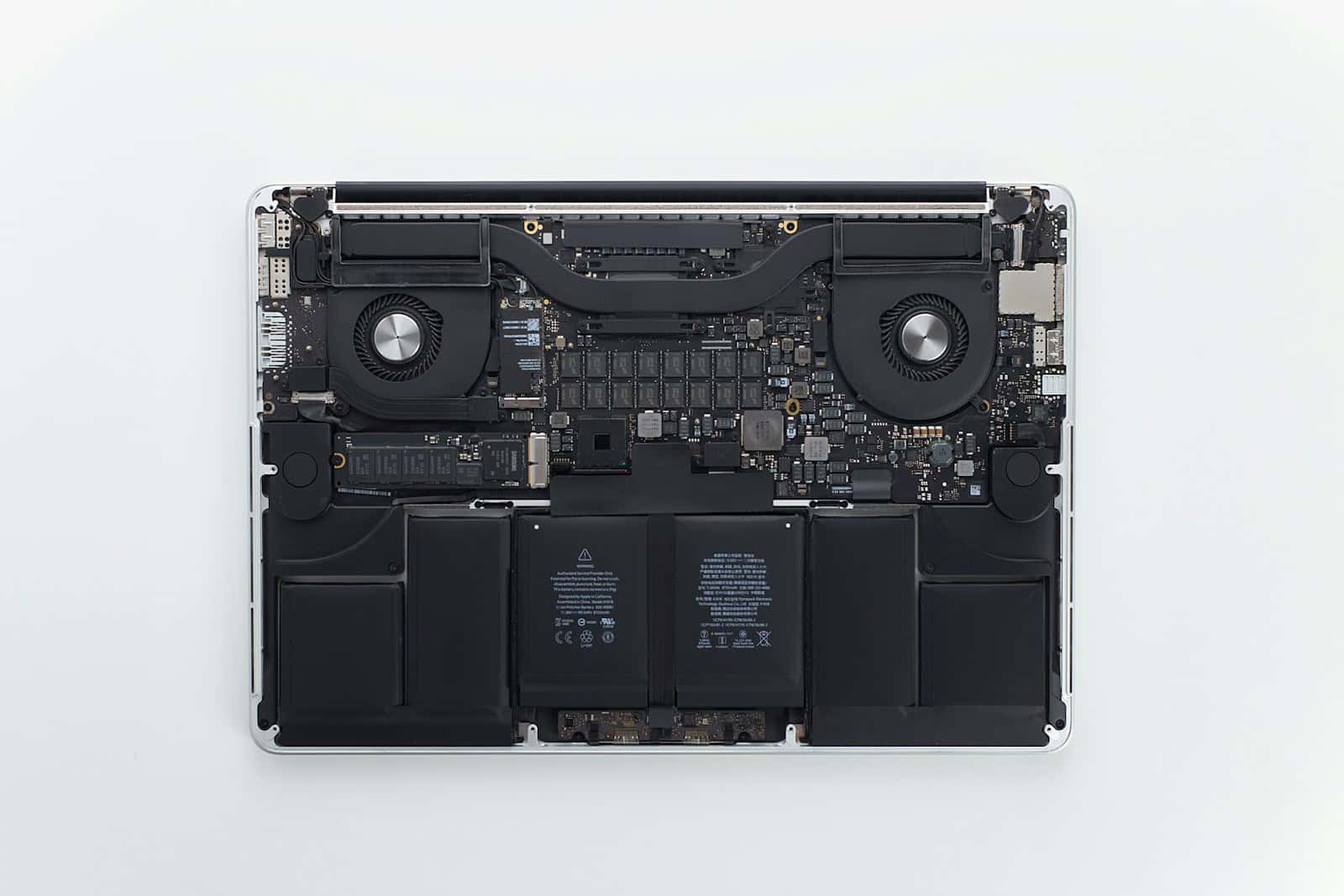
Monitoring the battery percentage on a MacBook is straightforward. Users can enable the battery percentage display for an immediate and precise understanding of their device’s power level. This option not only adds convenience but also helps in better battery management by providing clear insights into the MacBook’s power usage.
Mac users have the ability to customize their menu bar to show the battery percentage next to the icon. This helps individuals keep track of the available battery life at a glance without needing to navigate through various settings. Knowing the exact battery percentage allows for more efficient use of the device and ensures that users can charge their MacBook before the battery runs too low.
Why Show Battery Percentage?
By default, macOS may only show a battery icon, which gives a rough estimate of remaining power. Turning on the battery percentage lets you:
- See the exact remaining charge
- Better plan charging times
- Avoid sudden shutdowns
- Monitor battery drain while using specific apps
How To Show Battery Percentage On macOS Ventura, Sonoma, and Later
If you’re using macOS Ventura (13) or newer, follow these steps:
- Click the Apple menu () in the top-left corner.
- Select System Settings.
- Scroll down and click Control Center.
- Find the Battery section.
- Toggle Show Percentage to On.
Once enabled, the battery percentage will appear next to the battery icon in the menu bar.
How To Show Battery Percentage On macOS Monterey and Earlier
For macOS Monterey (12) or earlier versions:
- Click the Apple menu ().
- Choose System Preferences.
- Click Dock & Menu Bar.
- Select Battery from the sidebar.
- Check the box labeled Show Percentage.
The percentage will immediately appear in your menu bar.
Viewing Battery Percentage Without The Menu Bar
If you prefer not to show the percentage all the time:
- Click the battery icon in the menu bar to view the current percentage.
- Open System Settings → Battery to see detailed battery usage and health information.
Bonus Tips For Managing MacBook Battery Life
- Enable Low Power Mode in System Settings → Battery
- Reduce screen brightness
- Close power-hungry apps using Activity Monitor
- Keep macOS updated for the latest battery optimizations
Key Takeaways
- Enabling the battery percentage on a MacBook offers a quick view of the battery’s status.
- Users can add the battery percentage display in the menu bar for convenience.
- Visibility of the exact battery life helps in managing the device’s power more effectively.
Enabling Battery Percentage on MacBooks
MacBooks offer a way to show the battery percentage which makes it easier to track power usage. Enabling this feature can be done through system settings.
Via System Preferences on macOS Catalina to Big Sur
On a MacBook running macOS Catalina to Big Sur, one can display the battery percentage in the menu bar. First, click the Apple icon in the top left corner of the screen. Then choose System Preferences and select Energy Saver. Here, users should find an option labeled Battery Percentage. By checking this box, the battery percentage will appear in the menu bar by default.
Through Control Center on macOS Monterey to Ventura
As for MacBooks with macOS Monterey to Ventura, the process involves the Control Center. Users need to click the Apple menu, select System Settings, and then click Control Center. In the sidebar, users must look for Battery. Within the Battery settings, there is a Show in Menu Bar toggle. Turning this on will display the battery percentage next to the battery icon.
Understanding MacBook’s Battery Indicators
Your MacBook’s battery performance is critical to its mobility. Key indicators in the menu bar provide insights on charge and battery health.
Interpreting the Battery Icon
The battery icon on your MacBook serves as a quick visual cue for your current battery level. When your MacBook is not connected to a power source, the icon shows the remaining charge. A nearly full icon indicates a high charge, while a nearly empty one means the MacBook needs power soon. On newer macOS versions, you can display the battery percentage indicator directly in the menu bar. This helps you monitor your battery life at a glance.
Monitoring Battery Charge and Health
MacBooks are designed for easy monitoring of battery charge and health. You can find these settings within the System Preferences. Use the following steps to access detailed battery information:
- Click the Apple menu in your menu bar.
- Choose System Settings.
- Select Control Center from the sidebar.
- If not visible, scroll to reveal the Battery module.
- Here, you can enable Show in Menu Bar to display the battery percentage next to the icon.
Regular checks on your battery charge and health help ensure your MacBook Pro or MacBook Air retains its portability and efficiency. It allows you to plan your work and charge schedule better, especially when away from a power source.





