Is your phone crawling along instead of zipping through tasks? You’re not alone. Many smartphone users face slowdowns over time. Clearing your cache, freeing up storage space, and keeping your software updated can significantly boost your phone’s performance regardless of whether you have an iPhone or Android device.
Phone slowness happens for several reasons. Old batteries can cause performance issues, especially on iPhones where Apple may throttle performance to prevent unexpected shutdowns. Too many apps running in the background, full storage, and outdated software also make phones lag. Even older phones naturally slow down as newer apps demand more resources.
The good news is that you can speed things up without buying a new device. For Android phones, try clearing your cache and disabling live wallpapers. iPhone users should aim to keep at least 1GB of free space for optimal performance. Both phone types benefit from uninstalling unused apps and checking for battery health issues.
🚨 Why Is My Phone So Slow?
Phones slow down over time for several common reasons:
✅ 1. Too Many Apps Running
Background apps consume memory (RAM) and processing power.
✅ 2. Low Storage Space
When storage is nearly full, your phone struggles to operate efficiently.
✅ 3. Outdated Software
Old system versions may contain bugs or lack performance optimizations.
✅ 4. Too Many Background Processes
Widgets, sync services, and auto-updating apps can drain resources.
✅ 5. Aging Battery or Hardware
Older batteries can reduce performance (especially on older iPhones).
✅ 6. Malware (Mostly Android)
Suspicious apps can slow your device significantly.
📱 How to Speed Up Your iPhone
1️⃣ Restart Your iPhone
A simple restart clears temporary memory issues.
- Hold Side + Volume button
- Slide to power off
- Turn it back on
✅ Quickest performance boost.
2️⃣ Free Up Storage
Go to: Settings > General > iPhone Storage
- Delete unused apps
- Remove large videos
- Clear old messages
- Offload unused apps
💡 Keep at least 10–20% of storage free for best performance.
3️⃣ Update iOS
Go to: Settings > General > Software Update
New iOS versions often improve speed and fix bugs.
4️⃣ Disable Background App Refresh
Go to: Settings > General > Background App Refresh
Turn it off for apps that don’t need constant updates.
5️⃣ Reduce Motion & Visual Effects
Go to: Settings > Accessibility > Motion > Reduce Motion
This reduces animations and can make older iPhones feel faster.
6️⃣ Check Battery Health
Go to: Settings > Battery > Battery Health & Charging
If battery health is below 80%, performance may be affected. Replacing the battery can dramatically improve speed.
🤖 How to Speed Up Your Android Phone
1️⃣ Restart Your Phone
Reboots clear background processes and memory clutter.
2️⃣ Clear App Cache
Go to: Settings > Storage > Apps
Select an app → Tap Clear Cache
⚠️ Don’t tap “Clear Data” unless necessary.
3️⃣ Free Up Storage
Go to: Settings > Storage
- Delete unused apps
- Remove duplicate photos
- Use Google Photos cloud backup
- Clear Downloads folder
✅ Aim to keep at least 20% free space.
4️⃣ Update Android & Apps
Go to: Settings > System > Software Update
Also update apps in the Google Play Store.
5️⃣ Disable or Remove Bloatware
Some Android phones come with pre-installed apps.
Go to: Settings > Apps
Disable apps you don’t use.
6️⃣ Turn On Developer Options (Advanced Users)
To reduce animation speed:
- Go to Settings > About Phone
- Tap Build Number 7 times
- Open Developer Options
- Reduce:
- Window animation scale
- Transition animation scale
- Animator duration scale
Set them to 0.5x for a faster feel.
🔋 Extra Tips for Both iPhone & Android
- ✅ Avoid live wallpapers
- ✅ Limit widgets
- ✅ Use Lite versions of apps (Facebook Lite, etc.)
- ✅ Keep fewer browser tabs open
- ✅ Avoid task-killer apps (they often make things worse)
🛑 When to Consider a Factory Reset
If your phone is still extremely slow:
iPhone:
Settings > General > Transfer or Reset iPhone > Erase All Content
Android:
Settings > System > Reset Options > Erase All Data
⚠️ Back up your data first.
A factory reset often makes a phone feel brand new.
📊 Quick Comparison: iPhone vs Android Speed Fixes
| Fix | iPhone | Android |
|---|---|---|
| Restart | ✅ | ✅ |
| Clear Cache | ❌ (automatic) | ✅ |
| Remove Bloatware | ❌ | ✅ |
| Reduce Animations | ✅ | ✅ |
| Replace Battery | ✅ | ✅ |
| Factory Reset | ✅ | ✅ |
📉 Signs It Might Be Time for a New Phone
If you experience:
- Frequent crashes
- Overheating
- Severe lag even after reset
- No more software updates
- Battery draining extremely fast
It may be time to upgrade.
✅ Final Thoughts
If you’ve been wondering, “Why is my phone so slow?” the answer is usually simple: storage overload, too many background processes, or aging hardware.
The fastest fixes are:
- Restart your phone
- Free up storage
- Update software
- Reduce background activity
In most cases, these steps can make your phone noticeably faster within minutes.
Key Takeaways
- Clearing cache and maintaining free storage space can quickly improve phone speed.
- Regular software updates fix bugs that might be slowing down your device.
- Battery health directly impacts phone performance, especially in older devices.
Understanding the Causes of a Slow Smartphone
Many factors can cause your phone to slow down over time. These issues range from outdated software to storage problems and even security threats that tax your device’s resources.
Outdated System Software
Old operating systems can make your phone feel sluggish. Phone makers regularly release updates that fix bugs and improve performance.
When you skip these updates, your phone might run slow and miss important improvements. Both iPhones and Android devices need current software to work their best.
To check for updates on an iPhone, go to Settings > General > Software Update. For Android, look in Settings > System > System update or a similar path depending on your phone model.
Some older phones may no longer receive updates. If your phone is several years old and extremely slow, this might explain the performance issues.
Limited Internal Storage
A full phone struggles to function properly. When your internal storage gets near capacity, your device has nowhere to temporarily store data needed for apps to run smoothly.
Signs of storage issues:
- Apps crash frequently
- Photos and videos take longer to save
- Phone becomes unresponsive
- Overall sluggish performance
To check your iPhone storage, go to Settings > General > iPhone Storage. On Android, look in Settings > Storage.
Quick fixes include:
- Deleting unused apps
- Removing old photos and videos (after backing them up)
- Clearing app caches
- Moving files to cloud storage
Experts recommend keeping at least 10-15% of your storage free for optimal performance.
Excessive Background Processes
Too many apps running in the background can drain your phone’s processing power. Each app uses memory and CPU resources, even when you’re not actively using it.
Background activity from dozens of apps forces your phone to work harder than necessary. This is especially noticeable on phones with limited RAM.
To manage background processes on iPhone:
- Double-click the home button (or swipe up from bottom on newer models)
- Swipe up on app cards to close them
For Android phones:
- Tap the recent apps button (usually a square icon)
- Swipe away unused apps
Be careful with task killer apps – they often create more problems than they solve. Instead, check which apps use the most battery in your settings and limit their background activity.
Malware and Security Issues
Unwanted software can severely impact phone performance. While iPhones rarely get viruses, Android phones can be more vulnerable to malware.
Warning signs of security issues include:
- Unusual battery drain
- Overheating
- Random pop-up ads
- Unfamiliar apps appearing
- Strange charges on your bill
To protect your phone:
- Only download apps from official stores (App Store or Google Play)
- Keep your operating system updated with security patches
- Use caution with public Wi-Fi
- Consider a reputable mobile security app
If you suspect malware, try running in safe mode. On most Android phones, press the power button for 30 seconds or until your phone restarts. If performance improves in safe mode, a bad app is likely the culprit.
General Tips to Speed Up Your Phone
Your phone performance can improve with a few simple maintenance habits. These tips work for both iPhones and Android devices and don’t require technical knowledge.
Restart Your Phone Regularly
Restarting your phone helps clear temporary files and close background apps that might be using resources. Try to restart your device at least once a week.
This simple habit gives your phone a fresh start. When you restart, your phone clears its memory cache and stops all running processes.
For iPhone users: Press and hold the side button and either volume button until the power slider appears. Drag the slider to turn off your device. After it shuts down, press and hold the side button again until you see the Apple logo.
For Android users: Press and hold the power button until the power menu appears. Tap “Restart” or “Reboot.” Some phones might require you to tap “Power off” and then turn the device back on manually.
Update Your Phone’s Software
Running outdated software is a common reason for slow performance. Phone makers release system updates that often include performance improvements.
To update an iPhone: Go to Settings > General > Software Update. If an update is available, tap “Download and Install.”
For Android devices: Go to Settings > System > System updates or Settings > Software update. The exact path may vary depending on your phone brand.
Enable automatic updates if possible. This ensures your phone always runs the latest software without you having to remember to check.
Updates also patch security vulnerabilities, so keeping your phone updated helps protect your personal information and data.
Optimize Internet Connection Settings
A poor internet connection can make your phone seem slow when using online apps or browsing the web.
Try these tips to improve your connection:
- Toggle Airplane mode on and off to reset your connection
- Switch between Wi-Fi and mobile data to see which is faster
- Move closer to your Wi-Fi router
- Restart your router if you’re having persistent issues
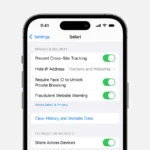
Consider clearing your browser cache regularly. In Chrome, go to Settings > Privacy and Security > Clear browsing data. For Safari on iPhone, go to Settings > Safari > Clear History and Website Data.
Using a quality Wi-Fi connection whenever possible helps save mobile data and often provides faster speeds than cellular connections.
How to Free Up Storage Space
Running out of storage space is a common reason phones slow down. Clearing out files and apps you don’t need can help your phone run faster and smoother.
Uninstall Unused Apps
Most people have apps they rarely use. These apps take up valuable storage space and may run in the background, slowing down your phone.
On iPhone, press and hold an app icon until it wiggles, then tap the “X” or “-” that appears. Confirm you want to delete the app.
For Android, go to Settings > Apps, select the app you want to remove, and tap “Uninstall.”
Another option is to look for apps you haven’t used in months. These are prime candidates for removal. Check your home screen and app library for forgotten games or tools you no longer need.
Some phones also offer suggestions for apps to remove. Look in your storage settings for this helpful feature.
Clear Cache and History Data
Cache files build up over time and can take up significant space. Clearing them won’t delete important data but can free up storage.
For iPhone’s Safari browser:
- Go to Settings > Safari
- Tap “Clear History and Website Data”
- Confirm your choice
For Android phones:
- Go to Settings > Storage
- Tap “Free Up Space” or “Clean”
- Follow the prompts to clear cached data
Apps also store their own cache. On Android, you can clear individual app caches by going to Settings > Apps > (select app) > Storage > Clear Cache.
Social media and streaming apps often collect the most cache data. Clearing these regularly can free up substantial space.
Manage iPhone Storage
iPhones have built-in tools to help manage storage space effectively.
Go to Settings > General > iPhone Storage to see what’s using up space. Your iPhone will show recommendations at the top of this screen.
Try these iPhone-specific options:
- Offload Unused Apps: This removes the app but keeps its data, so you can reinstall without losing information
- Review Large Attachments: Find and delete big files in Messages
- Auto Delete Old Messages: Set messages to delete after a year instead of keeping them forever
- Store Photos in iCloud: Keep only optimized versions on your device
You should aim to maintain at least 1GB of free space for optimal performance. When your iPhone has very little free space, it can’t perform background tasks efficiently.
Improving Phone Performance
If your phone feels sluggish, there are several ways to boost its speed and efficiency. Simple changes to your settings and maintenance habits can make a big difference in how your device runs day to day.
Update Installed Apps
Keeping your apps updated is crucial for optimal phone performance. Outdated apps can slow down your device and cause unexpected crashes.
To update apps on Android:
- Open Google Play Store
- Tap your profile icon
- Select “Manage apps & device”
- Tap “Update all” or update apps individually
For iPhone users:
- Open App Store
- Tap your profile picture
- Scroll down to see pending updates
- Tap “Update All” or update specific apps
App developers regularly fix bugs and improve speed issues through updates. Consider also removing apps you rarely use, as they take up valuable storage space and may run background processes.
Adjust Animation Speeds
Your phone uses animations when opening apps and navigating menus. These look nice but can make your device feel slower.
To adjust animation speeds on Android:
- Enable Developer Options by tapping Build number 7 times in Settings > About phone
- Go to Developer Options in Settings
- Find “Window animation scale,” “Transition animation scale,” and “Animator duration scale”
- Change these values to 0.5x for faster animations
iPhone users can reduce motion:
- Go to Settings > Accessibility > Motion
- Toggle on “Reduce Motion”
This simple change can make your Android phone feel much faster. Many users notice immediate improvement after adjusting these settings.
Battery Life Optimization
Poor battery health often leads to slower phone performance. Devices may throttle processing power to preserve battery life.
Tips to optimize battery performance:
- Check battery health (Settings > Battery > Battery Health on iPhone)
- Use power-saving modes when needed
- Avoid extreme temperatures that can slow your device
- Close unused apps running in background
- Reduce screen brightness
- Turn off unnecessary features (Bluetooth, Wi-Fi) when not in use
For Android users, check which apps consume the most battery in Settings > Battery. For iPhones, go to Settings > Battery to see usage statistics. Consider replacing your battery if it’s below 80% capacity, as this can significantly impact performance.
Troubleshooting Persistent Slowness
When basic fixes don’t work, you might need stronger measures to fix a slow phone. These approaches can help with stubborn speed issues and system freezing.
Factory Reset for Severe Issues
If your phone continues to freeze or run slowly despite trying other solutions, a factory reset might be necessary. This option erases everything and returns your phone to its original state.
Before resetting, back up all your important data. Photos, contacts, and files should be saved to cloud storage or your computer.
For Android devices:
- Go to Settings > System > Reset options
- Select “Factory data reset”
- Follow the prompts to complete the process
For iPhones:
- Go to Settings > General > Reset
- Choose “Erase All Content and Settings”
- Enter your passcode and confirm
After resetting, set up your phone carefully. Only install apps you truly need to prevent the same issues from happening again.
Seek Professional Support
Sometimes phone problems go beyond what you can fix yourself. Hardware issues, battery problems, or deep system bugs might need expert help.
For iPhones, make an appointment at an Apple Store Genius Bar. They can run diagnostics to find hidden problems causing your phone to freeze or slow down.
Android users should contact their phone manufacturer or carrier. Samsung, Google, and other brands have service centers that can check your device.
Many stores offer free checkups. They’ll tell you if your phone needs repair or if it’s simply getting too old to run well. Sometimes a battery replacement can solve what seems like a speed problem.
Maintaining Your Device’s Speed Over Time
Keeping your phone fast doesn’t just happen once – it needs regular attention. Both iPhones and Android devices slow down over time without proper care.
Clear your apps regularly to keep things running smoothly. Closing open apps can prevent your phone from working too hard in the background.
Free space matters a lot. Apple recommends maintaining at least 1GB of free storage on iPhones and iPads for best performance. When storage gets tight, phones slow down considerably.
Simple maintenance habits:
- Restart your device weekly
- Delete unused apps and photos monthly
- Update your operating system when available
- Clear cache files regularly
Photos and videos take up significant space. Back them up to cloud services and remove them from your device to free up room.
Removing apps you don’t need helps Android smartphones run better. Each app uses storage and may run processes in the background even when you’re not using it.
Battery health affects speed too. As batteries age, phones often slow down to preserve power. Consider a battery replacement for older devices.
For Android users specifically, try checking developer options. Some Android phones benefit from adjustments in these advanced settings, though this requires some technical comfort.
Update apps regularly but selectively. While updates fix bugs, they can sometimes add features that slow down older devices.
Frequently Asked Questions
Smartphone performance issues often have simple solutions. These common questions address the most frequent problems users face with slow devices and provide practical fixes anyone can try.
What causes a smartphone to slow down over time?
Phones slow down due to several factors. The most common reason is limited storage space. When your phone fills up, it struggles to run smoothly.
Too many apps running in the background take up RAM and slow processing speeds. This happens when users forget to close apps after using them.
System updates can also affect older phones. Newer software may demand more resources than older hardware can provide.
What are effective ways to enhance the performance of a slow iPhone?
Closing unused apps is one of the easiest ways to speed up an iPhone. Double-click the home button or swipe up from the bottom of the screen to view open apps, then swipe them away.
Restarting your iPhone regularly clears temporary files and refreshes system resources. Apple recommends doing this at least once a week.
Removing photos, videos, and apps you no longer need frees up valuable storage space. Check your storage in Settings to see what’s taking up the most room.
How can I troubleshoot a laggy Android phone?
Start by removing unnecessary apps that you don’t use anymore. These take up storage and may run processes in the background.
Clear app caches by going to Settings > Apps > (select app) > Storage > Clear Cache. This removes temporary files without deleting important data.
Check for system updates. Sometimes, manufacturers release updates specifically designed to improve performance issues on Android devices.
What steps can I take to prevent my phone from becoming sluggish?
Restart your phone regularly, at least once a week. This simple habit keeps resources fresh and prevents slowdown before it starts.
Avoid filling your phone to capacity. Try to keep at least 10-15% of your storage space free at all times for optimal performance.
Install only the apps you truly need and use. Each app takes up space and may run background processes even when you’re not using it.
How does clearing cache improve phone speed and responsiveness?
Cache files are temporary data stored to help apps run faster. Over time, these files can build up and become outdated or corrupted.
Clearing cache removes these unnecessary files without deleting your important data. This frees up storage space and helps apps run more efficiently.
The process is especially helpful for frequently used apps like browsers and social media, which store large amounts of temporary data.
What are the best practices for maintaining optimal smartphone speed?
Keep your operating system and apps updated. Updates often include performance improvements and bug fixes that help your phone run better.
Manage your photos and videos by backing them up to cloud services and then removing them from your device. These media files take up significant space.
Use built-in device maintenance tools. Both iPhone and Android offer tools that optimize performance, manage storage, and close unused apps automatically.