
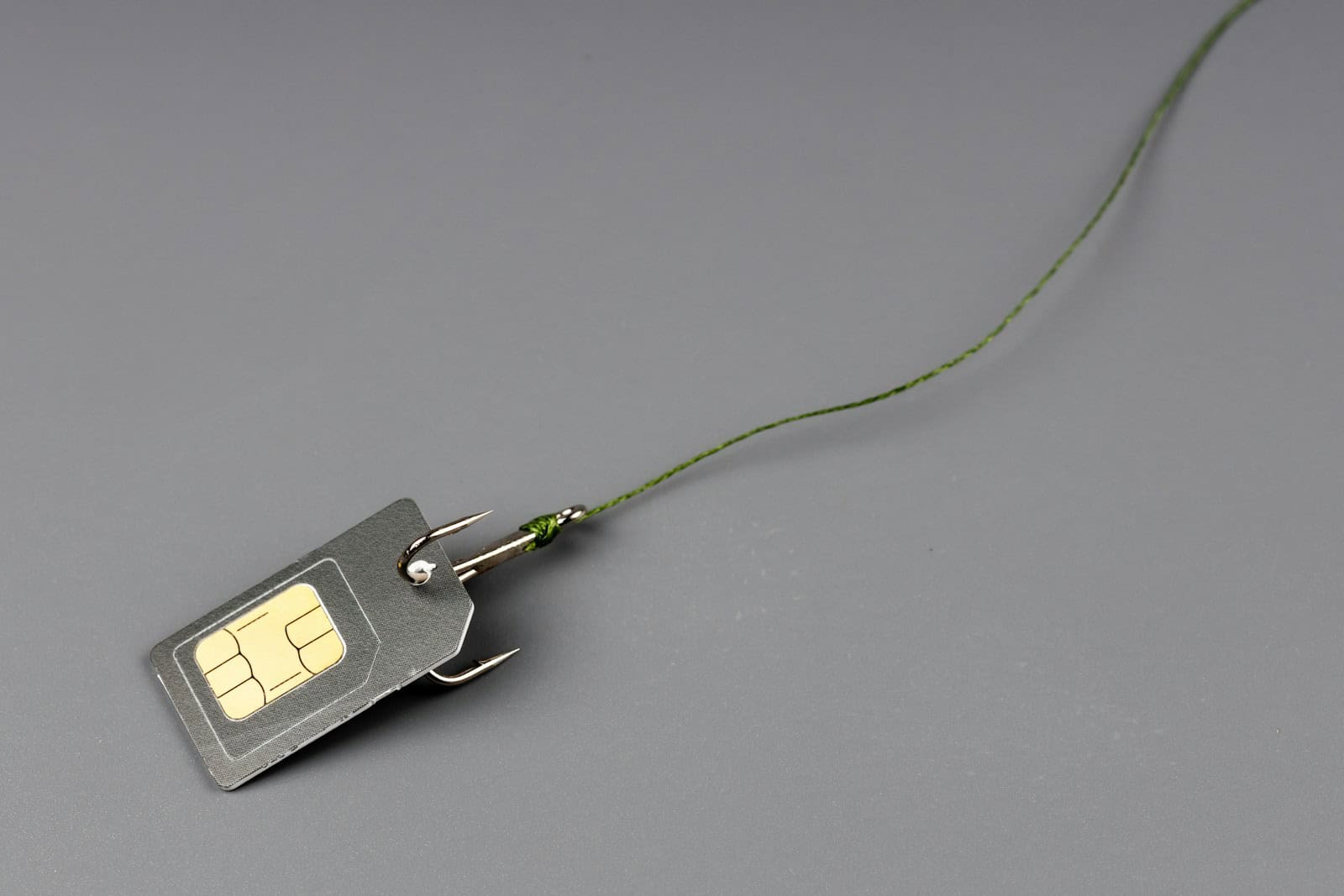
When your iPhone shows a “SIM Not Supported” message, it can be frustrating. This usually means your SIM card isn’t working with your device or carrier. Most often, this happens because your iPhone is locked to a specific carrier.
Other reasons could include issues with your network settings or a damaged SIM card. Restarting your iPhone, resetting network settings, or contacting your carrier can help solve these problems. In some cases, a visit to an Apple store might be necessary.
Dealing with a “SIM Not Supported” error can be annoying, but there are clear steps to fix it. Understanding why this happens and knowing how to address it can save time and effort. Follow the steps below to quickly solve this issue and get your iPhone working again.
SIM is not Supported
The “Your SIM is not supported” error usually appears when a phone is locked to a specific carrier or when the SIM card is incompatible. To fix this, first confirm that your device is unlocked. If it’s locked, contact your original carrier to request an unlock code. Next, ensure your SIM card is active and properly inserted. Restart your phone and check for any available software updates, as outdated firmware can sometimes cause recognition issues. If the problem persists, try using a different SIM card to rule out hardware failure. In some cases, resetting network settings can also resolve the issue.
Key Takeaways
- The “SIM Not Supported” message often means your iPhone is locked to a carrier.
- Resetting network settings or checking the SIM card can help.
- Contacting your carrier or visiting an Apple store might be necessary in some cases.
Understanding the ‘SIM Not Supported’ Message
The ‘SIM Not Supported’ message can confuse users trying to activate their device. It is caused by different factors and can involve various types of SIM cards.
Potential Causes of the Alert
There are several reasons you might see a ‘SIM Not Supported’ message on your iPhone. A common cause is a carrier lock. This means the phone is tied to a specific network provider, preventing the use of a SIM card from another company. Carrier locks are common, especially if you bought your phone through a carrier at a discounted rate.
Another reason could be software issues. Sometimes, an outdated iOS version might not support your SIM card. Updating to the latest iOS version can often fix this.
Physical damage to the SIM card or the SIM card tray can also cause this issue. Inspecting the SIM card for scratches or the tray for damage is crucial.
Lastly, some phones can have network provider locks or SIM restrictions set by the original network provider. In these cases, contacting the provider for unlocking instructions could resolve the problem.
Types of SIM Used in Devices
There are various types of SIM cards used in devices like iPhones and iPads. Physical SIM cards are inserted into the SIM card tray. These are the traditional type you most likely recognize.
eSIMs are embedded SIMs. They are digital and do not require physical swapping. Newer iPhone models like the iPhone 14 series support eSIMs.
Some devices also support Dual SIM functionality. This allows the use of both a physical SIM and an eSIM simultaneously. Accessing Dual SIM settings can be useful for using different phone numbers or data plans.
Understanding these different SIM types and potential issues can help troubleshoot and fix the ‘SIM Not Supported’ message.
Resolving the Issue
When your iPhone says “SIM not supported,” it can often be fixed with a few steps. Below are immediate actions to take and more advanced solutions if the problem persists.
Immediate Steps to Try
First, restart your device. Hold the power button, slide to power off, wait a few seconds, then turn it on again. Restarting can fix temporary glitches.
Next, try a different SIM card. Borrow one from a friend or use an extra. If the new SIM works, the problem might be with your original SIM or carrier.
Check for iOS updates. Go to Settings > General > Software Update. Installing updates can solve compatibility issues.
Activate Airplane Mode and then disable it after a few seconds. This refreshes your connection to the network.
Advanced Troubleshooting and Support
If immediate steps don’t work, you might need more advanced methods.
First, reset network settings. Go to Settings > General > Transfer or Reset iPhone > Reset > Reset Network Settings. Enter your passcode if prompted. This action wipes saved Wi-Fi passwords but can resolve deeper network issues.
Check if your iPhone is locked to a carrier. Go to Settings > General > About and look for “No SIM Restrictions.” If your phone is locked, contact your carrier to unlock it.
Try restoring your iPhone using iTunes. Connect your iPhone to a computer, open iTunes, and select Restore iPhone. This process reinstalls iOS and may remove hidden software bugs. Back up your data before this step.
Contact Apple Support if the issue persists. They might offer additional remote support or suggest visiting an Apple Store. If your phone needs to be unlocked, your carrier could also assist in resolving the problem.
Use an ejector tool to ensure the SIM tray closes completely and the SIM is seated properly.





