
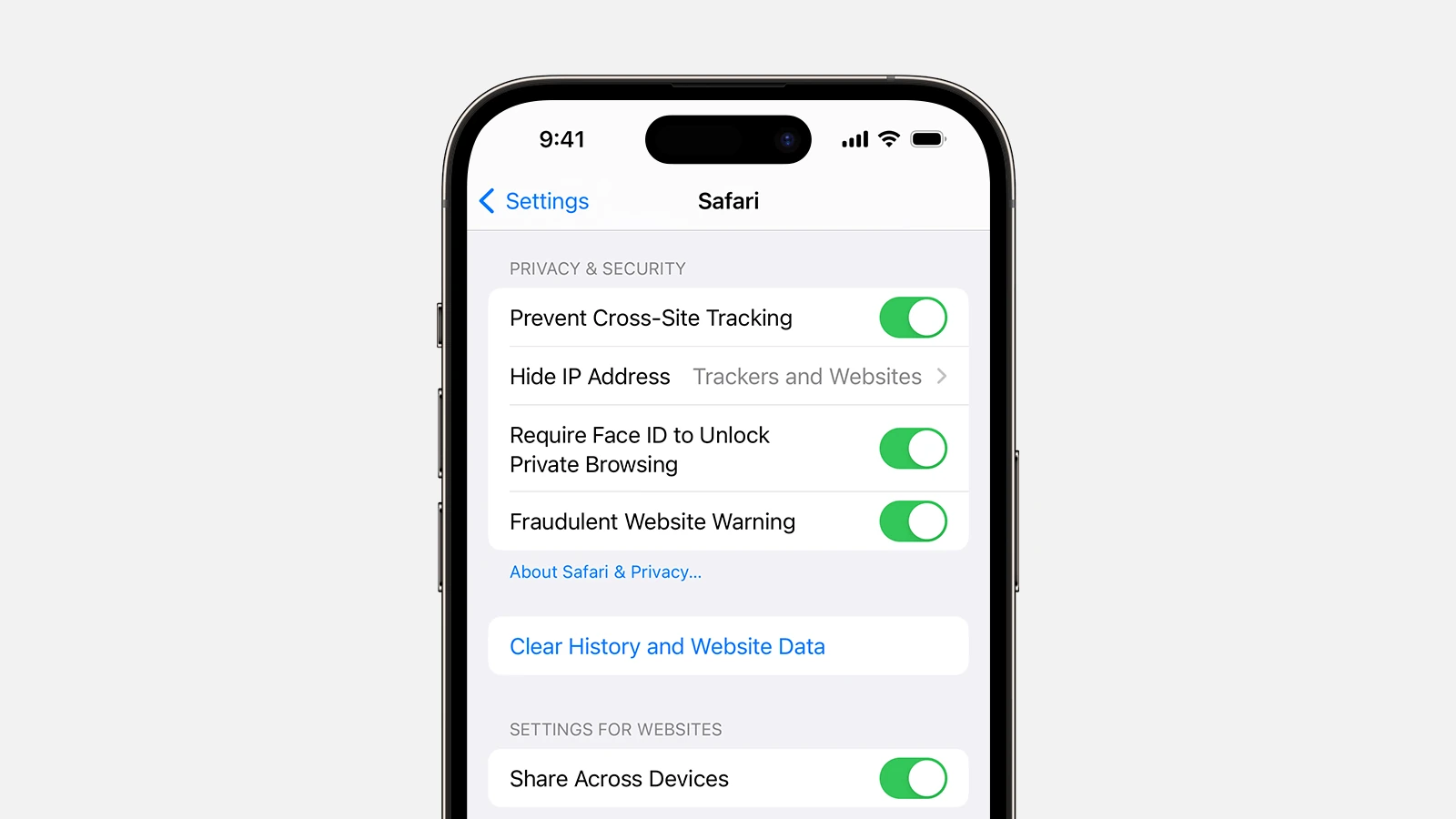
Safari doesn’t need to be the default browser on iPhone anymore. Apple’s iOS 18.2 brings a simplified way to switch default browsers through a dedicated menu in Settings. Users can now change their default browser by going to Settings > Apps > Default Apps and selecting their preferred web browser.
Opening links from emails, messages, and other apps becomes more convenient when using a preferred browser. The new iOS update supports popular alternatives like Chrome, Firefox, and Edge, giving users the freedom to choose their browsing experience.
How To Change Your Default Browser on iPhone
- Install the browser you want to use (Chrome, Firefox, Edge, etc.) from the App Store.
- Open the Settings app.
- Scroll down and tap the browser app you want to set as default (e.g., Chrome).
- Tap Default Browser App.
- Select your preferred browser from the list.
✅ Your selected browser is now the default.
Any links you tap (in Mail, Messages, etc.) will open in that browser.
If You Don’t See the Option:
- Make sure your iPhone is updated to iOS 14 or later.
- Ensure the browser app is installed and updated.
Key Takeaways
- iOS 18.2 introduces a streamlined process to change default browsers
- The new Default Apps menu in Settings makes browser switching simple
- Multiple browser options are available including Chrome, Firefox, and Edge
Changing Your Default Browser on iPhone
Apple now allows iPhone users to select their preferred web browser instead of being limited to Safari. This flexibility lets users customize their browsing experience and sync data across devices.
Understanding Default Apps on iOS
iOS 14 introduced the ability to change default apps on iPhone, marking a significant shift from Apple’s previous approach. This change gives users more control over their device’s core functions, including web browsing.
Default browsers handle all web links automatically. When users tap a link in an email or message, the iPhone opens it in the selected default browser.
iOS 18 expands these options further, especially for users in the European Union who receive a choice screen during setup to pick their preferred browser.
Step-by-Step Guide to Changing Your Browser
- Open the Settings app on iPhone
- Scroll down and find the browser app (Chrome, Firefox, etc.)
- Tap the browser name
- Select “Default Browser App”
- Choose the preferred browser
The change takes effect immediately. All web links will now open in the newly selected browser.
Users must first download their preferred browser from the App Store before setting it as default.
Choosing the Right Browser for Your iPhone
Popular browser options for iPhone include:
- Chrome: Best for Google service integration
- Firefox: Strong privacy features
- Safari: Deep iOS integration
- DuckDuckGo: Enhanced privacy protection
- Edge: Microsoft ecosystem compatibility
- Brave: Built-in ad blocking
Browser selection factors to consider:
- Speed and performance
- Cross-device syncing
- Privacy features
- Battery efficiency
- Integration with existing services
Safari offers the deepest iOS integration but lacks cross-platform flexibility. Chrome provides seamless sync with Android and Windows devices.
Frequently Asked Questions
iPhone users have multiple options for setting default browsers, with controls found in the iOS Settings app for changing web browsing preferences.
How can I set a different browser as the default on my iPhone?
Users need to open Settings and scroll to find their preferred browser app. After selecting the browser, tap Default Browser App to make the switch.
The browser must be installed from the App Store before it can be set as the default.
What are the steps to change the default browser on an iOS device?
Go to Settings on the iPhone. Scroll down and locate the preferred browser app.
Tap on the browser name, then select Default Browser App. Choose the desired browser from the list.
Is it possible to switch the default web browser from Safari to Chrome on an iPhone?
Yes, iPhone users can switch from Safari to Chrome. Install Chrome from the App Store first.
Go to Settings, scroll to Chrome, and tap Default Browser App. Select Chrome as the default option.
How do I change the default search engine in Safari on my iPhone?
Open Settings and tap Safari. Select Search Engine from the options.
Pick from Google, Bing, Yahoo, or DuckDuckGo as the default search provider.
Can I make a non-Apple browser my default on the iPhone, and if so, how?
Yes, third-party browsers can become the default. Download the preferred browser from the App Store.
Access Settings, find the browser app, and tap Default Browser App to set it as default.
What changes do I need to make in Settings to use a browser other than Safari by default on my iPad?
The process matches iPhone settings. Open Settings on the iPad and locate the browser app.
Tap the browser name, select Default Browser App, and choose the preferred browser.
The change takes effect immediately across all apps that open web links.





