
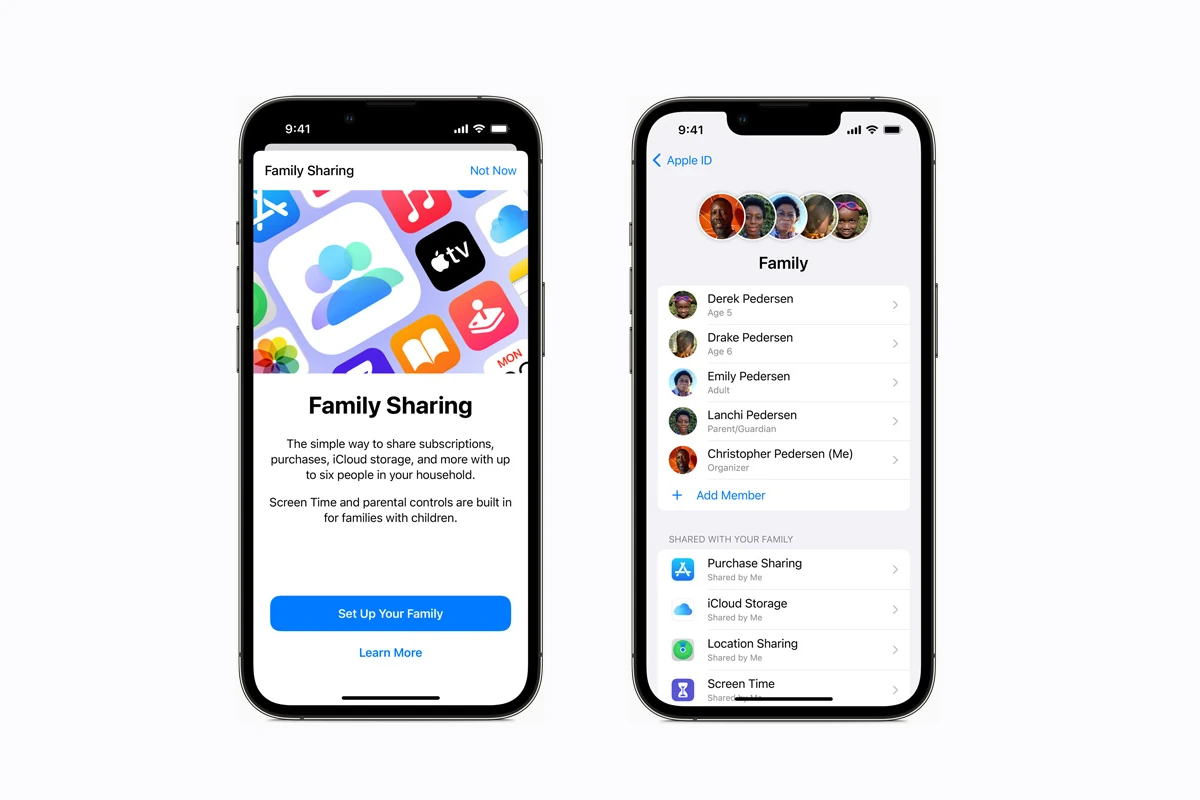
Sharing apps, subscriptions, and digital content with your family doesn’t have to be complicated. Apple Family Sharing lets up to six family members share purchases, subscriptions, and services without sharing accounts. With Family Sharing, your family can share Apple subscriptions like Apple Music, Apple TV+, and iCloud+ at no extra cost, making it an easy way to save money while enjoying Apple services together.
Setting up Family Sharing takes just a few minutes and creates a private group for your family members to share content. Once it’s set up, everyone gets access to each other’s purchased apps, books, and movies, while keeping their personal accounts separate. This means kids can download that game mom bought, or parents can watch a movie their teen purchased, all without sharing passwords.
Apple Family Sharing Guide
Apple Family Sharing makes it easy for up to six family members to share subscriptions, purchases, storage, and more — without sharing Apple IDs. It’s designed to keep everyone connected while maintaining individual privacy.
According to Apple, Family Sharing lets families share access to services like Apple Music, Apple TV+, iCloud+, Apple Arcade, Apple Fitness+, Apple News+, and even Apple Card — all at no extra cost beyond the subscription itself (source: Apple).
This guide covers how it works, how to set it up, and how to manage it effectively.
What Is Apple Family Sharing?
Family Sharing allows one person (the Organizer) to create a family group and invite up to five additional members. Once joined, the group can share:
- App Store and iTunes purchases
- Apple subscriptions
- iCloud+ storage plans
- Shared photo albums
- Family calendar
- Location sharing
- Screen Time controls for kids
- Apple Cash / Apple Card (where available)
It’s managed from one central account, but each member keeps their own Apple ID and personal data.
Apple explains that purchases, subscriptions, and storage can be shared while keeping individual accounts private (source: Apple Support).
Who Can Join?
- Up to 6 total members
- Adults and children
- Kids under 13 (age varies by region) can have a managed Apple ID created by a parent
- Each member must use their own Apple ID
Family Sharing works across:
- iPhone
- iPad
- Mac
- Apple Watch
- Apple TV
How to Set Up Apple Family Sharing
On iPhone or iPad:
- Open Settings
- Tap your Apple ID name
- Select Family Sharing
- Tap Set Up Your Family
- Follow prompts to invite members
You can invite family members via:
- iMessage
- In-person (if nearby)
Apple provides step-by-step setup instructions on their support site (source: Apple Support).
What Can You Share?
Here’s a breakdown of what’s included:
| Feature | What It Does | Notes |
|---|---|---|
| App Store Purchases | Share eligible apps and media | Some apps may not support sharing |
| Apple Music | Family plan supports up to 6 users | Requires family subscription |
| Apple TV+ | Share one subscription | Included with Family Sharing |
| iCloud+ | Share storage plan (e.g., 200GB, 2TB) | Storage is shared but files remain private |
| Apple Arcade | Share access to games | No additional fee |
| Apple Fitness+ | Share workouts | Requires subscription |
| Screen Time | Manage kids’ device usage | Only for child accounts |
| Location Sharing | See family members’ locations | Optional and can be disabled |
| Apple Card | Share card access | US only |
Privacy and Controls
Family Sharing does not give others access to:
- Your personal messages
- Your photos (unless shared in a shared album)
- Your browsing history
- Your private files
Each person’s account remains separate.
The Organizer controls:
- Payment method
- Purchase approvals (for children)
- Subscription sharing
- Adding/removing members
As noted in Apple Family Sharing guides, the Organizer is responsible for all shared purchases made by family members (source: How-To Geek).
Setting Up a Child Account
Parents can create an Apple ID for children under 13 (age may vary by country).
Benefits include:
- Ask to Buy (purchase approval required)
- Screen Time controls
- Location monitoring
- Content restrictions
To create a child account:
- Go to Family Sharing
- Tap Add Member
- Select Create an Account for a Child
- Follow verification steps
Common Issues and Fixes
| Problem | Solution |
|---|---|
| Family member can’t access shared apps | Check purchase sharing is enabled |
| Subscription not appearing | Confirm subscription supports Family Sharing |
| Child can’t download apps | Check Ask to Buy settings |
| Storage still full | Upgrade iCloud+ plan |
| Can’t join family | Make sure not already in another family group |
Things to Know Before You Start
✅ You can only belong to one Family Sharing group at a time
✅ You can switch families, but there may be restrictions
✅ The Organizer’s payment method is used for purchases
✅ Not all subscriptions automatically share
✅ Some features vary by country
Some third-party reviews note that Family Sharing works best in Apple-only households and has limited cross-platform support (source: FamiSafe).
Is Apple Family Sharing Worth It?
Family Sharing is especially valuable if:
- You pay for multiple Apple subscriptions
- You have children with Apple devices
- You want shared iCloud storage
- You want centralized purchase management
It can significantly reduce costs by eliminating duplicate subscriptions.
Final Thoughts
Apple Family Sharing is one of the most useful features in the Apple ecosystem. It simplifies subscription management, enhances parental controls, and keeps family members connected — all while preserving individual privacy.
If your household uses multiple Apple devices, setting up Family Sharing is almost always worth it.
Key Takeaways
- Family Sharing allows up to six family members to share Apple subscriptions, purchases, and iCloud storage without sharing personal accounts.
- Setting up Family Sharing takes minutes and lets you create child accounts with parental controls for younger family members.
- You can share purchases from the App Store, Apple Music, Apple TV+, and even split the cost of an iCloud+ storage plan among family members.
Understanding Apple Family Sharing
Apple Family Sharing creates a simple way for families to connect their Apple accounts and share purchases, subscriptions, and content. This feature helps families save money while making it easier to stay organized and connected across Apple devices.
What Is Family Sharing?
Family Sharing is an Apple service that lets up to six family members share access to Apple services and content. Each person uses their own Apple ID, so everyone keeps their personal accounts separate.
Setting up Family Sharing requires one adult to be the “family organizer.” This person invites family members to join the group and sets up payment methods for the family.
The service works across iPhones, iPads, Mac computers, and other Apple devices. Once set up, sharing happens automatically between family members.
Anyone 13 years or older can join a Family Sharing group. Parents can create Apple IDs for younger children and manage their access through parental controls.
Key Features of Family Sharing
Family members can share many types of content and services:
- App Store purchases – Buy an app once, and everyone can download it
- Apple subscriptions including iCloud+, Apple Music, and Apple TV+
- Location sharing to help families keep track of each other
- Family calendar for tracking appointments and events
- Shared photo albums to collect family memories in one place
- Screen Time settings for parents to monitor and limit kids’ device use
The family organizer pays for all shared purchases and subscriptions using their payment method. However, they can approve or decline purchase requests from children in the family.
Family members can hide certain purchases if they don’t want to share them with the group.
Benefits of Using Family Sharing
The biggest advantage of Family Sharing is cost savings. Families pay just once for subscriptions like Apple Music instead of buying individual plans for each person.
Setting up parental controls through Family Sharing helps keep children safe online. Parents can approve downloads and limit screen time directly from their own devices.
The shared calendar and location features make family coordination much easier. Everyone can see important events and check where family members are.
Family Sharing also helps families build a shared digital life. Photos, videos, and memories can be collected in one place that everyone can access.
For families with Apple devices, this system creates a simple way to manage digital content without sharing passwords or Apple IDs.
Setting Up Family Sharing
Family Sharing lets you share Apple purchases, subscriptions, and more with up to five family members. The setup process is straightforward but requires certain preparations and decisions about who will manage the family group.
Requirements for Setting Up Family Sharing
To use Family Sharing, each person needs:
- An Apple ID signed in to iCloud
- iOS 8 or later, macOS X Yosemite or later
- Same payment method for the Family Organizer
Each person can only be part of one family group at a time. Children under 13 can’t create their own Apple IDs, but parents can create child accounts specifically for Family Sharing.
All family members must use the same App Store country or region. This ensures everyone can access the same content. Family Sharing works across iPhone, iPad, Mac, and other Apple devices.
Creating a Family Sharing Group
Starting a Family Sharing group is simple. On iPhone or iPad:
- Open the Settings app
- Tap your name at the top
- Tap “Family” or “Family Sharing”
- Select “Set Up Your Family“
- Follow the on-screen instructions
On a Mac:
- Go to System Settings
- Click your name
- Select “Family Sharing”
- Click “Set Up Family Sharing“
During setup, you’ll choose which features to share. These may include purchases, Apple Music, iCloud storage, location, and more.
The person who creates the group becomes the Family Organizer automatically.
Adding Family Members
Once your Family Sharing group is created, you can add up to five people. To add someone:
- Go to Settings > Family
- Tap the “Add Member button” in the top-right corner
- Tap “Invite Others” and follow the prompts
You can add members by:
- Sending an invitation via Messages
- Creating child accounts for kids under 13
- Adding people in person by having them enter their Apple ID password
When someone accepts your invitation, they join your family group right away. They’ll get access to all the features you’ve set up for sharing.
Designating a Family Organizer
The Family Organizer has special responsibilities:
- Pays for all family purchases
- Invites and removes family members
- Changes sharing settings
- Controls what younger family members can access
Only the Family Organizer can turn on purchase sharing and is responsible for all charges. They also approve or decline requests from children to make purchases.
To change the Family Organizer:
- The current organizer must remove themselves
- Another adult in the group can create a new family group
- Everyone must be re-invited
The Family Organizer should be someone responsible with stable payment methods who’s comfortable managing family tech needs.
Managing Purchases and Subscriptions
Apple Family Sharing makes it easy to share purchases and subscriptions with up to five family members. The system helps families save money while maintaining control over what gets shared and who pays for what.
Shared Payment Method
When you set up Family Sharing, the family organizer’s payment method becomes available to all family members. This means any purchases made by family members will be charged to the organizer’s card.
Don’t want to share your payment method? You have options. The family organizer can turn off purchase sharing completely in the Family Sharing settings. This stops family members from using the shared payment method.
For parents with kids under 13, you can require approval for each purchase. This gives you control over spending while still sharing access to content.
If you’re getting charged for things you didn’t buy, check who made the purchase in your purchase history. Family members’ names appear next to their purchases.
Sharing Purchases among Family Members
Family Sharing lets everyone enjoy apps, music, movies, TV shows, and books bought by other family members. This works across iPhones, iPads, and Macs.
Not all purchases can be shared. Some apps don’t support family sharing – this depends on the developer’s settings. You’ll see a “This app can be shared with family” note in the App Store if sharing is allowed.
To access shared content:
- Apps: Go to App Store > Account > Purchased > Family Member’s Name
- Music/Movies: Open the respective app and look under the Library or Purchased sections
- Books: Open Books app > Library > Family Purchases
Sharing doesn’t merge accounts. Each person keeps their own Apple ID and personal data private.
Managing Subscriptions within the Family
With Family Sharing, eligible subscriptions are shared at no extra cost. This includes Apple services like:
- Apple Music Family Plan
- Apple TV+
- Apple Arcade
- iCloud+ storage plans
- Apple News+
- Apple Fitness+
To manage subscriptions:
- Go to Settings > Your Name > Subscriptions
- Review active and expired subscriptions
- Tap any subscription to change or cancel it
Only the person who set up the subscription can manage it. If a family member started a subscription, they need to handle any changes.
Some third-party app subscriptions also support family sharing, but this varies by app.
Handling In-App Purchases
In-app purchases work differently than regular app purchases. These are things bought within an app, like game currency or premium features.
Unlike apps themselves, in-app purchases typically don’t transfer to family members. Each person usually needs to make their own in-app purchases.
For parents, you can set up Ask to Buy for children under 18. This sends you a notification when they try to make any purchase, including in-app items.
To check in-app purchase history:
- Go to Settings > Your Name > Media & Purchases
- Tap “View Account” > “Purchase History”
- Look for purchases labeled as “In-App Purchase”
For shared family iOS devices, consider setting up separate user profiles to keep in-app purchases separate.
iCloud Features within Family Sharing
Family Sharing makes it easy to share iCloud storage and services with up to six family members. This feature helps families stay connected and save money by pooling resources together.
Shared iCloud Storage Plan
With Family Sharing, one family member can purchase an iCloud+ storage plan and share it with everyone in the family. This means all members use the same storage pool rather than purchasing individual plans.
Storage plans start at 50GB and go up to 2TB, giving families plenty of space for photos, videos, documents, and backups. Each person’s files remain private despite sharing the storage space.
Family members don’t see each other’s personal content unless specifically shared. Your photos, messages, and files stay private to your account only.
The storage usage is visible to the family organizer, who can see how much space each person is using. This helps manage storage when space starts running low.
Family iCloud Services and How They Work
Beyond just storage, Family Sharing gives access to several valuable iCloud services. iCloud Private Relay, available with iCloud+, helps protect family members’ privacy when browsing the web.
Hide My Email is another shared feature that lets everyone create unique, random email addresses when signing up for services online. This helps reduce spam and protect privacy.
Families also get HomeKit Secure Video support, allowing everyone to view footage from compatible security cameras.
A shared family calendar helps everyone stay organized. Family members can add events that show up on everyone’s devices.
Photo sharing becomes easier too. Create shared albums that everyone in the family can view and add to. This works great for vacations and family events.
Using Family Sharing on Different Devices
Apple Family Sharing works across various Apple devices, making it easy to share content with up to six family members. The setup process varies slightly depending on which device you use, but the core benefits remain the same across the Apple ecosystem.
Family Sharing on iPhone and iPad
Setting up Family Sharing on iPhone or iPad is straightforward. Start by opening the Settings app and tapping your name at the top. Then tap Family Sharing and follow the on-screen instructions to set up your family group.
Once set up, you can add family members by tapping “Add Member” and entering their Apple ID email. Each member can access shared subscriptions like Apple Music, Apple TV+, and iCloud+ without extra costs.
Children in the family can request app purchases that parents can approve remotely. This feature helps parents monitor what their kids download.
To manage purchases, go to Settings > [your name] > Family Sharing > Purchases. Here you’ll see content bought by all family members that’s available to share.
Remember that a child can use Family Sharing on up to 10 devices with their Apple ID, making it flexible for families with multiple devices.
Setting Up Family Sharing on Mac
On a Mac, Family Sharing setup begins in System Preferences (or System Settings in newer macOS versions). Click on your Apple ID, then select “Family Sharing” from the sidebar.
Click “Set Up Family” and follow the prompts. You’ll need to sign in with your Apple ID and confirm you’re the family organizer.
To add members, click the “+” button and enter their Apple ID. Mac users can share:
- App Store purchases
- iCloud storage plans
- Apple Music subscriptions
- Apple TV+ content
- Photos and calendars
The family organizer can create a shared folder in Photos that automatically updates for all members. This makes sharing vacation pictures or special events simple.
For calendar sharing, a Family calendar appears in the Calendar app once Family Sharing is active. All members can add and edit events, making it easy to coordinate family activities.
Accessing Shared Content on Apple TV
On Apple TV devices, family members can enjoy shared content purchased by anyone in the family group. Users simply need to sign in with their own Apple ID that’s part of the Family Sharing group.
To switch between family members on Apple TV, go to Settings > Users and Accounts. Select the family member’s account to access their purchased content.
Shared subscriptions like Apple TV+ and Apple Music work automatically once signed in. All family members can watch shows, movies, and listen to music without needing separate subscriptions.
For movie night, family members can browse all purchased films in the “Library” section of the Apple TV app. Content is organized by family member, making it easy to find what you’re looking for.
Parents can set up screen time limits and content restrictions for children on Apple TV through Family Sharing settings, ensuring appropriate viewing for all ages.
Parental Controls and Child Accounts
Apple Family Sharing includes powerful tools for parents to create safe digital environments for their children. These features help parents set boundaries while giving kids appropriate access to apps and content.
Setting Up a Child Account with Parental Consent
Parents can create an Apple ID for their child through Family Sharing. This process is straightforward:
- Go to Settings on your iPhone or iPad
- Tap your name, then tap Family Sharing
- Tap Add Member
- Select “Create an Account for a Child” and tap Continue
- Follow the on-screen instructions
For iOS 10.2 or earlier, the path is slightly different. Users need to go to Settings > iCloud instead of starting with their name.
The system walks parents through each step. Children under 13 cannot create their own Apple IDs without parent approval. Once set up, the child account becomes part of the family group with limited permissions.
Managing Screen Time and Restrictions
Screen Time lets parents set limits on how children use their devices. Parents can:
- Set daily time limits for app categories
- Create “Downtime” periods when only allowed apps work
- Block certain apps or content types
To manage these settings, parents need to open Settings, tap Screen Time, and select their child’s name under the Family section. From there, they can tap “Content & Privacy Restrictions” to control what content their child can access.
Parents can block inappropriate websites, limit purchases, and restrict gaming features. They can also set age-appropriate content ratings for music, movies, and apps. These tools give parents fine control while teaching children healthy digital habits.
Troubleshooting Common Issues
Family Sharing can sometimes run into problems that prevent smooth functioning between family members. These issues typically involve payment methods, iCloud sharing, and device authorization errors that can be fixed with the right steps.
Resolving Payment Method Problems
Payment method issues are common in Family Sharing groups. If family purchases aren’t working, first check that your payment method is valid and up-to-date. Expired credit cards or insufficient funds often cause declined purchases.
To update your payment method:
- Go to Settings
- Tap your Apple ID
- Select Payment & Shipping
- Update your card information
Sometimes family members can’t make purchases because the organizer hasn’t set up Ask to Buy for younger members. To fix this:
- Open Settings
- Tap Family
- Select the family member
- Toggle on “Ask to Buy”
If a child still can’t make purchases, try removing them from the Family Sharing group and adding them again. This often resets any glitches in the system.
Addressing iCloud Sharing Concerns
iCloud sharing problems usually happen when storage limits are reached or settings aren’t properly configured. When family members can’t access shared content, first check your available storage space.
To view your storage:
- Go to Settings
- Tap your Apple ID
- Select iCloud
- View storage usage
If your Family Sharing isn’t working properly for services like Apple Music, try signing out of your Apple ID on all devices and signing back in. This refreshes your connection to Apple’s servers.
For persistent Apple Music Family Sharing issues, restarting your phone can fix minor software glitches. Make sure all family members have the latest iOS version installed for best compatibility.
Fixing Device Authorization Errors
Device authorization errors often prevent family members from using shared services or content. These typically happen when a device isn’t properly linked to the Family Sharing account.
To fix authorization problems:
- Make sure each device is signed in with the correct Apple ID
- Verify that all family members appear in your Family Sharing settings
- Check that each person has accepted their invitation
Some family members might hit the device limit for certain services. Apple allows a maximum of 10 devices per Apple ID, with only 5 computers authorized for media playback.
If you see error messages about authorization, check your Family Sharing settings to ensure everyone is properly connected. Sometimes you need to:
- Remove the family member
- Wait 24 hours
- Add them back to reset permissions
Many common Apple Family Sharing problems can be fixed by making sure all devices are updated to the latest operating system version.
Best Practices for Family Sharing
Family Sharing lets up to six family members share apps, subscriptions, and more without sharing accounts. Setting it up right makes all the difference.
First, choose your Family Organizer wisely. This person manages the group and handles payments. Pick someone who is tech-savvy and responsible with money.
Create strong privacy rules. Not everything needs to be shared! Each member can hide purchases or choose what gets shared with the group.
Subscription Management Tips:
- Review shared subscriptions monthly
- Remove unused services
- Take advantage of family plans for Apple Music and Apple TV+
Set up iCloud+ sharing for your family. Everyone gets their own storage space while sharing the same subscription plan.
Turn on Ask to Buy for children under 18. This lets parents approve purchases before money is spent. It’s a simple way to teach kids about spending.
Check your payment methods often. Make sure the card on file hasn’t expired, especially before renewal dates.
Use Screen Time features to help manage how family members use devices. This works best when everyone agrees on the rules.
Talk about digital habits as a family. Set clear expectations about app purchases before problems happen.
Back up important family data regularly. Each person should know how to save their photos, messages, and important files.
Keep everyone’s devices updated. Security fixes protect all family members who share services and information.
Frequently Asked Questions
Apple Family Sharing helps up to six family members share Apple services and content. Here are answers to common questions about setup, costs, and features to help you get the most from this service.
How is Apple Family Sharing set up?
Setting up Family Sharing is simple. On an iPhone or iPad, go to Settings, tap your name, and select “Family Sharing” to begin. You’ll need to follow the prompts to add family members.
For Mac users with macOS Ventura or later, choose Apple menu > System Settings. Click your name, then click Family or Family Sharing to start the setup process.
When adding children to your family group, you can do this in person by selecting “Invite in Person” and having them enter their Apple ID password on your device.
What is the cost associated with Apple Family Sharing?
Family Sharing itself is free to set up and use. There are no extra costs to share access to Apple services that family members already subscribe to.
One person pays for family subscriptions like Apple Music Family, Apple TV+, and iCloud+, which are then shared with everyone in the group. This makes it more affordable than individual subscriptions for each family member.
Are individual Apple IDs required for each member in the Apple Family Sharing plan?
Yes, each family member needs their own Apple ID. This ensures everyone maintains their personal preferences and privacy.
Children under 13 can have an Apple ID created and managed by a parent. The parent can control purchases and screen time for younger family members.
Each person’s content stays separate but shareable, allowing everyone to keep their own photos, calendars, and app data private while still sharing what they choose.
What are the common issues encountered with Apple Family Sharing?
Purchase sharing problems sometimes occur when family members can’t access content bought by others. This often happens if the content wasn’t purchased using the same Apple ID that’s in the family group.
Some users experience difficulties when inviting family members to join. This can usually be fixed by ensuring all devices have the latest software updates.
Payment method issues may arise if the family organizer’s payment information is outdated or if purchase approvals aren’t working correctly for children’s accounts.
How does Apple Family Sharing integrate with Apple Music?
With Family Sharing, one Apple Music Family subscription covers up to six family members. Everyone gets their own personal music library, playlists, and recommendations.
Family members can add songs to a shared playlist that everyone can access and enjoy. This makes it easy to create collections for road trips or family gatherings.
Each person’s listening history remains private, so recommendations stay personalized to individual tastes rather than being influenced by what others listen to.
What are the limitations and restrictions of Apple Family Sharing?
Family groups are limited to six members total, including the organizer. Once this limit is reached, no additional members can join unless someone leaves the group.
Family members can only be part of one Family Sharing group at a time. Leaving one group to join another has a waiting period before joining a different family.





