
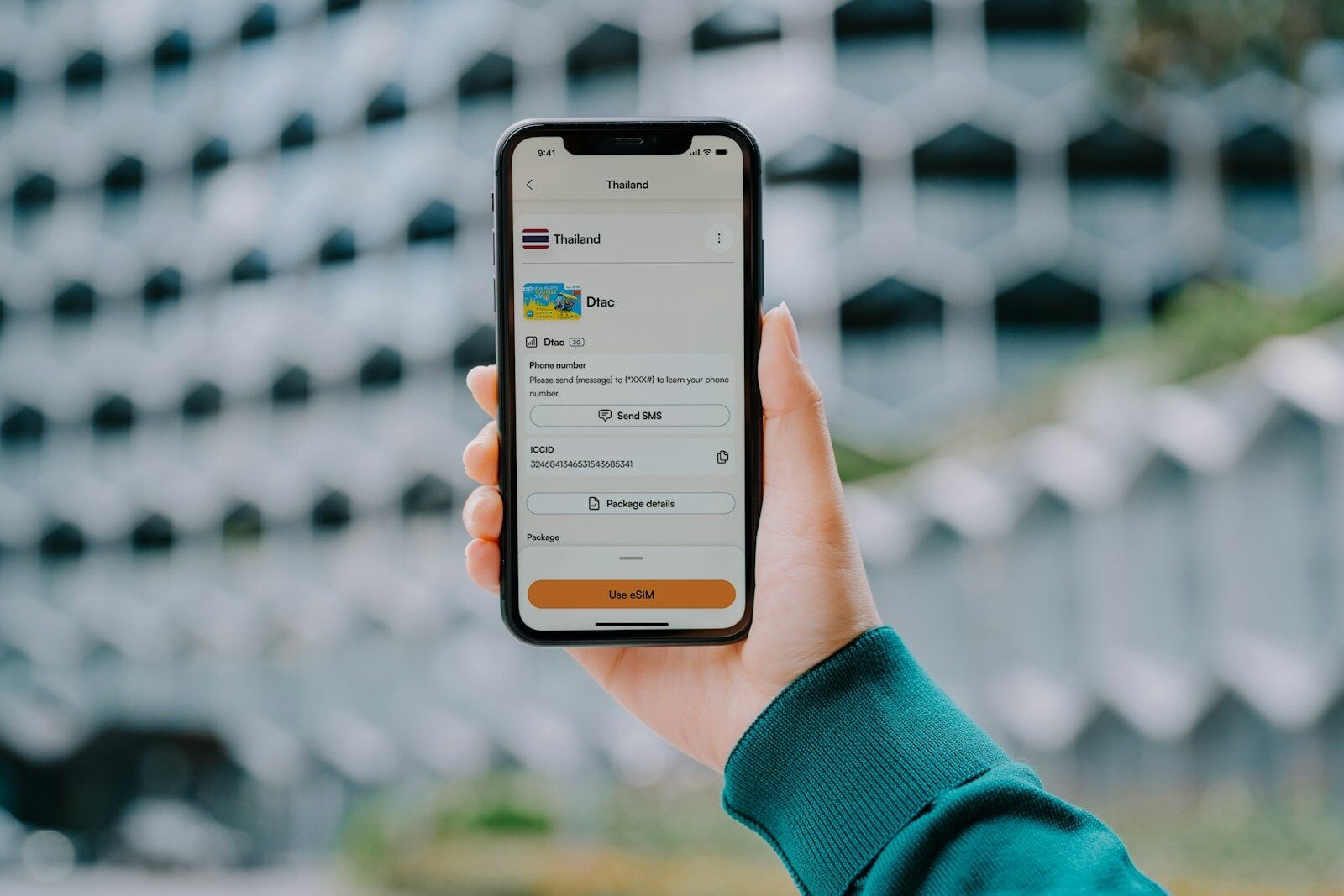
Whether you just bought your first iPhone or you’ve been using one for years, there’s always something new to learn. Apple constantly adds hidden features, shortcuts, and powerful tools that many users never discover.
Here’s a complete guide to iPhone tips and tricks, organized by skill level — from beginner basics to advanced power-user features.
📱 Beginner iPhone Tips
If you’re new to iPhone, start here.
✅ 1. Customize Control Center
Control Center gives you quick access to important settings.
How:
- Go to Settings → Control Center
- Add tools like Flashlight, Screen Recording, Calculator, or Low Power Mode
Swipe down from the top-right corner (Face ID models) to access it.
✅ 2. Use Spotlight Search
Instead of scrolling through apps:
- Swipe down on the Home Screen
- Type the app name, contact, or setting
It’s faster than manually searching.
✅ 3. Enable Find My iPhone
Protect your device in case it’s lost or stolen.
- Go to Settings → [Your Name] → Find My → Find My iPhone
- Turn it on
✅ 4. Use Back Tap Shortcuts
You can double- or triple-tap the back of your iPhone to trigger actions.
- Go to Settings → Accessibility → Touch → Back Tap
- Assign actions like Screenshot or Control Center
✅ 5. Scan Documents in Notes
No scanner needed.
- Open Notes
- Tap the camera icon
- Select Scan Documents
🔄 Intermediate iPhone Tips
Ready to level up? Try these.
✅ 6. Create Focus Modes
Customize notifications for work, sleep, or personal time.
- Go to Settings → Focus
- Create a custom Focus
- Choose which apps and contacts can notify you
✅ 7. Use Text Replacement Shortcuts
Create typing shortcuts for frequently used phrases.
- Go to Settings → General → Keyboard → Text Replacement
- Add shortcuts like:
- “addr” → Your full address
- “eml” → Your email
✅ 8. Hide Apps Without Deleting Them
Remove apps from your Home Screen but keep them installed.
- Press and hold the app
- Tap Remove App
- Select Remove from Home Screen
You can find it later in the App Library.
✅ 9. Use Live Text
Copy text directly from photos.
- Open a photo with text
- Tap and hold the text
- Copy, translate, or search it
Works for phone numbers, emails, and more.
✅ 10. Drag and Drop Between Apps
Quickly move text, images, or files.
- Press and hold an item
- Use another finger to open another app
- Drop it there
Works great with Notes, Messages, and Mail.
🚀 Advanced iPhone Tips
For power users who want full control.
✅ 11. Use Shortcuts Automation
Automate tasks based on time, location, or triggers.
- Open the Shortcuts app
- Tap Automation
- Create automations like:
- Turn on Low Power Mode at 20%
- Send text when arriving at work
- Open Spotify when connecting to car Bluetooth
✅ 12. Customize Lock Screen Widgets
Add useful widgets for quick info.
- Press and hold Lock Screen
- Tap Customize
- Add weather, battery, calendar, or third-party widgets
✅ 13. Use Hidden Trackpad Mode
Turn your keyboard into a trackpad for precise cursor control.
- Press and hold the space bar
- Move your finger to control the cursor
✅ 14. Limit App Tracking
Increase privacy by disabling tracking.
- Go to Settings → Privacy & Security → Tracking
- Turn off “Allow Apps to Request to Track”
✅ 15. Use Emergency SOS
Quickly call emergency services.
- Press and hold Side Button + Volume button
- Or enable automatic call in Settings
✅ 16. Lock Hidden or Private Apps (Newer iOS Versions)
Some iOS versions allow app locking with Face ID.
- Press and hold app
- Select Require Face ID
✅ 17. Use Safari Profiles
Separate browsing for work and personal use.
- Go to Settings → Safari → Profiles
- Create different profiles with separate cookies and tabs
Bonus: Battery-Saving Tricks
Want longer battery life?
- Turn on Low Power Mode
- Reduce screen brightness
- Disable Background App Refresh
- Turn off Always-On Display (if supported)
- Use Wi‑Fi instead of cellular when possible
Quick Summary Table
| Level | Must-Try Features |
|---|---|
| Beginner | Spotlight, Control Center, Back Tap |
| Intermediate | Focus Modes, Live Text, Drag & Drop |
| Advanced | Automations, Safari Profiles, App Locking |
Final Thoughts
The iPhone is powerful — but many of its best features are hidden beneath menus and gestures.
If you:
- Just switched from Android → Start with Spotlight and Control Center
- Have used iPhone for years → Explore Shortcuts automation
- Want more privacy → Adjust tracking and security settings
Mastering these tips can make your iPhone faster, smarter, and more personalized.





