
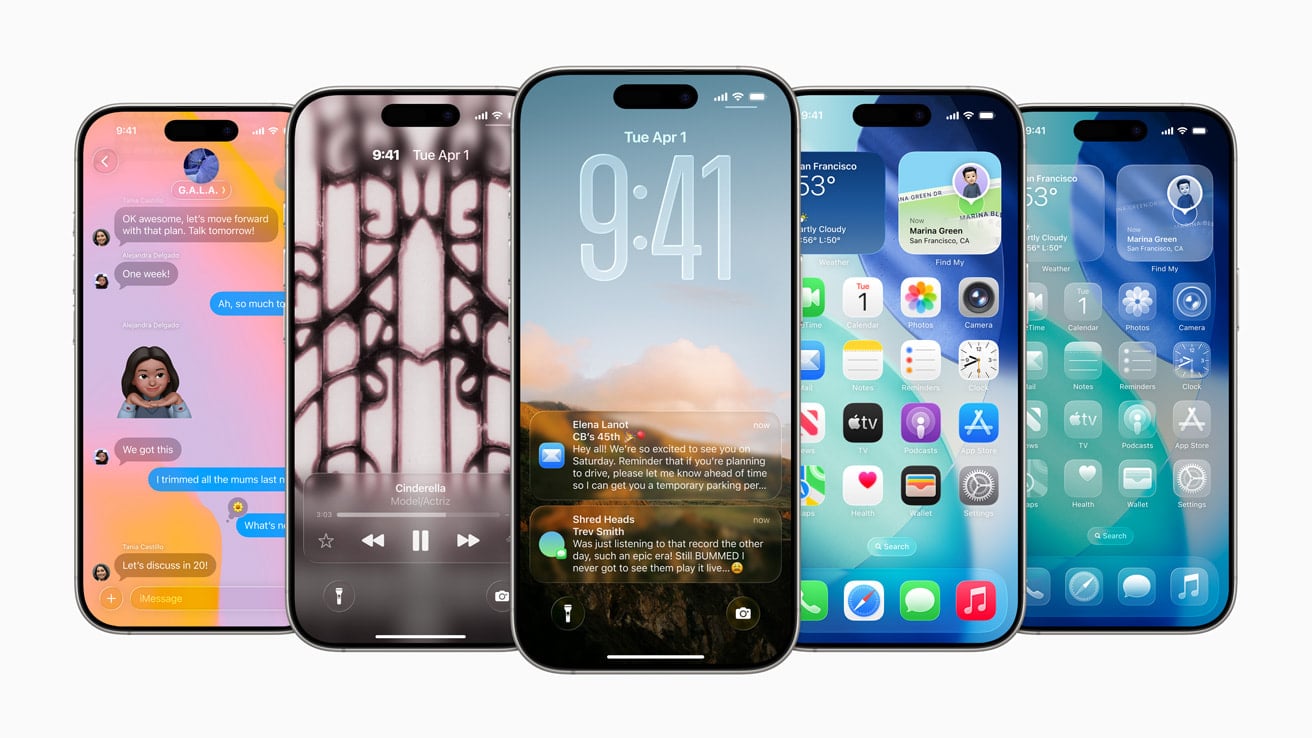
Your iPhone holds many secret features waiting to be discovered. From custom shortcuts to back tap functions, these hidden gems can make daily tasks easier and faster. Learning about these lesser-known iPhone features can save you time, boost your productivity, and help you get the most out of your device.
Many users only scratch the surface of what their iPhone can do. Did you know you can drag and drop between apps or set up flash notifications for important alerts? These tricks work on the latest iOS updates, including the new features in iOS 26 and 18. Let’s explore some amazing hidden features that will change how you use your iPhone.
Best Hidden iPhone Features You Need to Know in 2026
Your iPhone is packed with powerful features that Apple doesn’t always highlight. Many users miss out on time-saving shortcuts, privacy tools, and clever tricks hidden deep in iOS settings. Here’s your guide to the best hidden iPhone features you should be using in 2026.
iOS 26’s Latest Hidden Features
1. Visual Search Across Apps
iOS 26 introduced the ability to search for content on your iPhone screen using Google and third-party apps:
- Long-press on any image or visual content on your screen
- Select “Search” to find similar products, outfits, or information
- Works with Google and your most-used third-party apps
- Perfect for identifying cool outfits, products, or places you come across (source: Apple PDF)
2. Enhanced Performance Across All Devices
iOS 26 makes your iPhone faster and more responsive, even on older supported devices. Apple has optimized system performance to improve app launching, multitasking, and overall responsiveness (source: Apple Support).
Timeless Hidden Features Still Working in 2026
3. Back Tap Shortcuts
Turn the back of your iPhone into a secret button:
- Go to Settings > Accessibility > Touch > Back Tap
- Choose Double Tap or Triple Tap
- Assign actions like taking screenshots, opening Control Center, or launching apps
- Game-changer for one-handed use
4. Hidden Trackpad Mode
Turn your keyboard into a trackpad for precise cursor placement:
- While typing, press and hold the spacebar
- Your keyboard turns blank and you can move the cursor precisely
- No more fighting with the magnifying glass
5. Secret Photo Search
Your Photos app can search for almost anything:
- Open Photos and tap the search bar
- Type things like “beach,” “dog,” “car,” or even “sunset”
- Search by people, places, objects, or even text in photos
- iOS recognizes thousands of objects automatically
6. Scan Documents with Notes
No need for a separate scanning app:
- Open the Notes app and create a new note
- Tap the camera icon > Scan Documents
- Auto-detects edges and converts photos to crisp PDFs
- Perfect for receipts, forms, and paperwork
7. Custom Vibration Patterns
Create unique vibration patterns for different contacts:
- Go to Contacts and select someone
- Tap Edit > Ringtone > Vibration > Create New Vibration
- Tap out a custom pattern
- Now you’ll know who’s calling without looking
8. Hide Photos Completely
Beyond the Hidden album, truly lock away private photos:
- Go to Settings > Photos
- Enable Use Face ID for the Hidden and Recently Deleted albums
- Now these albums require authentication to open
- Much more secure than just hiding
9. Measure Your Height with LiDAR
If you have an iPhone 12 Pro or newer:
- Open the Measure app
- Point your camera at a person standing in front of you
- Their height appears automatically
- Works thanks to the LiDAR sensor
10. Live Text: Copy Text from Photos
- Long-press on any text in a photo or camera viewfinder
- Select, copy, translate, or call phone numbers directly
- Works in Photos, Safari, Camera, and most apps
- Incredibly useful for business cards or screenshots
11. Focus Modes with Custom Home Screens
- Go to Settings > Focus
- Create custom Focus modes (Work, Sleep, Personal, etc.)
- Each Focus can show different home screen pages and apps
- Filter notifications by Focus mode automatically
12. Volume Button Camera Shortcuts
- In the Camera app, use the volume buttons to:
- Take photos (press once)
- Take burst photos (press and hold)
- Record video (press in Video mode)
- Much easier than the on-screen button
13. Silence Unknown Callers
Stop spam calls completely:
- Go to Settings > Phone
- Enable Silence Unknown Callers
- Only contacts, recent calls, and Siri Suggestions will ring through
- Unknown numbers go straight to voicemail
14. One-Handed Keyboard
- While typing, press and hold the emoji/globe icon
- Select the left or right one-handed keyboard
- Keyboard shrinks and shifts to one side
- Perfect for texting while holding coffee
15. Hidden Privacy Report
See which apps are tracking you:
- Go to Settings > Safari > Privacy Report
- View which trackers Safari has blocked
- See which websites contacted trackers
- Eye-opening look at online tracking
16. Shake to Undo
Made a typing mistake?
- Shake your iPhone
- Tap Undo in the popup
- Works in Messages, Notes, Mail, and most text fields
17. Custom App Icons
Change how your apps look:
- Use the Shortcuts app to create custom launchers
- Add custom icons to your home screen
- Completely personalize your iPhone’s appearance
- Hundreds of icon packs available online
18. Sound Recognition
Your iPhone can alert you to important sounds:
- Go to Settings > Accessibility > Sound Recognition
- Enable notifications for fire alarms, doorbells, crying babies, sirens, and more
- Helpful for hearing impaired users or when wearing headphones
19. App Library Search Tricks
- Swipe to the App Library (last home screen page)
- Tap the search bar at the top
- All your apps appear alphabetically
- Fastest way to launch any app
20. Private Browsing Lock
- Open Safari and tap the tabs button
- Tap Private to enter Private Browsing
- Lock it with Face ID in Settings
- Now private tabs require authentication to view
Pro Tips for Power Users
Hidden Settings Menu
- Go to Settings and use the search bar at the top
- Type any setting you’re looking for
- Saves endless scrolling through menus
Battery Usage Insights
- Go to Settings > Battery
- See which apps drain your battery most
- Tap the graph to see usage by hour
- Optimize settings based on actual usage data
Developer Mode Features
- Plug your iPhone into a Mac with Xcode
- Enable Developer Mode for advanced features
- Access detailed console logs and testing tools
- Only for advanced users
Why Most Users Miss These Features
Apple designs iOS to be simple and intuitive, but that means many powerful features are buried in settings or require specific gestures to discover. According to user guides, “dozens of tricks” remain hidden, “costing you time, privacy, and peace of mind every day” (source: iOS 26 User Guide).
Keep Exploring
iOS 26 brought “a major update that brings a beautiful new design, intelligent experiences, and improvements to the apps users rely on every day” (source: Apple Newsroom). The best way to discover more hidden features is to:
- Regularly explore Settings
- Check accessibility options (many useful features live there)
- Read iOS update notes
- Follow tech blogs and YouTube channels
Your iPhone is more powerful than you think—you just need to know where to look!
Key Takeaways
- Hidden iPhone gestures and shortcuts can cut your daily phone tasks in half.
- The Control Center can be fully customized to match your personal needs and habits.
- Your iPhone camera has secret settings that can dramatically improve your photos.
Customization of Control Center
Your iPhone Control Center puts quick access to important functions at your fingertips. You can change it to fit your needs by adding tools you use often and removing ones you don’t.
Adding and Organizing Controls
To customize your Control Center, start by opening the Settings app on your iPhone. Tap “Control Center” to see all available options. Here you’ll find a list of included controls and more controls you can add.
Adding new controls is simple:
- Find the control you want in the “More Controls” section
- Tap the green plus icon to add it
- Drag controls up or down to change their order
You can add many useful controls like Screen Recording, Apple TV Remote, or Magnifier. Remove controls you don’t use by tapping the red minus icon.
The redesigned Control Center keeps classic controls like brightness and volume while letting you add new ones. This makes your iPhone more personal and efficient.
Accessing and Using Quick Shortcuts
Control Center isn’t just for toggling settings – it offers powerful shortcuts too. To open Control Center, swipe down from the top-right corner on newer iPhones or up from the bottom on older models.
Try these helpful shortcuts:
- Press and hold the brightness slider for more display options
- Long-press the timer icon for a quick timer slider without opening the Clock app
- Press and hold the camera icon for selfie or video options
Connect Control Center with the Shortcuts app for even more power. Add your favorite shortcuts to Control Center for one-tap access to complex tasks.
Many controls have hidden features when you press and hold them. For example, holding the connectivity panel opens more WiFi and Bluetooth options without going to Settings.
Maximizing Accessibility Features
iPhone’s accessibility features offer powerful tools that can transform how you interact with your device. These settings can help everyone, not just those with specific needs, by making daily tasks simpler and more efficient.
Leveraging Back Tap Commands
The Back Tap feature lets users tap the back of their iPhone to trigger actions. This hidden gem works on iPhone 8 and newer models.
To set it up:
- Go to Settings > Accessibility > Touch > Back Tap
- Choose Double Tap or Triple Tap
- Select an action from the list
Users can assign different functions to each tap pattern. Common uses include:
- Taking screenshots
- Opening Control Center
- Turning on Magnifier
- Activating Siri
This feature works even with a case on most iPhones. It’s especially useful for one-handed operation or quick access to frequently used features without navigating through menus.
Enhancing Usability with VoiceOver and Zoom
VoiceOver and Zoom features dramatically improve iPhone navigation for users with vision challenges but can benefit everyone.
VoiceOver reads screen content aloud, making the iPhone fully usable without seeing the screen. To customize:
- Adjust speaking rate in Settings > Accessibility > VoiceOver
- Change the voice or language
- Set up gestures for common actions
The Zoom feature magnifies specific parts of the screen. Users can:
- Triple-tap with three fingers to activate
- Drag three fingers to move around the zoomed area
- Double-tap three fingers while dragging to change zoom level
These tools can help when reading small text or working in bright sunlight where screen visibility might be limited.
Visual and Auditory Adjustments
iPhone offers numerous settings to customize the visual and audio experience to match personal needs.
Visual adjustments:
- Display & Text Size: Increase contrast, reduce transparency, or make text bold
- Color Filters: Help with color blindness or visual sensitivity
- Dark Mode: Reduces eye strain in low-light environments
Audio enhancements:
- Mono Audio: Combines both audio channels for users with hearing loss in one ear
- Sound Recognition: Alerts users when specific sounds occur (doorbells, alarms, etc.)
- Background Sounds: Plays relaxing sounds to minimize distractions
The one-handed keyboard is another helpful touch feature. Users can activate it by long-pressing the emoji key and selecting the left or right-aligned keyboard option.
Advancing Photography Skills
Your iPhone has powerful camera features that can help you take better photos. Learning these tools will improve your shots without needing expensive equipment.
Mastering Portrait Mode
Portrait mode creates professional-looking photos with a blurred background that makes your subject stand out. This feature works best when you’re 2-8 feet away from your subject.
To use Portrait mode, simply swipe to it in your iPhone camera app. The iPhone will guide you with on-screen prompts like “Move farther away” or “More light required” to help get the perfect shot.
Try these Portrait mode tips:
- Find good lighting – natural light works best
- Keep a proper distance from your subject
- Tap to focus on the most important part of your image
You can also edit the depth effect after taking the photo. Open your portrait in the Photos app, tap Edit, and use the depth slider to adjust how blurry the background appears.
Unlocking Hidden Camera Features
Your iPhone camera has several hidden features that every photographer should use but many people miss them.
One helpful tool is the grid overlay. Turn it on in Settings > Camera > Grid to improve your photo composition using the rule of thirds.
The iPhone also has a built-in level that helps keep your photos straight. When taking overhead shots, yellow lines appear when your phone is perfectly level.
Did you know your iPhone can take stunning photos in low light? Night mode turns on automatically in dark settings, but you can adjust the exposure time by tapping the night mode icon.
Other useful camera features include:
- Volume buttons as shutter releases
- Burst mode for action shots (hold the shutter button)
- Quick video by holding the camera icon in lock screen
Try using the iPhone’s focus lock by pressing and holding on your subject until “AE/AF Lock” appears. This prevents the camera from refocusing when you move.
Managing Notifications and Alerts
Your iPhone offers powerful ways to control how you receive alerts. With a few simple tweaks in your Settings app, you can customize how your device notifies you about calls, messages, and app alerts to match your personal needs.
Customizing LED Flash for Alerts
If you often miss notification sounds, your iPhone can use light signals instead. The Flash for notifications feature makes your camera’s LED flash blink when alerts come in.
To turn on this feature:
- Open Settings on your iPhone
- Tap Accessibility
- Scroll down and select Audio/Visual
- Toggle on LED Flash for Alerts
You can choose whether the flash works only when your iPhone is silent or all the time. This option helps people with hearing impairments, but anyone can use it in noisy environments.
The flashing light is bright enough to notice even if your phone is face-down. It’s especially useful during meetings or at night when sound might disturb others.
Silencing Unwanted Callers
Tired of spam calls interrupting your day? The Silence Unknown Callers feature blocks calls from numbers not in your contacts.
Here’s how to activate it:
- Go to Settings
- Scroll down and tap Phone
- Look for Silence Unknown Callers and turn it on
When enabled, calls from numbers not in your contacts go straight to voicemail. You’ll still see them in your recent calls list, but your phone won’t ring.
Important calls from people you know will still come through. The system also allows calls from numbers you’ve recently dialed, so you don’t miss callbacks from new contacts.
This feature works best when your contacts list is up-to-date with everyone you want to hear from.
Optimizing Phone Performance
Your iPhone can run much faster and more efficiently with a few simple tweaks. These hidden settings can transform your everyday experience by extending battery life, freeing up storage, and keeping your device running smoothly.
Ensuring Software is Up-to-Date
Keeping your iPhone’s software current is crucial for optimal performance. Apple regularly releases updates that fix bugs and improve speed.
To check for updates, go to Settings > General > Software Update. Turn on “Automatic Updates” to install new versions overnight while your phone charges. This setting ensures you’re always running the most efficient version of iOS.
Many performance issues stem from outdated software. A phone running older iOS versions may experience app crashes, slow response times, and battery drain. Recent updates often include performance improvements specifically designed to make older iPhones run faster.
Before updating, connect to Wi-Fi and ensure your battery is above 50% or plugged in. Major updates are best installed when you don’t need your phone for a few hours.
Battery Management Tips
Your iPhone has powerful battery optimization features hidden in settings. To view battery health, go to Settings > Battery > Battery Health.
Enable “Optimized Battery Charging” to reduce battery aging. This feature learns your charging habits and delays charging past 80% when you typically leave your phone plugged in for extended periods.
Turn on Low Power Mode when battery is running low. This reduces background activity and extends battery life significantly. You can add it to Control Center for easy access by going to Settings > Control Center.
Identify battery-draining apps in Settings > Battery. The list shows which apps use the most power. Consider limiting their usage or checking if updates are available for problematic apps.
Adjust screen brightness or enable Auto-Brightness. The display uses significant power, so keeping brightness lower helps battery life tremendously.
Storage Optimization Strategies
Free up space on your iPhone with these hidden storage management features. Go to Settings > General > iPhone Storage to see what’s using space.
Enable “Offload Unused Apps” to automatically remove rarely used apps while keeping their data. The apps reinstall when you tap their icons. This feature alone can free up gigabytes of space.
Review “Recommendations” at the top of the storage screen. These personalized suggestions identify large files and duplicates you might want to delete.
Clear Safari cache by going to Settings > Safari > Clear History and Website Data. This removes temporary files that accumulate over time and make your iPhone feel faster.
Photos take up significant space. Enable “Optimize iPhone Storage” in Settings > Photos to store full-resolution images in iCloud while keeping smaller versions on your device.
Check Messages storage by going to Settings > General > iPhone Storage > Messages. The “Review Large Attachments” option helps find and delete large videos and photos sent through texts.
Intelligent Use of Shortcuts
The iPhone’s Shortcuts app lets you create powerful automations to save time and reduce repetitive tasks. These custom commands can transform how you use your device every day.
Creating Custom Shortcuts
The Shortcuts app gives users incredible flexibility to create personalized commands. To start, open the app and tap the plus icon to make a new shortcut.
Users can choose from hundreds of pre-built actions. These range from simple tasks like sending messages to complex operations involving multiple apps.
One popular custom shortcut is the “Toggle Dopamine” which makes the screen less bright and sets it to grayscale. This helps reduce screen time at night.
App icons hide mini power menus that can be accessed with a long press. These quick actions vary by app but often include the most-used features.
Users can add shortcuts to their home screen as widgets or icons for faster access. This makes frequent tasks just a tap away.
Automating Daily Tasks
The real power of Shortcuts comes from automation. The iPhone can run shortcuts automatically based on time, location, or other triggers.
For example, a morning routine shortcut might:
- Show the weather forecast
- Read out the day’s calendar events
- Start playing a news podcast
Smart users set up shortcuts for text expansion, saving frequently used phrases for quick access. This works great for email signatures or common responses.
Focus mode shortcuts can automatically adjust which apps and notifications are allowed based on the user’s calendar events. This helps maintain concentration during important meetings.
The clipboard manager is another valuable automation. It stores multiple copied items and lets users select which one to paste.
Shortcuts can even control smart home devices. Users can create a “Movie Night” shortcut that dims lights, turns on the TV, and starts a streaming app.
Hidden Gestures and Touch Interactions
Your iPhone contains numerous touch shortcuts that can save you time and make daily use more efficient. These hidden controls often go undiscovered by even longtime users but can dramatically improve your experience.
Exploring Lesser-Known Swipe Actions
The iPhone offers several swipe gestures that aren’t immediately obvious. For example, you can shift your grip to hold the top corners of your phone for easier one-handed use.
When typing, swipe left or right on the spacebar to move the cursor precisely through text. This makes editing much easier than trying to tap the exact spot.
On the lock screen, swipe right to access the camera instantly without unlocking. This helps capture fleeting moments without delay.
For Face ID models, users can access Control Center by swiping down from the top-right corner. Swiping down from the top-center brings up Notification Center instead.
A hidden keyboard trick: slide your finger across the letters to type words rather than tapping each key individually. This “slide to type” feature often works faster than regular typing.
Multitouch Gestures for Efficiency
Using multiple fingers can unlock powerful iPhone controls. Pinch with three fingers on the screen to copy text, and spread with three fingers to paste—no menu needed.
Double-tap with three fingers to cut selected text. This works across most apps where text editing is possible.
When browsing Safari, pinch outward with two fingers on a specific part of a webpage to zoom in on that exact spot. Pinch inward to zoom back out.
Switch between recent apps by swiping left or right along the bottom edge of the screen. This works much faster than using the app switcher.
To take a screenshot without using buttons, tap the back of your iPhone twice or three times. You’ll need to enable this first in Accessibility settings under “Touch” and then “Back Tap.”
Frequently Asked Questions
iPhones contain many hidden gems that most users never discover. These features can save time, enhance privacy, and make your device more useful in your daily life.
What are some lesser-known, but very useful iOS features?
Your iPhone has several useful features you might not know about. The Notes scanner lets you scan documents directly into the Notes app without downloading a third-party scanner.
The Measure app uses augmented reality to measure objects in real space. This built-in tool works surprisingly well for quick measurements when you don’t have a tape measure handy.
You can hide app labels for a cleaner home screen. This reduces visual clutter and gives your iPhone a more minimal look.
How can iPhone users access and use secret messaging functions?
iMessage includes full-screen effects that many users never discover. You can send messages with animations like balloons, confetti, or lasers by holding down the send button after typing your message.
The braille typing mode offers a different way to input text. Users familiar with braille can type more privately in public settings.
You can also send your location to contacts directly through Messages. This feature helps when meeting up with friends or family without switching to another app.
What exclusive iPhone settings should every user be aware of?
The robocall silencer can automatically send unknown callers to voicemail. This setting helps reduce unwanted calls and interruptions.
Voice Control offers extensive device control using only your voice. This accessibility feature goes beyond Siri and allows you to navigate and control nearly every aspect of your iPhone.
The “Back Tap” feature lets you trigger actions by tapping the back of your phone. You can set it to take screenshots, open Control Center, or activate other functions with double or triple taps.
Are there any hidden applications within iPhone’s iOS?
The Magnifier app works as a digital magnifying glass using your camera. It’s especially useful for reading small print on labels or documents.
A hidden code calculator exists in some iPhones, but contrary to rumors about passwords opening secret websites, this is just a security feature for some banking apps.
The Field Test mode shows cellular signal strength as a number instead of bars. Dial 3001#12345# and press call to access this hidden diagnostic tool.
What are the notable differences in features between iPhone and Android devices?
iPhones offer longer software support than most Android phones. Apple typically provides 5-7 years of updates, while Android phones often receive only 2-4 years.
iPhones have more consistent privacy controls across all devices. The Privacy settings allow granular control over which apps access your data.
The ecosystem integration between iPhones and other Apple devices is tighter than Android equivalents. Features like Handoff let you start tasks on your iPhone and finish them on your Mac.
How can you reveal the hidden functionalities in the latest iPhone models?
Exploring the Accessibility settings reveals many powerful features. These include sound recognition, which alerts you to specific sounds like doorbells or crying babies.
The Control Center can be customized with additional controls. Add less common tools like the Measure app or Voice Memos for quick access.
The slide to text feature allows typing by sliding your finger from letter to letter on the keyboard. This can be faster than tapping individual keys.





