
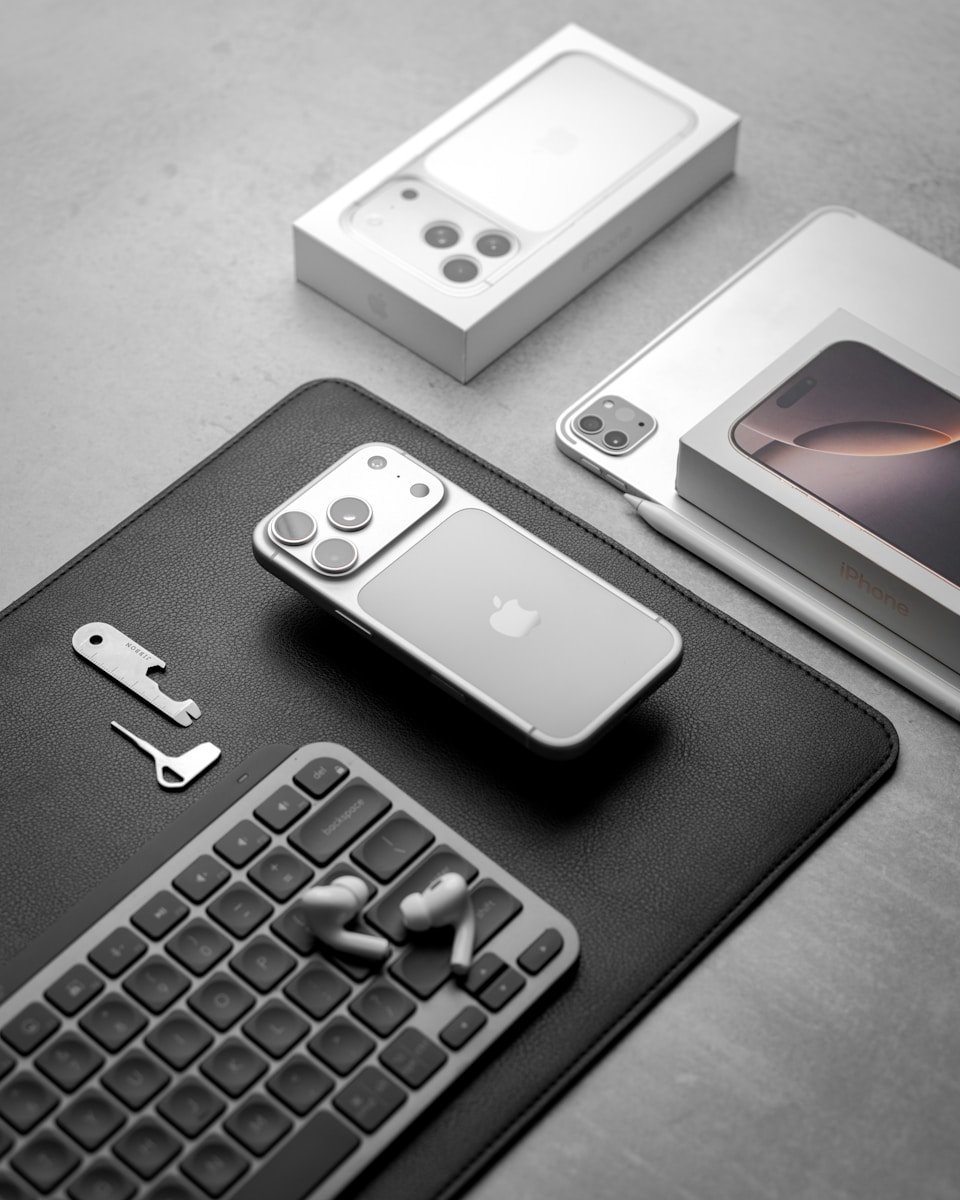
Getting your iPhone SIM card activated is a simple process that connects your device to your carrier’s network. Whether you have a physical SIM card or plan to use an eSIM, the steps are straightforward. To activate a SIM card on your iPhone, simply insert the physical SIM into the tray or set up an eSIM through Settings > Cellular > Set Up Cellular or Add eSIM.
Most physical SIM cards are already active when you receive them from your carrier, so you just need to insert them into your iPhone. For newer iPhone models that support eSIM, you can transfer from a nearby iPhone or choose a phone number during setup. If you’re unsure about which option is best for you, your carrier can help you pick the right choice.
Activate a SIM on iPhone: Step-by-Step
Getting a new iPhone or switching carriers? Activating your SIM card is essential to connect to a cellular network. This guide will walk you through the entire process.
What You’ll Need
- Your iPhone (unlocked or compatible with your carrier)
- A physical SIM card or eSIM from your carrier
- A SIM ejector tool (or a paperclip)
- Wi-Fi or cellular connection for activation
Note: iPhone 14 and later models sold in the U.S. only use eSIM and don’t have a physical SIM card slot (source: Apple Support).
Step 1: Power Off Your iPhone
Before inserting a physical SIM card:
- Press and hold the Side button and either Volume button
- Slide to power off
- Wait for your iPhone to completely shut down
Tip: Powering off isn’t always required, but it’s recommended to prevent any potential issues.
Step 2: Locate the SIM Tray
- The SIM tray is typically on the right side of your iPhone
- On some older models, it may be on the top or left side
- Look for a small oval hole next to a thin rectangular slot
Step 3: Insert the SIM Card
- Insert the SIM ejector tool (or straightened paperclip) into the small hole
- Push gently but firmly until the tray pops out
- Remove the SIM tray completely
- Place your SIM card in the tray (note the notched corner for proper orientation)
- The gold contacts should face down
- Gently push the tray back into the iPhone until it clicks into place (source: WikiHow)
Step 4: Power On Your iPhone
- Press and hold the Side button until the Apple logo appears
- Wait for your iPhone to boot up completely
Step 5: Complete the Activation Process
For New iPhones:
- Follow the on-screen setup instructions
- Connect to Wi-Fi when prompted
- Your iPhone will automatically contact your carrier to activate the SIM
- This usually takes just a few minutes (source: CNET)
For Existing iPhones:
- Your iPhone should automatically detect the new SIM
- You may receive a carrier settings update notification—tap Update
- If prompted, enter your carrier account information
- Wait for the activation to complete
Step 6: Verify Activation
Check that your SIM is activated:
- Look for signal bars in the top-left corner
- Try making a test call
- Send a text message
- Test cellular data by turning off Wi-Fi
Activating an eSIM on iPhone
For iPhone XS and later models that support eSIM:
- Contact your carrier for eSIM activation
- You’ll receive a QR code or activation details
- Go to Settings > Cellular > Add Cellular Plan
- Scan the QR code provided by your carrier
- Follow the on-screen instructions to complete activation (source: TextNow)
Troubleshooting Common Issues
“No SIM” or “Invalid SIM” Message
- Remove and reinsert the SIM card
- Make sure the SIM is properly seated in the tray
- Verify your iPhone is unlocked or compatible with your carrier
- Restart your iPhone
Activation Takes Too Long
- Ensure you have a stable Wi-Fi or cellular connection
- Contact your carrier to verify the SIM is ready for activation
- Try manually activating through iTunes/Finder by connecting to a computer
No Service After Installation
- Toggle Airplane Mode on and off
- Go to Settings > General > Reset > Reset Network Settings
- Update to the latest iOS version
- Contact your carrier for assistance (source: Robots.net)
Important Considerations
- SIM Lock Status: Your iPhone must be unlocked or compatible with your carrier’s network
- Carrier Compatibility: Not all SIM cards work with all iPhones—check with your carrier
- Backup Your Data: Before switching SIMs, backup your iPhone to avoid data loss
- International Travel: Some carriers offer international SIM cards or eSIM plans
Contact Your Carrier
If you continue experiencing issues, contact your carrier directly. They can:
- Verify your account status
- Confirm SIM activation on their end
- Provide carrier-specific activation instructions
- Send a replacement SIM if necessary (source: Apple Support)
With these steps, your iPhone SIM card should be successfully activated and ready to use!
Key Takeaways
- iPhone SIM activation requires either inserting a physical SIM card or setting up an eSIM through the Settings app.
- Most carrier-provided SIM cards come pre-activated and only need to be inserted to work.
- For eSIM setup, you’ll need to contact your carrier first or use the transfer option from another iPhone.
Understanding SIM Options for iPhone
iPhones now offer two different types of SIM cards to connect to cellular networks. Each option has its own benefits depending on your needs and iPhone model.
Differences Between eSIM and Physical SIM Cards
Physical SIM cards are small plastic cards that you insert into your iPhone. They’ve been the standard way to connect to cellular networks for many years. You can easily switch them between phones if needed.
eSIMs are digital SIM cards built into your iPhone with no physical card required. They save space inside the phone and let you activate service without visiting a store.
To set up an eSIM, you can go to Settings > Cellular > Add eSIM or scan a QR code from your carrier. Some carriers even let you convert your physical SIM to an eSIM directly in settings.
A big advantage of newer iPhones is dual SIM support. This lets you use both an eSIM and physical SIM, or two eSIMs at once, perfect for having separate work and personal numbers.
Supported iPhone Models for eSIM and Physical SIM
iPhone support for SIM types varies by model:
Full eSIM Support:
- iPhone 15 series (eSIM only in US)
- iPhone 14 series (eSIM only in US)
- iPhone 13 series
- iPhone 12 series
Dual SIM (Physical + eSIM):
- iPhone XR, XS, XS Max
- iPhone 11 series
- iPhone SE (2nd & 3rd gen)
To check if your iPhone supports eSIM, go to Settings > Cellular. If you see options like Add eSIM or Convert to eSIM, your device is compatible.
When activating a new iPhone, you can transfer your number from another iPhone wirelessly using the eSIM transfer feature. This makes switching phones much easier than with physical SIMs.
Pre-Activation Checklist
Before activating your SIM card on iPhone, you’ll need to prepare a few things. Taking these steps helps ensure a smooth activation process without frustrating delays or technical issues.
Gathering Required Materials
To activate a SIM card on your iPhone, you’ll need specific items ready:
- Your new SIM card or eSIM information
- A SIM ejection tool (paperclip can work as alternative)
- Your iPhone with sufficient battery (at least 50% recommended)
- Your Apple ID and password
- Account information from your carrier
- A valid ID (some carriers require this)
Keep these items within reach during the activation process. Having everything prepared saves time and reduces potential hassles. Your carrier may have sent you specific activation instructions or codes that you should also have available.
Ensuring iPhone Compatibility
Check if your iPhone works with your chosen carrier and SIM type:
- Verify your iPhone model is compatible with your carrier’s network bands
- Confirm if your iPhone is carrier-locked or unlocked
- Check if your iPhone supports eSIM if you’re using one instead of a physical SIM
Newer iPhones (iPhone XS and later) typically support dual SIM functionality. You can check compatibility on Apple’s website by entering your model number. If you’re switching carriers, make sure your phone is unlocked or works with the new provider.
Connecting to a Wi-Fi Network
A stable internet connection is crucial for SIM activation:
Connect your iPhone to a reliable Wi-Fi network before starting. Strong Wi-Fi helps download necessary carrier settings and complete activation faster. Poor connections can interrupt the process.
To connect to Wi-Fi on your iPhone:
- Go to Settings > Wi-Fi
- Turn Wi-Fi on if it isn’t already
- Select your network from the list
- Enter the password if required
Using cellular data for activation might incur charges or work slowly. Many activation steps require downloading data. If home Wi-Fi isn’t available, try a trusted public network but avoid using sensitive personal information on public networks.
Activating a Physical SIM Card
Getting your new iPhone up and running with a physical SIM card involves a simple two-step process. You’ll need to properly insert the SIM card and then complete the activation steps to connect to your carrier’s network.
Inserting the SIM Card into iPhone
To begin, locate the SIM tray on your iPhone. It’s typically on the right side of newer models. You’ll need a SIM ejection tool or a small paperclip to open it.
Insert the tool into the small hole next to the tray and push gently until the tray pops out. Don’t force it – a slight pressure is enough.
Once the tray is out, place your SIM card in it. The SIM has a notched corner that must align with the tray shape. Make sure the gold contacts face down.
Slide the tray back into the iPhone until it’s flush with the edge. It should go in smoothly without resistance. If it sticks, check that the SIM is seated correctly in the tray.
Phone Activation Process
After inserting the SIM, power on your iPhone. You’ll see the setup screen if it’s new or reset. Follow the on-screen instructions to select your language and region.
Connect to a Wi-Fi network when prompted to start the activation process. Your iPhone will contact Apple’s servers and your carrier to activate.
If you’re switching from another phone, you might need to contact your carrier to activate the SIM. Some carriers require a new SIM card for newer devices.
Watch for a “SIM Card Activated” message. If activation fails, try these quick fixes:
- Restart your iPhone
- Remove and reinsert the SIM card
- Check for carrier settings updates
- Make sure your account is active with your provider
Once activated, your iPhone will show signal bars and your carrier name at the top of the screen.
Activating an eSIM on iPhone
iPhones now support eSIM technology, which lets you activate a cellular plan without using a physical SIM card. There are several ways to set up an eSIM on your iPhone, depending on your carrier and situation.
Using a QR Code to Add an eSIM
Most carriers provide a QR code as the simplest way to add an eSIM to your iPhone. To get started, go to Settings > Cellular > Add Cellular Plan on your iPhone. Your iPhone camera will activate, allowing you to scan the QR code provided by your carrier.
After scanning, your iPhone will detect the encoded eSIM information. You’ll see a confirmation screen with your plan details. Tap “Continue” to proceed.
You might need to enter a confirmation code sent by your carrier. Then choose how you want to use this plan – as your primary line, for data only, or for other purposes.
The activation process usually takes just a few minutes. Once complete, you’ll see the new cellular plan in your Settings, and the signal bars will appear at the top of your screen.
Entering an Activation Code Manually
Sometimes you’ll need to enter an activation code manually instead of scanning a QR code. To begin, go to Settings > Cellular > Add Cellular Plan on your iPhone.
Below the QR code scanner, look for an option that says “Enter Details Manually” and tap it. Your carrier will provide an activation code, SM-DP+ address, and possibly an activation code.
Enter these details carefully, as any typos can prevent successful activation. Then tap “Next” to continue the process.
Your iPhone will connect to your carrier’s server to download the eSIM profile. You’ll need to confirm your selection for how you plan to use this line.
If you face issues during activation, you can try to turn the line off and on again through Settings > Cellular.
eSIM Quick Transfer Method
The eSIM Quick Transfer feature lets you move an eSIM from your old iPhone to your new one without contacting your carrier. This method works when upgrading to a new iPhone.
To use this feature, place your new iPhone near your old one during setup. When prompted, select “Transfer from another iPhone” and follow the on-screen instructions.
Both iPhones need to run iOS 16 or later, have Bluetooth turned on, and be connected to Wi-Fi. Your old iPhone must be unlocked during the process.
You can also convert a physical SIM to an eSIM by going to Settings > Cellular > Set Up Cellular or Add eSIM, then selecting the number with a physical SIM and tapping “Convert to eSIM.”
The transfer typically completes in minutes, automatically deactivating the eSIM on your old device while activating it on your new one.
Setting Up a Cellular Plan on iPhone
iPhone users can easily add and manage cellular plans using either physical SIM cards or eSIM technology. Setting up your cellular service properly ensures you stay connected wherever you go.
Adding a New Cellular Plan
To add a cellular plan on your iPhone, go to Settings > Cellular. If you’re setting up a new plan, tap Set Up Cellular or Add eSIM. iPhones support both physical SIM cards and digital eSIMs.
For a physical SIM, insert the SIM card into the tray on the side of your iPhone. Your device will detect it automatically.
For an eSIM, you have several options:
- Scan a QR code provided by your carrier
- Use the carrier’s app to activate service
- Convert an existing physical SIM to an eSIM by selecting “Convert to eSIM” in the settings
When transferring service from an old iPhone, you can easily move your eSIM to your new device during setup or later by going to Settings > Cellular > Add eSIM.
Configuring Mobile Data Settings
After adding your plan, you’ll need to configure your mobile data settings. Go to Settings > Cellular to customize how your iPhone uses cellular data.
You can turn mobile data on or off completely with the top toggle. This helps control data usage when you’re not on Wi-Fi.
Under Cellular Data Options, you can:
- Enable/disable roaming
- Select the network mode (5G, LTE, 3G)
- Set Low Data Mode to reduce background data usage
The settings page also shows which apps use cellular data. Turn off data for specific apps that consume too much by toggling them off in the list.
For dual-SIM users, you can designate which plan to use for calls, texts, and data by setting your primary line. This flexibility helps manage multiple numbers efficiently.
FirstNet Service Activation and Support
Activating a FirstNet SIM on iPhone requires following specific steps to ensure proper connection to this dedicated first responder network. Support options are available when users encounter issues during setup or need assistance with service features.
Activating a FirstNet eSIM on iPhone
To activate a FirstNet eSIM on an iPhone, start by visiting FirstNet’s activation website. You’ll need to remove any physical SIM card using the provided SIM tool or a paperclip.
Turn on your iPhone and follow the on-screen setup instructions. During setup, you’ll be prompted to activate your cellular plan. Choose the option to set up an eSIM.
For users upgrading their iPhone, you can use the iCloud transfer method by:
- Keeping both iPhones close together
- Ensuring you’re logged into iCloud on both devices
- Following the transfer prompts on screen
Some users prefer to activate their FirstNet eSIM themselves by logging into their FirstNet account, selecting “manage services and billing” and following the prompts.
Seeking Assistance from FirstNet Support
FirstNet offers multiple support channels for users who experience difficulties with device activation. Their dedicated support team specializes in helping first responders connect to this critical service.
For SIM activation issues, FirstNet provides detailed documentation for various device types. These guides contain step-by-step instructions with screenshots to help troubleshoot common problems.
Users can contact FirstNet support directly through:
- Phone support: Available 24/7 for urgent connectivity issues
- Online chat: For less urgent questions about service setup
- In-store assistance: At AT&T and FirstNet authorized retailers
When contacting support, have your FirstNet ID, account information, and device details ready. This helps the support team quickly identify and resolve your specific issue.
Technical specialists can remotely assist with eSIM provisioning if users encounter error messages during the activation process. They can also help with network settings optimization for your specific iPhone model.
Troubleshooting Common Activation Issues
When your iPhone displays an “Unable to Activate” message, several problems might be causing this issue. Let’s look at some common fixes.
First, check if your SIM card is properly inserted. A faulty SIM card can block activation. Turn off your iPhone, remove the SIM card, and reinsert it correctly.
Sometimes your iPhone needs a restart. Press and hold the power button, then slide to power off. Wait 30 seconds before turning it on again.
Network problems often cause activation failures. Try connecting to a stable Wi-Fi network instead of using cellular data. This can help your iPhone connect to Apple’s activation servers.
Is your Apple ID giving you trouble? Make sure you’re using the correct Apple ID and password. If you’re locked out, visit Apple’s account recovery page.
For those with an eSIM, activation requires different steps. You might need to scan a QR code from your carrier or use their app to activate your eSIM profile.
If your iPhone says the SIM card isn’t compatible, contact your carrier. They can check if your SIM is valid and works with your device.
Software updates can also fix activation issues. Connect to Wi-Fi, go to Settings > General > Software Update, and install any available updates.
Still having problems? Call your carrier at 611 from another phone and ask them to activate your device. Their automated system can often resolve activation problems quickly.
Additional Considerations for iPad Users
iPads with cellular capability need special setup for their SIM cards. Unlike iPhones, iPads are data-only devices and don’t support phone calls through the cellular network.
To set up cellular service on your iPad, go to Settings > Cellular Data. From there, you can set up your first cellular plan by selecting a carrier and following the on-screen instructions.
iPads support eSIM technology, which is a digital SIM card. This means you don’t need a physical card to connect to cellular networks. Many newer iPad models come with eSIM capabilities built-in.
If you’re switching from an iPhone, note that you can’t simply move your phone’s SIM card to an iPad and expect the same service. Carriers often have different plans for tablets.
Alternative option: Instead of activating a separate plan for your iPad, you can use your iPhone as a hotspot. This lets your iPad connect to the internet through your phone’s data plan.
If you see an activation error on your iPad, try these quick fixes:
- Check that your SIM card is properly inserted
- Restart your iPad
- Make sure your cellular plan is active
- Update to the latest iPadOS version
Wi-Fi connection is required for the initial setup process, even for cellular iPads.
Frequently Asked Questions
Setting up SIM cards on iPhones can be confusing at first. Here are answers to common questions about activating both physical SIM cards and eSIMs on your iPhone.
How can I set up a new SIM card on an iPhone?
To set up a new physical SIM card, first make sure your iPhone is turned off. Locate the SIM tray on the side of your iPhone and use the SIM ejection tool to open it.
Place your new SIM card in the tray with the gold contacts facing down and the notched corner aligned correctly. Push the tray back into the iPhone until it clicks.
Turn on your iPhone and follow the on-screen instructions. Your carrier may require you to contact them to activate the SIM card on their network.
What are the steps to activate an eSIM on an iPhone?
To activate an eSIM, go to Settings > Cellular > Add Cellular Plan on your iPhone. You can scan the QR code provided by your carrier or enter the details manually.
If your carrier offers an app for eSIM activation, download it from the App Store and follow the instructions. Some carriers may send you an activation link via text message.
After setup, choose whether to use the eSIM as your primary line or as a secondary line if you have dual SIM capability. Label your plans (like “Personal” or “Work”) to easily identify them.
What should I do if my iPhone doesn’t recognize my SIM card?
If your iPhone shows “No SIM” or “Invalid SIM” errors, try removing and reinserting the SIM card. Make sure it’s properly seated in the tray.
Check for any physical damage to the SIM card or dirt on the gold contacts. Clean the contacts gently with a soft, dry cloth if needed.
Restart your iPhone or try resetting network settings by going to Settings > General > Reset > Reset Network Settings. If problems continue, your SIM card might need replacement from your carrier.
How can I activate cellular data service on my new iPhone?
Make sure your SIM card is already inserted and activated. Go to Settings > Cellular and turn on Cellular Data.
For specific carrier settings, you might need to go to Settings > Cellular > Cellular Data Options and enter the APN settings provided by your carrier.
If you’re setting up a new iPhone, the activation process often includes cellular setup during the initial setup wizard. Just follow the on-screen instructions when you first turn on your device.
Why isn’t my SIM card activated on my iPhone, and how can I resolve this?
If your SIM isn’t activating, first verify that your account is active with your carrier. Some SIM cards are already active when you receive them, while others require activation.
Check that you have good network coverage. Poor signal can prevent activation. Try moving to an area with better reception.
If these steps don’t work, contact your carrier directly. They can check if there are account issues or if they need to provision the SIM card from their end.
How can I switch from a physical SIM to an eSIM on an iPhone?
Contact your carrier to confirm they support eSIM and can transfer your number. Some carriers offer self-service options through their apps or websites.
On your iPhone, go to Settings > Cellular > Add Cellular Plan and follow the activation steps provided by your carrier. This usually involves scanning a QR code or using an activation code.
After the eSIM is activated and working properly, you can remove your physical SIM card. Your carrier may deactivate the physical SIM automatically during the transfer process.





