
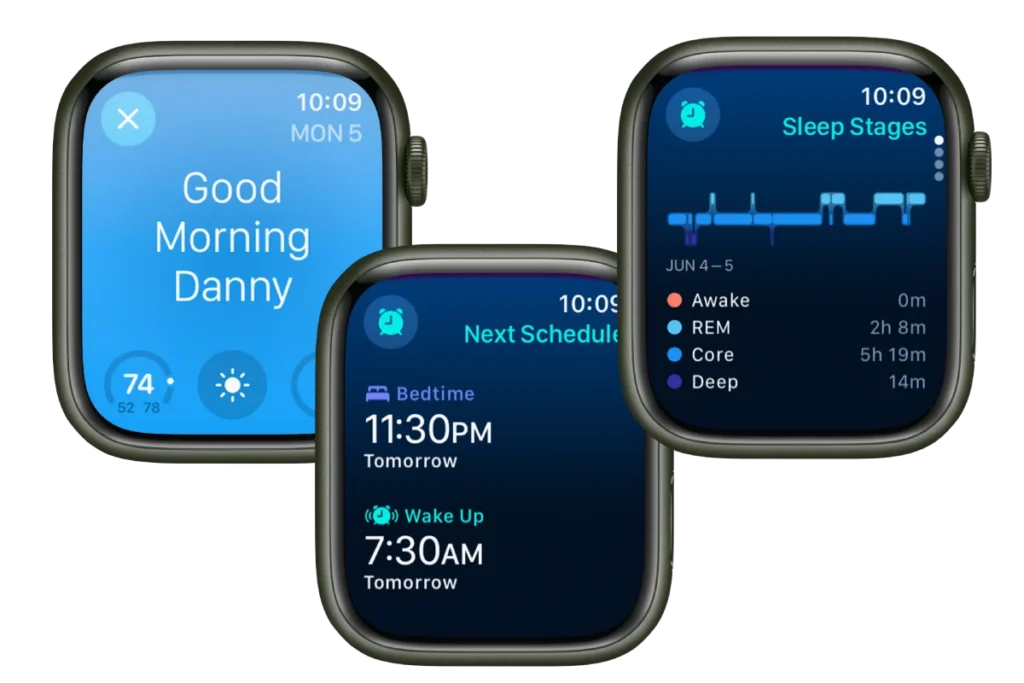
Good sleep habits improve your health, but tracking your sleep can be tough. The Apple Watch makes this easy with built-in sleep tracking features. Your Apple Watch can monitor how long you sleep, track your sleep stages, and help you build better sleep habits with just a few simple settings.
Getting started with sleep tracking on your Apple Watch takes only minutes. You can set up a sleep schedule in the Health app on your iPhone, then wear your watch to bed. The watch tracks your movements and heart rate during the night to give you insights about your sleep.
Each morning, you can check your sleep data right on your watch or in more detail on your iPhone. The Sleep app shows how long you slept and time spent in each sleep stage, making it easy to spot patterns and improve your rest.
How to Track Sleep on Apple Watch
The Apple Watch can automatically track your sleep, including sleep stages, time asleep, and sleep trends. Follow this guide to set it up correctly and get the most accurate results.
What You Need Before You Start
- Apple Watch Series 3 or later (watchOS 7 or newer)
- iPhone running iOS 14 or later
- Apple Watch worn to bed with at least 30% battery (Apple recommends 50%+)
Step 1: Set Up Sleep Tracking on iPhone
Sleep tracking is managed through the Health app.
Steps:
- Open the Health app on your iPhone
- Tap Browse → Sleep
- Tap Get Started
- Set your:
- Sleep schedule (bedtime & wake‑up time)
- Sleep goal
- Alarm preferences
- Enable Sleep Schedule and Sleep Focus
This automatically syncs with your Apple Watch.
Step 2: Enable Sleep Tracking on Apple Watch
On your iPhone:
- Open the Watch app
- Tap Sleep
- Turn on:
- ✅ Track Sleep with Apple Watch
- ✅ Charging Reminders
- ✅ Sleep Focus
On your Apple Watch (optional check):
- Open Settings
- Tap Sleep
- Confirm Track Sleep is enabled
Step 3: Turn On Sleep Focus Before Bed
Sleep Focus helps improve tracking accuracy and limits distractions.
Automatic:
- Sleep Focus turns on automatically based on your schedule
Manual:
- Swipe down on the watch face
- Tap Focus
- Select Sleep
Step 4: Wear Your Apple Watch to Bed
For best results:
- Wear the watch snugly but comfortably
- Make sure the battery is charged
- Avoid removing the watch during the night
✅ The watch tracks:
- Time asleep
- Sleep stages (REM, Core, Deep)
- Wake time
- Heart rate & respiratory rate (supported models)
Step 5: View Your Sleep Data
On iPhone:
- Open the Health app
- Tap Browse → Sleep
- Review:
- Time asleep
- Sleep stages
- Weekly and monthly trends
On Apple Watch:
- Open the Sleep app
- View last night’s sleep summary
Step 6: Improve Sleep Tracking Accuracy
- Keep Sleep Focus enabled every night
- Maintain a consistent sleep schedule
- Charge your watch 1–2 hours before bedtime
- Wear the watch snugly
- Update watchOS and iOS regularly
Apple Watch Models That Support Sleep Stages
Sleep stages (REM, Core, Deep) require:
- Apple Watch Series 4 or later
- watchOS 9 or later
Older models track total sleep time but not detailed stages.
Troubleshooting: Sleep Not Tracking?
Try these fixes:
- Ensure Track Sleep with Apple Watch is enabled
- Check that Sleep Focus was on
- Make sure battery wasn’t too low
- Restart both iPhone and Apple Watch
- Re‑set Sleep Schedule in Health app
Can Apple Watch Track Naps?
✅ Yes, on newer watchOS versions
- Naps over ~1 hour may be recorded automatically
- Short naps may not always appear
Final Tip
Consistency matters. Wearing your Apple Watch every night with Sleep Focus enabled gives the most reliable sleep data over time.
Key Takeaways
- Apple Watch tracks sleep duration, stages, and patterns automatically when worn to bed with sleep tracking enabled.
- Setup takes just minutes in the Health app on iPhone by turning on the Track Sleep with Apple Watch setting.
- View your sleep data each morning on your watch or get detailed insights in the Health app on your iPhone.
Understanding Sleep Tracking
Sleep tracking on Apple Watch helps users gain insights into their rest patterns and overall health. The technology works in the background while you sleep, capturing key metrics that paint a picture of your nightly rest.
The Importance of Sleep Tracking
Sleep is vital for our physical and mental health. Tracking your sleep helps you understand if you’re getting enough rest each night.
Many health experts recommend adults get 7-9 hours of sleep per night. With the Sleep app on Apple Watch, users can set sleep goals and track their progress toward meeting these targets.
Regular sleep tracking can reveal patterns that might be affecting your rest. For example, you might notice you sleep better on days when you exercise or worse when you consume caffeine late in the day.
Sleep data can also help identify possible sleep disorders. Consistent poor sleep metrics might signal the need to consult a healthcare provider about issues like sleep apnea or insomnia.
How the Apple Watch Tracks Sleep
To begin tracking sleep, users need to set up the Sleep app on their iPhone and Apple Watch. The setup process includes creating a sleep schedule and enabling the track sleep feature.
When worn to bed, Apple Watch automatically enters Sleep Mode at your scheduled bedtime. The display dims and Do Not Disturb activates to prevent disturbances.
Apple Watch Series 3 or later can track your sleep patterns throughout the night. The watch records when you’re asleep and when you’re awake.
Users can view their sleep data in the Health app on iPhone. The app displays total sleep time, times when you were awake, and sleep stages (on supported models).
Apple Watch Sensors and Measurements
The Apple Watch uses several sophisticated sensors to monitor your sleep. The accelerometer detects movement and helps determine when you’re asleep or awake based on how still you are.
The heart rate sensor works throughout the night to record your pulse. This data helps identify different sleep stages like REM and deep sleep on supported Apple Watch models.
Newer Apple Watch models can measure your respiratory rate while you sleep. This counts your breaths per minute, which can be another indicator of sleep quality.
Users can set a sleep goal in the Options menu of the Sleep app. The watch will track progress toward this goal each night.
Apple Watch also creates a sleep schedule that includes bedtime reminders and personalized alarm settings to help establish healthy sleep routines.
Setting Up Your Apple Watch for Sleep Tracking
Getting your Apple Watch ready for sleep tracking involves a few simple steps. You’ll need a compatible device, proper setup, and the right settings to track your sleep patterns accurately.
Compatibility and Requirements
To use sleep tracking features, you need an Apple Watch Series 3 or newer. Your watch must be running at least watchOS 7, though newer versions like watchOS 8 and 9 offer improved sleep tracking capabilities.
Your iPhone needs to be running iOS 14 or later to support these features. Make sure both devices have enough battery life—Apple Watch should have at least 30% battery before bedtime.
Sleep tracking works best when your Apple Watch fits snugly on your wrist. If it’s too loose, the sensors might not accurately detect when you’re sleeping.
The basic sleep tracking is free, but some advanced features might require an Apple Fitness+ subscription.
Preparing Your Apple Watch for First Use
Before tracking sleep, users should set up their watch properly. First, ensure the watch is paired with an iPhone through the Apple Watch app.
Next, update to the latest watchOS version by going to:
- Watch app on iPhone
- General → Software Update
Create a passcode for the watch to maintain privacy and security. This is especially important since the watch will contain health data.
Users should also consider enabling “Wrist Detection” in the Watch app under Passcode settings. This feature keeps the watch unlocked while worn but locks it when removed.
Battery life is crucial for overnight tracking. Some users set up a charging routine before bed or in the morning.
Enabling Sleep Tracking Features
To enable sleep tracking on your Apple Watch, open the Watch app on your iPhone. Tap the “My Watch” tab, select “Sleep,” then turn on “Track Sleep with Apple Watch.”
For best results, set up a sleep schedule in the Health app:
- Open the Health app on your iPhone
- Tap “Browse” then “Sleep”
- Select “Full Schedule & Options”
- Follow the on-screen instructions to set your sleep goals and schedule
You can also set up Sleep Mode, which automatically turns on Do Not Disturb and dims your screen at bedtime. This reduces distractions and helps preserve battery life.
Don’t forget to enable “Charging Reminders” in Sleep settings. Your phone will notify you if your watch battery is below 30% before bedtime.
To view your sleep data after waking, open the Sleep app on your Apple Watch or check the Health app on your iPhone.
Using the Sleep App on Apple Watch
The Sleep app on Apple Watch offers a comprehensive way to monitor your nightly rest and improve sleep habits. It combines tracking features with helpful tools to establish healthy sleep routines.
Navigating the Sleep App Interface
To access the Sleep app, press the Digital Crown on your Apple Watch and locate the app with the bed icon. Once open, you’ll see your most recent sleep data at a glance. Swipe through to view different metrics including total sleep time and time spent in each sleep stage.
The main screen shows your sleep from the previous night. You can scroll down to see a weekly chart of your sleep patterns. This makes it easy to spot trends in your sleep quality.
Tap on any day to see detailed information about that night’s sleep. The app displays your heart rate during sleep and your respiratory rate, giving you insight into your body’s functions during rest.
Setting Sleep Goals and Schedules
To get the most from sleep tracking, set up a sleep goal and schedule. This is best done in the Health app on your iPhone. Go to the Sleep section and tap “Full Schedule & Options.”
Here you can set:
- Your ideal sleep goal (hours per night)
- Bedtime and wake-up times
- Which days your schedule applies to
You can create multiple schedules for different days of the week. For example, one for weekdays and another for weekends.
Your Apple Watch will use these settings to track when you’re meeting your goals. The Health app provides weekly and monthly sleep averages to help you assess your sleep patterns over time.
Sleep Focus and Wind Down Assistance
The Sleep Focus mode is a powerful feature that works with your sleep schedule. When activated, it reduces distractions before bedtime and during sleep hours.
During Wind Down time, your Apple Watch and iPhone automatically enter Do Not Disturb mode. This happens 30-45 minutes before your scheduled bedtime, but you can customize this duration.
Wind Down suggests relaxing activities to help you prepare for sleep:
- Meditation apps
- Music playlists
- Reading reminders
You can add shortcut buttons to these apps on your lock screen during Wind Down. This makes it easier to access calming activities before bed.
In the morning, your watch can wake you with gentle haptic taps on your wrist instead of a jarring alarm sound. This helps you start your day more peacefully.
Tracking and Viewing Sleep Data
Apple Watch offers powerful sleep tracking features that help you understand your sleep patterns. Once set up, you can access your sleep information directly on your watch or dive deeper with the Health app on your iPhone.
Recent Sleep Data on Your Apple Watch
The Sleep app on your Apple Watch provides quick access to your latest sleep metrics. You can view the amount of sleep you got the night before and check how much time you spent in each sleep stage.
To check your sleep data:
- Open the Sleep app on your watch
- Scroll through the summary of your last night’s sleep
- See your time asleep and sleep stages (REM, Core, and Deep sleep)
The watch face can also display your sleep data as a complication for easy access. This lets you quickly check how well you slept without opening the app.
Your watch tracks sleep automatically when you wear it to bed after setting up sleep tracking. No need to press buttons or start tracking manually.
Comprehensive Sleep Trends in the Health App
The Health app on your iPhone stores all your sleep history and offers more detailed analysis than the watch alone. Open the Health app and tap the Sleep category to see your full sleep data.
Key features include:
- Weekly and monthly averages of your sleep duration
- Sleep stage breakdowns showing patterns over time
- Sleep consistency charts highlighting how regularly you maintain your schedule
The app also compares your recent sleep to your history, helping you spot changes in your patterns. You can view additional data sources that might affect your sleep, such as heart rate and respiratory rate.
Users can export their sleep data or share it with healthcare providers directly from the Health app.
Analyzing Sleep Quality and Patterns
Understanding your sleep patterns helps improve your overall rest quality. The Health app analyzes your data to reveal meaningful insights about your sleep habits.
Look for these important indicators:
- Time in bed vs. time asleep – Shows how efficiently you sleep
- Sleep stage distribution – Healthy sleep includes balanced amounts of each stage
- Sleep consistency – Regular sleep and wake times often lead to better rest
The app highlights connections between your daily activities and sleep quality. For example, you might notice exercise days correlate with better deep sleep percentages.
Many users find it helpful to track sleep for several weeks to establish baseline patterns. It’s also possible to track your sleep without setting alarms if you prefer not to be woken by your watch.
Personalizing Your Sleep Experience
The Apple Watch offers several ways to make sleep tracking fit your lifestyle. You can set your own sleep goals, create a wind down routine, and manage when and how you wake up.
Customizing Sleep Goals and Notifications
Apple Watch lets you set personal sleep goals based on how many hours you want to sleep each night. To change your sleep goal:
- Open the Health app on your iPhone
- Tap “Sleep”
- Tap “Full Schedule & Options”
- Adjust your sleep goal under “Sleep Goal”
You can also control which notifications you receive about your sleep. The watch can notify you when it’s time to wind down or when you’ve met your sleep goals.
Turn off sleep reminders if you find them distracting. Some people prefer just getting a weekly summary of their sleep patterns instead of daily alerts.
Adjusting Your Wind Down Schedule
The Wind Down feature helps you relax before bedtime. You choose how long before bed it activates.
To set up Wind Down:
- Go to the Health app on your iPhone
- Select “Sleep”
- Tap “Full Schedule & Options”
- Set your Wind Down time (15-45 minutes is common)
During Wind Down, your watch and phone show limited notifications. The screen dims and Do Not Disturb turns on.
Add shortcuts to relaxing apps on your Wind Down screen. Many users add meditation apps, reading apps, or music players to help them relax before sleep.
Managing Alarms and Wake Up Times
Apple Watch offers gentle, haptic alarms that wake you by tapping your wrist. These feel less jarring than traditional alarms.
To set up your wake-up alarm:
- Open the Sleep app on your watch
- Tap your sleep schedule
- Set your wake-up time
- Choose whether to use an alarm
Turn the Digital Crown to adjust alarm volume if needed. The watch can also wake you during a light sleep phase if you enable that option.
You can set different wake times for weekdays and weekends. This matches how most people naturally sleep. The watch also tracks if you wake up before your alarm, giving you insight into your natural sleep patterns.
Maximizing Sleep Tracking Accuracy
Tracking sleep accurately with your Apple Watch requires attention to how you wear and charge the device. Getting the details right helps ensure your sleep data truly reflects your rest patterns.
Optimal Wearing Habits for Sleep
Wear your Apple Watch snugly but comfortably on your wrist. A band that’s too loose may cause the heart rate sensor to record inaccurate data. If the watch moves around during sleep, it might think you’re awake when you’re actually sleeping.
Clean the back of your watch regularly. Sweat and oils can block the sensors and affect sleep tracking quality. A quick wipe with a non-abrasive, lint-free cloth keeps sensors working properly.
Many users find better results when wearing the watch slightly higher on the wrist during sleep than during daytime. This position can help the watch maintain contact with your skin throughout the night.
If you use Sleep Focus mode, set it to start when you actually try to fall asleep—not when you first get in bed. Setting this time accurately helps the watch understand when you’re truly attempting to sleep.
Charging Reminders and Battery Life
Develop a charging routine that works with your schedule. Many users charge their watch while showering and getting ready in the morning. This 20-30 minute period is often enough to maintain adequate battery levels.
Enable low power mode if your battery tends to drain overnight. This preserves battery life while still tracking essential sleep data.
Set up charging reminders in the Sleep settings of your Apple Watch. These notifications can alert you before bedtime if your watch needs charging.
Quick Charging Tips:
- 30 minutes before showering → 30-50% charge
- During dinner → Full overnight charge
- While watching TV → Quick top-up
Modern Apple Watch models can gain up to 80% charge in about 45 minutes, making quick charges before bed practical for most users.
Apple Watch Placement During Sleep
Position your watch so the sensors on the back maintain consistent contact with your skin. The watch should feel secure but not tight enough to leave marks or cause discomfort.
Try wearing your watch on the opposite wrist from your dominant hand if you tend to move a lot during sleep. This reduces movement artifacts that can cause inaccurate readings in your sleep data.
For those who experience discomfort with the watch band during sleep, consider a dedicated sleep band. These are typically made of soft, stretchy fabric that’s more comfortable for overnight wear.
If you use features like blood oxygen monitoring during sleep, proper placement becomes even more critical. The watch must stay in position to gather this data consistently throughout the night.
Some users find success placing the watch slightly further up the arm (away from the wrist bone) during sleep for more consistent readings and comfort.
Troubleshooting Common Sleep Tracking Issues
Many Apple Watch users face challenges with sleep tracking that can be fixed with simple adjustments. Getting your watch to correctly monitor your sleep patterns requires attention to a few key settings and practices.
Solving Sync and Data Accuracy Problems
If your Apple Watch isn’t tracking sleep properly, start by checking that sleep tracking is enabled. Go to the Watch app on your iPhone, tap Sleep, and make sure Track Sleep with Apple Watch is turned on. This setting is essential for collecting sleep data.
Sometimes a simple restart solves sync problems. Try turning both your watch and iPhone off and on again. This refreshes connections between devices and the Apple Health app.
Make sure your watchOS and iOS are up to date. Outdated software can cause tracking issues. Go to Settings on both devices to check for updates.
Check your watch’s battery level. Sleep tracking requires at least 30% battery when going to bed. Low power mode might interfere with accurate tracking during longer sleep periods.
Addressing Discrepancies Between Devices
When sleep data differs between your Apple Watch and iPhone, check your Sleep Focus settings. Both devices should use the same sleep schedule to avoid conflicts.
Try toggling the Track Sleep setting off and then on again in the Watch app. Many users report this fixes inconsistencies in sleep data recording.
Verify that Wrist Detection is enabled on your watch. Go to the Watch app, tap Passcode, and ensure the Wrist Detection toggle is on. This helps your watch know when you’re wearing it.
Check that your iPhone’s Health app permissions allow sleep data sharing. Go to Health app > Browse > Sleep > Data Sources & Access to confirm settings.
Improving Consistent Sleep Detection
Wear your watch snugly on your wrist before bed. A loose watch can’t detect sleep stages accurately. The sensors need good skin contact to monitor heart rate and movement.
Set up a regular sleep schedule in the Health app. This helps your Apple Watch anticipate when you’ll be sleeping and activates tracking mode automatically.
Make sure Sleep Focus is set to turn on automatically at your wind-down time. This not only reduces distractions but signals to your watch to begin sleep monitoring.
If you get up during the night, keep your watch on. Removing it creates gaps in sleep tracking data. The watch can still distinguish between light movement and actually being awake.
Exploring Third-Party Sleep Apps and Accessories
While Apple’s built-in sleep tracking offers basic insights, third-party apps and accessories can provide deeper analysis of your sleep patterns. These alternatives often offer more detailed metrics and customizable features to help improve your sleep quality.
Popular Apple Watch Sleep Tracking Apps
The Apple Watch supports several third-party sleep tracking apps that go beyond the native functionality. SleepWatch is a top-rated option that provides comprehensive sleep analysis. It even detects if you talk in your sleep and offers personalized insights about your sleep habits.
Another excellent choice is AutoSleep, which automatically tracks your sleep without requiring you to activate sleep mode. The app uses your watch’s sensors to monitor movement and heart rate.
Sleep++ offers a simpler interface with easy-to-understand metrics about your sleep duration and quality. It’s perfect for users who want straightforward data without complex charts.
These apps provide features like:
- Detailed sleep stage analysis (REM, deep, light)
- Sleep quality scores
- Smart alarms that wake you during light sleep
- Weekly and monthly sleep trends
Comparing Apple’s Native Sleep App with Alternatives
Apple’s built-in sleep tracking feature focuses on establishing consistent sleep routines. To access your sleep data, you can open the Health app, tap Browse, and select Sleep. While useful for basics, it lacks the detailed sleep stage analysis found in third-party options.
Third-party apps typically offer more comprehensive metrics. They track sleep stages more precisely, showing how much time you spend in REM, deep, and light sleep phases.
The main differences include:
| Feature | Apple Sleep | Third-Party Apps |
|---|---|---|
| Sleep Stages | Basic tracking | Detailed REM/deep/light analysis |
| Smart Alarms | Limited | Often available |
| Sleep Score | No | Yes (most apps) |
| Historical Data | Basic | Extensive trends and patterns |
Many users find that third-party apps provide better sleep tracking capabilities compared to Apple’s native solution.
Integrating Accessories for Enhanced Sleep Analysis
For even more detailed sleep tracking, users can pair their Apple Watch with additional accessories. Bedside sleep monitors like the Withings Sleep Analyzer track breathing disturbances, snoring, and heart rate without requiring you to wear anything.
Smart mattress covers and pads from brands like Eight Sleep work with your watch data to provide a complete picture of your sleep environment. They monitor room temperature, bed temperature, and movement.
When compared to dedicated fitness trackers, the Apple Watch holds its own. Devices from Fitbit, Garmin, and Whoop offer similar sleep tracking capabilities, but the advantage of using Apple Watch is keeping all your health data in one ecosystem.
To connect third-party devices to your Apple Watch data:
- Install the device’s companion app
- Open the Health app and tap your profile picture
- Scroll to Privacy and select Apps or Devices
- Grant the necessary permissions
This integration creates a more complete picture of your sleep health by combining multiple data sources.
Educational Resources and Tutorials
Learning to track sleep on your Apple Watch can be simple with the right guidance. These resources will help you set up sleep tracking correctly and get the most from your device’s capabilities.
Guided Tutorials for First-Time Users
Setting up sleep tracking on your Apple Watch might seem complicated at first. Apple provides official setup guides that walk you through the process step by step.
To get started:
- Open the Health app on your iPhone
- Tap “Get Started” under “Set Up Sleep”
- Follow the on-screen instructions to create your sleep schedule
Many users find video tutorials helpful for visual learning. YouTube offers detailed setup guides showing the exact screens you’ll encounter. These videos cover everything from activating Sleep Mode to understanding the basics of sleep data.
Remember to set up Do Not Disturb during your sleep hours. This prevents notifications from disturbing your rest. The setup process includes options to customize these settings to your preferences.
Advanced Tracking Techniques for Seasoned Users
Once you’re comfortable with basic sleep tracking, you can explore advanced options. Third-party apps like AutoSleep offer more detailed sleep analysis than Apple’s built-in tools.
Advanced techniques include:
- Setting up sleep tracking automations
- Creating custom sleep focus modes
- Analyzing sleep trends over time
- Understanding sleep stage data
Apple Watch can track different sleep stages including REM, deep sleep, and core sleep. Learning to read these patterns helps you understand your sleep quality better.
Battery management becomes important with advanced tracking. Try charging your watch for 30 minutes before bed and again while getting ready in the morning to ensure it lasts through the night.
Staying Up-to-Date With the Latest WatchOS Features
Apple regularly adds new sleep tracking features with WatchOS updates. Following Apple’s developer blogs and attending virtual WWDC sessions can keep you informed about upcoming sleep tracking improvements.
Key resources for staying current:
- Apple Support articles
- The Apple Watch app’s “Discover” section
- Tech websites covering Apple news
- Official Apple videos explaining new features
Recent WatchOS updates have improved sleep tracking accuracy and added new metrics. The Health app continues to evolve with better ways to view and understand your sleep data.
Sleep tracking technology improves with each update. Features like respiratory rate monitoring and heart rate variability during sleep were once advanced tools but are now standard. PCMag offers guides that explain these newer features in straightforward terms.
Frequently Asked Questions
Apple Watch sleep tracking offers powerful insights into your nightly rest patterns. Users often have specific questions about setup, compatibility, and accuracy of these features.
Does the Apple Watch Series 8 have automatic sleep tracking capabilities?
Yes, the Apple Watch Series 8 comes with built-in automatic sleep tracking. This feature works through the native Sleep app that’s pre-installed on the watch.
When you wear your Apple Watch Series 8 to bed, it will track your sleep automatically once you’ve set up the Sleep feature. This includes data on your total sleep time and different sleep stages.
What steps are involved in monitoring deep sleep phases with an Apple Watch?
Monitoring deep sleep (along with REM and core sleep) requires no extra steps beyond normal sleep tracking setup. Your Apple Watch uses movement and heart rate data to identify these phases.
To view your sleep stages after waking, open the Sleep app on your watch or check the Health app on your iPhone. You’ll see a breakdown showing time spent in each sleep stage, including deep sleep.
Can the Apple Watch track sleep without setting a specific schedule?
Yes, your Apple Watch can track sleep without a set schedule, but you must enable the tracking feature. To do this, open the Watch app on your iPhone, tap the My Watch tab, then tap Sleep.
Make sure to toggle on Track Sleep with Apple Watch. With this setting enabled, your watch will record sleep whenever you wear it to bed, even without a scheduled sleep time.
How effective is the sleep tracking feature on the Apple Watch Series 3?
The Apple Watch Series 3 offers basic sleep tracking but lacks the advanced sleep stage analysis found in newer models. It can accurately track your total sleep time and movement during the night.
For more detailed sleep insights on a Series 3, you might consider third-party apps like SleepWatch. These can provide additional metrics beyond what the native Sleep app offers on older models.
By what methods does the Apple Watch determine sleep patterns and quality?
Apple Watch determines sleep patterns using a combination of the accelerometer (which detects movement) and the heart rate sensor. These work together to identify when you’re asleep versus awake.
For sleep stage analysis, the watch monitors tiny movements that signal different sleep states. The watch also looks at your heart rate variability and breathing rate to help identify REM, core, and deep sleep phases.
Is it mandatory to enable sleep mode on the Apple Watch to ensure sleep is being tracked?
No, enabling Sleep Mode isn’t mandatory for tracking sleep, but it greatly improves accuracy. If you’ve turned on Track Sleep with Apple Watch in settings, your sleep will be recorded even without Sleep Mode.
Sleep Mode helps by reducing distractions and turning on Do Not Disturb. It also ensures the watch stays in a low-power state while still collecting sleep data, which helps preserve battery life.
For best results, make sure Wrist Detection is enabled in the Passcode settings of your Apple Watch. This helps your watch know when it’s being worn.





