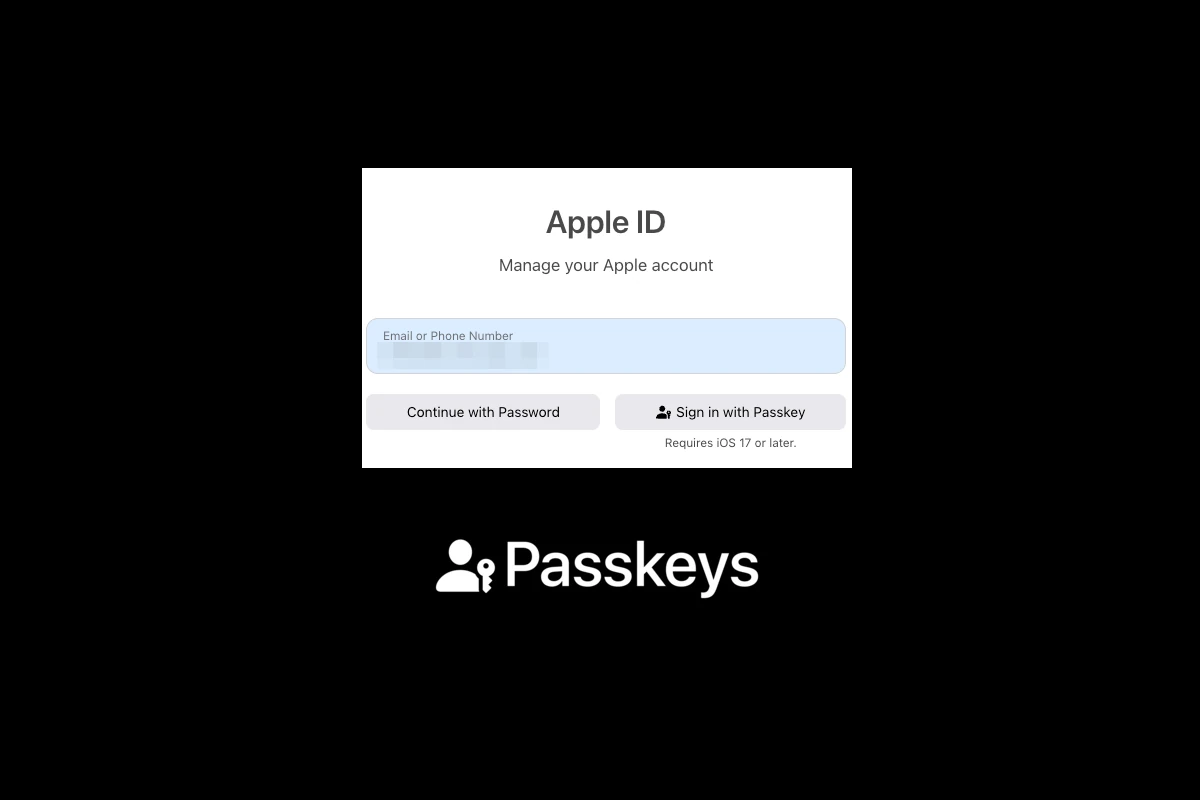
Tired of struggling with passwords? Apple’s passkeys offer a simpler and safer way to sign in to your favorite apps and websites. Passkeys are replacements for passwords that work across your Apple devices, making login faster and more secure. You can create and save passkeys on your iPhone to replace traditional passwords for supported websites and apps, eliminating the frustration of forgotten credentials and security risks.
Apple has designed passkeys to provide what many users have wanted for years – security without the hassle. Unlike traditional passwords, passkeys can’t be phished and don’t need to be remembered. They use advanced encryption to protect your accounts while making the sign-in process much easier. Your fingerprint or face scan is all you need to access your accounts.
The system works seamlessly across the Apple ecosystem, with your passkeys stored securely in iCloud Keychain. This means you can start using a service on your iPhone and continue on your Mac without any extra steps. Managing your passkeys is simple through your device settings, giving you full control over your digital identity.
Apple Passkey Guide (2026)
Apple Passkeys are Apple’s password‑less sign‑in system designed to make logging in faster, safer, and easier. By 2026, passkeys are widely supported across apps, websites, and devices, replacing traditional passwords for many services.
This guide explains what Apple Passkeys are, how they work, how to use them, and what to do if something goes wrong.
What Is an Apple Passkey?
A passkey is a secure digital credential that replaces a password. Instead of typing a password, you sign in using:
- Face ID
- Touch ID
- Your device passcode
Passkeys are stored securely in iCloud Keychain and synced across your Apple devices.
✅ No passwords to remember
✅ Resistant to phishing
✅ Protected by on‑device encryption
How Apple Passkeys Work
Apple Passkeys use public‑key cryptography:
- A private key stays securely on your device
- A public key is stored by the website or app
- Authentication happens using Face ID, Touch ID, or your passcode
Because the private key never leaves your device, passkeys can’t be stolen in data breaches.
Supported Devices (2026)
Apple Passkeys work on:
- iPhone (iOS 16+)
- iPad (iPadOS 16+)
- Mac (macOS Ventura or later)
- Apple Vision devices
- Apple Watch (for authentication approval)
All devices must be signed into the same Apple ID with iCloud Keychain enabled.
How to Set Up Apple Passkeys
Step 1: Enable iCloud Keychain
- Open Settings
- Tap your Apple ID
- Tap iCloud
- Tap Passwords & Keychain
- Turn on Sync this iPhone
Step 2: Create a Passkey
When signing up for a supported app or website:
- Choose Create Passkey or Continue with Passkey
- Authenticate with Face ID, Touch ID, or passcode
- Passkey is saved automatically
That’s it—no password needed.
How to Sign In Using a Passkey
- Go to the app or website
- Select Sign in with Passkey
- Confirm using Face ID, Touch ID, or passcode
✅ Works instantly
✅ No username or password required
Using Passkeys on Non‑Apple Devices
You can use your Apple passkeys on Windows or Android devices:
- Choose Sign in with Passkey
- Select Use another device
- Scan the QR code with your iPhone
- Authenticate with Face ID or Touch ID
Your passkey remains securely on your Apple device.
Managing Passkeys
View or Delete Passkeys
- Open Settings
- Tap Passwords
- Authenticate
- Select a website or app
- View or delete the passkey
Syncing Across Devices
Passkeys automatically sync:
- End‑to‑end encrypted
- Protected by your Apple ID
- Recoverable with account recovery methods
What If You Lose Your iPhone?
If your device is lost or replaced:
- Sign in to your Apple ID on a new device
- Enable iCloud Keychain
- Passkeys restore automatically
⚠️ If you lose access to all trusted devices, you’ll need Apple’s account recovery process.
Passkeys vs Passwords
| Feature | Passkeys | Passwords |
|---|---|---|
| Phishing resistant | ✅ | ❌ |
| Easy to use | ✅ | ❌ |
| Stored securely | ✅ | ❌ |
| Requires memorization | ❌ | ✅ |
| Vulnerable to leaks | ❌ | ✅ |
Common Issues & Fixes
Passkey option not showing?
- Ensure the site supports passkeys
- Update your device software
- Enable iCloud Keychain
Can’t sign in on older devices?
- Use QR code sign‑in
- Fall back to password if available
Worried about lockout?
- Keep multiple trusted Apple devices
- Set up account recovery contacts
Best Practices for 2026
- Use passkeys wherever available
- Keep at least two trusted Apple devices
- Enable two‑factor authentication
- Avoid creating passwords when passkeys are offered
- Regularly review saved passkeys
Final Thoughts
Apple Passkeys are the future of secure authentication. By 2026, they’re faster, safer, and more widely supported than traditional passwords. Once you start using passkeys, it’s hard to go back.
Key Takeaways
- Passkeys replace passwords with fingerprint or face scans for faster, more secure logins on Apple devices.
- Your passkeys sync across all Apple devices through iCloud Keychain, making sign-ins seamless on iPhone, iPad, and Mac.
- Unlike passwords, passkeys cannot be stolen in data breaches or tricked out of you through phishing attempts.
Overview of Passkeys
Passkeys represent a revolutionary step forward in online authentication, offering stronger security than traditional passwords while making the login process simpler for users. They combine enhanced protection against common threats with a more convenient experience.
Definition and Function
Passkeys are a replacement for passwords that use cryptographic key technology to verify your identity. When you create a passkey, your device generates a unique pair of keys – one public, one private. The private key stays on your device, while the public key goes to the website or app.
Unlike passwords, you don’t need to remember complex strings of characters. Your device handles the authentication with biometrics like Face ID or Touch ID. This makes signing in both faster and more secure.
Passkeys work through the WebAuthN standard, developed by the FIDO Alliance and major tech companies. This standard ensures passkeys work across different platforms and devices.
When you sign in to a site that supports passkeys, your device proves you’re you without sending any secret information over the internet.
Passkeys vs Traditional Passwords
Traditional passwords have many problems. People often reuse them across sites or choose weak ones. Passkeys fix these issues in several important ways:
- No memorization needed: You don’t have to remember complex passwords
- Unique to each site: Each passkey works only with the specific site it was created for
- Cannot be stolen in data breaches: The secret part never leaves your device
- Biometric protection: Requires your face or fingerprint to use
Unlike passwords, passkeys can’t be phished because they only work with the legitimate website they were created for. Even if you’re tricked into visiting a fake site, your passkey won’t work there.
Passkeys also eliminate the need for two-factor authentication codes, as they combine something you have (your device) with something you are (your biometric).
Role in Online Security
Passkeys make a big impact on online security by removing the weakest link – human-created passwords. They are phishing-resistant by design, as they verify the actual website you’re connecting to.
Website owners benefit too. They no longer need to store password databases that hackers might target. This reduces their security risks and liability.
For users, passkeys mean fewer account takeovers and less chance of identity theft. They also remove the burden of managing different passwords for different sites.
The FIDO Alliance has brought together major companies like Apple, Google, and Microsoft to support this standard. This means passkeys will work across different devices and operating systems.
As more sites adopt passkeys, we’ll see fewer data breaches caused by stolen passwords and a more secure internet for everyone.
Implementation in Apple Ecosystem
Apple has integrated passkeys deeply across its ecosystem, making them a central part of their security strategy. The implementation focuses on user-friendly authentication while maintaining strong security standards through the WebAuthN protocol.
Integration with iCloud Keychain
Passkeys in Apple’s ecosystem rely on iCloud Keychain for synchronization across devices. This seamless sync ensures users can access their accounts from any Apple device they own. The system stores the private key securely on-device while sharing the public key with websites and apps.
When a user creates a passkey, the system generates a unique public-private key pair. The private key never leaves the device, while the public key is what services use to verify your identity.
Users don’t need to remember anything – iCloud Keychain handles all the technical aspects behind the scenes. This creates a balance between security and convenience that passwords simply can’t match.
The sync process happens automatically whenever a new passkey is created or updated. This keeps authentication credentials current across all devices.
Apple Devices Compatibility
Passkeys work across the full range of Apple devices with recent operating systems. This includes:
- iPhone with iOS 16 or newer
- iPad with iPadOS 16 or newer
- Mac computers with macOS Ventura and Sonoma
- Apple Watch with watchOS 9 or newer
Each device uses secure elements and biometric sensors like Touch ID or Face ID to verify the user before authorizing passkey use. This two-factor approach combines something you have (your device) with something you are (your biometric data).
Older Apple devices that don’t support passkeys can still use passwords stored in iCloud Keychain. This backward compatibility helps during the transition period as more services adopt passkey technology.
User Experience on Safari
Signing in with passkeys on Safari provides a streamlined experience compared to traditional passwords. When visiting a site that supports passkeys, users simply:
- Select their account
- Authenticate with Face ID, Touch ID, or device passcode
- Gain immediate access to their account
The authentication flow is notably faster than typing passwords. Safari handles the WebAuthN protocol communication in the background, making the technical complexity invisible to users.
Safari also helps users create passkeys when signing up for new accounts. The browser suggests using a passkey instead of a password when available, helping drive adoption.
For sites that don’t yet support passkeys, Safari’s password manager continues to function as before. This dual support ensures users always have a secure sign-in option regardless of the site’s authentication technology.
Authentication Technologies
Apple’s approach to authentication combines security with ease of use through advanced technologies. These systems work together to protect user data while making device access simple and fast.
Biometrics in Apple Devices
Apple has revolutionized device security with its biometric systems. Touch ID and Face ID provide quick, secure ways to unlock devices and authorize actions.
Touch ID uses fingerprint recognition to verify identity. The system stores fingerprint data securely in the device’s Secure Enclave, not in the cloud. This keeps biometric information private and protected.
Face ID takes security further with its advanced 3D facial mapping. It works by projecting thousands of invisible dots to create a precise depth map of a face. The technology can adapt to changes like growing a beard or wearing glasses.
Both systems link directly to Apple’s passkey technology. They serve as the physical verification needed when using passkeys for website and app authentication. This connection makes logging in both more secure and more convenient than traditional passwords.
Two-Factor Authentication Enhancement
Apple has strengthened its two-factor authentication (2FA) system with passkeys. This provides better protection against common security threats like phishing attacks.
Traditional 2FA often relies on SMS codes that hackers can intercept. Apple’s approach pairs passkeys with biometrics to create a more secure authentication method. The system uses cryptographic key pairs instead of passwords.
When a user creates a passkey, the device generates a private key that never leaves the device and a public key stored on the service’s server. This setup means:
- Nothing sensitive travels over the network
- Each passkey is unique to a specific website or app
- Biometric verification is required for use
Apple’s authentication system follows the FIDO2 standards developed by the FIDO Alliance. This makes passkeys compatible with other platforms while maintaining strong security.
Passkey Authentication Process
Apple passkeys offer a streamlined login method that replaces traditional passwords. The authentication process uses public-key cryptography to provide better security while making logins faster and easier for users.
Pairing Devices with Passkeys
Adding passkeys to your Apple devices happens through iCloud Keychain. When you create a passkey on one device, it syncs automatically across all your Apple devices. This means you can set up a passkey on your iPhone and use it later on your Mac without any extra steps.
To create a passkey, you’ll first visit a website or app that supports this technology. The site will ask if you want to create a passkey instead of a password. Once you agree, your device generates a unique public-private key pair.
The private key stays securely on your device, while the public key goes to the service. This separation is key to security – nobody can steal what isn’t stored on the server.
Apple’s documentation explains that account creation with passkeys is a simple one-step process, eliminating the need to create or remember complex passwords.
Verification Methods
Apple uses your biometric data to verify it’s really you trying to use a passkey. When you want to log in, the site sends a challenge to your device. Your device then asks you to prove your identity.
You can verify yourself using Face ID or Touch ID on your device. This quick scan confirms you’re the authorized user. For devices without biometrics, you can use your device passcode instead.
Some situations might involve scanning a QR code. If you’re signing in on a new device, you can use your existing trusted device to scan a QR code. This creates a secure connection between devices for authentication.
The entire verification process typically takes just seconds. Unlike passwords, passkeys can’t be phished or leaked in data breaches, making your accounts much more secure while being easier to use.
Key Management and Recovery
Managing passkeys on Apple devices involves both secure storage and reliable recovery options. Apple’s system makes it easy to keep track of your passkeys while providing ways to get them back if something goes wrong.
Backup Solutions
Apple’s iCloud Keychain serves as the main backup solution for passkeys. It stores your keys securely in the cloud, protecting them with end-to-end encryption.
If you need to recover your passkeys, you’ll need to verify your identity. This happens through a multi-step process that includes:
- Entering your Apple ID and password
- Responding to an SMS sent to your registered phone number
- Sometimes using a trusted device to approve the recovery
For extra security, you can set up Security Keys for your Apple Account. These are small physical devices that look like thumb drives and add another layer of protection.
Key Synchronization and Access
Passkeys automatically sync across all your Apple devices through iCloud. This means when you create a passkey on your iPhone, it becomes available on your iPad and Mac too.
To manage this feature, go to Settings > Apple ID > iCloud > Passwords and Keychain on your devices. Here you can turn synchronization on or off based on your needs.
Finding your saved passkeys is simple. Use the Passwords app on your iPhone to view all your saved credentials. You can search by website or app name to quickly find what you need.
For sharing passkeys with non-Apple devices, AirDrop works well. It creates a secure connection for transferring sensitive information without exposing your keys to potential threats.
Security and Privacy Considerations
Apple’s passkeys provide significant advantages over traditional passwords by combining robust security features with user-friendly design. These innovations address many common vulnerabilities while putting privacy at the forefront.
Protection from Phishing Attacks
Passkeys are less vulnerable to phishing than traditional passwords. Unlike passwords that can be stolen through fake websites, passkeys work only with legitimate sites they were created for.
This security comes from how passkeys function:
- Website verification occurs automatically
- Biometric authentication (Face ID or Touch ID) required for use
- Device-specific creation prevents credential theft
Hackers can’t trick users into revealing passkeys since they’re never directly entered by the user. The authentication happens through a secure channel between the device and the service.
For extra protection, Apple allows users to add physical security keys as an additional layer of defense. These small devices connect to your iPhone or Mac and provide hardware-based verification.
Data Encryption and Privacy Policies
Apple stores passkeys with strong encryption and syncs them across devices using iCloud Keychain. This system employs end-to-end encryption, meaning even Apple can’t access your passkeys.
The privacy benefits include:
- No server-side password storage eliminates database breach risks
- No tracking across sites improves online privacy
- Local biometric verification keeps authentication data on your device
Passkeys are uniquely generated for each account by your device. This means even if one service is compromised, your other accounts remain secure.
Apple’s approach aligns with modern privacy expectations by giving users control without sacrificing security. The system works with Apple’s existing password management, making the transition to passkeys smooth for most users.
Apple ID and Passkey Integration
Apple has begun offering passkey support for Apple ID, giving users a more secure way to sign in. This new feature replaces traditional passwords with biometric verification.
Passkeys work through Face ID or Touch ID for quick, one-step sign-in. They eliminate the need to remember complex passwords while providing stronger security against phishing attacks.
When logging into Apple ID, users may notice a “Sign in with Passkey” option. This feature is gradually rolling out to Apple users as part of the company’s security improvements.
Currently, some users report they can sign in with a passkey but can’t find where to set one up within their account settings. Apple continues to expand these capabilities.
It’s important to note that passkeys work with Apple’s existing security systems. Your passkey is securely stored in iCloud Keychain and syncs across all your Apple devices.
Setting up a passkey requires:
- An Apple device with biometric verification
- iCloud Keychain enabled
- Up-to-date iOS, iPadOS, or macOS
For many services, passkeys still work alongside two-factor authentication. In some cases, you may still need your Apple ID password as a second verification step.
Apple’s passkey system lets you sign in to supported websites and apps beyond just Apple services. This creates a more unified security approach across your digital life.
Industry Impact and Adoption
Passkeys have significantly changed how users and companies approach security. Tech giants are leading implementation efforts while regulatory bodies work to establish standards for this passwordless future.
Tech Companies Response
Apple has positioned itself as a passkey pioneer, integrating this technology across its ecosystem. The company introduced passkeys in iOS 16 and macOS Ventura, allowing users to sign in to apps and websites without passwords.
Google and Microsoft have also embraced passkeys, creating a unified front among major tech players. This collaboration has been crucial for widespread adoption, as these companies control most of the browser and operating system market.
By 2024, passkey adoption has doubled, with more than 15 billion online accounts now able to use this technology. This rapid growth shows strong industry backing.
The WebAuthn standard forms the technical backbone of passkeys, allowing websites to register and authenticate users with public key cryptography instead of passwords.
BSI and Regulatory Perspectives
The Bundesamt für Sicherheit in der Informationstechnik (BSI), Germany’s federal cybersecurity authority, has expressed support for passkeys as a more secure alternative to traditional passwords.
Regulatory bodies worldwide are updating their guidelines to include passkeys as approved authentication methods. This official backing gives companies more confidence to implement the technology.
The European Union’s cybersecurity agencies have begun recommending passkeys in their security frameworks, signaling a shift in regulatory thinking.
Standards organizations are working to ensure passkeys meet strict security requirements while remaining user-friendly across different platforms and devices.
User Adoption and Awareness
Despite technical advantages, user adoption faces challenges. Many people don’t understand what passkeys are or how they work. A lack of awareness remains one of the biggest hurdles to widespread use.
Companies report that their customers often aren’t ready for passkeys due to familiarity with password-based systems. This hesitation slows adoption rates.
Some users worry about biometric data security when using passkeys. This concern shows a need for better education about how passkeys actually work.
Public awareness campaigns by Apple and Google have helped, but many users still don’t know that passkeys offer both better security and greater convenience than traditional passwords.
Comparative Analysis
Passkeys offer significant advantages over traditional passwords by using public-key cryptography and biometric verification. They eliminate many security weaknesses while providing a smoother user experience across devices.
Passkeys vs Password Managers
Passkeys differ from traditional password managers in several key ways. While password managers store complex passwords in encrypted vaults, passkeys authenticate the device itself rather than just verifying user identity.
Popular password managers like 1Password and Dashlane require users to:
- Remember a master password
- Manually copy/paste or autofill credentials
- Sync across devices through their services
In contrast, passkeys:
- Need no memorization
- Use fingerprints or face scans for access
- Resist phishing attempts by design
- Sync automatically through platform services
Passkeys are much more secure than passwords and don’t require users to remember them. This removes the burden of creating and remembering complex strings while offering better protection against common attacks.
Apple’s Solution vs Competitors
Apple’s passkey implementation takes advantage of their closed ecosystem to provide a seamless experience. Their passkeys leverage platform-level security features like hardware-backed encryption and biometric authentication.
Key differences in Apple’s approach:
- Integration: Built directly into iOS, macOS, and iCloud
- Cross-device use: Seamless sharing between Apple devices
- Security: Utilizes Secure Enclave for hardware protection
Google offers a similar solution but with a more open approach that works across platforms. Microsoft’s passkey system connects with Windows Hello but lacks Apple’s tight hardware integration.
For developers, implementing Apple passkeys can improve security, reduce costs, and enhance user retention. The approach balances security with usability in ways that many competitors still struggle to match.
E-Commerce and Payment Systems
Passkeys are transforming how shoppers make purchases online by adding stronger security while making checkout faster. They remove the need for typing passwords during payment steps.
Enhancing Online Transactions
Passkeys make online shopping safer by replacing traditional passwords with biometric authentication. When Apple users shop online, they can simply use Face ID or Touch ID to confirm purchases.
This new system cuts down on fraud risks. Passkeys can’t be stolen like passwords because they’re tied to your device and your unique features.
Many major online stores now support Apple passkeys at checkout. This means shoppers spend less time typing passwords and more time shopping.
Benefits for shoppers:
- Faster checkout process
- No passwords to remember
- Protection against phishing attacks
- Works across Apple devices
The risk of payment info being stolen drops sharply when passkeys replace passwords. This matters most during busy shopping seasons when fraud attempts spike.
PayPal Integration and Other Payment Platforms
PayPal now works with Apple passkeys, letting users sign in with Face ID or Touch ID instead of typing their password. This adds a layer of two-factor authentication without the usual hassle.
Setting up a passkey with PayPal takes just seconds. After it’s set up, users can make payments across any site that accepts PayPal without entering passwords again.
Other payment platforms following this trend include:
- Stripe
- Mastercard Click to Pay
- Apple Pay
- Google Pay
These systems work together with passkeys to create a smooth, secure payment flow. Users can now create and save passkeys for multiple payment services on their Apple devices.
For merchants, this means fewer abandoned carts due to forgotten passwords. It also reduces payment disputes since the authentication is stronger than traditional passwords.
Frequently Asked Questions
Passkeys offer a simpler and more secure way to authenticate on Apple devices. They replace traditional passwords with biometric verification through Face ID or Touch ID.
How can one set up a passkey for Apple ID authentication?
Setting up a passkey for Apple ID involves accessing your Apple ID settings. First, go to Settings and tap on your name at the top of the screen.
Next, select “Sign-in & Security” and look for the passkey option. Apple allows users to create and save passkeys as replacements for traditional passwords.
The system will guide you through the verification process, which typically involves using Face ID or Touch ID to complete the setup.
What steps are involved in activating passkeys on an iPhone device?
To activate passkeys on an iPhone, users need to have a device with iOS 16 or later. Open Settings and go to the Passwords section.
When creating a new account on a supported website or app, tap the option to create a passkey when prompted. The system will use Face ID or Touch ID to verify your identity.
For existing accounts, look for the option to add a passkey in the account’s security settings. The passkey will sync across your Apple devices through iCloud Keychain.
Are there any drawbacks to using passkeys as a security measure?
While passkeys offer improved security, they do have some limitations. Not all websites and apps currently support passkey authentication.
Recovery can be challenging if you lose access to all your devices. Users should maintain backup authentication methods for critical accounts.
Some users may find the transition from passwords confusing at first. The technology is still relatively new, so support and troubleshooting resources might be limited.
How can a user locate their passkey on an iPhone?
Users can find their saved passkeys in the Passwords section of the Settings app. Open Settings and tap on “Passwords” to view all saved credentials.
Passkeys are stored securely in iCloud Keychain and are accessible across all Apple devices signed in with the same Apple ID. They’re organized alongside regular passwords.
Search functionality helps find specific passkeys by entering the name of the website or app in the search bar at the top of the Passwords screen.
What is the procedure for logging in with a passkey on Apple devices?
When visiting a website or opening an app that supports passkeys, select the option to sign in. The system will prompt you to use a passkey instead of entering a password.
Verify your identity using Face ID or Touch ID when prompted. This authorizes the use of the passkey, which then authenticates you to the service.
The entire process happens seamlessly without having to remember or type any passwords. This makes login both faster and more secure than traditional methods.
How can one disable the passkey feature on Apple devices?
To disable passkeys for a specific account, go to Settings > Passwords and select the account. Look for the passkey entry and select “Remove Passkey.”
For broader management, users can disable iCloud Keychain syncing through Settings > Apple ID > iCloud > Keychain. This prevents passkeys from syncing across devices.
Before disabling passkeys, ensure alternative authentication methods are available for affected accounts to maintain access to important services.