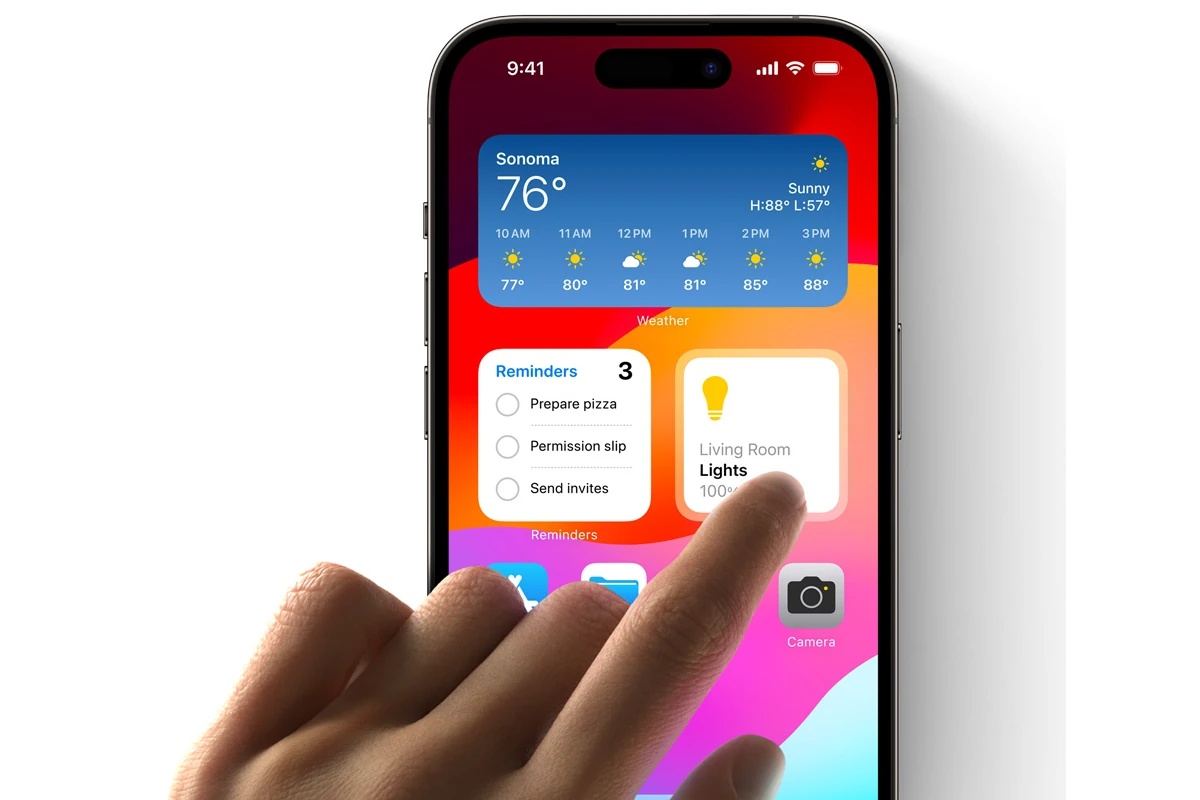
Widgets bring your iPhone to life by showing helpful information right on your home screen. No more opening apps to check the weather, see your calendar, or view photos – it’s all visible at a glance. Adding widgets to your iPhone is easy – just touch and hold any empty area on your home screen until the apps start to jiggle, then tap the plus sign in the top corner to browse available widgets.
You can choose from many widget types and sizes to fit your needs. Weather widgets show current conditions, calendar widgets display upcoming events, and photo widgets cycle through your favorite images. Once added, you can move widgets around just like apps to create a home screen that works for you.
How To Add Widgets to iPhone (Step‑by‑Step Guide)
Widgets let you see useful information—like weather, calendar events, battery levels, or reminders—at a glance without opening apps. Apple makes it easy to add widgets to your Home Screen, Lock Screen, and Today View.
Here’s a complete guide to adding and customizing widgets on your iPhone.
📱 How to Add Widgets to the Home Screen
Adding widgets to your Home Screen is quick and simple:
Step 1: Enter Jiggle Mode
Touch and hold an empty space on your Home Screen (or any app icon) until the apps start to jiggle.
Step 2: Tap the Add Button
Tap the “+” button in the top-left corner of the screen (in some iOS versions, it may appear in the top-right).
Step 3: Select a Widget
Scroll through the widget list or use the search bar at the top to find the app widget you want.
Step 4: Choose a Size
Swipe left or right to preview available sizes (Small, Medium, or Large).
Step 5: Add and Place the Widget
Tap Add Widget, then drag it to your preferred location on the Home Screen.
Step 6: Save
Tap Done in the top-right corner.
✅ Your widget is now active and ready to use.
🔒 How to Add Widgets to the Lock Screen (iOS 16 and Later)
You can also place widgets directly on your Lock Screen for quick access.
Steps:
- Wake your iPhone and unlock it (stay on the Lock Screen).
- Touch and hold the Lock Screen.
- Tap Customize.
- Select Lock Screen.
- Tap the widget area below the clock.
- Choose widgets from the list.
- Tap Done to save.
You can add:
- Small circular widgets (like battery or weather)
- Rectangular widgets for more detailed info
👉 How to Add Widgets to Today View
The Today View appears when you swipe right from the Home Screen or Lock Screen.
Steps:
- Swipe right from the Home Screen.
- Scroll to the bottom and tap Edit (or long-press in empty space).
- Tap the + button.
- Select a widget and choose its size.
- Tap Add Widget, then Done.
Today View is great for stacking multiple information widgets in one place.
📊 Widget Locations at a Glance
| Location | How to Access | Best For | Customizable? |
|---|---|---|---|
| Home Screen | Long-press → Tap + | Daily apps, weather, calendar | ✅ Yes |
| Lock Screen | Long-press Lock Screen → Customize | Quick glance info | ✅ Yes |
| Today View | Swipe right | Multiple stacked widgets | ✅ Yes |
🔄 How to Edit or Remove Widgets
To Edit:
- Touch and hold the widget.
- Tap Edit Widget.
- Adjust settings (if available).
To Remove:
- Long-press the widget.
- Tap Remove Widget.
- Confirm removal.
🧠 Bonus Tips
- ✅ You can stack widgets by dragging one widget on top of another.
- ✅ Swipe up or down on a stack to cycle through them.
- ✅ Use Smart Stack for automatic widget rotation based on usage.
- ✅ Some apps offer interactive widgets (like checking off reminders).
Final Thoughts
Adding widgets to your iPhone is a simple way to personalize your device and access important information instantly. Whether on your Home Screen, Lock Screen, or Today View, widgets help you stay organized and efficient.
Key Takeaways
- Touch and hold the home screen until apps jiggle, then tap the plus sign to add widgets to your iPhone.
- Widgets come in different sizes and can be placed on both the home screen and Today View for quick information access.
- Long press on existing widgets to edit or customize them with different options and data displays.
Understanding Widgets on iPhone
Widgets on iPhone offer quick access to important information without opening apps. They show timely updates and let users interact with favorite apps right from the home screen or Today View.
What Are Widgets?
Widgets are mini versions of your apps that display useful information at a glance. They save time by showing current information like headlines, weather updates, reminders, and battery levels without opening the full app.
Think of widgets as windows into your apps. They update automatically to show relevant content based on time, location, or activity.
Widgets come in different sizes – small, medium, and large. Each size shows different amounts of information. Small widgets might show basic weather conditions, while larger ones display hourly forecasts and additional details.
The beauty of widgets lies in their simplicity. They present only the most important information in an easy-to-read format. This helps users stay informed without getting distracted by unnecessary features.
Evolution of Widgets
Apple first introduced widgets in iOS 8, but they were limited to the Today View. Users could only access them by swiping right from the home screen or lock screen.
With iOS 14, Apple made a major change. Widgets could finally be placed directly on the home screen, allowing for more personalization and easier access.
iOS 16 brought new Lock Screen widgets, giving users quick information without unlocking their phones. This was particularly useful for checking weather, calendar events, or activity stats.
The latest iOS updates have introduced interactive widgets, which let users perform simple actions directly from the widget. For example, users can check off reminders or control smart home devices without opening apps.
Each evolution has made widgets more useful and accessible. They’ve transformed from simple information displays to interactive tools that save time and improve the iPhone experience.
Types of Widgets
System Widgets
Apple offers widgets for built-in apps like Weather, Calendar, and Clock. The weather widget shows current conditions and forecasts, while Calendar displays upcoming events. These widgets are reliable and perfectly integrated with iOS.
Productivity Widgets
Apps like Reminders and Notes have widgets that help users stay organized. The reminders widget shows upcoming tasks and lets users mark them complete. Other productivity widgets include email previews and to-do lists.
Information Widgets
News apps, stocks widgets, and sports scores keep users informed throughout the day. The stocks widget tracks investments and market trends, while news widgets display headlines from favorite sources.
Smart Stack
This special widget type automatically rotates through different widgets based on time, location, and usage patterns. It might show calendar events in the morning, activity stats in the evening, and weather before you leave home.
Third-Party Widgets
Many popular apps offer custom widgets with unique features. These range from fitness trackers to language learning tools and shopping lists.
Adding Widgets to Your iPhone
Widgets make your iPhone more useful by showing information at a glance. You can place them on your Home Screen, Lock Screen, or access them through Today View without opening apps.
How to Add Widgets
Adding widgets to your iPhone is simple and can be done in just a few steps. Apple has made this process user-friendly since iOS 14.
To start, you’ll need to know which widget you want to add. Most apps come with their own widgets. Popular choices include Weather, Calendar, Photos, and Clock.
Widgets come in different sizes – small, medium, and large. Small widgets take up four app icons, medium widgets take up eight, and large widgets take up sixteen.
You can also add Smart Stacks, which let you swipe through multiple widgets in one space. This saves room on your screen while giving you access to more information.
Before adding widgets, make sure your iPhone is updated to at least iOS 14 or newer for Home Screen widgets.
Adding Widgets from Today View
Today View is a convenient place to keep widgets that you want to check quickly. It appears when you swipe right from your first Home Screen page.
To add widgets to Today View:
- Swipe right from your Home Screen to access Today View
- Scroll to the bottom and tap “Edit”
- Tap the “+” button in the top left corner
- Browse through available widgets
- Select the widget you want to add
- Choose the widget size by swiping left or right
- Tap “Add Widget”
- Use the handle bars to drag and rearrange widgets
- Tap “Done” when finished
Today View is great for widgets you check often but don’t need visible all the time. You can easily access your information with a quick swipe.
Adding Widgets to the Home Screen
Since iOS 14, you can add widgets directly to your Home Screen, placing them among your apps for easy access.
To add widgets to your Home Screen:
- Touch and hold any empty area on your Home Screen until apps jiggle
- Tap the + button in the top-left corner
- Browse or search for the widget you want
- Swipe left/right to select a size
- Tap Add Widget
- Drag the widget to your preferred location
- Tap anywhere to exit edit mode
You can also add widgets by long-pressing an app icon and selecting “Add Widget” if available in the menu. This quick method works for apps that offer widgets.
Home Screen widgets are perfect for information you want to see without opening apps. Weather, calendar events, and reminders are popular choices.
Adding Widgets to the Lock Screen
With iOS 16 and newer, you can add widgets to your Lock Screen too. These are smaller than Home Screen widgets but very useful.
To add widgets to your Lock Screen:
- Unlock your iPhone with Face ID or Touch ID
- Press and hold anywhere on the Lock Screen
- Tap Customize
- Select the Lock Screen you want to modify
- Tap the widget area (below the time)
- Browse available widgets
- Tap to add up to 4 small widgets or 2 medium ones
- Tap Done when finished
Lock Screen widgets work best for quick information like weather, battery levels, calendar events, and activity rings. They appear in a bar below the time display.
Many free widgets come built-in with your iPhone, like Clock and Weather. Third-party apps also offer their own Lock Screen widgets.
Customizing Your Widgets
Once you add widgets to your iPhone, you can make them truly yours through customization options. Apple provides several ways to personalize widgets to match your style and display the information that matters most to you.
Choosing Widget Size and Style
Widgets come in different sizes on iPhone – small, medium, and large. Each size shows different amounts of information. To change a widget’s size, first remove your current widget and add a new one in your preferred size.
When adding a widget, swipe left or right in the widget gallery to see all size options. Small widgets fit in a 2×2 space, perfect for quick glances at information like weather or battery status.
Medium widgets (4×2) show more details and work well for calendars or photos. Large widgets (4×4) display the most information, great for maps or extensive weather forecasts.
Many apps also offer different style options within each size. For example, the Weather widget can show temperature, forecast, or precipitation in various visual styles.
Customizing Widget Content
To edit widget content, press and hold on the widget until a menu appears, then tap “Edit Widget.” The options vary depending on the widget.
For example, with the Weather widget, you can select different locations. The Calendar widget lets you choose which calendars to display. The Photos widget allows you to pick specific albums to showcase.
Some widgets like Stocks let you select which companies to track. News widgets can be set to show topics that interest you most.
The Clock widget can display different time zones, while the Shortcuts widget can be customized to show your most-used shortcuts. These options help make widgets more useful for your specific needs.
Creating Custom Widgets with Widgetsmith
For more personalization, apps like Widgetsmith allow you to create fully custom widgets from scratch. After downloading Widgetsmith from the App Store, open it to start creating.
First, select the widget size you want to create. Then choose from various widget types like time, date, photos, weather, or plain text. Each type offers multiple design options.
You can adjust fonts, colors, and backgrounds to match your home screen theme. Add borders, change tint colors, or use custom images as backgrounds to make unique widgets.
Widgetsmith lets you schedule different widgets to appear at specific times. For example, your calendar can show in the morning and weather in the evening.
After creating your custom widget, add it to your home screen through the standard widget menu, then select the specific Widgetsmith design you created.
Organizing Widgets for Optimal Use
Setting up widgets strategically on your iPhone helps you access information quickly and keeps your home screen tidy. The right organization system makes widgets truly useful rather than just decorative elements.
Smart Stacks and Smart Rotate
Smart Stacks are one of the most powerful widget tools on iPhone. These collections hold multiple widgets in one space, helping you save precious screen real estate. To create a Smart Stack, simply touch and hold the home screen until apps jiggle, tap the plus icon, then scroll to find “Smart Stack.”
The Smart Rotate feature makes these stacks even more useful. When enabled, your iPhone shows the most relevant widget based on your habits. For example, it might display weather in the morning and calendar in the afternoon.
To customize Smart Stack settings:
- Touch and hold a Smart Stack
- Tap “Edit Stack”
- Toggle Smart Rotate on or off
- Rearrange widgets by dragging the list icon
You can also remove widgets from a stack by swiping left on them in edit mode.
Widgets and the Siri Suggestions Feature
Siri Suggestions work alongside widgets to make your iPhone smarter and more helpful. The Siri Suggestions widget shows apps and actions based on your daily routines and current context.
This widget learns from your habits. It might suggest your fitness app around workout time or show delivery tracking when a package is arriving. To add this widget, follow the same steps as adding any widget, but search for “Siri Suggestions.”
For best results, place the Siri widget somewhere easily visible. Many users put it at the top of their home screen for quick access.
You can customize what appears by:
- Going to Settings
- Tapping “Siri & Search”
- Adjusting which apps can make suggestions
This creates a personalized experience that improves over time as Siri learns your preferences.
Scheduling Widgets for Specific Times
The widget scheduling feature gives you control over when certain widgets appear. This is perfect for seeing different information at different times of day.
For example, you might want to see your calendar during work hours but switch to entertainment widgets in the evening. To set up scheduled widgets:
- Create two different home screen pages with different widget setups
- Go to Settings > Wallpaper > Home Screen
- Choose “Set Up Schedule”
- Select the home screens you want to rotate between
- Pick times for each layout to appear
This automation happens seamlessly in the background. Your widgets will change based on the schedule you’ve created.
Some widgets also offer internal scheduling options. Calendar widgets can be set to show today’s events or upcoming ones. Weather widgets can display current conditions or forecasts.
Many users find that scheduled widgets help them stay productive by showing only what’s needed at specific times.
Managing Widgets on Your iPhone
Widgets make your iPhone more useful by showing quick information without opening apps. You can easily change, move, and fix widgets to keep your home screen working just how you like it.
How to Remove Widgets
Removing widgets from your iPhone is simple when you no longer need them. To delete a widget, touch and hold it until a menu appears. Then tap “Remove Widget” and confirm your choice.
For widgets in a stack, the process is slightly different. First, touch and hold the stack, then tap “Edit Stack.” Now you can swipe left on any widget in the stack and tap the delete button.
Sometimes you might accidentally remove a widget. Don’t worry! You can always add it back by long-pressing an empty area on your home screen, tapping the “+” button in the top corner, and finding the widget again.
Remember that removing widgets doesn’t delete the actual app, just the quick view on your home screen.
Organizing Your Widget Layout
A tidy widget layout makes your iPhone easier to use. To move widgets, simply touch and hold until they wiggle, then drag them to new positions. Release when they’re where you want them.
You can create widget stacks by dragging one widget on top of another. This saves space while keeping information accessible. Smart Stacks automatically rotate to show relevant widgets based on your usage patterns.
Different sized widgets offer various information levels:
- Small: Basic info in a compact space
- Medium: More details without taking up too much room
- Large: Comprehensive information for important apps
Place your most-used widgets on the first page of your home screen. This keeps important information just a glance away when you unlock your phone.
Troubleshooting Common Widget Issues
Widgets sometimes have problems that are easy to fix. If a widget freezes or shows outdated information, try these solutions:
First, try editing the widget. Touch and hold it, then tap “Edit Widget” to refresh its connections.
If that doesn’t work, remove and re-add the widget. This often solves display or update issues.
For widgets that drain battery quickly, check which ones update most often. Weather and location-based widgets typically use more power. Consider removing them if battery life is important to you.
Some apps may not offer widgets right away after installation. Check for app updates, as developers often add widget support in newer versions.
Widget stacks sometimes get stuck showing one widget. To fix this, edit the stack and toggle off “Smart Rotate” then turn it back on.
Advanced Widget Usage
iOS 18 brings powerful new ways to get more from your iPhone widgets. These tools help you view important information faster and control your apps without opening them.
Linking Widgets with Shortcuts
The real power of widgets comes from connecting them with Apple’s Shortcuts app. You can now create widgets that run custom automations with just a tap. This saves time on tasks you do often.
To set this up:
- Open the Shortcuts app
- Create a new shortcut or select an existing one
- Tap the “Add to Home Screen” option
- Choose your widget size and appearance
Many users create weather-triggered shortcuts that open specific apps or send messages. For example, a morning widget might show the weather, start your coffee maker, and open your calendar—all with one tap.
The best shortcuts connect multiple apps. Try linking your calendar with Maps to get travel time to your next meeting right on your Home Screen.
Utilizing Widgetsmith for Advanced Customization
Widgetsmith takes iPhone widgets to another level with deep customization options. This app lets you design widgets that match your style and show exactly what you need.
Key Widgetsmith features:
- Custom fonts and color schemes
- Multiple data types (weather, calendar, health)
- Time-based widget changes
- Photo widgets with borders
The app makes it easy to create widgets that change throughout the day. Your morning widget might show your schedule, while the same widget shows fitness stats in the evening.
To get started, download Widgetsmith from the App Store. Then create your first widget by selecting a size and choosing what information to display. The app offers both free and premium options.
Widget Preview: Glimpse into Cutting-edge Widget Features
iOS 18 introduced Widget Preview, a feature that shows widget information without even touching your phone. This system uses intelligence to display relevant information exactly when you need it.
The preview function works by:
- Analyzing your usage patterns
- Monitoring time and location
- Checking upcoming calendar events
- Responding to notifications
For example, as you approach your gym, fitness widgets may appear. Or when it’s almost time for a meeting, your calendar widget might expand to show details.
To enable Widget Preview, go to Settings > Home Screen > Widget Preview. You can choose which apps can use this feature and when previews appear. This keeps your phone from showing private information when you don’t want it to.
This feature works best when you customize which widgets can use previews and in which situations they should appear.
Frequently Asked Questions
Many iPhone users have questions about widgets. Here are answers to common questions about adding, customizing, and managing widgets on your iPhone.
How can one customize the appearance of widgets on an iPhone?
To customize widgets on an iPhone, users need to press and hold on an existing widget until it jiggles. Then tap the widget to see customization options.
Different widgets offer various customization choices. Weather widgets let users change locations, while calendar widgets allow different views like monthly or daily.
Widgetsmith offers extensive customization for those wanting more options. Users can change colors, fonts, and styles to match their personal taste.
What is the process for adding new widgets to the iPhone Lock Screen?
To add widgets to the Lock Screen, users should press and hold on their Lock Screen until the customization interface appears. Then tap “Customize” and select “Widgets.”
Users can tap the plus icon in the widget area to see available options. The system will show widgets from apps that support Lock Screen widgets.
Choose a widget size and tap to add it. Users can add multiple widgets depending on the space available on their Lock Screen.
What steps are involved in changing existing widgets on the iPhone Lock Screen?
To change Lock Screen widgets, users need to press and hold on the Lock Screen and tap “Customize.” Then select the widget area to edit.
Tap on an existing widget to change its settings or remove it. Users can also add new widgets by tapping the plus icon in available spaces.
When finished making changes, tap “Done” to save the new widget configuration to the Lock Screen.
Is there a way to access a selection of free widgets for the iPhone?
Many free widgets come built into iPhone’s system apps. Calendar, Weather, Batteries, and Clock all offer free widgets.
Third-party apps often include free widgets as part of their features. Users can find these by searching for the app in the widget selection screen.
The App Store has many free apps with widget support. Users can search for “widgets” to find options that match their needs.
How can a user remove unwanted widgets from their iPhone home or Lock Screen?
To remove widgets from the Home Screen, users need to press and hold on the widget until it jiggles. Then tap the minus icon in the corner of the widget and confirm deletion.
For Lock Screen widgets, press and hold on the Lock Screen, tap “Customize,” and select the widget area. Then tap the minus icon on unwanted widgets.
Users can also swipe to the widgets page, scroll to the bottom, tap “Edit,” and remove widgets they no longer need.
Are there any specific instructions for adding widgets on iPhones with iOS 15?
In iOS 15, users can add widgets by touching and holding an empty area on the Home Screen until apps jiggle. Then tap the plus icon in the top-left corner.
Users select a widget from the menu, choose a size by swiping left or right, and tap “Add Widget” to place it on the Home Screen.
iOS 15 introduced Smart Stacks that combine multiple widgets in one space. Users can create these by dragging widgets on top of each other after adding them to the Home Screen.