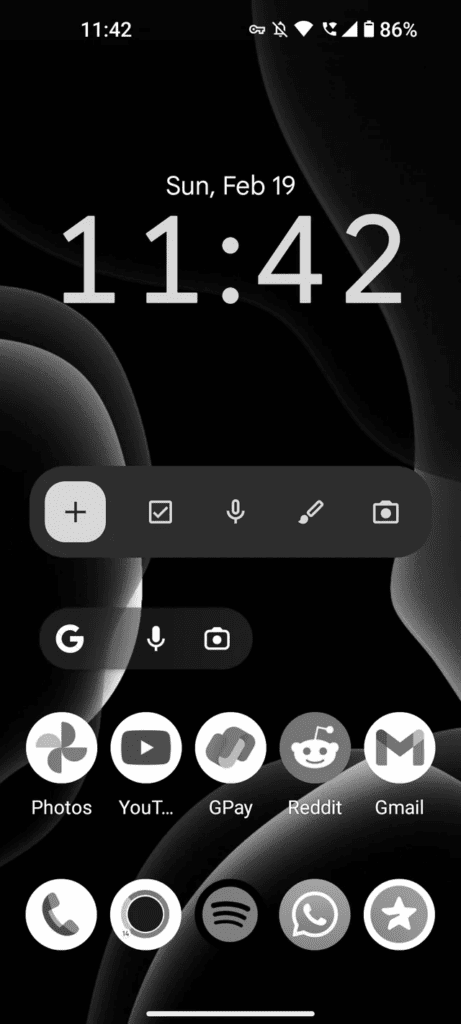
Want your iPhone screen to be easier on the eyes? Dark Mode changes your display from bright white to sleek black, making your phone more comfortable to use. You can turn on Dark Mode on your iPhone by going to Settings > Display & Brightness and selecting the Dark option, or quickly toggle it on and off through Control Center. This feature not only looks cool but can also help reduce eye strain, especially when using your phone at night.
Dark Mode gives all your apps and screens a darker color scheme when they support it. Apple introduced this feature with iOS 13, and it’s become very popular with iPhone users. Many people switch between light and dark modes based on the time of day, with dark for evening use and light during daylight hours.
If you’ve never tried Dark Mode, it’s worth testing out. Beyond making late-night browsing more comfortable, some users find it helps their battery life on iPhones with OLED screens. Dark Mode can also be scheduled to turn on automatically at sunset or at a time you choose, so you don’t have to remember to switch it on.
iPhone Dark Mode Guide: How to Enable, Customize, and Fix It
Dark Mode on iPhone changes your device’s appearance to a darker color scheme, making the screen easier on your eyes—especially at night. It can also help reduce battery usage on OLED models and give your iPhone a sleek, modern look.
In this complete guide, you’ll learn how to turn on Dark Mode, schedule it, customize it, and troubleshoot common issues.
What Is Dark Mode on iPhone?
Dark Mode replaces bright white backgrounds with darker tones across:
- System menus and settings
- Built-in apps (Messages, Mail, Photos, Notes, etc.)
- Supported third-party apps
- Widgets and notifications
It’s available on iPhones running iOS 13 or later.
How to Turn On Dark Mode
There are several ways to enable Dark Mode.
Method 1: From Settings
- Open Settings
- Tap Display & Brightness
- Under Appearance, select Dark
Your iPhone will instantly switch to Dark Mode.
Method 2: From Control Center (Faster Way)
- Open Control Center
- Swipe down from the top-right corner (Face ID models)
- Swipe up from the bottom (Home button models)
- Press and hold the Brightness slider
- Tap Dark Mode at the bottom
This is the quickest way to toggle it on or off.
How to Schedule Dark Mode Automatically
You can set Dark Mode to turn on at certain times of the day.
To schedule:
- Go to Settings
- Tap Display & Brightness
- Toggle on Automatic
- Choose:
- Sunset to Sunrise (based on your location)
- Custom Schedule (set your own times)
This is perfect if you prefer Light Mode during the day and Dark Mode at night.
Does Dark Mode Save Battery?
Yes—on iPhones with OLED displays (iPhone X and newer, except XR and 11).
OLED screens turn off individual pixels to display black, which can reduce power consumption when using Dark Mode.
You may notice better battery life when:
- Using Dark Mode consistently
- Keeping brightness at moderate levels
- Using apps with dark backgrounds
How to Make Wallpapers Match Dark Mode
iOS can automatically dim certain wallpapers when Dark Mode is enabled.
To enable wallpaper dimming:
- Go to Settings
- Tap Wallpaper
- Select Customize
- Choose a wallpaper that supports appearance-based dimming
You can also set separate Lock Screen and Home Screen wallpapers that complement Dark Mode.
Enable Dark Mode in Individual Apps
Some apps allow manual control of appearance regardless of system settings.
For example:
- Gmail
- Twitter/X
Check inside the app’s Settings > Appearance section to see if Dark Mode can be customized separately.
Reduce Eye Strain Even Further
Pair Dark Mode with these settings for maximum comfort:
Night Shift
- Go to Settings > Display & Brightness
- Tap Night Shift
- Schedule or manually enable it
Night Shift reduces blue light for better nighttime viewing.
True Tone
- Found under Display & Brightness
- Adjusts screen colors based on ambient lighting
How to Turn Off Dark Mode
If you prefer the standard bright appearance:
- Go to Settings
- Tap Display & Brightness
- Select Light
Or toggle it quickly from Control Center.
Dark Mode Not Working? Try These Fixes
If Dark Mode won’t activate or appears inconsistent:
1. Restart Your iPhone
A simple reboot can fix display glitches.
2. Update iOS
Go to Settings > General > Software Update and install any available updates.
3. Check App Compatibility
Not all third-party apps fully support Dark Mode.
4. Disable Smart Invert
If colors look strange:
- Go to Settings > Accessibility > Display & Text Size
- Turn off Smart Invert
Which iPhones Support Dark Mode?
Dark Mode works on:
- iPhone SE (2nd gen and newer)
- iPhone 6s and newer
- All iPhone X, XR, XS, 11, 12, 13, 14, 15, and newer models
The device must be running iOS 13 or later.
Final Thoughts
Dark Mode on iPhone is more than just a cosmetic change—it can improve comfort, reduce eye strain, and even extend battery life on OLED devices. Whether you use it all day or schedule it at night, it’s one of the most useful customization features in iOS.
Try enabling Automatic scheduling to get the best of both Light and Dark Mode without manually switching each day.
Key Takeaways
- Dark Mode can be turned on through Settings or Control Center and helps reduce eye strain at night.
- Users can set Dark Mode to activate automatically at sunset or at specific times of day.
- Some apps offer extra Dark Mode options that can be customized for better viewing comfort.
Understanding Dark Mode on iPhone
Dark Mode on iPhone changes the display from bright backgrounds with dark text to dark backgrounds with light text. This feature helps reduce eye strain, save battery life on OLED screens, and provides a stylish alternative look for iOS devices.
Evolution of Dark Mode in iOS
Apple introduced Dark Mode as a system-wide feature in iOS 13 back in 2019. Before this, iPhone users could only access limited dark themes in certain apps.
The full Dark Mode changed everything on the screen – from menus and settings to Apple’s own apps. The design team created it to work across the entire system.
Over time, Apple improved Dark Mode with each iOS update. They added an automatic switching feature that changes between light and dark based on time of day.
Now most apps, including third-party ones, support Dark Mode. Developers follow Apple’s design guidelines to make sure their apps look good in both modes.
Benefits of Using Dark Mode
Reduced Eye Strain: Dark Mode can be easier on the eyes, especially at night or in dim rooms. The darker display produces less harsh brightness in low-light settings.
Better Battery Life: For iPhones with OLED screens (iPhone X and newer), Dark Mode can save battery. OLED displays turn off pixels to show black, using less power when dark colors appear on screen.
Stylish Appearance: Many users simply prefer the look of Dark Mode. The sleek black background gives apps a modern feel.
Improved Focus: Dark Mode can help reduce distractions for some users. The contrast between text and background can make content stand out more clearly.
Dark Mode vs Light Mode
Dark Mode features dark backgrounds with light text, while Light Mode shows light backgrounds with dark text. Each has specific advantages:
Light Mode benefits:
- Better visibility in bright sunlight
- Familiar traditional look
- Often easier to read long text
- Shows colors more naturally
Dark Mode benefits:
- Comfortable viewing in low light
- Reduces blue light exposure
- Saves battery on OLED screens
- Less eye strain at night
The best choice depends on personal preference and situation. Many users switch between modes based on time of day or setting. Some prefer Dark Mode all the time for its sleek look, while others find Light Mode better for daytime use.
Enabling Dark Mode on the iPhone
Dark mode on iPhone changes the display to a darker color scheme. This feature helps reduce eye strain, especially at night, and can save battery life on OLED iPhone models.
Step-by-Step Guide to Enable Dark Mode
The easiest way to turn on Dark Mode is through Settings. First, open the Settings app on your iPhone. Then tap on “Display & Brightness” near the top of the menu.
Under the Appearance section, you’ll see two options: Light and Dark. Simply tap on “Dark” to switch immediately to dark mode.
You can also access dark mode quickly through Control Center. Swipe down from the top-right corner of your screen (or up from the bottom on older iPhones). Press and hold the brightness slider, and you’ll see a Dark Mode button at the bottom.
For those running iOS 15 or newer, you can even ask Siri to “turn on dark mode” for a hands-free option.
Automatic Versus Manual Settings
iPhone offers both manual and automatic dark mode options. Manual mode lets you control exactly when dark mode is active by turning it on or off yourself.
Automatic mode switches between light and dark based on the time of day. To enable this, go to Settings > Display & Brightness and toggle on “Automatic.”
By default, automatic mode turns on dark mode at sunset and switches back to light mode at sunrise. This natural cycle helps reduce eye strain at night when you’re more sensitive to bright screens.
Your iPhone uses your location to determine local sunset and sunrise times, so the switching happens at the right times for your area.
Custom Schedule for Dark Mode
Want more control? You can set a custom schedule for when dark mode activates and deactivates.
Go to Settings > Display & Brightness and tap “Automatic.” Then select “Custom Schedule” instead of “Sunset to Sunrise.”
You’ll see two options: “Light Appearance” and “Dark Appearance.” Tap each one to set specific times when you want your iPhone to switch between modes.
This is perfect if you have a regular schedule that doesn’t align with sunrise and sunset. For example, if you work night shifts, you might set dark mode during daylight hours.
Custom schedules are also helpful if you want dark mode to activate earlier than sunset, such as in the late afternoon when you’re winding down for the evening.
Advanced Dark Mode Settings
iPhone Dark Mode offers more than just the basic on/off switch. With several hidden options, you can fine-tune how Dark Mode looks and works to match your exact preferences and needs.
Adjusting Brightness and Contrast
The Display & Brightness settings on iPhone let you control how Dark Mode appears. You can adjust the screen brightness by dragging the slider – lower brightness often makes Dark Mode more comfortable in dark rooms.
For deeper customization, try these settings:
- Auto-Brightness: Found in Accessibility > Display & Text Size
- True Tone: Adjusts colors based on ambient light
- Night Shift: Reduces blue light in the evening
iPhone also offers a hidden feature called “Reduce White Point.” This option makes whites less bright and can make Dark Mode even darker. Find it in Settings > Accessibility > Display & Text Size.
Some apps let you change contrast levels in Dark Mode. This helps with readability, especially for users with vision sensitivity.
Using Dark Mode with Accessibility Features
Dark Mode works well with iPhone accessibility features to create a better viewing experience. Smart Invert reverses colors while leaving images and media unchanged, creating a custom dark experience.
Users can set up Accessibility Shortcuts to quickly toggle between modes:
- Go to Settings > Accessibility > Accessibility Shortcut
- Select Smart Invert or Classic Invert
- Triple-click the side button to activate
Voice Over works smoothly with Dark Mode, helping users with vision impairments. The contrast helps Voice Over users see the highlighted elements better.
For iPhone SE and older models, Dark Mode might improve battery life since darker pixels use less power on OLED screens. This makes it both accessible and practical.
Customizing Display Accommodations
iPhone offers Display Accommodations that work alongside Dark Mode for a personalized experience. Color Filters help users with color blindness better see screen elements in Dark Mode.
Users can adjust these settings:
Color Tint Options:
- Intensity slider
- Hue selection
- Color filter types (Grayscale, Red/Green, Blue/Yellow)
Dark Mode can be scheduled to turn on automatically at sunset or at custom times. This helps reduce eye strain as natural light decreases.
For late-night browsing, combine Dark Mode with Reduce White Point and Night Shift. This trio of settings creates the most eye-friendly smartphone experience possible.
iPhone also lets users set up different Dark Mode appearances in Control Center for quick switching between custom display settings.
Dark Mode Compatibility
Dark Mode on iPhone offers different levels of support based on your device model and the apps you use. Hardware features and software updates determine how well Dark Mode works on your system.
Dark Mode Support in iPhone Models
Dark Mode works on iPhones running iOS 13 or later. However, the experience varies with screen technology. The iPhone X and newer OLED models display true blacks because they can turn off individual pixels completely.
LCD screen iPhones (like iPhone XR and iPhone 11) show dark gray instead of true black. This difference affects battery savings too. OLED screens save more power in Dark Mode because black pixels use no energy.
All compatible iPhones let you turn on Dark Mode through Settings > Display & Brightness. You can select Dark to enable it manually or set an automatic schedule based on sunset and sunrise.
Dark Theme Availability in Third-party Apps
Not all apps support Dark Mode equally. Apple’s built-in apps follow system settings automatically, but third-party apps vary widely in their implementation.
Many popular apps like Instagram, Twitter, and Reddit offer Dark Mode options. Some follow your system settings, while others require manual adjustment within the app settings.
Some apps still lack Dark Mode support entirely. This creates an inconsistent experience when switching between apps.
When apps don’t follow system Dark Mode, the contrast can strain your eyes. The best third-party apps offer three options:
- System default (follows iPhone settings)
- Always light
- Always dark
iPadOS follows the same Dark Mode compatibility rules as iOS, making the experience consistent across Apple mobile devices.
Common Issues and Troubleshooting
Dark mode on iPhones can sometimes behave unexpectedly, causing frustration for users. Problems range from the screen being stuck in dark mode to display issues specific to OLED screens.
iPhone Stuck in Dark Mode
When your iPhone gets stuck in dark mode, it can be annoying, especially if you prefer using light mode during the day. This problem affects various iPhone models, including the iPhone 13 with iOS 16.
A quick fix is to simply restart your device. Restarting your iPhone can resolve many software issues causing the dark mode problem. To do this:
- Press and hold the side button and either volume button
- Slide to power off
- Wait 30 seconds
- Turn your iPhone back on
If restarting doesn’t help, check your accessibility settings. Some users have found that turning off Smart Invert under Settings > Accessibility > Display & Text Size fixes the issue.
For persistent problems, you might need to perform a force reboot. This varies by iPhone model but typically involves quickly pressing volume up, volume down, then holding the side button until the Apple logo appears.
Resolving OLED Display Issues
OLED displays on newer iPhones (X and later) may have unique dark mode issues because of how they render black pixels. These screens can sometimes appear too dark or have uneven brightness.
To fix OLED-specific dark mode problems:
Adjust True Tone and Night Shift:
- Go to Settings > Display & Brightness
- Toggle True Tone off to see if it helps
- Check Night Shift settings to ensure it’s not making the screen too warm
Check Auto-Brightness:
- Go to Settings > Accessibility > Display & Text Size
- Make sure Auto-Brightness is on for optimal display adjustment
Some users report folder display issues in dark mode, where folders show light icons on dark backgrounds or switch between modes unexpectedly. This is often a software glitch that can be fixed with a system update.
Guidance from Smartphone Experts
Tech support experts recommend a systematic approach to troubleshooting dark mode issues. Start with the simplest solutions before trying more complex fixes.
Expert advice includes:
- Update iOS: Many dark mode problems are fixed in newer iOS versions
- Reset Display Settings: Go to Settings > General > Reset > Reset All Settings
- Check for App Conflicts: Some apps may interfere with system-wide dark mode settings
For automatic dark/light mode switching issues, ensure your settings are correctly configured. Go to Settings > Display & Brightness and verify that “Automatic” is selected. If it’s already set up but not working, you may need to check if your phone’s light sensor is functioning properly.
As a last resort, TunesKit iOS System Recovery or similar professional repair tools can fix persistent iOS issues without data loss. These tools address system-level problems that simple restarts can’t fix.
Tips for Maximizing Dark Mode
Dark mode on iPhone offers more than just a sleek look. It can save battery life and make using your phone easier on the eyes, especially at night.
Optimizing Battery Life with Dark Mode
Dark mode can extend your iPhone’s battery life, particularly on models with OLED screens. These include iPhone X and newer models like iPhone 13, 14, and 15 series.
OLED screens use less power when displaying black pixels because they can turn off individual pixels completely. This means darker screens use less battery.
- Use true black backgrounds when possible
- Set dark mode to turn on automatically at sunset through Settings > Display & Brightness > Automatic
- Combine with reduced brightness for even better results
For the best power savings, users can also try the Smart Invert Colors feature, found in Accessibility settings.
Enhancing User Experience
Dark mode isn’t just about saving battery—it can make using your iPhone more comfortable. Many users find it reduces eye strain, especially when using their phone at night.
To make dark mode even better:
- Make it darker by using the reduced white point feature in Accessibility settings
- Schedule dark mode to match your daily routine
- Use the system-wide dark mode so all compatible apps match
For reading comfort, try adjusting text size and weight while in dark mode. Bold text often stands out better against dark backgrounds.
Apps that support dynamic themes will automatically adjust to your dark mode settings. To check if an app uses dark mode properly, toggle between light and dark in Control Center to see the difference.
Integrating Dark Mode into Your Lifestyle
Dark Mode offers more than just a sleek look for your iPhone. It can improve your daily phone use by reducing eye strain and saving battery life on OLED displays.
Visual Comfort in Different Lighting Conditions
Dark Mode shines brightest when used in low-light environments. At night or in dimly lit rooms, the darker interface reduces the harsh glare that can strain your eyes. Many users find that switching to Dark Mode in the evening helps them wind down before sleep by cutting blue light exposure.
In bright sunlight, however, Light Mode often works better. The light background creates more contrast, making screen content easier to read outdoors. For maximum comfort, consider how your surroundings affect screen visibility.
You can quickly toggle between modes through Control Center by adding the Dark Mode button. Just swipe down from the top-right corner of your screen and tap the Dark Mode icon to switch instantly when moving between different lighting environments.
Scheduling Dark Mode Around Daily Activities
Setting up an automatic Dark Mode schedule on your iPhone creates a seamless experience that matches your daily routine. To set this up:
- Go to Settings > Display & Brightness
- Toggle on “Automatic”
- Tap “Options” to customize your schedule
You can schedule Dark Mode to activate at sunset and turn off at sunrise, or set specific times that align with your personal schedule. Many users set Dark Mode to turn on after dinner and switch back to Light Mode in the morning.
Apps like Chrome for iOS will follow your system settings by default. The upcoming iOS 18 is rumored to offer even more customization options for Dark Mode scheduling. This automation eliminates the need to manually switch modes throughout the day.
Frequently Asked Questions
iPhone Dark Mode offers many helpful features and options. Users often have questions about turning it on and off, troubleshooting issues, and understanding its benefits.
How can I disable Dark Mode on my iPhone?
Turning off Dark Mode on your iPhone is simple. Go to Settings and tap on “Display & Brightness.”
Select “Light” to switch back to the standard light interface. Your screen will immediately change to the light theme.
You can also set up an automatic schedule to disable Dark Mode at certain times of the day.
Why is Dark Mode not activating on my iPhone?
If Dark Mode isn’t working, check if your iOS is updated to the latest version. Older iOS versions might not support Dark Mode.
Make sure you’re turning it on correctly by going to Settings, then Display & Brightness, and selecting “Dark.”
Check if you have Low Power Mode on, as this can sometimes affect display settings. Restart your iPhone if the problem continues.
Can Dark Mode be turned on and off within Safari on the iPhone?
Yes, Safari follows your system-wide Dark Mode settings. When you enable Dark Mode on your iPhone, Safari will also switch to dark theme.
Some websites have their own dark mode settings that may override your system settings. Look for theme toggles on individual websites.
You can also use Reader View in Safari, which has its own appearance settings independent of system Dark Mode.
What are the steps to switch back to Light Mode on Safari for the iPhone?
To change Safari back to Light Mode, go to Settings and tap “Display & Brightness.” Then select “Light” to change all apps including Safari.
If you only want to change Safari’s Reader View, open Safari and tap the “aA” icon in the address bar. Then select the lightest circle to set Reader View to light mode.
Safari will use your system theme by default, so changing your iPhone’s overall theme will affect Safari too.
What are the benefits of using Dark Mode on the iPhone?
Dark Mode can save battery life on iPhones with OLED screens (iPhone X and newer models). This happens because dark pixels use less power than bright ones.
Many users find Dark Mode less distracting, especially when using their phones at night or in dark rooms. The darker interface can help you focus on content.
Dark Mode also gives your iPhone a sleek, modern look that many users prefer over the standard light interface.
Does enabling Dark Mode offer any advantages for eye health?
Dark Mode may help reduce eye strain when using your iPhone in low-light environments. The darker background produces less glare, which can be more comfortable for your eyes.
For night-time use, Dark Mode might help with sleep quality. Exposure to bright light before bed can affect sleep patterns, so using Dark Mode in the evening may be beneficial.
However, in very bright environments like outdoors on a sunny day, Light Mode is often easier to read and causes less strain on your eyes.