Switching to a new phone can feel like moving to a new home. When you jump from Android to iPhone, bringing your digital life with you is a top concern. The good news is that Apple has made this process much easier with their Move to iOS app, which helps transfer your contacts, messages, photos, and more to your new device.
You can transfer your data from Android to iPhone by using the Move to iOS app during the initial setup of your new iPhone, or even to an iPhone that’s already been set up by using some workarounds. The app creates a private Wi-Fi network that securely moves your content from your Android phone to your iPhone without using cellular data or requiring complex backup procedures.
For those who value their digital memories and information, this transfer process saves time and stress. Rather than manually moving content or starting from scratch, the right tools let you quickly move your important data so you can enjoy your new iPhone right away.
Transfer Data from Android to iPhone: Step-by-Step Guide
Switching from Android to iPhone? Transferring your contacts, messages, photos, and other important data is easy with the right tools and steps. This guide walks you through the process.
Method 1: Use Apple’s Move to iOS App (Recommended)
Apple’s Move to iOS app is the official and easiest way to transfer data from Android to iPhone during the initial iPhone setup.
What You Can Transfer
- Contacts
- Message history (SMS)
- Photos and videos
- Web bookmarks
- Mail accounts
- Calendars
- Free apps available on both platforms
Steps to Use Move to iOS
- Prepare Both Devices
- Connect both Android and iPhone to power.
- Connect both devices to the same Wi-Fi network.
- On Your Android Phone
- Download and install the Move to iOS app from the Google Play Store.
- Open the app and tap Continue.
- Agree to the terms and conditions.
- On Your New iPhone
- Start the iPhone setup process.
- When you reach the Apps & Data screen, select Move Data from Android.
- Connect Devices
- On the iPhone, tap Continue to get a 6-10 digit code.
- Enter this code on your Android device.
- Transfer Data
- Select the content you want to transfer on your Android phone.
- Tap Next and wait for the transfer to complete.
- The process may take several minutes depending on the data size.
- Finish Setup
- After the transfer, continue setting up your iPhone.
Method 2: Transfer Data After iPhone Setup
If you’ve already set up your iPhone, you can still transfer data manually:
Contacts and Calendars
- Sync via Google Account:
- On iPhone, go to Settings > Mail > Accounts > Add Account.
- Add your Google account and enable Contacts and Calendars sync.
Photos and Videos
- Use Google Photos:
- Back up photos on Android with Google Photos.
- Install Google Photos on iPhone and access your photos.
- Or transfer via computer:
- Copy photos from Android to PC/Mac.
- Sync them to iPhone using iTunes or Finder.
Music
- Use streaming services like Spotify or Apple Music.
- Transfer music files via computer using iTunes.
Messages
- SMS messages cannot be transferred manually after setup.
- Use Move to iOS during initial setup for message transfer.
Tips for a Smooth Transfer
- Ensure both devices stay connected to power.
- Use a stable Wi-Fi network.
- Transfer large files overnight if possible.
- Keep devices close during the transfer.
Summary Table
| Data Type | Best Transfer Method | Notes |
|---|---|---|
| Contacts | Move to iOS or Google Account Sync | Syncs contacts and calendars |
| Messages | Move to iOS (during setup only) | Not transferable after setup |
| Photos & Videos | Move to iOS or Google Photos | Google Photos requires internet |
| Music | Streaming apps or manual transfer via PC | Use Apple Music or Spotify |
| Apps | Re-download from App Store | Free apps available on both platforms |
Key Takeaways
- The Move to iOS app transfers contacts, messages, photos, and app data wirelessly between devices.
- You must use the app during initial iPhone setup or reset your iPhone to transfer data directly.
- Alternative methods exist for moving specific content types if you’ve already set up your iPhone.
Preparation for Data Transfer
Before moving your data from Android to iPhone, careful preparation ensures a smooth transfer process. Taking the right steps beforehand will help prevent data loss and compatibility issues.
Understanding Compatibility
Not all Android data can transfer directly to an iPhone. The Move to iOS app supports transferring contacts, message history, photos, videos, web bookmarks, mail accounts, and calendars. However, certain Android apps won’t automatically transfer.
Apps need to be downloaded again from the App Store after switching to iPhone. Paid Android apps will need to be purchased again on iOS, as Google Play purchases don’t transfer to Apple’s ecosystem.
Music files not purchased through streaming services might need manual transfer. WhatsApp chats require a separate backup process through the WhatsApp app itself.
For documents and PDFs, consider uploading them to Google Drive or Dropbox before switching devices. This creates a cloud backup accessible from your new iPhone.
Installing Move to iOS App on Android
The Move to iOS app is Apple’s official tool for transferring data. Find it in the Google Play Store by searching “Move to iOS” or “Apple Move to iOS.”
Installation steps:
- Open Google Play Store on your Android device
- Search for “Move to iOS”
- Tap “Install” and wait for download to complete
- Do not open the app yet – you’ll use it during iPhone setup
Make sure your Android device has enough battery power or is plugged in before starting the transfer process. The app works best on Android 4.0 or later versions.
Keep both the Android and iPhone devices close together during setup. The transfer uses a private Wi-Fi network created by the iPhone to securely move your data.
Ensuring Sufficient Storage Space on iPhone
Check that your new iPhone has enough space for all your Android data. Photos and videos typically need the most storage space.
How to check needed space:
- On Android, go to Settings > Storage to see how much space your data uses
- Add extra space for future use and app downloads
- Choose an iPhone with at least that much free space (or more)
Delete unnecessary files from your Android before transferring. Old downloads, unused apps, and duplicate photos take up valuable space.
Consider what data you really need. Maybe old text messages or certain photos don’t need to move to your new phone.
If your iPhone doesn’t have enough space, use cloud services like iCloud, Google Photos, or Dropbox as alternatives for some content.
Creating a Backup of Android Data
Always create a separate backup of your Android data before transferring. This provides a safety net if the transfer process has problems.
Backup options:
- Use Google’s built-in backup: Settings > System > Backup
- Back up photos to Google Photos
- Export contacts to a VCF file
- Save important documents to Google Drive
For Samsung devices, use Samsung Cloud or Smart Switch for comprehensive backups. Most Android phones offer automatic Google backups for app data, Wi-Fi passwords, and settings.
Save text messages using apps like SMS Backup & Restore. Back up authentication apps separately, as these typically don’t transfer automatically.
Write down app login details for important services. You’ll need to sign in again on your new iPhone.
Initiating the Transfer Process
Moving data from Android to iPhone requires a few specific steps to ensure all your important information transfers correctly. The process uses Apple’s official transfer tool and creates a direct connection between your devices.
Setting Up Your iPhone
When you first turn on your new iPhone, you’ll see the “Hello” screen. Swipe up to begin setup. Follow the prompts to select your language, region, and connect to a Wi-Fi network.
When you reach the “Apps & Data” screen, look for the “Move Data from Android” option. This is crucial – if you skip this step, you’ll need to reset your iPhone later to use the transfer feature.
Make sure both your Android and iPhone have enough battery power (at least 50% is recommended) before starting. Also, ensure you have enough storage space on your iPhone to accommodate all the data you want to transfer.
Connecting to a Temporary Wi-Fi Network
During the transfer process, your iPhone will create a private, temporary Wi-Fi network. This network allows the two devices to communicate directly.
On the iPhone, a unique code will appear. This code identifies the temporary network for your Android device to connect to.
Keep both devices close to each other during this process. Physical barriers or distance can weaken the connection and cause transfer failures.
The temporary network is secure and disappears once the transfer is complete. No internet connection is required for this step, as the devices connect directly to each other.
Using the Move to iOS App
On your Android phone, download the Move to iOS app from the Google Play Store. This official Apple app creates the bridge between your devices.
Open the app and tap “Continue.” Read and accept the terms and conditions. When prompted, enter the code displayed on your iPhone.
Select the content you want to transfer:
- Contacts
- Message history
- Photos and videos
- Bookmarks
- Email accounts
- Calendars
After selection, tap “Next” and wait. The transfer speed depends on how much data you’re moving. Don’t use either phone during the process to avoid interruptions.
Once complete, finish setting up your iPhone. Your transferred content will appear in the appropriate apps on your new device.
Transferring Content Directly
Moving your personal information directly from Android to iPhone can be done in several ways without relying solely on cloud services. These methods help you transfer your important data quickly while maintaining privacy.
Contacts and Message History
Transferring contacts from Android to iPhone can be done using the Move to iOS app, which creates a direct wireless connection between devices. This app moves contacts, message history, and more in one session.
For those with an already set up iPhone, you can:
- Export contacts to a VCF file from Android
- Email the file to yourself
- Open it on the iPhone to import all contacts at once
Text messages are trickier to transfer. The Move to iOS app works best when setting up a new iPhone. For existing iPhones, you might need to reset your iPhone after backing up current data.
Some third-party apps can help transfer message history, but they often have limitations on how much they can move.
Transferring Photos and Videos
Photos and videos can be transferred using several direct methods:
- USB cable transfer – Connect your Android to a computer, copy photos, then sync to iPhone via iTunes
- QR code sharing apps – Apps like Snapdrop let you share files by scanning QR codes
- Direct sharing apps – Copy My Data creates a direct connection between phones
For bulk transfers, connect your Android to a computer, download all photos, then import them to your iPhone using a cable connection or iTunes.
High-resolution videos might need to be compressed before transfer. Some sharing apps limit file sizes to 300MB or less per transfer.
Photo metadata like dates and times are usually preserved during direct transfers.
Moving Calendar Events and Reminders
Calendar events can be moved directly between phones using export files:
- On your Android phone, go to Calendar app settings
- Export calendar as an ICS file
- Email the file to yourself
- Open the email on iPhone and tap the attachment
- Choose to add all events to your iPhone calendar
Reminders work similarly with these steps:
- Export your to-do lists from your Android app (if it supports exporting)
- Save as a file format your iPhone can read
- Import into the Reminders app
Many people find it easier to first sync calendars to a Google account, then add that account to the iPhone. This method preserves recurring events and notifications.
Copying Web Bookmarks and Mail Accounts
Web bookmarks can be transferred by syncing through a browser:
- Use Chrome on both devices and sign in with the same Google account
- Turn on sync for bookmarks
- Open Chrome on iPhone to see your bookmarks
For Safari bookmarks, export them from Chrome on Android to a computer first, then import to Safari.
Mail accounts need to be set up manually on your iPhone:
- Note your email addresses, passwords, and server settings from Android
- Go to Settings > Mail > Accounts on iPhone
- Add each account by selecting the right provider or “Other”
Many email providers like Gmail, Yahoo, and Outlook have automatic setup options. For work email, you might need to get server information from your IT department.
Transferring Media Files
Moving your media files from Android to iPhone requires specific approaches for different file types. The right method can save time and ensure all your important content makes the move successfully.
Syncing Music and Playlists
Getting your music collection to your new iPhone can be done in several ways. Apple’s Move to iOS app offers the simplest method for new iPhone owners.
For existing iPhone users, you have other options. Cloud services work well for music transfers. Upload your music to Google Drive or Dropbox from your Android phone, then download it to your iPhone.
iTunes (or Apple Music) serves as a central hub for managing music. Connect your Android to your computer, copy your music files, then sync them to your iPhone through iTunes.
Music streaming apps like Spotify or YouTube Music make the switch easier. Your playlists stay in your account regardless of what phone you use.
Quick Tip: Make sure your music files are in formats compatible with iOS (MP3, AAC) for smooth transfers.
Transferring Books and PDFs
Books and PDFs need special attention when moving between platforms. For e-books purchased through Google Play Books, download them to your computer first if possible.
The Apple Books app accepts EPUB and PDF formats. Transfer these files using:
- Email attachments (good for smaller files)
- Cloud storage like Google Drive or Dropbox
- Direct transfer tools like Snapdrop
For Amazon Kindle books, simply download the Kindle app on your iPhone and sign in with your Amazon account. All your previously purchased books will appear.
PDFs can be transferred using the Files app on iPhone. Move them from cloud storage or send them via AirDrop from a Mac.
Moving Documents and Other Files
Documents and miscellaneous files require flexible transfer methods. Cloud storage offers the most straightforward approach.
Google Drive, Dropbox, or OneDrive work across both Android and iOS. Upload your files from Android, then access them on your iPhone through the respective app.
For direct transfers, tools like Copy My Data let you move files between devices by scanning QR codes. This works well for documents, presentations, and spreadsheets.
If you have an existing iPhone setup, consider this approach:
- Back up current iPhone data to iCloud
- Reset your iPhone
- Use Move to iOS for transfer
- Restore from iCloud backup
The Files app on iPhone helps organize documents after transfer. Create folders to keep everything tidy and easy to find.
Transferring App Data
When moving from Android to iPhone, your app data doesn’t automatically transfer with you. Getting your important information from apps requires different approaches depending on the app type.
Identifying Cross-Platform Apps
Many popular apps work on both Android and iPhone. These cross-platform apps often store data in the cloud, making the transfer easier. Check if your important apps are available on both platforms before moving.
First, make a list of your most-used Android apps. Then visit the Apple App Store to see if they exist for iPhone. Popular apps like Facebook, Instagram, and Spotify are available on both systems.
Cloud-based apps usually store data online instead of on your phone. This means after installing them on your iPhone, you just need to log in with the same account.
For apps not available on iPhone, look for similar alternatives that might offer import features.
Moving Data for Social Media and Communication Apps
Social media and messaging apps usually store data in the cloud, making transfers straightforward. However, some apps require extra steps.
WhatsApp needs special attention when moving platforms. The app offers a Chat Transfer feature to move chats from Android to iPhone. You’ll need to use both phones during this process. Follow these steps:
- Install WhatsApp on your iPhone
- Use the same phone number as your Android device
- Follow the in-app prompts to import chat history
- Verify your account when prompted
For other communication apps like Telegram or Signal, simply install the app on your iPhone and log in with your account. Your messages will appear automatically.
Remember that some older messages might not transfer if they weren’t backed up to the cloud.
Handling Data for Games and Utility Apps
Game progress and utility app data can be trickier to transfer since they often use different storage methods across platforms.
For games, check if they offer account-based saving. Many popular games let you create an account to save progress online. Games like Candy Crush, Pokémon GO, and Clash of Clans use this method. Before switching phones:
- Make sure you’re logged into a game account (Google Play Games, Facebook, or the game’s own account system)
- Verify your progress is saved to this account
- Install the game on your iPhone and log in with the same account
Utility apps like fitness trackers, budget tools, and note-taking apps often have export options. Look for “Export,” “Backup,” or “Share” options in the app settings on your Android device.
Some apps might require you to email data to yourself or use their website to download and later upload your information.
Finalizing Transfer and Setup
Once you’ve initiated the data transfer from your Android to iPhone, you need to verify everything moved correctly and finish setting up your new device. These final steps help ensure your data is accurate and your iPhone is properly configured with the right privacy settings.
Checking Data Accuracy Post Transfer
After using the Move to iOS app to transfer your data, it’s important to check if everything moved correctly. Open each app on your iPhone to verify your contacts, messages, photos, and calendar events appear as expected.
If some items didn’t transfer properly, you may need to move them manually. For photos and videos, check your photo gallery carefully. Some users report that the transfer process can sometimes get stuck on certain files.
Missing data? Try these options:
- Use iCloud or Google Drive to move remaining files
- Connect your Android to a computer and transfer files to your iPhone
- Use third-party transfer tools like MobileTrans for stubborn data
Create backups of important data that didn’t transfer to avoid permanent loss.
Completing iPhone Setup Process
After checking your transferred data, finish setting up your iPhone by:
Setting up Apple ID: If you didn’t already create one during initial setup, create or sign in to your Apple ID now.
Configuring iCloud: Choose which data types to sync with iCloud (photos, contacts, etc.).
App organization: Arrange apps on your home screen and create folders for better organization.
Notification settings: Adjust which apps can send notifications and how they appear.
If you already set up your iPhone before transferring data, you might need to reset your iPhone and start over using the Move to iOS app during initial setup. Alternatively, you can use third-party tools that don’t require resetting.
Understanding iPhone Privacy and Safety Features
iPhones offer strong privacy and safety features that differ from Android devices. Take time to understand these protections:
Privacy Controls:
- App Tracking Transparency: Choose whether apps can track your activity
- Privacy Report: See how apps use your data
- Location Services: Control which apps access your location and when
Safety Features:
- Emergency SOS: Press the side button five times to call emergency services
- Crash Detection: Newer iPhones can detect severe car crashes and call for help
- Medical ID: Set up health information for emergency responders
FaceTime offers secure video calling but works only with other Apple devices. For cross-platform video calls, you’ll need apps like WhatsApp or Zoom.
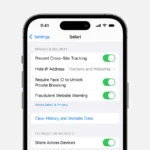
Review these settings in the Settings app under Privacy & Security. Adjust them based on your comfort level with data sharing.
Troubleshooting Common Transfer Issues
When moving data from Android to iPhone, several issues can disrupt the process. Understanding how to fix these problems will save you time and ensure your important data makes it to your new device.
Connectivity Problems During Transfer
Wi-Fi connection issues often cause the most transfer headaches. Make sure both devices are connected to the same Wi-Fi network and stay connected throughout the process.
If you see connection errors, try these fixes:
- Turn off mobile data on both phones
- Disable other apps that might use Wi-Fi
- Place both devices closer to your router
- Restart both phones and try again
- Turn off any VPN apps that might block the connection
The Move to iOS app works by creating a private Wi-Fi network. Sometimes your Android phone might try to switch to a different network during transfer. To prevent this, temporarily turn off auto-switching Wi-Fi features.
If you get a “couldn’t communicate with device” error, restart both devices and try again from the beginning.
Missing Data After Transfer
Not seeing all your content on your new iPhone can be frustrating. Check which data types may be missing:
Common missing data issues and solutions:
- Contacts: If contacts are missing, try syncing them with Google account first on Android, then add that account to your iPhone
- Photos: Large photo libraries might not transfer completely. Check available space on your iPhone
- Messages: SMS may transfer, but third-party messaging app history often doesn’t
For data that didn’t transfer, you can use iCloud or other methods as backup options. Always verify what types of data Move to iOS supports before starting.
App-Specific Data Transfer Challenges
The Move to iOS app can’t transfer everything from every app. Here’s what to expect:
Some apps have built-in transfer methods:
- Music streaming services (log in with same account)
- Cloud storage apps (sign in to access your files)
- Password managers (most have export/import features)
For apps without backup features, you’ll need to set them up fresh. App data from Android doesn’t always move directly to iOS versions.
Games often store progress locally and may not transfer easily. Check if your favorite games support cloud saves before switching devices.
Remember that paid Android apps won’t transfer to iOS—you’ll need to buy them again from the App Store.
Alternatives to Move to iOS
While Apple’s Move to iOS app is the official solution, it doesn’t always work perfectly for everyone. Several other methods can help transfer your data from Android to iPhone with varying degrees of simplicity and completeness.
Using Google Drive for Data Transfer
Google Drive offers a straightforward way to move your data between devices. This cloud-based solution works well for photos, videos, and documents.
To get started, install Google Drive on your Android phone. Upload the files you want to transfer. Make sure to back up your contacts to your Google account in your Android settings.
Once everything is uploaded, install Google Drive on your iPhone. Sign in with the same Google account. You can then download all your files to your new device.
For contacts and calendars, go to your iPhone’s Settings app. Tap “Mail” then “Accounts” and add your Google account. Turn on syncing for contacts, calendars, and notes as needed.
The main advantage is that Google Drive gives you 15GB of free storage. Most people can transfer their essential data without paying anything.
Manual Transfer Options via Finder or File Managers
For a direct approach without apps, you can use cables and file managers to move your content.
Connect your Android phone to your computer using a USB cable. Your phone should appear as a storage device. Open it and locate the folders with your photos, videos, and other files.
Copy these files to a folder on your computer. Then disconnect your Android device and connect your iPhone to the computer.
For Mac users, open Finder and select your iPhone. For Windows users, you may need to install iTunes. Transfer your files to the appropriate apps on your iPhone.
This method works best for media files and documents. It doesn’t help with messages or app data. The process is free but requires more manual work than other options.
Utilizing Third-Party Data Transfer Apps
Several third-party apps offer more features than Apple’s built-in solution.
Popular transfer apps include:
- EaseUS MobiMover
- MobileTrans
- AnyTrans
- dr.fone
These apps typically support transferring:
- Contacts and messages
- Photos and videos
- Music and other media
- App data (in some cases)
- Call logs and calendars
Most offer free trials with limited features. Full versions usually cost between $20-50 for a license. The advantage is their higher success rate compared to Move to iOS.
Many apps like MobileTrans provide a simple interface where you connect both phones to your computer. You then select what you want to transfer and click a button to start the process.
These solutions work well when you need to transfer specific types of data or when the official app fails.
Post-Transfer Considerations
After moving your data from Android to iPhone, you’ll need to fine-tune your new device for the best experience. These adjustments help make your iPhone feel more personalized and efficient.
Managing Storage and Display Settings on iPhone
When you first set up your iPhone, check your storage space to ensure everything transferred correctly. Go to Settings > General > iPhone Storage to see what’s using space and remove unnecessary items.
iPhones handle photos differently than Android. Your photos and videos might take up significant space. Consider using iCloud Photos to store high-resolution versions in the cloud while keeping smaller versions on your device.
Display settings need adjustment too. Go to Settings > Display & Brightness to set:
- Light or Dark mode
- Text size
- True Tone (adjusts screen colors based on surrounding light)
- Night Shift (reduces blue light in evenings)
Unlike Android, iPhones use the ringer switch for silent mode. Test this physical switch on the side of your device to quickly mute notifications.
Exploring iPhone Advanced Features and Services
iPhones have powerful advanced cameras with features that may differ from Android. Try Portrait mode for professional-looking photos with blurred backgrounds. Explore Cinematic mode on newer models for video with automatic focus shifts.
Apple-designed chips allow for features like:
- Live Photos (captures 1.5 seconds before and after your shot)
- Night mode (for low-light photography)
- ProRAW format (on Pro models)
Set up Apple services that replace your Android equivalents:
- iCloud for backup and storage
- Apple Maps for navigation
- Apple Music or Apple TV+ if desired
FaceTime and iMessage work only with Apple devices. Make sure you’ve switched off RCS or chat features on your old Android to avoid missing texts.
Maximizing Battery Life and Performance
iPhones typically have excellent battery management, but you can extend battery life further. Go to Settings > Battery to see which apps use the most power.
Turn on:
- Low Power Mode when needed
- Optimized Battery Charging (slows battery aging)
- Dark Mode (saves power on OLED screens)
Disable:
- Background App Refresh for unnecessary apps
- Location Services for apps that don’t need it
- Push notifications for less important apps
The iPhone’s processor handles multitasking differently than Android. You don’t need to manually close apps often – iOS manages this automatically. Closing all apps can actually reduce performance and battery life.
Update your iOS regularly for the best performance. Apple’s software updates often improve battery life and fix security issues without slowing down your device.
Frequently Asked Questions
Moving from Android to iPhone raises many common questions about transferring specific types of data and the best methods to ensure a smooth transition without losing important information.
What steps are involved in transferring data from an Android device to a new iPhone?
The main steps involve using the Move to iOS app on your Android device. First, start setting up your new iPhone until you reach the “Apps & Data” screen.
Select “Move Data from Android” on your iPhone. Then open the Move to iOS app on your Android phone and tap Continue.
Agree to the terms and conditions, then enter the code shown on your iPhone. Choose what content you want to transfer and tap “Next” to begin the process.
Keep both devices close together and powered on until the transfer finishes.
Is it possible to move contacts, photos, and messages from Android to iPhone without using a factory reset?
If your iPhone is already set up, you’ll need to reset it to use the Move to iOS app. First, back up your current iPhone data to iCloud.
After backing up, reset your iPhone to factory settings. Then use Move to iOS during setup to transfer your Android data.
Finally, restore your previous iPhone content from the iCloud backup. This combines your old iPhone data with the newly transferred Android content.
What apps can assist in migrating data from Android to iPhone?
The official Move to iOS app is Apple’s primary tool for transferring data. It moves contacts, message history, photos, videos, bookmarks, mail accounts, and calendars.
For specific data types, apps like Google Drive, Dropbox, or OneDrive can help transfer photos and documents between platforms.
WhatsApp offers its own transfer tool for chat history. Many other apps with cloud sync (like Spotify, Netflix, etc.) just need you to log in on your new device.
How can I transfer WhatsApp chat history from Android to iPhone?
WhatsApp now offers an official way to transfer chats from Android to iPhone. Start by downloading the “Move to iOS” app on your Android device.
During iPhone setup, select “Move Data from Android” and follow the prompts. Make sure WhatsApp is selected as content to transfer.
After setup completes, download WhatsApp on your iPhone and log in with the same phone number. The app will detect and ask if you want to import the transferred chats.
When switching from Android to iPhone, at what point should I insert my SIM card to ensure data transfer?
Keep your SIM card in your Android phone until the data transfer is complete. This helps maintain your network connection during the transfer process.
Once the Move to iOS transfer finishes, turn off both devices. Then remove the SIM from your Android phone and insert it into your new iPhone.
If you’re getting a new SIM card, you can insert it after the data transfer is complete and your iPhone setup is finished.
Can I transfer all types of data, including apps and their data, from an Android to an iPhone?
Apps themselves can’t transfer directly between platforms because Android and iOS use different app formats. You’ll need to download iOS versions of your apps from the App Store.
Free apps can simply be downloaded again. For paid apps, you’ll need to purchase them again on the App Store.
The Move to iOS app will suggest free iOS versions of your Android apps. It transfers contacts, messages, photos, videos, bookmarks, email accounts, and calendars but not app data.