
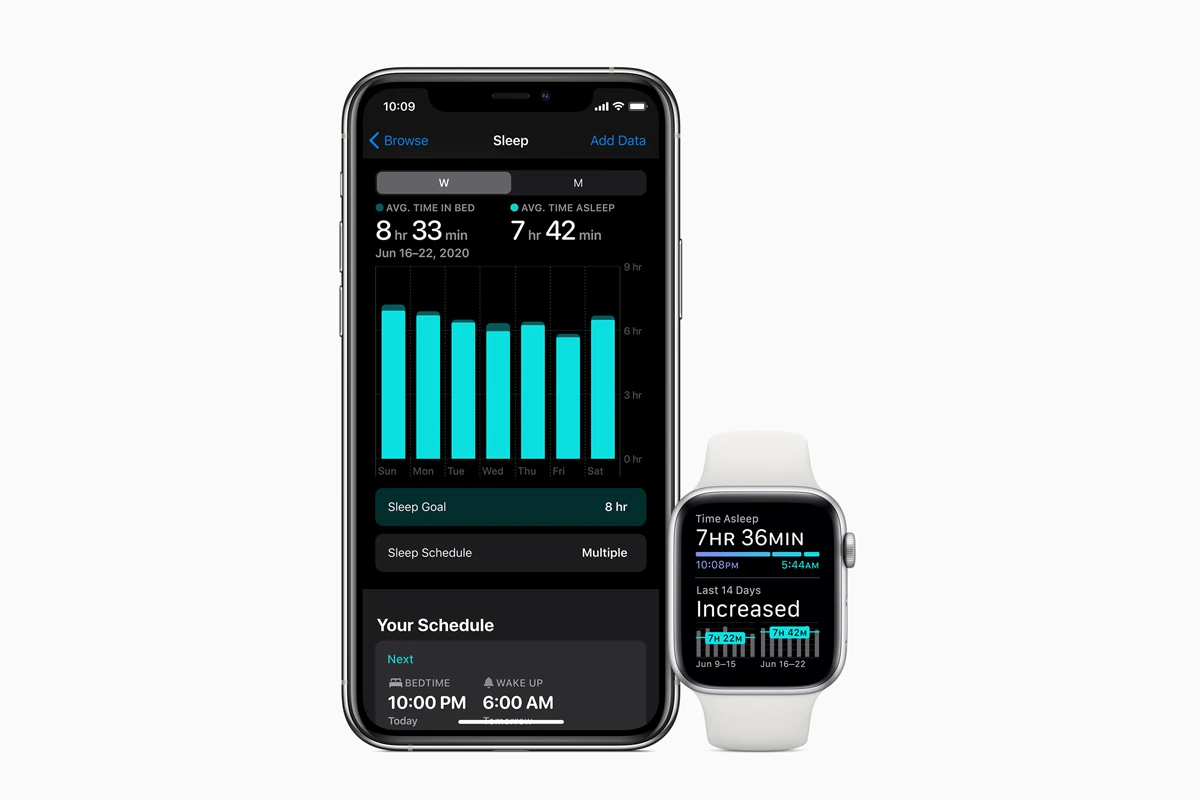
Getting better sleep starts with understanding your habits. The Apple Watch makes it easy to track how well you rest each night. You can set up sleep tracking on your Apple Watch by opening the Watch app on your iPhone, tapping the My Watch tab, selecting Sleep, and turning on the “Track Sleep with Apple Watch” option.
Once set up, your Apple Watch monitors your sleep patterns and provides data about your sleep stages. You can see how long you slept and the time spent in REM, core, and deep sleep. The Health app on your iPhone stores this information, showing trends over time to help you improve your sleep quality.
Your watch can also help create better sleep habits with sleep schedules. Set bedtime and wake-up times, and your watch will remind you when it’s time to wind down. It will even dim your screen and turn on Do Not Disturb automatically to help you fall asleep without distractions.
How to Track Sleep on Apple Watch
Tracking your sleep with Apple Watch can help you understand your sleep patterns, improve your habits, and meet your rest goals. With the Sleep app on Apple Watch and the Health app on iPhone, you can monitor sleep duration, sleep stages, and even respiratory rate (on supported models).
Here’s a complete step‑by‑step guide.
What You Need
According to Apple, to track sleep you need:
- An iPhone with the latest version of iOS
- An Apple Watch with the latest version of watchOS
- At least 30% battery before bed
- Sleep Tracking enabled
(Source: Apple Support – Track your sleep on Apple Watch)
Step 1: Set Up Sleep on iPhone
Before using sleep tracking, you’ll need to create a sleep schedule.
- Open the Health app on your iPhone.
- Tap Browse.
- Select Sleep.
- Tap Get Started (if setting up for the first time).
- Set your:
- Sleep goal (hours per night)
- Bedtime and wake‑up schedule
- Wind Down preferences (optional)
You can create different schedules for weekdays and weekends.
(Source: Apple Support)
Step 2: Enable “Track Sleep with Apple Watch”
- Open the Watch app on your iPhone.
- Tap Sleep.
- Turn on Track Sleep with Apple Watch.
When enabled, your watch will automatically track your sleep when you wear it to bed.
(Source: Apple Support)
Step 3: Wear Your Apple Watch to Bed
Simply wear your Apple Watch while sleeping.
When Sleep Focus is active, your watch will:
- Dim the screen
- Reduce distractions
- Lock the display to prevent accidental taps
What Apple Watch Tracks
Apple Watch can estimate:
- Time asleep
- Time awake
- Sleep stages:
- REM
- Core
- Deep
According to Apple, Apple Watch estimates the time spent in each sleep stage and detects when you might have woken up (source: Apple – Track your sleep with Apple Watch).
Additional Metrics (Supported Models)
- Respiratory rate (breaths per minute during sleep)
Available on Apple Watch Series 3 or later with watchOS 8 or later.
(Source: Apple Support)
Step 4: View Your Sleep Data
On iPhone:
- Open the Health app
- Tap Browse
- Select Sleep
You’ll see:
- Daily sleep duration
- Weekly trends
- Sleep stage breakdown
- Sleep consistency
On Apple Watch:
- Open the Sleep app
- View last night’s sleep summary
Some versions of watchOS also provide a sleep score (0–100) along with a classification and breakdown (source: Apple Support – View your sleep score).
Tips for Better Sleep Tracking Accuracy
- ✅ Wear your watch snugly but comfortably
- ✅ Keep at least 30% battery before bed
- ✅ Enable Sleep Focus to reduce disturbances
- ✅ Maintain a consistent sleep schedule
How to Edit or Delete Sleep Schedules
- Open the Health app
- Tap Sleep
- Select your schedule
- Adjust bedtime, wake time, or delete the schedule
You can customize different schedules for different days.
Can Apple Watch Automatically Detect Sleep?
Apple Watch primarily tracks sleep when:
- Sleep Focus is enabled, or
- You have a sleep schedule set
Without Sleep Focus or a schedule, tracking may be limited.
Final Thoughts
Apple Watch sleep tracking helps you:
- Understand how long you sleep
- See time spent in REM, Core, and Deep sleep
- Monitor breathing during sleep
- Improve consistency with sleep schedules
With just a few minutes of setup, your Apple Watch can become a powerful tool for building healthier sleep habits.
Key Takeaways
- Apple Watch tracks sleep stages including REM, core, and deep sleep to give you insights about your sleep quality.
- Setting up a sleep schedule in the Health app helps establish better sleep habits with bedtime reminders and morning alarms.
- Your sleep data syncs with the Health app on iPhone, making it easy to see patterns and track improvements over time.
Getting Started with Sleep Tracking on Apple Watch
Sleep tracking on your Apple Watch helps you understand your sleep patterns and improve your rest quality. You can easily set up this feature through the Sleep app on both devices.
Understanding Sleep Tracking
Sleep tracking on Apple Watch monitors how long you sleep and identifies your different sleep stages. The watch uses sensors to detect tiny movements that signal whether you’re in REM, core, or deep sleep.
This feature works best when you wear your watch to bed. Your Apple Watch collects data like heart rate and movement during the night. In the morning, you can check the Health app to see how well you slept.
The data shows your total sleep time and breaks down your sleep stages. This information helps you create better sleep habits. You’ll need an Apple Watch Series 4 or newer to track sleep stages fully.
Setting Up Your Apple Watch for Sleep
To start tracking sleep, you need to set up Apple Sleep on your devices. First, make sure your watch has enough battery to last through the night. Apple recommends at least 30% battery before bedtime.
Go to the Sleep app on your Apple Watch and follow the on-screen setup. You can also:
- Open the Watch app on your iPhone
- Tap the Sleep tab
- Toggle on “Track Sleep with Apple Watch”
Your watch will now track sleep automatically when you wear it to bed. The watch dims its display and activates Do Not Disturb during your set sleep schedule. This helps prevent distractions while you rest.
Consider setting a comfortable band that won’t irritate your skin overnight.
Configuring the Sleep App on iPhone
The iPhone offers more detailed sleep tracking settings than the Watch itself. Open the Health app on your iPhone, tap Browse, select Sleep, and follow the setup instructions.
In the Sleep section, you can:
- Set your sleep goal (how many hours you want to sleep)
- Create a sleep schedule with bedtime and wake-up times
- Enable Sleep Mode to limit distractions
- Choose a wake-up alarm sound
Your iPhone will show a Wind Down screen before bedtime to help you prepare for sleep. This feature can automatically open relaxing apps or start a bedtime routine.
The Health app saves all your sleep data in one place. You can view trends over time and see how consistent your sleep patterns are. This makes it easier to spot problems and improve your sleep habits.
Creating a Sleep Schedule
Setting up a sleep schedule on your Apple Watch helps you maintain consistent sleep habits and improve overall rest quality. The process involves using Wind Down features, adjusting your schedule in the Health app, and setting meaningful sleep goals.
Using Wind Down for a Better Sleep Routine
Wind Down is a feature that helps you prepare for bedtime by reducing distractions. You can set up Wind Down to begin 15 to 120 minutes before your scheduled bedtime.
During Wind Down, your iPhone can automatically activate Sleep Focus mode. This dims your lock screen and filters notifications to help you relax.
Users can customize Wind Down with shortcuts to calming apps like meditation or music. These shortcuts appear on the lock screen when Wind Down begins.
To enable Wind Down, users should open the Health app, tap Sleep, and then select Full Schedule & Options. The Wind Down settings can be found under “Wind Down Shortcuts.”
Many Apple Watch owners find that a 30-45 minute Wind Down period works well for their evening routine.
Adjusting Your Full Schedule in Health App
The Health app allows complete customization of your sleep schedule. Users can set different schedules for weekdays and weekends to match their lifestyle.
To access these settings, open the Health app on iPhone, tap Browse, select Sleep, and then tap Full Schedule & Options. Here, users can add or modify sleep schedules.
Each schedule includes:
- Bedtime (when Sleep Focus activates)
- Wake time (when an alarm can sound)
- Days of the week the schedule applies to
Apple Watch users can also activate Sleep Focus manually by swiping up on the watch face and tapping the Sleep icon in Control Center. This works even without a set schedule.
The Health app stores and displays sleep data, showing patterns over time with easy-to-read charts.
Setting Sleep Goals
Sleep goals help users aim for consistent, quality rest. The Health app lets users set up a sleep goal during the initial setup or later in the Sleep settings.
Most adults need 7-9 hours of sleep each night. The Health app allows users to choose a goal within this range that fits their personal needs.
The app displays progress toward this goal daily and weekly. A color-coded system shows nights when users meet or miss their goal.
Users can adjust their sleep goal anytime as their needs change. To modify it, they should open the Health app, tap Browse, select Sleep, and then tap Full Schedule & Options.
Many Apple Watch users report that having a visible sleep goal increases their motivation to maintain better sleep habits. The Watch will also send gentle reminders when it’s time to prepare for bed.
Understanding Sleep Stages and Data
Your Apple Watch tracks detailed sleep information that helps you understand your sleep quality and patterns. Sleep tracking on Apple Watch breaks down your night into different stages and measures key health indicators.
The Significance of REM and Deep Sleep
Sleep stages on Apple Watch are divided into three main categories: Core, Deep, and REM sleep. Each stage plays an important role in your overall health.
Core sleep (light sleep) is when your body transitions between wakefulness and deeper sleep. This makes up most of your sleep time.
Deep sleep is crucial for physical recovery. During this stage, your body repairs tissues and strengthens your immune system. The average Apple Watch user gets about 49 minutes of deep sleep per night.
REM (Rapid Eye Movement) sleep is when most dreaming occurs. This stage is vital for memory, learning, and emotional processing. Your brain is highly active during REM sleep, almost as if you were awake.
A healthy sleep cycle includes all three stages. The Apple Watch helps you see if you’re getting enough of each type.
Analyzing Recent Sleep Data and Trends
Your Apple Watch collects sleep data every night you wear it to bed. To view this information, simply open the Sleep app on your watch and turn the Digital Crown to scroll through your data.
The Health app on your iPhone shows more detailed information. It displays:
- Total sleep time
- Time spent in each sleep stage
- Comparisons to previous nights
- Weekly and monthly trends
Look for patterns in your sleep data. Do you sleep better on certain days? Does exercise improve your deep sleep time? These insights help you make better choices for improved sleep.
You can also add notes about factors that might affect your sleep, like caffeine intake or stress levels, to spot connections.
Monitoring Heart and Respiratory Rates
During sleep, your Apple Watch tracks important physical signs that indicate sleep quality and health.
Heart rate typically slows down during sleep. Unusual spikes might show stress or disrupted sleep. Your watch records these changes throughout the night.
Respiratory rate measures how many breaths you take per minute while sleeping. A consistent respiratory rate often suggests good sleep quality. Most healthy adults have 12-20 breaths per minute during sleep.
These measurements can help spot potential health issues. A significantly higher heart rate or irregular breathing patterns might need medical attention.
Apple Watch’s sleep tracking allows users to connect their sleep quality with lifestyle factors and environmental influences. By watching these vital signs regularly, you can better understand what helps or hurts your sleep.
Optimizing Sleep Tracking and Managing Alarms
Getting the most from your Apple Watch sleep tracking features requires some thoughtful setup. The right settings ensure your watch tracks sleep consistently and wakes you gently at the perfect time.
Using Charging Reminders for Consistent Tracking
Battery life is crucial for reliable sleep tracking. Apple Watch needs to have enough charge to last through the night. You can turn on sleep tracking in the Health app by tapping Browse, then Sleep.
To avoid low battery issues, set up charging reminders. These alerts notify you when your watch needs charging before bedtime.
To enable this feature:
- Open the Watch app on your iPhone
- Tap the Sleep option
- Toggle on “Charging Reminders”
This setting sends a notification if your watch battery is below 30% before your scheduled bedtime. Aim to charge your watch to at least 30% to ensure it lasts through the night.
Setting ‘Next Wake Up Only’ Alarms
Apple Watch offers flexible alarm options for your sleep schedule. The “Next Wake Up Only” setting is helpful when you need a temporary change to your routine.
To set a one-time alarm:
- Open the Sleep app on your Apple Watch
- Tap Edit under the sleep schedule
- Switch to “Next Wake Up Only”
- Set your desired wake-up time
- Press the Digital Crown to confirm
This creates a single alarm that won’t affect your regular sleep schedule. It’s perfect for early flights or special events that require a different wake-up time.
Your watch will vibrate and sound at the set time. Turn the Digital Crown to snooze or tap to dismiss when the alarm activates.
Adjusting Alarm Sounds and Haptics
The right alarm tone and vibration pattern can make waking up more pleasant. Apple Watch provides several options to customize your morning alert.
To adjust these settings:
- Open the Watch app on your iPhone
- Scroll down and tap Sleep
- Tap “Sound & Haptics”
Choose from multiple alarm tones ranging from gentle to more assertive sounds. The preview button lets you test each tone before selecting.
Haptic strength can also be adjusted. A stronger haptic works well for heavy sleepers, while a lighter vibration provides a gentler wake-up.
The gradual increase option slowly raises volume and vibration intensity. This creates a more natural awakening experience instead of a jarring alarm.
Integrating Third-Party Sleep Tracking Apps
While the Apple Watch has built-in sleep tracking features, third-party apps often provide more detailed insights and specialized metrics. These apps can fill gaps in Apple’s native tracking and offer more personalized sleep analysis.
Comparing Apple Watch Sleep Tracking with Fitbit and Garmin
Apple Watch sleep tracking offers basic sleep stage data, but competitors like Fitbit and Garmin provide more comprehensive sleep analysis out of the box. Fitbit devices track light, deep, and REM sleep with detailed graphs and a sleep score system that many users find helpful.
Garmin watches offer similar features plus a “Body Battery” metric that combines sleep quality with daily activity to measure energy levels. This gives users a clearer picture of how sleep affects recovery.
The main advantage of Apple Watch is its integration with the broader Apple ecosystem. However, for sleep tracking specifically, dedicated sleep trackers from Fitbit and Garmin typically provide more detailed metrics without requiring additional apps.
Users seeking the most comprehensive sleep data might consider WHOOP, which offers recovery metrics and sleep coaching, though it requires a subscription.
Exploring Popular Third-Party Apple Watch Sleep Apps
Several third-party apps enhance the Apple Watch sleep tracking experience. SleepWatch stands out for its automatic tracking and detailed sleep quality analysis. It monitors heart rate during sleep and provides personalized insights without manual activation.
AutoSleep is another popular option that many users recommend for its comprehensive data and one-time purchase model. It tracks sleep quality, deep sleep, and even offers a “sleep bank” to monitor sleep debt.
Pillow provides detailed sleep cycle analysis with smart alarm features to wake users during lighter sleep phases. This can help people feel more refreshed in the morning.
These apps differ in pricing models:
- AutoSleep: One-time purchase
- Pillow: Subscription with free basic features
- SleepWatch: Free with premium subscription option
Syncing with Apple Health App
Third-party sleep apps become more powerful when they integrate with Apple Health. This integration creates a central hub for all health data, including sleep metrics.
To check which apps can access your sleep data, open the Health app, tap your profile picture, then scroll to Privacy and select Apps or Devices. Here you can manage permissions for each sleep app.
The benefit of this integration is two-fold. First, it allows you to view sleep trends alongside other health metrics like heart rate and activity. Second, it enables different apps to work together, sharing data for more meaningful insights.
Most quality sleep apps automatically write data to Apple Health. This means users can try different apps without losing their sleep history. The Health app integration also makes it easy to share sleep data with healthcare providers when needed.
Maintaining Your Apple Watch for Sleep Tracking
Keeping your Apple Watch in top condition is essential for accurate sleep monitoring. Regular maintenance ensures your device captures data reliably while remaining comfortable throughout the night.
Ensuring Optimal Battery Life
Battery life is crucial for overnight sleep tracking. Set up your charging routine to ensure your Apple Watch has enough power to last through the night. Most Apple Watch models need at least 30% battery to track sleep successfully.
Try charging your watch for 30 minutes before bedtime or while getting ready in the morning. This quick charge often provides enough power for sleep tracking.
Turn on Power Reserve mode when battery levels are low but you still want to track sleep. This feature disables non-essential functions while maintaining core tracking capabilities.
Battery drain increases with certain features. Disable always-on display during sleep hours to extend battery life. The heart rate and blood oxygen sensors use more power, so consider their necessity for your sleep data needs.
Cleaning and Wearing Your Apple Watch Comfortably
Clean your Apple Watch regularly to maintain accuracy of the sensors. Wipe the back crystal with a non-abrasive, lint-free cloth. If needed, lightly dampen the cloth with fresh water.
The heart rate sensor works best when your watch fits snugly. For sleep tracking, the watch should be tight enough to stay in place but loose enough to allow skin to breathe.
Consider using a comfortable band specifically for nighttime. Soft nylon or silicone bands often work well for sleeping. Many users switch bands between day and night for comfort.
Position your watch slightly higher on your wrist during sleep to prevent it from pressing against your hand when you bend your wrist.
Handling Software Updates for Improved Tracking
Keep your watchOS updated to access the latest sleep tracking features. Apple regularly enhances sleep metrics with each update. WatchOS 7 introduced basic sleep tracking, while watchOS 8 and 9 added more detailed analysis.
To update your watch:
- Place your watch on the charger
- Open the Watch app on your iPhone
- Tap General > Software Update
- Download and install any available updates
Enable automatic updates to ensure you never miss improvements. Some updates specifically enhance sleep tracking algorithms and sensor accuracy.
Check that your iPhone iOS is also current, as the Health app receives sleep data from your watch. The latest versions of iOS work best with current watchOS versions for complete sleep analysis.
Leveraging Advanced Features for Detailed Insights
Apple Watch offers powerful sleep tracking capabilities that go far beyond basic monitoring. The device collects comprehensive data about your sleep habits and provides actionable insights to improve your rest quality.
Exploring WatchOS Sleep Tracking Innovations
WatchOS has significantly improved its sleep tracking capabilities over time. Recent updates allow the watch to track sleep stages, including REM, core, and deep sleep. This gives you a complete picture of your sleep quality each night.
To start tracking sleep, enable the feature in your settings. On your iPhone, open the Watch app, tap the My Watch tab, then select Sleep. Turn on Track Sleep with Apple Watch to activate the feature.
The Sleep app uses advanced sensors to detect small movements and heart rate variations. These measurements help determine when you’re asleep versus when you’re awake. The watch can even identify when you get up during the night.
WatchOS also offers a Sleep Mode that dims your screen and turns on Do Not Disturb automatically during your scheduled sleep times.
Analyzing In-Depth Sleep Patterns and Duration
Your Apple Watch collects detailed metrics about your sleep habits. Each morning, you can review your total sleep duration, sleep stages, and any nighttime disturbances.
The Health app presents this data in easy-to-read charts. You’ll see:
- Time spent in each sleep stage
- Heart rate variations throughout the night
- Environmental factors (like room temperature)
- Sleep consistency from day to day
Some third-party apps like SleepScore use special algorithms to analyze your sleep even more deeply. These apps can offer personalized recommendations based on your unique sleep patterns.
Pay special attention to your deep sleep amounts. This restorative stage is critical for physical recovery and memory consolidation.
Setting Sleep Trends to Manage Sleep
Apple Watch doesn’t just track your sleep—it helps you improve it. The Health app identifies patterns in your sleep data over time, making it easier to spot issues and track improvements.
Sleep Schedules help you maintain consistent bedtimes and wake times. Set up a schedule in the Sleep app, and your watch will send gentle reminders when it’s time to wind down.
The Sleep Consistency metric shows how well you stick to your schedule. Higher consistency often leads to better sleep quality.
You can also customize your sleep goals to match your personal needs. Most adults need 7-9 hours, but individual requirements vary.
Some apps also offer personalized sleep insights by analyzing bedtime, wake time, and sleep duration data. These insights can help you make small lifestyle changes that lead to better rest.
Guidance and Resources
Getting help with sleep tracking on your Apple Watch is easy with many online resources. Apple provides detailed documentation and the web offers helpful videos for those who want to improve their sleep tracking experience.
Accessing Tutorials and Support Documentation
Apple offers comprehensive documentation that explains how to track sleep stages including REM, Core, and Deep sleep. This official guide helps you understand when you might have woken up during the night.
For visual learners, video tutorials on YouTube show step-by-step setup processes. These videos demonstrate how to connect your Apple Watch (Series 4 or newer) with Apple Health to track sleep stages.
Consumer Reports provides a simple guide explaining how to turn on sleep tracking. Just open the Apple Watch app on your iPhone, tap the Sleep tab, and toggle the slider for “Track Sleep with Apple Watch.”
Quick setup steps:
- Open the Health app on your iPhone
- Configure sleep settings
- Set your sleep duration
- Enable Do Not Disturb during sleep hours
Stay Informed with Breaking News on Sleep Technology
Apple regularly updates its sleep tracking technology. Following tech news sources helps you learn about new features as they’re released.
Consumer technology websites feature articles about Apple Watch sleep tracking that explain the latest developments. These sites often compare Apple’s sleep tech with competitors.
Key news sources for sleep tech updates:
- Apple’s official newsroom
- Tech review websites
- Health and fitness blogs
- Wearable technology forums
Set up news alerts for “Apple Watch sleep” to get notifications when new features are announced. Many of these updates improve accuracy or add new metrics to track.
The sleep tracking community on social media shares tips and workarounds for common issues. These unofficial resources often provide practical advice not found in official documentation.
Frequently Asked Questions
Apple Watch sleep tracking offers many helpful features but can sometimes be confusing. These common questions address setup processes, tracking capabilities, and data interpretation issues that most users encounter.
What steps are involved in setting up sleep tracking on an Apple Watch?
To set up sleep tracking on your Apple Watch, open the Watch app on your iPhone. Tap the My Watch tab, then select Sleep. Toggle on Track Sleep with Apple Watch to enable the feature.
Next, you’ll need to set up a sleep schedule. This helps your watch know when to expect you to be sleeping. You can create different schedules for weekdays and weekends.
The setup process also lets you choose if you want sleep mode to turn on automatically. This mode dims your screen and reduces notifications during your set sleep hours.
Is it possible to monitor deep sleep using an Apple Watch, and if so, how?
Yes, Apple Watch can track different sleep stages, including deep sleep. The watch uses its accelerometer to detect tiny movements that signal different sleep states.
To view your sleep stages, open the Sleep app on your Apple Watch or check the Health app on your iPhone. Look for the sleep section to see a breakdown of your time in REM, core, and deep sleep.
These measurements help you understand your sleep quality beyond just tracking hours spent in bed.
Can the Apple Watch track sleep without setting a sleep schedule, and what is the process?
While Apple’s built-in sleep tracking works best with a schedule, you can track sleep without one. The Apple Watch doesn’t track sleep automatically, but there are workarounds.
You can manually turn on Sleep Mode from the Control Center when you go to bed. Swipe up on your watch face, tap the bed icon, and set the wake-up time.
Another option is using third-party sleep tracking apps. Many of these apps offer automatic sleep detection without needing a set schedule.
Are there differences in sleep tracking features among various Apple Watch models?
Yes, newer Apple Watch models generally offer more advanced sleep tracking features. Series 4 and later provide more detailed metrics than older models.
The newer watches have improved sensors that can more accurately detect movement and heart rate patterns during sleep. This leads to better sleep stage classification.
Battery life also varies between models, affecting how practical overnight tracking is. Newer models typically have better battery efficiency for all-night tracking.
How does the Apple Watch estimate the quality and quantity of a user’s sleep?
Apple Watch uses several sensors to track sleep. The accelerometer detects movement to determine if you’re asleep or awake.
Your heart rate is also monitored throughout the night using the optical heart sensor. Changes in heart rate help identify different sleep stages.
The watch combines this data with your set sleep schedule to create a complete picture of your sleep patterns. It shows total sleep time, time in each sleep stage, and your sleep average over time.
How can you check the accuracy of sleep data recorded by an Apple Watch?
You can verify your Apple Watch sleep data by comparing it with your actual sleep experience. If you remember waking up several times but your data shows uninterrupted sleep, there may be accuracy issues.
Try using a second tracking method alongside your watch for a few nights. This could be a sleep diary or another tracking device to see how the data compares.
Check that your watch fits properly on your wrist. A loose fit can cause inaccurate readings. Also, make sure your battery has enough charge to last through the night.





