
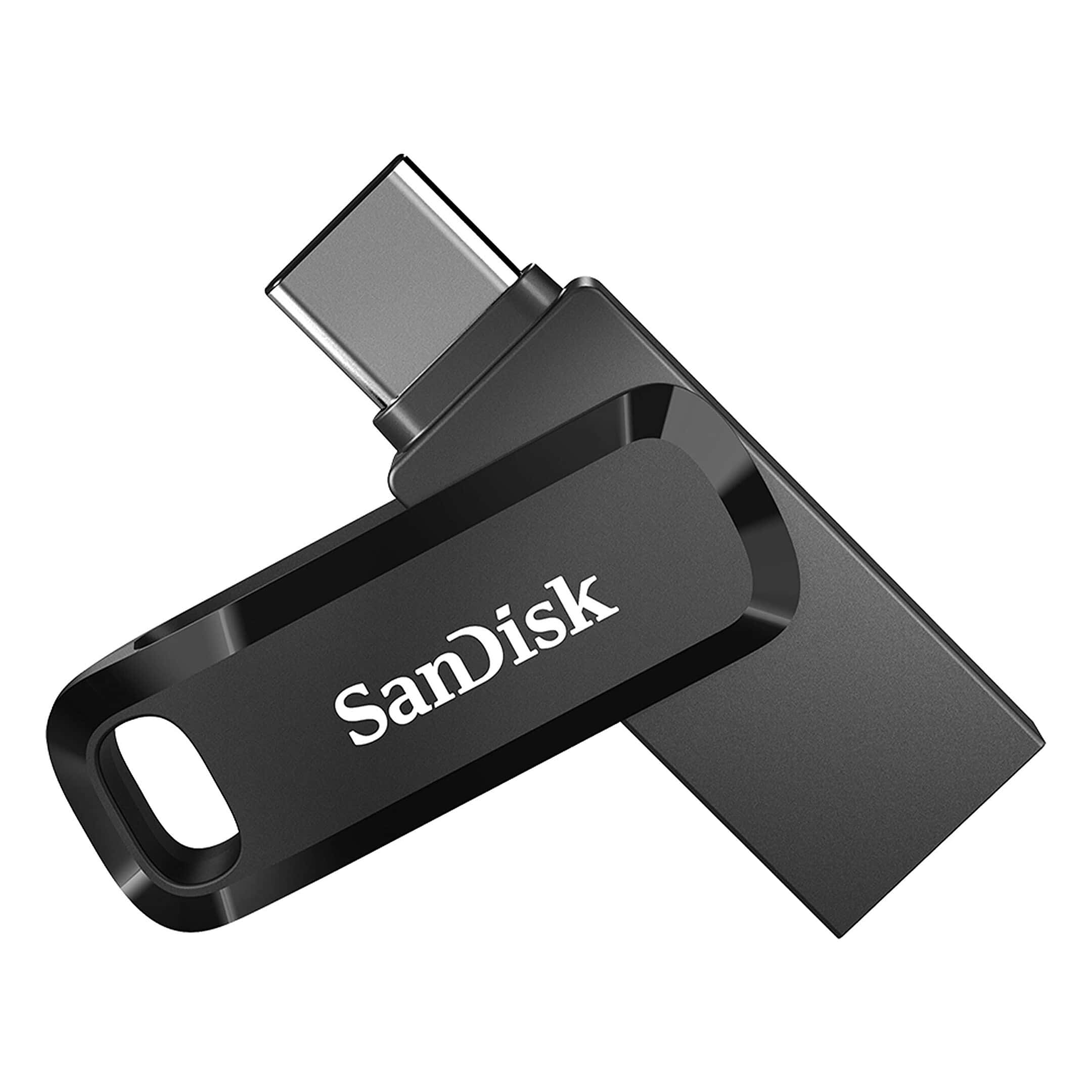
Creating a bootable USB drive for your Mac can be a lifesaver when you need to reinstall macOS or troubleshoot serious system issues. The process is straightforward once you understand the basic steps. To create a bootable Mac USB drive, you’ll need a USB stick with at least 16GB of space, the macOS installer app from the App Store, and a tool like the built-in Terminal or a third-party app like Etcher.
The bootable USB serves many purposes beyond just installing a fresh copy of macOS. It can help recover data from a failing system, fix startup problems, or let you try a new version of macOS before fully committing to an upgrade. Many Mac users keep one handy as part of their tech emergency kit.
How To Create A USB Drive to Boot A Mac
Creating a bootable USB drive for macOS is an essential skill for Mac users. Whether you need to perform a clean installation, troubleshoot system issues, install macOS on multiple computers, or recover from a system failure, having a bootable installer can be invaluable. This comprehensive guide will walk you through the entire process.
Why Create a Bootable macOS USB Installer?
A bootable installer is useful when:
- Standard installation methods fail or are unavailable
- You want to perform a clean installation of macOS
- You need to install macOS on multiple computers without downloading the installer each time
- Your Mac won’t start up properly and needs recovery
- You’re upgrading from an older macOS version (source: Apple Support)
Note: Creating a bootable installer is different from preparing an external storage device for use as a startup disk (source: Apple Support).
What You’ll Need
- A USB flash drive with at least 16GB of storage (32GB recommended for newer macOS versions)
- A Mac with internet connection to download the macOS installer
- About 30-60 minutes depending on your internet speed and USB drive speed
- Admin privileges on your Mac
Step 1: Download the macOS Installer
For Current and Recent macOS Versions:
macOS Sequoia (latest):
- Open the App Store
- Search for “macOS Sequoia”
- Click “Get” or “Download”
- The installer will download to your Applications folder
For Other macOS Versions: You can download installers for various macOS versions from the App Store or Apple’s website, including:
- macOS Sonoma
- macOS Ventura
- macOS Monterey
- macOS Big Sur
- macOS Catalina
- macOS Mojave
- macOS High Sierra (source: osxhub)
Important: Don’t open the installer when the download completes – it will remain in your Applications folder as “Install macOS [version name].app”
Step 2: Prepare Your USB Drive
Format the USB Drive:
- Insert your USB drive into your Mac
- Open Disk Utility (Applications > Utilities > Disk Utility)
- Select your USB drive from the sidebar (select the drive itself, not a volume)
- Click Erase at the top
- Configure the following settings:
- Name: “MyVolume” (or any name you prefer – you’ll need this name later)
- Format: Mac OS Extended (Journaled)
- Scheme: GUID Partition Map
- Click Erase and wait for the process to complete
- Click Done
Warning: This will erase all data on the USB drive. Back up any important files first!
Step 3: Create the Bootable Installer Using Terminal
Apple provides a built-in command-line tool called createinstallmedia for creating bootable installers (source: Macworld).
Open Terminal:
- Go to Applications > Utilities > Terminal
- Or use Spotlight (Command + Space) and search for “Terminal”
Use the createinstallmedia Command:
The basic syntax is:
sudo /Applications/Install\ macOS\ [Version].app/Contents/Resources/createinstallmedia --volume /Volumes/MyVolume
Here are the specific commands for each macOS version:
macOS Sequoia:
sudo /Applications/Install\ macOS\ Sequoia.app/Contents/Resources/createinstallmedia --volume /Volumes/MyVolume
macOS Sonoma:
sudo /Applications/Install\ macOS\ Sonoma.app/Contents/Resources/createinstallmedia --volume /Volumes/MyVolume
macOS Ventura:
sudo /Applications/Install\ macOS\ Ventura.app/Contents/Resources/createinstallmedia --volume /Volumes/MyVolume
macOS Monterey:
sudo /Applications/Install\ macOS\ Monterey.app/Contents/Resources/createinstallmedia --volume /Volumes/MyVolume
macOS Big Sur:
sudo /Applications/Install\ macOS\ Big\ Sur.app/Contents/Resources/createinstallmedia --volume /Volumes/MyVolume
macOS Catalina:
sudo /Applications/Install\ macOS\ Catalina.app/Contents/Resources/createinstallmedia --volume /Volumes/MyVolume
macOS Mojave:
sudo /Applications/Install\ macOS\ Mojave.app/Contents/Resources/createinstallmedia --volume /Volumes/MyVolume
macOS High Sierra:
sudo /Applications/Install\ macOS\ High\ Sierra.app/Contents/Resources/createinstallmedia --volume /Volumes/MyVolume
(source: osxhub)
Execute the Command:
- Paste the appropriate command into Terminal
- Replace “MyVolume” if you named your USB drive differently
- Press Return
- Enter your administrator password when prompted (characters won’t appear as you type)
- Press Return again
- Type Y when asked to confirm and press Return
The process will display something like:
Erasing disk: 0%... 10%... 20%... 100%
Copying to disk: 0%... 10%... 20%... 100%
Making disk bootable...
Install media now available at "/Volumes/Install macOS [Version]"
This process typically takes 15-30 minutes depending on your USB drive speed (source: macOS Update).
Step 4: Verify the Bootable Installer
Once complete:
- The USB drive will be renamed to “Install macOS [Version]”
- You should see the installer icon on your desktop (if you have external drives set to show)
- Terminal will display “Install media now available”
How to Use Your Bootable USB Installer
For Intel-based Macs:
- Insert the bootable USB drive into your Mac
- Restart your Mac and immediately hold down the Option (Alt) key
- Keep holding until you see the Startup Manager
- Select the USB installer (it will appear as “Install macOS [Version]” or “EFI Boot”)
- Click the arrow or press Return
- Follow the on-screen instructions to install macOS
For Apple Silicon Macs (M1, M2, M3, etc.):
- Shut down your Mac completely
- Insert the bootable USB drive
- Press and hold the power button until you see “Loading startup options”
- Select the USB installer from the available options
- Click Continue
- Follow the on-screen instructions to install macOS (source: Mac Observer)
Troubleshooting Common Issues
“Command not found” Error:
- Verify the installer is in your Applications folder
- Check that the installer name matches exactly (including spaces)
- Ensure you haven’t opened the installer after downloading
“Volume does not appear to be a valid target” Error:
- Make sure your USB drive is formatted correctly (Mac OS Extended/Journaled, GUID)
- Verify the volume name matches what you use in the command
- Try reformatting the USB drive again
Process Hangs or Takes Too Long:
- Use a USB 3.0 or higher drive for faster speeds
- Ensure stable power supply (especially for laptops)
- Try a different USB port
- Restart your Mac and try again (source: osxhub)
USB Drive Doesn’t Appear in Startup Manager:
- Ensure the bootable installer was created successfully
- Try a different USB port
- Check that your Mac supports the macOS version you’re trying to install
- Reset NVRAM/PRAM (hold Command + Option + P + R during startup for Intel Macs)
Permission Denied Errors:
- Make sure you’re using
sudobefore the command - Verify you have administrator privileges on your Mac
- Try running Terminal as an administrator
Best Practices & Tips
- Label your USB drives – If you create multiple bootable installers, clearly label them to avoid confusion
- Keep installers updated – Create new bootable installers when major macOS updates are released
- Test before you need it – Verify your bootable installer works before an emergency
- Use quality USB drives – Cheap drives may fail or create unreliable installers
- Store safely – Keep your bootable installer in a safe place for future use
- Multiple versions – Consider creating installers for different macOS versions if you support multiple Macs (source: Macworld)
Alternative Methods
Using Third-Party Tools:
While the createinstallmedia command is Apple’s official method, some third-party applications can also create bootable installers with a graphical interface:
- DiskMaker X – User-friendly GUI option
- Install Disk Creator – Another GUI alternative
However, Apple’s official Terminal method is recommended for reliability and security (source: GeeksforGeeks).
When to Create a New Bootable Installer
Consider creating a fresh bootable installer when:
- A new major macOS version is released
- Your current installer is more than one year old
- You’re experiencing issues with an existing installer
- You need to perform a clean installation with the latest version
Conclusion
Creating a bootable macOS USB installer is a straightforward process that every Mac user should know. With just a USB drive and access to Terminal, you can create a reliable installation tool for clean macOS installations, system recovery, or troubleshooting (source: GeeksforGeeks).
While the process may seem technical at first, following these step-by-step instructions will help you successfully create a bootable installer for any supported macOS version. Keep your bootable installer in a safe place – you never know when you’ll need it!
Key Takeaways
- A bootable USB requires a 16GB USB drive, the macOS installer app, and either Terminal commands or a third-party tool.
- The createinstallmedia command in Terminal offers a free, built-in method to make bootable installers.
- To use the bootable installer, restart your Mac while holding the Option key and select the USB drive.
Understanding the Basics
Creating a bootable USB drive for Mac requires understanding some fundamental concepts about macOS and Mac hardware. These basics will help you choose the right tools and methods for your specific Mac model.
Defining Bootable USB and Its Purpose
A bootable USB drive is a flash drive that contains installation files for an operating system. Its main purpose is to start up (boot) a computer from the USB drive instead of the internal hard drive.
Bootable USBs serve several important functions for Mac users:
- Installing a fresh copy of macOS when the internal drive fails
- Upgrading to a newer version of macOS
- Troubleshooting system problems
- Running disk repair utilities
Creating a bootable installer requires a USB drive with at least 16GB of storage. The process turns a regular USB stick into a startup disk that holds the complete macOS installation files.
Users often need bootable USBs when their Mac won’t start normally or when they want to install macOS on multiple computers without downloading the installer multiple times.
Overview of MacOS Versions
Apple releases a new macOS version yearly, each with different system requirements and features. Recent versions include:
| macOS Version | Year Released | Minimum RAM | Disk Space Needed |
|---|---|---|---|
| Sonoma (14) | 2023 | 8GB | 26GB |
| Ventura (13) | 2022 | 8GB | 24GB |
| Monterey (12) | 2021 | 8GB | 20GB |
| Big Sur (11) | 2020 | 4GB | 35GB |
| Catalina (10.15) | 2019 | 4GB | 20GB |
| Mojave (10.14) | 2018 | 4GB | 18GB |
Older systems like OS X 10.7 Lion may need different creation methods for bootable USB drives.
When creating a bootable USB, you must use a version compatible with your Mac. Newer macOS versions won’t work on older hardware, while older versions might not support newer Macs.
Mac Hardware Variants
Mac computers come in two main processor types that affect how bootable USBs work:
Intel-based Macs (2006-2020):
- Can boot from USB by holding the Option key during startup
- Support a wider range of macOS versions
- Can often run both Windows and macOS
Apple Silicon Macs (2020-present):
- Use Apple’s custom M1, M2, or M3 chips
- Boot from USB differently—requires holding the power button
- Limited to newer macOS versions (Big Sur and later)
- Cannot run older macOS versions designed for Intel
Mac models also have different ports. Newer MacBooks might need a USB-C adapter to connect standard USB drives. The Mac model also affects which macOS versions it can run, so check compatibility before starting.
Preparing to Create a Bootable USB Drive
Creating a bootable USB drive for your Mac requires careful preparation. You’ll need to select the right hardware, properly format your drive, and download the correct macOS installer before beginning the creation process.
Choosing the Right USB Drive
When selecting a USB drive for your bootable macOS installer, size matters. Apple recommends using a USB drive with at least 12GB of storage space. This gives enough room for the installer files, which typically range from 8-12GB depending on the macOS version.
USB 3.0 drives are strongly preferred over USB 2.0 due to:
- Significantly faster data transfer speeds
- Reduced installation time
- Better overall performance
Brand quality is important too. Choose reputable brands like SanDisk, Samsung, or Kingston for reliability. Counterfeit or low-quality flash drives may fail during the creation process or worse—during an actual system recovery.
Make sure your USB drive doesn’t contain important files. The process will erase everything on it.
Format Appropriateness and Selection
Before creating your bootable drive, you’ll need to format it properly. Mac’s Disk Utility application handles this task perfectly.
Steps to format your USB drive:
- Insert your USB drive into your Mac
- Open Disk Utility (found in Applications > Utilities)
- Select your USB drive from the sidebar
- Click “Erase” at the top of the window
For the format settings, use:
- Name: USB (or any name you prefer)
- Format: Mac OS Extended (Journaled)
- Scheme: GUID Partition Map
Mac OS Extended (Journaled) is most compatible with bootable installers. While APFS is newer, it’s not always suitable for bootable media.
The format process takes just a minute or two. Be patient and don’t disconnect your drive during this process.
Downloading the MacOS Installer
You’ll need to download the macOS installer from the Mac App Store. Current versions like macOS Ventura or newer versions like macOS Sequoia (if available) work with this method.
To download the installer:
- Open the Mac App Store
- Search for “macOS” followed by the version name
- Click “Get” or “Download”
The download may take 30-60 minutes depending on your internet speed. The file is large—typically 8-12GB.
If the installer launches automatically after downloading, quit it immediately. You need the installer file, not to install the OS on your current computer.
For older macOS versions, visit the Apple Support website which provides links to previous installers. These aren’t always available in the Mac App Store.
Creating the Bootable USB Drive on Mac
Making a bootable USB for your Mac requires a few simple tools and steps. You can use either the built-in Terminal command or third-party software to get the job done.
Using ‘Createinstallmedia’ via Terminal
The easiest way to create a bootable USB installer is with Apple’s own command-line tool. First, connect your USB drive to your Mac. Make sure it’s at least 16GB and formatted as Mac OS Extended.
To format your USB drive:
- Open Disk Utility
- Select the USB drive from the sidebar
- Click Erase
- Name the drive “MyVolume”
- Select Mac OS Extended (Journaled) format
- Click Erase
Next, open Terminal and run the createinstallmedia command. The basic format is:
sudo /Applications/Install\ macOS\ [Version].app/Contents/Resources/createinstallmedia --volume /Volumes/MyVolume
Replace [Version] with your macOS version name. You’ll need to enter your admin password when prompted.
The process takes about 20-30 minutes. Don’t unplug the USB during this time. When it’s done, you’ll see “Install media now available” in Terminal.
Alternative Methods using Disk Cloning Software
If you prefer a graphical interface, you can use disk cloning software. Etcher is a popular option that works well on Mac.
To use Etcher:
- Download and install Etcher
- Connect your USB drive
- Open Etcher
- Select the macOS installer file
- Select your USB drive
- Click “Flash!”
Other good alternatives include Carbon Copy Cloner and SuperDuper. These programs let you create not just installer drives but full system backups too.
Disk Utility itself can also create disk images and restore them to USB drives. This method works well for older Mac systems where the createinstallmedia command might not be available.
Always make sure to back up important files from your USB before formatting. The process will erase everything on the drive.
Booting from the USB Drive
Once you have created a bootable USB installer for your Mac, you’ll need to know how to start up from it. This process involves accessing special boot options and following specific steps to begin the installation process.
Accessing the Boot Menu on Mac
To boot your Mac from a USB drive, first make sure your bootable USB is connected to your Mac. Then shut down your computer completely. Press the power button to turn on your Mac, and immediately press and hold the Option key (sometimes marked as Alt). Keep holding until you see the startup disk selection screen.
This screen displays all available boot devices. Your USB drive should appear as an orange or yellow icon, often labeled with the name of the macOS version you’re installing.
Use the arrow keys to select your bootable USB drive, then press Return or Enter to continue. Your Mac will now start up from the USB drive rather than your internal hard drive.
Initiating MacOS Installation
After your Mac boots from the USB drive, you’ll see the macOS Utilities window (also called macOS Recovery). This window offers several options for managing your Mac.
To perform a clean installation, select “Disk Utility” first. This lets you erase your Mac’s internal drive before installing. Click “Continue” and select your internal drive from the sidebar.
Click the “Erase” button at the top of the window. Name your disk, choose APFS as the format (for newer Macs), and click “Erase” again.
After formatting, quit Disk Utility by selecting Disk Utility > Quit Disk Utility from the menu bar. Now select “Install macOS” from the main utilities screen and click “Continue.” Follow the on-screen instructions, selecting your freshly formatted drive when prompted for an installation location.
Troubleshooting Common Issues
Even with careful preparation, you might face some challenges when trying to boot your Mac from a USB drive. The following tips will help you overcome the most common problems and save your data if things go wrong.
Addressing Boot Failures
If your Mac won’t boot from the USB drive, check if you created the bootable USB correctly. Many boot failures happen because of improper USB creation or formatting issues.
Make sure your USB drive is properly connected. Try different USB ports on your Mac, as some ports might be damaged or have connectivity issues.
For Intel-based Macs, hold the Option key during startup to access the boot menu. For M1/M2 Macs, press and hold the power button until “Loading startup options” appears.
If your Mac still doesn’t recognize the USB, try these steps:
- Restart and hold Command+V while selecting the USB drive to see detailed error messages
- Reset the SMC and PRAM/NVRAM on Intel Macs
- Check if your Mac model supports the macOS version on your USB
Resolving Errors During Installation
If you see error messages during installation, note the exact message for troubleshooting. Common errors include “This copy of the Install macOS application is damaged” or “An error occurred while preparing the installation.”
For damaged installer errors, download a fresh copy of macOS from the App Store. Make sure your Mac has enough free space for installation (at least 15-20GB).
If you see “could not be verified” messages, check your date and time settings. Incorrect system time can cause verification failures with Apple’s servers.
For persistent errors, try these fixes:
- Boot in Safe Mode, then try the installation
- Use Disk Utility from Recovery Mode to repair the target disk
- Try a different USB drive (some older Macs are picky about USB brands)
Data Recovery Options
If you’ve lost data during a failed installation, don’t panic. First, try booting to Recovery Mode by holding Command+R at startup to access built-in recovery tools.
For more serious data loss, stop using the affected drive immediately to prevent overwriting. Data recovery software like Disk Drill or EaseUS Data Recovery Wizard for Mac can help recover lost files.
If your Mac is completely unbootable, try connecting its drive to another Mac using Target Disk Mode or an external enclosure.
For critical data, consider:
- Time Machine backups if you enabled them
- iCloud or other cloud storage services you might have used
- Creating a bootable USB with recovery tools specifically for data recovery
Professional data recovery services remain an option for severe cases, though they can be expensive.
Maintaining the Bootable USB Drive
A bootable USB drive needs regular upkeep to remain useful for Mac system maintenance and recovery. Keeping installer files current and properly managing the drive ensures it’s ready when needed.
Updating MacOS Installer Files
To keep your bootable USB drive relevant, you need to update the macOS installer files periodically. Apple releases new macOS versions yearly, with smaller updates throughout. Your bootable drive becomes less useful if it contains outdated software.
Download the latest macOS installer from the App Store. Once downloaded, you can use the createinstallmedia command to refresh your drive:
sudo /Applications/Install\ macOS\ Version.app/Contents/Resources/createinstallmedia --volume /Volumes/MyVolume
Replace “Version” with the actual macOS version name and “MyVolume” with your USB drive name.
This process will erase the drive and install fresh installer files. The command works the same way as when you first created the drive.
Reformatting and Reusing the Drive
When you need to repurpose your bootable USB drive, proper reformatting is important. This helps maintain drive performance and prepares it for new uses.
Start by launching Disk Utility on your Mac. Select your USB drive from the sidebar, then click “Erase.” Choose these settings for best results:
- Format: Mac OS Extended (Journaled) or APFS
- Scheme: GUID Partition Map
- Name: Give it a clear name
Click “Erase” and wait for the process to complete. Your drive is now ready for new installer files or regular storage use.
To extend your drive’s lifespan, avoid removing it while data transfers are in progress. Also, store it in a cool, dry place when not in use to prevent physical damage to the flash memory.
Frequently Asked Questions
Creating a bootable Mac USB drive involves specific techniques and tools depending on your situation. Many users need these drives for installations, repairs, or working with different operating systems.
What steps are involved in creating a bootable macOS installer on a USB drive?
To create a bootable macOS installer on USB, you first need to download the macOS installer app from the App Store. Next, connect a USB flash drive with at least 16GB of space to your Mac.
Open Terminal and use the createinstallmedia command with the correct syntax for your macOS version. The basic command structure looks like this:
sudo /Applications/Install\ macOS\ [Version].app/Contents/Resources/createinstallmedia --volume /Volumes/MyVolume
Replace [Version] with your macOS version name and MyVolume with your USB drive name. The process takes several minutes to complete.
How can I make a bootable USB drive for Mac from Windows 10?
Creating a Mac bootable USB from Windows requires third-party tools since Apple’s built-in utilities aren’t available on Windows. Popular options include TransMac, UNetbootin, or Etcher.
Download your chosen software and the macOS installer file (.dmg format). Format your USB drive to Mac OS Extended (Journaled) if possible.
Use the software to write the macOS image to your USB drive. This process might take 20-30 minutes depending on your USB drive speed.
What software can I use to create a bootable Mac USB drive for macOS Sierra or High Sierra?
For creating macOS Sierra or High Sierra bootable drives, you can use Apple’s own Terminal with the createinstallmedia command as mentioned above. This is the official Apple method and works reliably.
Alternative third-party options include DiskMaker X (specifically version 6 for Sierra) or Carbon Copy Cloner. These provide a graphical interface if you prefer not to use Terminal commands.
How do I format a USB drive to be exFAT bootable on a Mac?
To format a USB drive as exFAT for Mac, open Disk Utility from the Applications > Utilities folder. Select your USB drive from the sidebar.
Click “Erase” and set the format to exFAT. Name your drive and click “Erase” to format it.
While exFAT is compatible with both Mac and Windows, it’s important to note that for a bootable installer, macOS typically requires Mac OS Extended (Journaled) format rather than exFAT.
What is the process for installing macOS from a USB on a Windows machine?
Installing macOS on a Windows PC requires creating a “Hackintosh” and isn’t officially supported by Apple. Users need a bootable macOS USB drive and specific hardware that’s compatible with macOS.
Boot your Windows PC from the USB drive by changing the boot order in BIOS/UEFI settings. Follow the on-screen instructions to install macOS.
This process often requires additional software like Clover or OpenCore bootloaders and specific drivers depending on your hardware configuration.
Can I create a bootable USB from a DMG file on Mac, and if so, how?
Yes, you can create a bootable USB from a DMG file on Mac. First, mount the DMG file by double-clicking it in Finder. Open Disk Utility and format your USB drive as Mac OS Extended (Journaled).
Use the Terminal command asr (Apple Software Restore) to restore the DMG to your USB drive:
sudo asr restore -source /path/to/mounted.dmg -target /Volumes/YourUSB -erase -noverify
This method works well for system images and creating complete bootable environments on external drives.





