
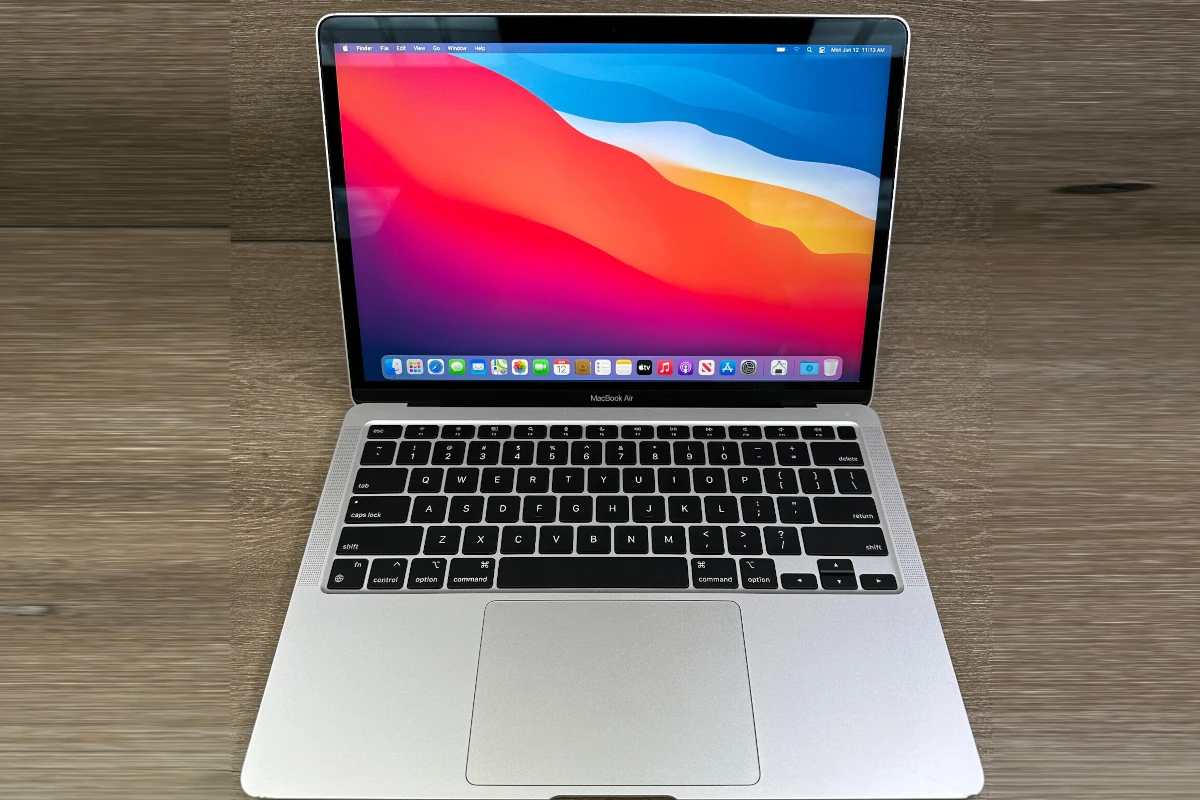
MacBook Air Recovery Mode is a built-in tool that helps fix problems on your computer. To start Recovery Mode on a MacBook Air with Apple silicon, turn on the Mac and keep pressing the power button until you see startup options. For Intel-based MacBook Air models, restart the computer and hold down Command-R as it turns on.
Recovery Mode lets you do many useful things. You can reinstall macOS, check your hard drive for errors, or restore from a backup. It’s a safe way to fix your Mac when it won’t start up normally or has other big issues.
Using Recovery Mode is easy but powerful. The steps are simple, and you don’t need special skills. It’s a great first step when your MacBook Air has problems that regular fixes can’t solve.
MacBook Air Recovery Mode Guide: How to Enter, Use, and Fix Common Issues
Recovery Mode is one of the most powerful troubleshooting tools on a MacBook Air. Whether your Mac won’t start, macOS is acting up, or you need to erase the system, Recovery Mode gives you access to essential repair and recovery options.
This guide explains how to enter Recovery Mode on a MacBook Air, what you can do once you’re there, and how to fix common problems.
What Is Recovery Mode on MacBook Air?
Recovery Mode is a built‑in macOS environment that runs independently of your main operating system. It allows you to:
- Reinstall macOS
- Repair disks using Disk Utility
- Restore from a Time Machine backup
- Access Terminal and Startup Security settings
- Erase your Mac before selling or trading it in
It’s especially useful when macOS won’t boot normally.
Before You Start
- Back up your data if possible
- Connect to a reliable internet connection
- Plug your MacBook Air into power
How to Enter Recovery Mode on MacBook Air
The steps depend on whether your MacBook Air uses Apple Silicon (M1, M2, M3) or an Intel processor.
✅ MacBook Air with Apple Silicon (M1, M2, M3)
- Shut down your MacBook Air
- Press and hold the Power button
- Keep holding until “Loading startup options” appears
- Click Options
- Click Continue
You’re now in Recovery Mode.
✅ MacBook Air with Intel Processor
- Shut down your MacBook Air
- Turn it on and immediately press and hold Command (⌘) + R
- Release the keys when you see the Apple logo or a spinning globe
Your MacBook Air will boot into Recovery Mode.
macOS Recovery Options Explained
Once in Recovery Mode, you’ll see several tools:
🔧 Disk Utility
- Repair startup disk issues
- Check for corrupted files
- Erase drives securely
Best for: Startup errors, disk problems
🔄 Reinstall macOS
- Installs a fresh copy of macOS without deleting personal files
- Downloads the latest compatible macOS version
Best for: System crashes, corrupted OS files
⏱ Restore From Time Machine
- Restore your Mac from a previous backup
- Reverts system and files to an earlier state
Best for: Major system failures or data recovery
💻 Terminal
- Advanced troubleshooting
- Manual system commands
Best for: Experienced users or guided support
🔐 Startup Security Utility (Apple Silicon)
- Manage Secure Boot settings
- Control external boot options
Common MacBook Air Recovery Mode Uses
Fix a Mac That Won’t Boot
- Enter Recovery Mode
- Open Disk Utility → First Aid
- Restart after repair
Reinstall macOS Without Losing Data
- Choose Reinstall macOS
- Follow on‑screen instructions
Factory Reset a MacBook Air
- Back up your data
- Enter Recovery Mode
- Open Disk Utility → Erase startup disk
- Reinstall macOS
Prepare a MacBook Air for Sale
- Sign out of iCloud
- Erase all content via Recovery Mode
- Reinstall macOS for the next owner
What If Recovery Mode Doesn’t Work?
Try Internet Recovery (Intel Macs)
- Hold Option + Command + R at startup
- Loads recovery tools from Apple servers
Use macOS Recovery Over the Internet (Apple Silicon)
- Connect to Wi‑Fi when prompted
- Follow on‑screen instructions
Reset NVRAM (Intel Macs)
- Hold Option + Command + P + R during startup
- Release after second startup sound or logo
Frequently Asked Questions
Does Recovery Mode delete my data?
No. Reinstalling macOS does not erase data unless you manually erase the disk.
Can I use Recovery Mode without Wi‑Fi?
Some tools work offline, but macOS reinstallation requires internet access.
How long does macOS reinstallation take?
Typically 30 minutes to a few hours, depending on internet speed.
Final Thoughts
Recovery Mode is an essential safety net for every MacBook Air owner. Knowing how to access and use it can save you time, stress, and expensive repairs.
Whether you’re fixing startup issues, reinstalling macOS, or preparing your Mac for resale, Recovery Mode puts powerful tools at your fingertips.
Key Takeaways
- Recovery Mode helps fix major Mac issues
- The steps to start Recovery Mode differ for Apple silicon and Intel Macs
- You can reinstall macOS or restore backups in Recovery Mode
Understanding MacBook Air Recovery Mode
MacBook Air Recovery Mode is a tool for fixing problems and restoring your computer. It helps with tasks like reinstalling macOS, fixing disks, and recovering data.
Initiating Recovery Mode
To start Recovery Mode on a MacBook Air with Intel chips, restart and hold Command-R. For M1 Macs, press and hold the power button until you see the startup options. Click the gear icon labeled “Options” and then “Continue.”
Make sure your Mac is plugged in and connected to the internet. If you can’t connect to Wi-Fi, try using an Ethernet cable.
Recovery Mode might take a few minutes to load. You’ll see a progress bar or spinning globe. If it doesn’t work, try Option-Command-R for Internet Recovery.
Navigating MacOS Recovery
Once in Recovery Mode, you’ll see the macOS Utilities window. This has tools to fix your Mac.
The main options are:
- Restore from Time Machine Backup
- Reinstall macOS
- Get Help Online
- Disk Utility
Use the arrow keys or mouse to pick an option. Click “Continue” or press Return to select it.
Disk Utility helps fix drive issues. Time Machine restores your files from a backup. Reinstall macOS puts a fresh copy of the operating system on your Mac.
Troubleshooting and Maintenance
Recovery Mode is great for fixing Mac problems. Use Disk Utility to check and repair your startup disk. Click “First Aid” to scan for and fix errors.
If your Mac won’t start up normally, try Safe Mode. Restart and hold the Shift key until you see the login screen. This starts your Mac with only basic software.
For deeper issues, you might need to erase your disk and reinstall macOS. Back up your files first if you can. Use Disk Utility to erase, then choose “Reinstall macOS” from the main menu.
Data Management and Protection
Protect your data in Recovery Mode. If you need to erase your disk, back up files first. Use Time Machine or copy important files to an external drive.
To restore from a Time Machine backup:
- Choose “Restore from Time Machine Backup” in Recovery Mode
- Pick your backup disk
- Select the backup you want to use
- Follow the steps to restore your system
For moving files between Macs, use Migration Assistant. It’s in the Utilities menu in Recovery Mode. This tool transfers your accounts, apps, and files to a new Mac.
Advanced Options for Different Mac Models
Different Mac models have unique Recovery Mode features. Macs with T2 chips or Apple silicon have extra security options.
On T2 Macs, use Startup Security Utility to change security settings. This controls which startup disk your Mac can use and if it can boot from external media.
Apple silicon Macs (like M1) have two system volumes. One is read-only for better security. Use Disk Utility in Recovery Mode to see both volumes.
For older Intel Macs, you can create a bootable USB installer. This is helpful if your Mac can’t use Internet Recovery.
Frequently Asked Questions
Recovery mode is a vital tool for MacBook Air users. It helps fix problems reset passwords and reinstall macOS. Here are some common questions about using recovery mode on MacBook Air.
How do I boot my MacBook Air into recovery mode?
For Intel-based MacBook Air models turn on the computer and hold down Command+R. Keep holding until you see the Apple logo or spinning globe. On M1 and M2 MacBook Air models press and hold the power button. Release when you see “Loading startup options.”
What should I do if my Mac’s recovery mode is not working?
Try using Internet Recovery instead. Hold Option+Command+R when starting up. This downloads recovery tools from Apple servers. Check your internet connection if it’s not working. You can also try resetting the NVRAM or creating a bootable USB drive.
How can I reset my MacBook Air using recovery mode?
In recovery mode open Disk Utility. Erase the main hard drive. Then quit Disk Utility and choose “Reinstall macOS” from the main menu. Follow the prompts to reinstall a fresh copy of the operating system.
What are the steps to access recovery mode on Mac M1 and M2 models?
Shut down the MacBook Air. Press and hold the power button. Keep holding until you see “Loading startup options.” Click Options then Continue. Select a user and enter the password if asked. You’ll now be in recovery mode.
How can I use Disk Utility in Mac recovery mode to troubleshoot issues?
Disk Utility lets you check and repair disk problems. Open it from the recovery mode menu. Select your startup disk and click First Aid. This scans for and fixes basic disk errors. You can also use Disk Utility to erase or partition drives if needed.
What can be done if I’ve forgotten my MacBook Air password and need to use recovery mode?
In recovery mode select “Forgot all passwords” from the menu. Follow the steps to reset your password. You’ll need your Apple ID. If you don’t have an Apple ID you may need to erase the Mac and set it up as new.





