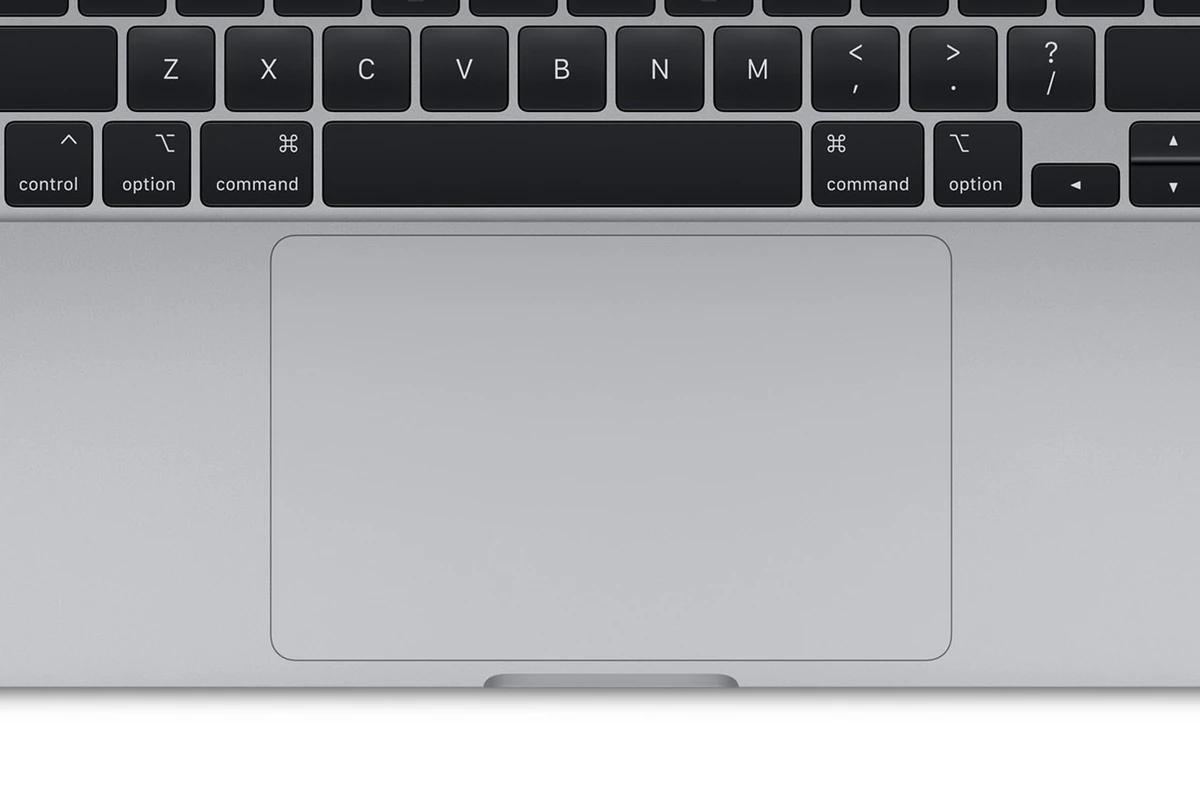
Is your MacBook Air trackpad acting up? A non-working trackpad can be really annoying. It stops you from using your laptop the way you want to. The most common reasons for trackpad issues are software bugs, dirt on the surface, or wrong settings.
Don’t worry if your trackpad isn’t working right now. There are some easy fixes you can try. Cleaning the trackpad surface might help. You can also check your settings to make sure everything is set up correctly. If those don’t work, restarting your MacBook Air or updating your software might do the trick.
Sometimes the problem is more serious. If none of the easy fixes work, you might need to take your MacBook Air to an Apple Store. They can check if there’s a hardware issue that needs fixing.
1. The “Quick Fix” Checklist
Before diving into deep system settings, check these common culprits:
- Clean the Trackpad: Dirt, oil, or moisture can interfere with the capacitive sensors. Wipe it down with a slightly damp, lint-free cloth.
- Disconnect External Mice: If you have a Bluetooth mouse or a USB mouse plugged in, macOS might be configured to disable the trackpad automatically.
- Check for Surface Issues: If you are using your Mac on a soft surface (like a bed or sofa), the chassis can flex slightly, interfering with the click mechanism. Move it to a flat, hard surface.
2. Check Your Accessibility Settings
There is a specific setting in macOS that disables the trackpad when it detects an external mouse. If this is toggled on, your trackpad will seem “broken” whenever a mouse is nearby.
- Go to the Apple Menu > System Settings (or System Preferences).
- Navigate to Accessibility > Pointer Control.
- Look for the option: “Ignore built-in trackpad when mouse or wireless trackpad is present.”
- Toggle this OFF.
3. Force a Restart (The “Power Cycle”)
If the trackpad driver has crashed, a standard restart usually fixes it. Since your trackpad isn’t working:
- Press and hold the Power Button (or Touch ID sensor) until the Mac shuts down.
- Wait 10 seconds.
- Turn it back on.
4. Reset the SMC and NVRAM (Intel-based MacBooks Only)
If you have an older MacBook Air (Intel processor), resetting the system controllers can fix hardware communication issues. Note: If you have an M1, M2, or M3 Apple Silicon Mac, these steps do not apply; a simple restart performs a similar function.
To Reset NVRAM/PRAM:
- Shut down your Mac.
- Turn it on and immediately press and hold Option + Command + P + R.
- Release after about 20 seconds.
To Reset the SMC:
- Shut down your Mac.
- On the built-in keyboard, press and hold Shift + Control + Option on the left side, and the Power button.
- Hold for 10 seconds, then release all keys and turn the Mac on.
5. Delete Trackpad Property List (.plist) Files
Sometimes the configuration files for your trackpad become corrupted. Deleting them forces macOS to create fresh, “clean” ones.
- Open Finder. Press Command + Shift + G.
- Type in:
/Library/Preferences/and hit Enter. - Find and delete (or move to desktop as a backup) the following files:
com.apple.AppleMultitouchTrackpad.plistcom.apple.driver.AppleBluetoothMultitouch.trackpad.plist
- Restart your Mac.
6. Check for macOS Updates
Apple frequently releases firmware patches for input devices. Even if your trackpad is barely working, try to navigate using a USB mouse or the “Tab” and “Arrow” keys to:
- Go to System Settings > General > Software Update.
- Install any pending updates.
7. The “Swollen Battery” Warning (Physical Check)
If the trackpad feels physically “stiff” or won’t click, but the cursor still moves, the issue might be the battery. The MacBook Air battery sits directly underneath the trackpad. As batteries age or fail, they can swell, pushing up against the trackpad from underneath.
- Look for: A slight bulge in the casing or the trackpad sitting unevenly/popping out of the frame.
- Action: If you suspect a swollen battery, stop using the device immediately and take it to an Apple Store. Swollen batteries are a fire hazard.
8. Run Apple Diagnostics
If you still can’t get it to work, use the built-in hardware tester:
- Apple Silicon (M-series): Turn on the Mac and continue to hold the power button until the startup options window appears. Press Command + D.
- Intel Mac: Turn on the Mac and immediately press and hold the D key.
- The Mac will run a check and give you a reference code. If it shows a trackpad error (like NDR001), it is a confirmed hardware failure.
Still Not Working?
If Apple Diagnostics shows a hardware error or the trackpad remains unresponsive after a clean install of macOS, it is likely a hardware failure (such as a loose ribbon cable or a dead sensor). At this point, you should contact Apple Support or visit an authorized service provider for a repair.
Key Takeaways
- Clean the trackpad and check settings for quick fixes
- Restart your MacBook Air or update software if basic fixes don’t work
- Visit an Apple Store for help with serious trackpad problems
Diagnosing Your MacBook Air Trackpad Issues
When your MacBook Air trackpad stops working, it can be frustrating. There are several ways to figure out what’s wrong and fix the problem.
Using Apple Diagnostics to Identify Hardware Issues
Apple Diagnostics helps find hardware problems. To use it:
- Turn off your MacBook Air
- Press the power button
- Hold down the D key as it starts up
The test takes 2-5 minutes. It checks all parts of your MacBook, including the trackpad. If it finds an issue, you’ll see a code and description. Write this down. You may need it to get help from Apple support.
Apple Diagnostics can spot many trackpad problems. But it might miss some software issues. If the test shows no problems, try other fixes.
Troubleshooting Software Bugs and Settings
Software bugs can make your trackpad act up. To fix these:
• Update macOS – New updates often fix bugs
• Reset NVRAM – This can solve many odd Mac behaviors
• Check for trackpad firmware updates
• Reinstall macOS as a last resort
To reset NVRAM:
- Shut down your Mac
- Turn it on and press Command + Option + P + R
- Hold these keys for 20 seconds
- Let go when you hear the startup sound twice
This resets some settings but keeps your files safe.
Adjusting Trackpad Preferences
Your trackpad settings can affect how it works. To change them:
- Click the Apple menu
- Select “System Settings”
- Choose “Trackpad”
Here you can:
• Turn on/off features like tap to click
• Change tracking speed
• Adjust scrolling direction
Try turning off force click if your trackpad feels strange. You can also change pointer control settings here. Play with these options to see what works best for you.
Frequently Asked Questions
MacBook Air trackpad issues can be frustrating. Here are some common questions and fixes to help get your trackpad working again.
How can I fix an unresponsive trackpad on my MacBook Air?
First try restarting your MacBook Air. If that doesn’t work check if the trackpad is turned on in System Settings. You can also try resetting the SMC (System Management Controller).
What are the steps to reset the trackpad on a MacBook Air?
To reset the trackpad go to System Settings. Click Trackpad. Turn Trackpad on and off. Adjust settings like tracking speed if needed. Restart your MacBook Air after making changes.
Why would a touchpad on a Mac stop working all of a sudden?
A Mac touchpad might stop working due to software glitches. Outdated drivers or recent updates can cause problems. Sometimes dirt or debris under the trackpad is the culprit.
What methods are available to unfreeze a MacBook Air trackpad?
Force quit any apps that aren’t responding. Restart your MacBook Air. Boot into Safe Mode to check if the issue is software-related. Update macOS if an update is available.
How to troubleshoot a MacBook trackpad that’s not physically clicking?
Clean the trackpad surface. Check if “Tap to click” is on in settings. Try resetting the NVRAM. If these don’t work the trackpad might need repair.
What should I do if my MacBook Air trackpad is not working after a software update?
Check for another update that might fix the issue. Try booting in Safe Mode. If the problem persists roll back to the previous macOS version. Contact Apple Support if needed.