
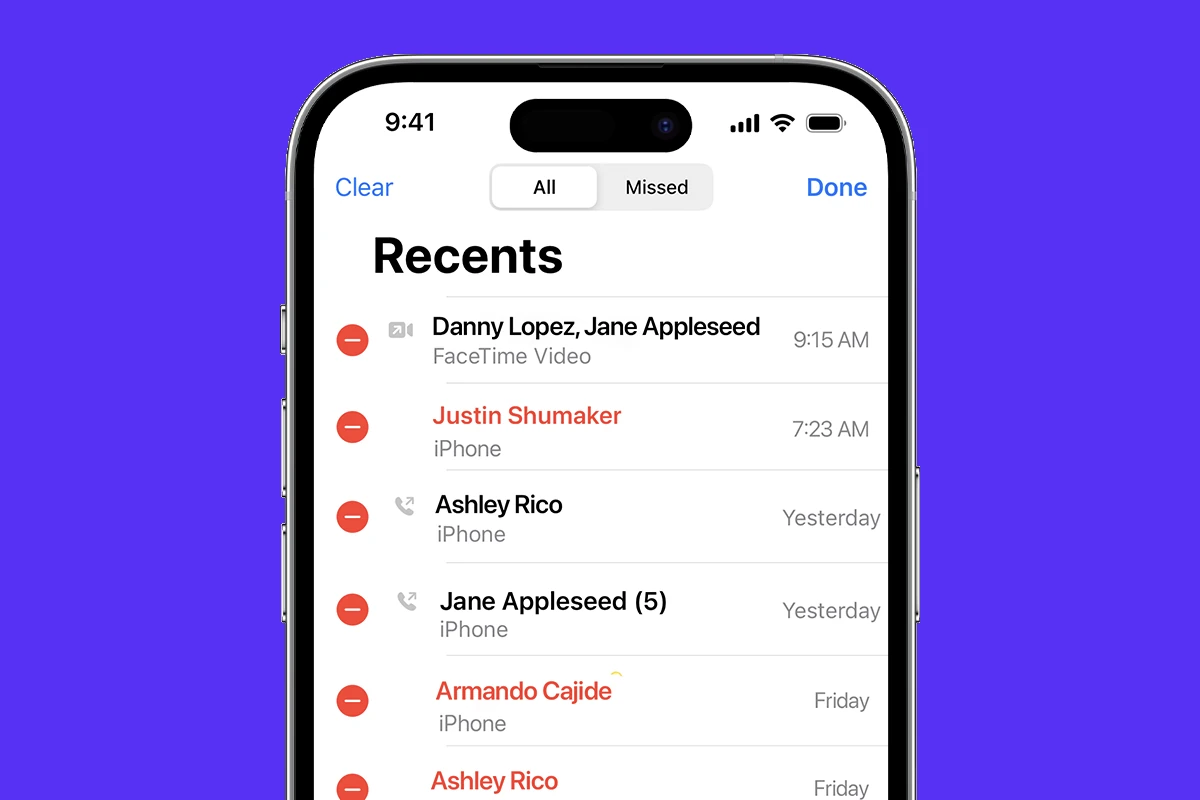
Managing your iPhone call log history is easy and useful. You can view, delete, and search your call history directly from the Phone app on your iPhone. This feature helps you keep track of your communications and manage your phone’s storage.
To access your call log, open the Phone app and tap the Recents tab. Here, you’ll see a list of your recent calls. You can clear your entire call history or remove specific calls. To delete a single call, swipe left on it and tap Delete. For multiple deletions, tap Edit, select the calls you want to remove, and tap Delete.
If you need to find an older call, use the search bar at the top of the Recents screen. You can search by contact name, phone number, or even date. Some carriers may offer extended call history through their websites or customer service.
| Action | Steps |
|---|---|
| View call history | Open Phone app > Tap Recents |
| Delete single call | Swipe left on call > Tap Delete |
| Clear all history | Tap Edit > Clear > Clear All Recents |
| Search for calls | Tap search bar > Enter name, number, or date |
iPhone Call Log History Settings & How to Access Your Call Log (2026 Guide)
Your iPhone automatically keeps a record of incoming, outgoing, and missed calls in the Call Log (Recents) section of the Phone app.
Here’s how to access it, manage it, and understand its limits.
📞 How to Access Your Call Log on iPhone
- Open the Phone app
- Tap Recents at the bottom of the screen
You’ll see:
- All calls (incoming, outgoing, missed)
- Contact names (if saved)
- Phone numbers (if not saved)
- Call date and time
- Call duration (tap the ⓘ info button)
Apple confirms you can view and manage your recent calls directly in the Phone app (source: Apple Support – View and delete your call history).
🔎 How to See Details of a Specific Call
- Open Phone
- Tap Recents
- Tap the ⓘ (info) button next to a contact or number
You’ll see:
- Exact call time
- Call duration
- Whether it was incoming or outgoing
📅 How Much Call History Does iPhone Store?
By default, iPhones store:
- Up to 1,000 total call records internally
- Only 100 recent calls are displayed at once in the Recents list
Once new calls exceed the limit, older ones are automatically removed.
(Confirmed by multiple documentation sources including Apple Support and technical guides such as: Apple Support)
🔍 How to View Older Call History
If older calls no longer appear:
Option 1: Check iCloud (If Calls Are Synced)
If you use iCloud and have: Settings → [Your Name] → iCloud → Apps Using iCloud → Phone enabled,
your call history syncs across Apple devices signed into the same Apple ID.
Option 2: Check Your Carrier
Your mobile carrier may provide:
- Detailed call logs
- Longer history
- Downloadable statements
Log into your carrier’s website or app to check.
🗑 How to Delete Call History
According to Apple Support, you can delete individual calls or clear your entire history (source: Apple Support – View and delete your call history).
Delete a Single Call:
- Open Phone
- Tap Recents
- Swipe left on a call
- Tap Delete
Clear All Call History:
- Open Phone
- Tap Recents
- Tap Edit
- Tap Clear
- Tap Clear All Recents
⚠️ This cannot be undone.
⚙️ iPhone Call Log Settings to Know
While there aren’t many direct “call log settings,” these affect your call history:
✅ iCloud Call Sync
Go to: Settings → [Your Name] → iCloud → Phone
Turning this on:
- Syncs call history across iPhone, iPad, and Mac
✅ Silence Unknown Callers
Go to: Settings → Phone → Silence Unknown Callers
- Unknown numbers go straight to voicemail
- Calls still appear in Recents
✅ Call Audio Routing
Go to: Settings → Accessibility → Touch → Call Audio Routing
Controls whether calls default to:
- Automatic
- Bluetooth headset
- Speaker
This doesn’t change history, but affects call behavior.
📱 Can You Export Your Call Log?
iOS doesn’t provide a built-in export option.
To export call history, you’ll need:
- A third-party backup tool
- Or carrier billing records
🔄 Why Is My Call Log Missing Calls?
Possible reasons:
- You exceeded the 1,000-call storage limit
- Calls were deleted manually
- iCloud sync was disabled
- Device was restored
- You signed out of Apple ID
✅ Quick Summary
| Task | How to Do It |
|---|---|
| View call history | Phone → Recents |
| See call details | Tap ⓘ next to call |
| Delete one call | Swipe left → Delete |
| Delete all calls | Edit → Clear → Clear All |
| Sync across devices | Settings → iCloud → Phone |
| Find older records | Contact your carrier |
Final Thoughts
Your iPhone keeps a running log of recent calls, but it isn’t unlimited. For long-term call records, your carrier account is usually the best source.
Understanding iPhone Call Log History
The iPhone call log history provides a comprehensive record of your phone activity. It allows you to review past calls and access important details about each communication.
Locating the Call Log in the Phone App
To find your call log, open the Phone app on your iPhone. Tap the “Recents” tab at the bottom of the screen. This displays a list of your recent calls, including incoming, outgoing, and missed calls.
The Recents tab shows the contact name or phone number for each call. You’ll also see icons indicating whether the call was incoming, outgoing, or missed. To get more information about a specific call, tap the “i” button next to it.
View your call history by scrolling through the list. Calls are organized by date, with the most recent at the top.
Overview of Recents Tab and Call History Features
The Recents tab offers several useful features to manage your call history:
- Call details: Tap a call entry to see the date, time, and duration of the call.
- Quick actions: Swipe left on a call to reveal options like Delete or Info.
- Search: Use the search bar to find specific calls by name or number.
You can clear your entire call history or delete individual entries. To remove a single call, swipe left and tap Delete. To clear all calls, tap “Edit” and then “Clear” at the top of the screen.
| Feature | Description |
|---|---|
| Call type icons | Shows if calls were incoming, outgoing, or missed |
| Contact info | Displays name or number for each call |
| Date and time | Lists when each call occurred |
| Duration | Shows length of completed calls |
The call log keeps a record of your recent phone activity, helping you stay organized and informed about your communications.
Managing Call History
The iPhone offers simple ways to manage your call history. You can delete individual calls or clear all recent calls at once. These features help you maintain privacy and keep your call log organized.
How to Delete Call History
To remove specific calls from your history, open the Phone app and tap Recents. Swipe left on any call you want to delete and tap the red Delete button. This removes only that call from your log.
For more details about a call before deleting, tap the info (i) icon next to it. You’ll see the call duration, time, and type. From this screen, you can also delete the call by scrolling down and tapping Delete Call.
If you want to hide certain types of calls, like those from apps, you can adjust your settings. Go to Settings > Phone > Call History and choose which call types to display.
Clearing All Recent Calls
To wipe your entire call history clean:
- Open the Phone app
- Tap Recents at the bottom
- Tap Edit in the top right corner
- Select Clear at the top left
- Confirm by tapping Clear All Recents
This action erases all calls from your log. It can’t be undone, so be sure before proceeding.
| Action | Steps |
|---|---|
| Delete single call | Swipe left > Delete |
| Clear all calls | Edit > Clear > Confirm |
Remember, clearing your call history on one device doesn’t affect other devices linked to your Apple ID. To keep call logs in sync, turn on iCloud Drive for Phone & FaceTime in your iCloud settings.
Call Log Synchronization and Privacy
iPhone call logs can sync across devices through iCloud. This feature offers convenience but raises privacy considerations. Users should understand how it works and take steps to protect their call history data.
Understanding iCloud Integration with Call History
iCloud syncs call logs across Apple devices linked to the same Apple ID. This means your recent calls appear on your iPhone, iPad, and Mac. To manage this:
- Go to Settings > [Your Name] > iCloud
- Tap “Show All”
- Find “Phone” in the list
- Toggle the switch to turn syncing on or off
Syncing call history can be useful. You can return calls from any device. It also backs up your call logs. But some users prefer to keep call history separate on each device.
Privacy Considerations for Call Logs on iCloud
Your call logs contain sensitive information. They show who you’ve contacted and when. To protect your privacy:
- Use a strong Apple ID password
- Enable two-factor authentication
- Regularly review devices linked to your Apple ID
You can stop sharing call history between devices. This keeps logs isolated on each iPhone. To do this, turn off the “Phone” toggle in iCloud settings.
Delete specific calls or your entire call history as needed. In the Phone app, tap “Recents” then “Edit” to remove entries. This helps maintain privacy on shared devices.
| Privacy Action | Benefit |
|---|---|
| Disable sync | Keeps logs separate |
| Delete history | Removes sensitive data |
| Strong password | Protects iCloud account |
Remember, iCloud backups may still include call logs. Consider this when choosing backup settings for your iPhone.
Advanced Call Log Settings and Scenarios
iPhone call log settings offer powerful features for managing your communication history across devices. These advanced options help you sync call logs and handle data during major device changes.
Dealing with Multiple Devices and Call History Sync
You can sync your call history across multiple iPhones using iCloud. This feature lets you view recent calls on any linked device. To enable syncing:
- Go to Settings > [Your Name] > iCloud
- Turn on “Calls on Other Devices”
This setting allows Handoff for phone calls between your iPhone and other Apple devices. You’ll see calls made on your iPad or Mac in your iPhone’s call log.
Keep in mind that syncing may use cellular data. If you have limited data, connect to Wi-Fi before syncing large call histories.
Impact of Factory Reset on iPhone Call Logs
A factory reset erases all data on your iPhone, including call logs. To preserve your call history before resetting:
- Back up your iPhone to iCloud or your computer
- Perform the factory reset
- Restore your backup during setup
After restoring, your call logs will reappear in the Phone app.
| Action | Effect on Call Logs |
|---|---|
| iCloud Backup | Preserves logs |
| iTunes/Finder Backup | Preserves logs |
| Factory Reset | Erases all logs |
| Restore from Backup | Recovers logs |
If you don’t restore a backup, your call history starts fresh after the reset. Your mobile carrier may still have records of your calls for billing purposes.
Frequently Asked Questions
iPhone call history settings offer various options for viewing, managing, and retrieving call logs. Users can access recent calls, modify settings, and even recover deleted information in some cases.
How can I view my full call history on an iPhone?
To view your full call history, open the Phone app and tap the Recents tab. This displays your 100 most recent calls. Scroll through the list to see incoming, outgoing, and missed calls.
For older calls, you may need to check your iCloud or iTunes backups.
What steps are involved in changing call history settings on an iPhone?
iPhone doesn’t offer many customizable settings for call history. You can, however, change how calls are displayed.
Go to Settings > Phone > Show My Caller ID to toggle whether your number appears for outgoing calls.
For what duration does an iPhone typically store the call history?
iPhones typically store call history for about 100 recent calls. This includes both incoming and outgoing calls.
Older calls are removed as new ones are added. For long-term storage, regular backups are recommended.
Is it possible to retrieve deleted call logs on an iPhone and how?
Retrieving deleted call logs directly from an iPhone is not possible. However, you may recover them from a backup.
If you have an iCloud or iTunes backup made before deletion, you can restore your iPhone to access the deleted logs.
Can you view call history on an iPhone for a specific contact?
Yes, you can view call history for a specific contact. Open the Phone app and tap Recents.
Use the search bar at the top to find a contact‘s name or number. This filters the call history for that specific person.
What methods are available for accessing old call history on an iPhone?
To access old call history beyond the recent 100 calls, you have a few options:
- Check iCloud or iTunes backups
- Use third-party data recovery software
- Contact your cellular provider for detailed call records
Note that success may vary depending on how old the call history is.
| Method | Ease of Use | Data Range |
|---|---|---|
| Recent Calls | Easy | Last 100 calls |
| iCloud/iTunes Backup | Moderate | Varies by backup date |
| Third-party Software | Complex | Potentially extensive |
| Carrier Records | Varies | Usually up to 18 months |





