
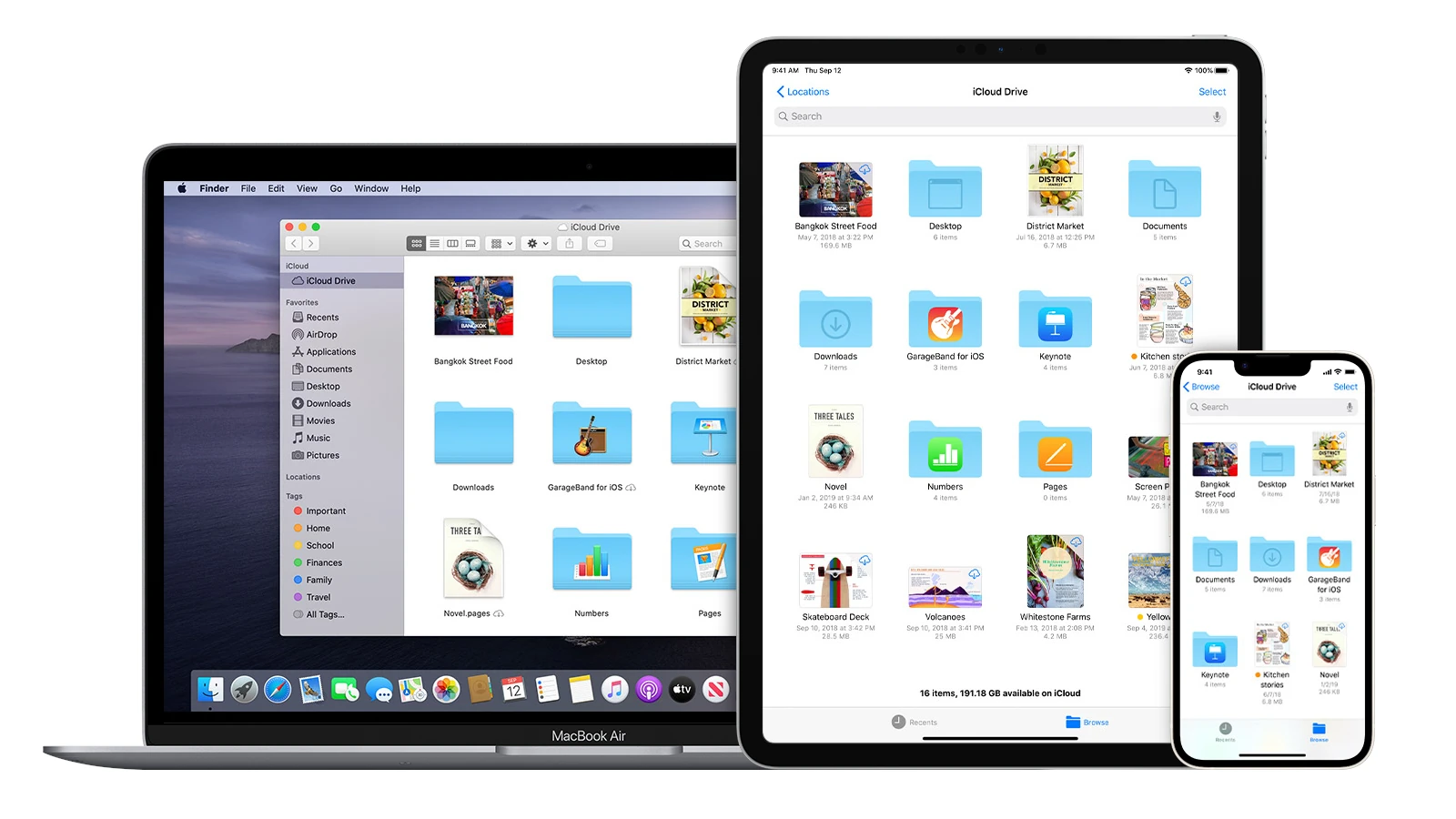
Backing up your Mac to iCloud provides a safe way to protect your files from loss. Many Apple users don’t realize that backing up a Mac to iCloud works differently than backing up an iPhone or iPad. Macs don’t automatically back up to iCloud, but you can still save important files there by using iCloud Drive and enabling specific settings for your documents and desktop folders.
Setting up iCloud backup for your Mac is pretty simple once you understand how it works. You’ll need to choose which apps and data to sync with iCloud through your System Settings. This lets you keep your most important files safe in the cloud where you can access them from any device.
How To Backup A Mac On iCloud: Complete Guide
Backing up your Mac to iCloud ensures your important data is safe, accessible, and recoverable in case of hardware failure, theft, or accidental deletion. This comprehensive guide will walk you through everything you need to know about backing up your Mac using iCloud.
Understanding iCloud Backup for Mac
What Gets Backed Up to iCloud?
Unlike iOS devices that have a single “iCloud Backup” feature, Macs use iCloud differently:
What iCloud Backs Up:
- Documents and Desktop files (via iCloud Drive)
- Photos and videos (via iCloud Photos)
- Mail, Contacts, Calendars, Reminders
- Safari bookmarks and tabs
- Notes and Voice Memos
- Messages in iCloud
- Keychain passwords
- App data from compatible apps
What iCloud Does NOT Back Up:
- macOS system files
- Applications and software
- Music library (unless purchased from iTunes)
- Movies and TV shows (unless purchased from Apple)
- Complete system backups
Important Note: For a complete system backup, you’ll need Time Machine with an external drive. iCloud is best for syncing and protecting your personal data.
Checking Your iCloud Storage
Before you begin, check how much iCloud storage you have available.
Check Storage on Mac:
- Click the Apple menu () > System Settings (macOS Ventura or later) or System Preferences (earlier versions)
- Click your name/Apple ID at the top
- Click iCloud
- View your storage usage at the top
- Click Manage to see detailed breakdown
Current iCloud Storage Plans (as of December 2024):
- Free: 5GB
- iCloud+:
- 50GB: $0.99/month
- 200GB: $2.99/month
- 2TB: $9.99/month
- 6TB: $29.99/month
- 12TB: $59.99/month
Upgrading Your Storage:
- Go to System Settings > Apple ID > iCloud
- Click Manage > Change Storage Plan or Buy More Storage
- Select the plan you want
- Click Next and follow the prompts
- Enter your Apple ID password and payment method
Step-by-Step: Setting Up iCloud Backup on Mac
Step 1: Sign in to iCloud
- Click the Apple menu () > System Settings (or System Preferences)
- Click Sign in (if not already signed in)
- Enter your Apple ID and password
- Enter the verification code if two-factor authentication is enabled
- Choose whether to merge existing data with iCloud
Step 2: Enable iCloud Drive
iCloud Drive backs up your Documents and Desktop folders.
- Go to System Settings > Apple ID > iCloud
- Toggle iCloud Drive to ON
- Click Options next to iCloud Drive
- Check Desktop & Documents Folders
- Select other apps you want to sync with iCloud Drive
- Click Done
What This Does:
- All files on your Desktop appear on all your devices
- Files in your Documents folder sync across devices
- You can access these files from iCloud.com
Step 3: Enable iCloud Photos
- In System Settings > Apple ID > iCloud
- Toggle Photos to ON
- Open the Photos app
- Go to Photos > Settings (or Preferences)
- Click the iCloud tab
- Check iCloud Photos
- Choose your preference:
- Download Originals to this Mac: Keeps full-resolution photos locally
- Optimize Mac Storage: Stores full-resolution in iCloud, smaller versions locally
Additional Options:
- Enable Shared Albums to share photos with others
- Enable iCloud Shared Photo Library for family sharing
Step 4: Enable Other iCloud Services
Back in System Settings > Apple ID > iCloud, toggle ON the services you want to backup:
Mail:
- Syncs your iCloud email across devices
- Toggle Mail to ON
Contacts:
- Backs up and syncs all contacts
- Toggle Contacts to ON
Calendars:
- Syncs all calendar events and appointments
- Toggle Calendars to ON
Reminders:
- Backs up all your reminders and to-do lists
- Toggle Reminders to ON
Safari:
- Syncs bookmarks, reading list, and open tabs
- Toggle Safari to ON
Notes:
- Backs up all notes across devices
- Toggle Notes to ON
Passwords (Keychain):
- Syncs saved passwords and credit card information
- Toggle Passwords to ON
Messages in iCloud:
- Stores all iMessage and SMS conversations
- Toggle Messages to ON
- Or open Messages app > Settings > iMessage > Enable Messages in iCloud
Step 5: Optimize Storage Settings
- In System Settings > Apple ID > iCloud
- Click Optimize Mac Storage (if available)
- This automatically manages storage by:
- Keeping only recent email attachments
- Storing full-resolution photos in iCloud
- Removing watched iTunes movies/TV shows
Managing What Gets Backed Up
Selecting Specific Folders for iCloud Drive
Using Finder:
- Open Finder
- Click iCloud Drive in the sidebar
- Drag folders you want to backup into iCloud Drive
- These folders will sync across all devices
Excluding Files from Desktop & Documents:
- Right-click on a file or folder
- Select Get Info
- Unfortunately, you can’t selectively exclude items from Desktop & Documents sync
- Move items you don’t want synced to a different location
Managing Photos Backup
Exclude Certain Albums:
- iCloud Photos backs up your entire library
- To exclude photos, create a separate library and don’t enable iCloud for it
Create a Separate Photo Library:
- Quit Photos app
- Hold Option key and open Photos
- Click Create New
- Name and save the new library
- This library won’t sync to iCloud unless you make it the system library
Managing App Data
- System Settings > Apple ID > iCloud
- Click iCloud Drive Options or Show All under apps
- Toggle OFF any apps you don’t want syncing to iCloud
Monitoring Your iCloud Backup
Check Backup Status
For iCloud Drive:
- Open Finder
- Click iCloud Drive in sidebar
- Look for cloud icons next to files:
- Cloud with down arrow: Available in iCloud, not downloaded locally
- Checkmark: Downloaded and up to date
- Circular arrow: Currently uploading or downloading
For Photos:
- Open Photos app
- Look at the bottom of the sidebar
- Status shows “Uploading X items” or “All photos uploaded”
For Other Services:
- System Settings > Apple ID > iCloud
- Click Manage to see storage details
- Each service shows how much space it’s using
View Recent Activity
- System Settings > Apple ID > iCloud
- Click Manage
- Click Backups (if available)
- Review what’s being backed up
Accessing Your Backed-Up Data
From Another Mac
- Sign in with the same Apple ID
- Enable the same iCloud services
- Your data will automatically sync
From iCloud.com
- Go to iCloud.com
- Sign in with your Apple ID
- Access:
- iCloud Drive files
- Photos
- Mail, Contacts, Calendar
- Notes, Reminders
- Pages, Numbers, Keynote documents
From iPhone or iPad
- Sign in with the same Apple ID
- Enable iCloud services in Settings > [Your Name] > iCloud
- Access synced data through respective apps
From Windows PC
- Download and install iCloud for Windows
- Sign in with your Apple ID
- Select which services to sync
- Access iCloud Drive through File Explorer
Restoring from iCloud Backup
Restoring Individual Files
From iCloud Drive:
- Go to iCloud.com
- Click iCloud Drive
- Select files to download
- Click the download icon
From Photos:
- Go to iCloud.com > Photos
- Select photos/videos
- Click the download icon
- Or open Photos app on Mac—all photos are already there
Recovering Deleted Files:
- Go to iCloud.com
- Click Account Settings
- Scroll to Advanced
- Click Restore Files, Restore Contacts, or other restore options
- Select items to restore (available for 30 days after deletion)
Setting Up a New Mac from iCloud
- Turn on your new Mac
- Follow Setup Assistant:
- Connect to Wi-Fi
- Select your country/region
- Choose Transfer Information from a Mac, Time Machine backup, or startup disk
- Or choose Not Now if you only want iCloud data
- Sign in with your Apple ID
- Enable iCloud services you want to sync
- Wait for data to download:
- iCloud Drive files sync automatically
- Photos begin downloading
- Other data syncs in the background
Important: This doesn’t restore applications or system settings. You’ll need to:
- Reinstall applications manually
- Reconfigure system preferences
- Or use Migration Assistant with Time Machine for complete restoration
Freeing Up iCloud Storage
Check What’s Using Storage
- System Settings > Apple ID > iCloud > Manage
- Review which services use the most space
- Click on each to see details
Delete Unnecessary Files
From iCloud Drive:
- Open Finder > iCloud Drive
- Delete files you no longer need
- Empty Trash (these files count toward storage until deleted from Trash)
From Photos:
- Open Photos app
- Select photos/videos to delete
- Press Delete or right-click > Delete
- Go to Albums > Recently Deleted
- Click Delete All to permanently remove (photos stay in Recently Deleted for 30 days)
From Mail:
- Open Mail app
- Delete emails with large attachments
- Go to Mailbox > Erase Deleted Items
From Messages:
- Open Messages
- Delete conversations with lots of photos/videos
- Or in Messages Settings > General, set messages to auto-delete after a period
From Backups:
- System Settings > Apple ID > iCloud > Manage
- Click Backups
- Delete old device backups you no longer need
Optimize Storage Settings
For Photos:
- Use Optimize Mac Storage instead of downloading originals
- System Settings > Apple ID > iCloud > Photos > Options
For Mail:
- Let Mail automatically manage attachments
- Mail > Settings > Accounts > Account Information > Advanced
- Set Remove copy from server after to a shorter timeframe
For Files:
- Use Optimize Storage for Mac
- System Settings > General > Storage
- Click Optimize to automatically remove watched movies/TV shows
Troubleshooting Common Issues
iCloud Not Syncing
Check Internet Connection:
- Ensure you’re connected to the internet
- Test with a web browser
Verify You’re Signed In:
- System Settings > Apple ID
- Make sure you’re signed in
Check iCloud Status:
- Go to apple.com/support/systemstatus
- Verify iCloud services are operational
Restart iCloud Services:
- System Settings > Apple ID > iCloud
- Toggle OFF the service that’s not syncing
- Wait 30 seconds
- Toggle it back ON
Restart Your Mac:
- Sometimes a simple restart fixes sync issues
Check Date and Time:
- System Settings > General > Date & Time
- Ensure “Set time and date automatically” is enabled
Storage Full Messages
Upgrade Storage Plan:
- System Settings > Apple ID > iCloud > Manage
- Click Change Storage Plan
Free Up Space:
- Follow steps in “Freeing Up iCloud Storage” section above
Key Takeaways
- Macs use iCloud Drive for file backup rather than creating complete system backups like iPhones do
- You can back up Documents and Desktop folders to iCloud by enabling this feature in your Mac’s System Settings
- For complete Mac backups, use Time Machine alongside iCloud to protect all your data
Understanding iCloud and Its Benefits for Mac Backup
iCloud offers Mac users a reliable way to protect their important files without manual steps. This cloud service keeps your data safe and makes it easy to access your files from any Apple device.
What Is iCloud?
iCloud is Apple’s cloud storage service that works with your Mac and other Apple devices. It stores your photos, videos, documents, and app data online instead of just on your computer. When you save files to iCloud Drive, they sync across all your devices automatically.
iCloud gives each Apple ID user 5GB of free storage. You can buy more space if needed, with plans ranging from 50GB to 2TB.
The service runs in the background, quietly uploading changes as you work. This means your latest files are always backed up without you having to think about it.
Many Mac apps like Pages, Numbers, and Photos work directly with iCloud. This lets you start work on your Mac and continue on your iPhone or iPad later.
Advantages of Using iCloud for Backup
iCloud backup protects your data against many common problems. If your Mac is damaged, lost, or stolen, you can recover your files from any device with your Apple ID.
Unlike external drives, iCloud backs up automatically whenever you’re connected to Wi-Fi. You don’t need to remember to run backups or connect devices.
Your files stay safe from home disasters like fires or floods since they’re stored in secure data centers. This off-site protection is a key benefit of cloud backup.
iCloud makes setting up a new Mac simple. Just sign in with your Apple ID, and your files, photos, and settings transfer over.
The service also saves space on your Mac by storing seldom-used files in the cloud while keeping them accessible. You can back up your MacBook to iCloud both manually and automatically.
Preparing Your Mac for iCloud Backup
Before starting your backup process, you need to check a few settings and make some choices about what data you want to store in iCloud. This preparation will help ensure your important files are safely backed up.
Checking iCloud Account and Storage Space
First, make sure you’re signed into your Apple ID on your Mac. Click the Apple menu and select “System Settings” (or “System Preferences” on older Macs). Click your name at the top of the sidebar, then select “iCloud.”
Verify that your Apple ID is correctly shown at the top of the window. If you’re not signed in, enter your Apple ID and password when prompted.
Next, check your available iCloud storage. Look for the storage bar at the bottom of the iCloud settings panel. Free accounts include 5GB of storage, which fills up quickly.
If you need more space, you can purchase additional iCloud storage. Click “Manage…” next to the storage bar to see what’s using your space and buy more if needed.
Choosing What to Backup on iCloud
Unlike iPhones, Macs don’t have a complete system backup option for iCloud. Instead, you’ll need to select specific types of data to sync.
The most important items to consider backing up include:
- Documents and Desktop folders: These contain your working files
- Photos Library: All your images and videos
- Mail data: Your emails and attachments
- Contacts, Calendars, and Notes: Your personal information
Note that Macs do not back up system settings to iCloud, only files and app data. For full system backups, you’ll need Time Machine instead.
Be selective about what you back up to avoid filling your storage too quickly. Large video files and applications won’t sync to iCloud.
Configuring iCloud Settings on Your Mac
To set up your iCloud backup options, go to System Settings > Apple ID > iCloud. You’ll see a list of apps and services that can use iCloud.
Toggle on “iCloud Drive” first, as this is required for most other backup features. Then turn on the switches for the items you want to back up.
For important documents, click “Options” next to iCloud Drive and ensure “Desktop & Documents Folders” is enabled. This backs up these key folders to iCloud Drive.
For photos, toggle on “Photos” and click “Options” to customize settings. Choose “iCloud Photos” to upload your entire library.
After making your selections, allow time for the initial backup to complete. This may take several hours depending on your internet speed and the amount of data.
Setting Up iCloud Drive for Document and Desktop Files
iCloud Drive offers a convenient way to keep your important Mac files in sync across all your Apple devices. By storing your Desktop and Documents folders in iCloud Drive, you can access these files from any device and have them automatically backed up.
Enabling iCloud Drive on Your Mac
To start using iCloud Drive for your documents and desktop files, you’ll need to enable it in your system settings. On your Mac, click the Apple menu and select System Settings (or System Preferences on older macOS versions). Click on your Apple ID at the top of the sidebar, then select iCloud.
Look for iCloud Drive in the list and make sure it’s turned on. Next, click on “Options” or “iCloud Drive” to see more settings.
Find the checkbox for “Desktop & Documents Folders” and select it to enable syncing. Your Mac will begin uploading these folders to iCloud. This might take some time depending on how many files you have.
If you’re having trouble enabling this feature, you can try creating a new admin user account temporarily to fix permission issues.
Organizing Files for iCloud Drive Sync
Before fully committing to iCloud Drive syncing, it’s smart to organize your files. Start by removing large files you don’t need synced across devices. This saves iCloud storage space and speeds up the initial sync process.
Create logical folder structures within your Documents folder. This organization will make files easier to find when accessing them from other devices.
Tips for effective organization:
- Keep file names short but descriptive
- Use folders to group related items
- Remove duplicate files to save space
Remember that iCloud Drive has storage limits based on your plan. The free tier offers 5GB, which fills quickly. You may need to upgrade your storage plan if you have many files.
To check if your desktop files are syncing correctly, look for the small cloud icons next to your files. A cloud with downward arrow means the file is stored in iCloud but not on your device. A syncing icon (circular arrows) shows the file is currently uploading or downloading.
Using Time Machine with iCloud for Comprehensive Backup
Creating a robust backup strategy for your Mac often requires using multiple tools. Time Machine and iCloud each offer unique benefits that work well together to protect your data.
Understanding Time Machine Backup
Time Machine is Apple’s built-in backup solution that creates complete snapshots of your Mac. It saves multiple versions of your files, allowing you to restore your computer to any previous backup point.
Time Machine requires an external hard drive or network storage device. It automatically backs up everything on your Mac—including system files, applications, accounts, preferences, music, photos, and documents.
The backup process runs hourly for the past 24 hours, daily for the past month, and weekly for previous months. This creates a comprehensive history of your Mac.
To set up Time Machine:
- Connect an external drive to your Mac
- Open System Settings > Time Machine
- Click “Select Backup Disk”
- Choose your drive and decide if you want to encrypt backups
Time Machine keeps backing up until your disk is full, then automatically removes the oldest backups to make room for new ones.
Configuring Time Machine with iCloud
While Time Machine cannot directly back up to iCloud, you can create a comprehensive backup strategy using both systems together.
iCloud can store your important files, photos, and documents, while Time Machine handles complete system backups. This creates two layers of protection.
For the best setup:
- Use Time Machine for complete system backups
- Enable iCloud Drive to sync important documents
- Turn on iCloud Photos for your photo library
- Store Desktop and Documents folders in iCloud
This approach keeps your most important files available across devices through iCloud while maintaining complete system backups via Time Machine.
Remember that files stored in iCloud still need local storage space. Large files might cause storage issues if your Mac has limited space.
Time Machine vs iCloud Backup
These two backup methods serve different purposes. Time Machine is a true archival system that keeps multiple versions of files and complete system states. It lets you restore your entire Mac or recover specific files from different time periods.
iCloud isn’t a traditional backup system but rather a sync service. It keeps current versions of files available across all your Apple devices. When you delete a file from one device, it typically disappears from all devices.
Key differences:
| Feature | Time Machine | iCloud |
|---|---|---|
| Storage location | External drive | Cloud-based |
| Backup scope | Complete system | Selected files/folders |
| Version history | Multiple versions | Limited versions |
| Restoration options | Full system or single files | Single files only |
| Cost | One-time drive purchase | Monthly subscription |
For maximum protection, use both systems. Time Machine protects against disk failure or major problems, while iCloud makes important files accessible everywhere.
Preserving Media with iCloud Photos
iCloud Photos offers a reliable way to sync and store your photos and videos across all Apple devices. This feature not only keeps your memories safe but also helps manage your media storage efficiently.
Syncing Photos and Videos with iCloud
To start using iCloud Photos, you need to set it up on your devices. On your Mac, open System Settings from the Apple menu, click your name, and select iCloud. Then check the iCloud Photos option.
iCloud Photos gives you two storage options:
- Optimize Mac Storage: Saves space by keeping smaller versions on your device
- Download Originals: Keeps full-resolution photos on your Mac
To make a backup of your iCloud Photos, you can download the originals to your Mac. Open the Photos app, go to Preferences, click the iCloud tab, and select “Download Originals to this Mac.”
Remember that iCloud Photos sync is not a true backup solution on its own. For complete protection, experts recommend creating additional backups of your photos and videos.
Managing iCloud Photos Storage
iCloud offers limited free storage (5GB), which fills up quickly with photos and videos. You can check your current storage usage in System Settings under your Apple ID.
To free up space:
- Delete unwanted media: Remove duplicates and blurry photos
- Turn on Optimize Storage: Keeps smaller versions on your device
- Purchase more storage: Plans start at $0.99/month for 50GB
You can also archive photos you want to keep without using iCloud storage. Select images in iCloud Photos, right-click and choose to save them on your device or external storage.
For a separate backup method, some users create a new user account on their Mac specifically for downloading photos to an external drive.
External Storage and iCloud
While iCloud offers convenient cloud storage, combining it with external storage devices creates a robust backup strategy for Mac users. This approach gives you both off-site protection and physical control of your data.
Integrating External Hard Drives with iCloud
Many Mac users rely on both iCloud and external drives for complete protection. Time Machine works alongside iCloud to back up your Mac to external storage devices, creating a dual-safety system.
External hard drives offer large storage capacity at lower costs than cloud subscriptions. A 4TB external drive costs about $100 once, while 2TB of iCloud storage costs $120 yearly.
To use both systems effectively:
- Set up Time Machine to back up to your external drive
- Enable iCloud Drive for important documents
- Manually copy iCloud data to external storage periodically
You can download content from iCloud Drive to your Mac, then transfer it to an external drive. This works especially well for finished projects you want to archive.
Using MultCloud with iCloud and External Storage
MultCloud is a web-based tool that helps manage multiple cloud storage accounts. It can transfer files between iCloud and external storage devices connected to computers.
With MultCloud, you can:
- Sync folders between iCloud and external drives
- Schedule automatic backups from iCloud to network-attached storage
- Transfer large files without downloading then re-uploading
The service offers both free and paid plans. Free accounts can transfer 30GB monthly, while paid plans provide unlimited transfers and faster speeds.
MultCloud supports backing up iCloud files to external drives formatted as exFAT, which works with both Mac and Windows computers. This makes it ideal for users with mixed computing environments.
Setting up is simple: connect your iCloud account to MultCloud, select the files to back up, and choose your external storage as the destination.
Protecting Your iCloud Backups
Keeping your Mac backups secure on iCloud requires attention to security settings and good habits. Apple offers different levels of protection for your valuable data.
Ensuring Your iCloud Backups Are Protected
Apple provides two main security levels for iCloud backups. With Standard data protection, your backup keys are stored in Apple data centers. This is the default setting and provides good basic security.
For stronger protection, you can enable Advanced Data Protection. This option uses end-to-end encryption for most iCloud data types, meaning only you can access your information. To turn it on:
- Open System Settings on your Mac
- Click on your Apple ID
- Select iCloud
- Scroll to Advanced Data Protection and turn it on
You should also use a strong Apple ID password and enable two-factor authentication. These steps add extra layers of security to your account.
Keep your macOS updated. Security updates fix bugs that might affect your iCloud backup protection.
Best Practices for Secure iCloud Syncing
When syncing to iCloud, be careful about what you upload. Not everything needs to be backed up to the cloud. Check which apps are using iCloud by going to System Settings > Apple ID > iCloud.
Selective syncing helps protect private data. For example, you might want to sync Photos but keep financial documents local with Time Machine backups instead.
Public Wi-Fi networks can be risky. Use a VPN when syncing important data over public networks.
Review your connected devices regularly. Go to System Settings > Apple ID and look at the devices list. Remove any you don’t recognize or no longer use.
Consider creating a separate Apple ID for less important apps and services. This keeps your main account safer.
Monitor your iCloud storage space. Running out of space can cause sync failures and incomplete backups.
Frequently Asked Questions
Backing up your Mac to iCloud involves several methods and considerations. Let’s address some common questions about the process and alternatives.
What are the steps to backup a MacBook Air on iCloud?
Macs don’t actually create full system backups to iCloud like iPhones do. Instead, you can back up specific data categories to iCloud.
To save your files to iCloud, go to the Apple menu and open System Settings. Click on your Apple ID, then select iCloud from the side panel.
You can check all the items you want to save to iCloud, such as Photos, Documents, Desktop, and more. Make sure iCloud Drive is enabled to store your files.
How can I backup my entire Mac to iCloud without using Time Machine?
A complete Mac system backup isn’t possible with iCloud alone. However, you can save most important data.
Enable iCloud Drive and turn on “Desktop & Documents Folders” in your iCloud settings. This saves these important folders to the cloud.
You should also enable iCloud backup for apps like Photos, Notes, Contacts, and Calendars. These steps will save your important data without Time Machine, though it’s not a full system backup.
What is the procedure to backup a MacBook to iCloud before performing a factory reset?
Before resetting your Mac, verify all your important files are in iCloud. Open System Settings, click your Apple ID, then iCloud.
Enable syncing for all important data categories and wait for everything to upload. Check iCloud.com to confirm your files appear there.
For apps not supporting iCloud, manually export important data. Allow sufficient time for large files to upload before resetting your Mac.
Is relying solely on iCloud backup sufficient for Mac data protection?
iCloud alone isn’t enough for complete Mac protection. It only backs up specific data types, not your entire system.
Most experts recommend following the “3-2-1 backup rule” – three copies of data, on two different media types, with one copy stored offsite. iCloud can be one part of this strategy.
User discussions on platforms like Reddit suggest using multiple methods together, such as Time Machine plus iCloud, for comprehensive protection.
Can I use Time Machine to backup my Mac to iCloud?
No, Time Machine doesn’t back up to iCloud. Apple Support clearly states that Macs do not backup to iCloud using Time Machine.
Time Machine requires an external storage device like a hard drive or network storage. It creates complete system backups that can restore your entire Mac.
These backups are separate from any iCloud syncing you might have enabled for specific data types.
What alternatives are available for backing up a Mac if not using iCloud?
Time Machine is Apple’s built-in backup tool and the most recommended option. It creates full system backups to external drives or network storage.
You can also manually copy files to external storage devices like USB drives or external hard drives. This method works well for specific important files.
Third-party backup services like Backblaze, Carbonite, and CrashPlan offer cloud backups specifically designed for computers. These typically provide more comprehensive system protection than iCloud.





