
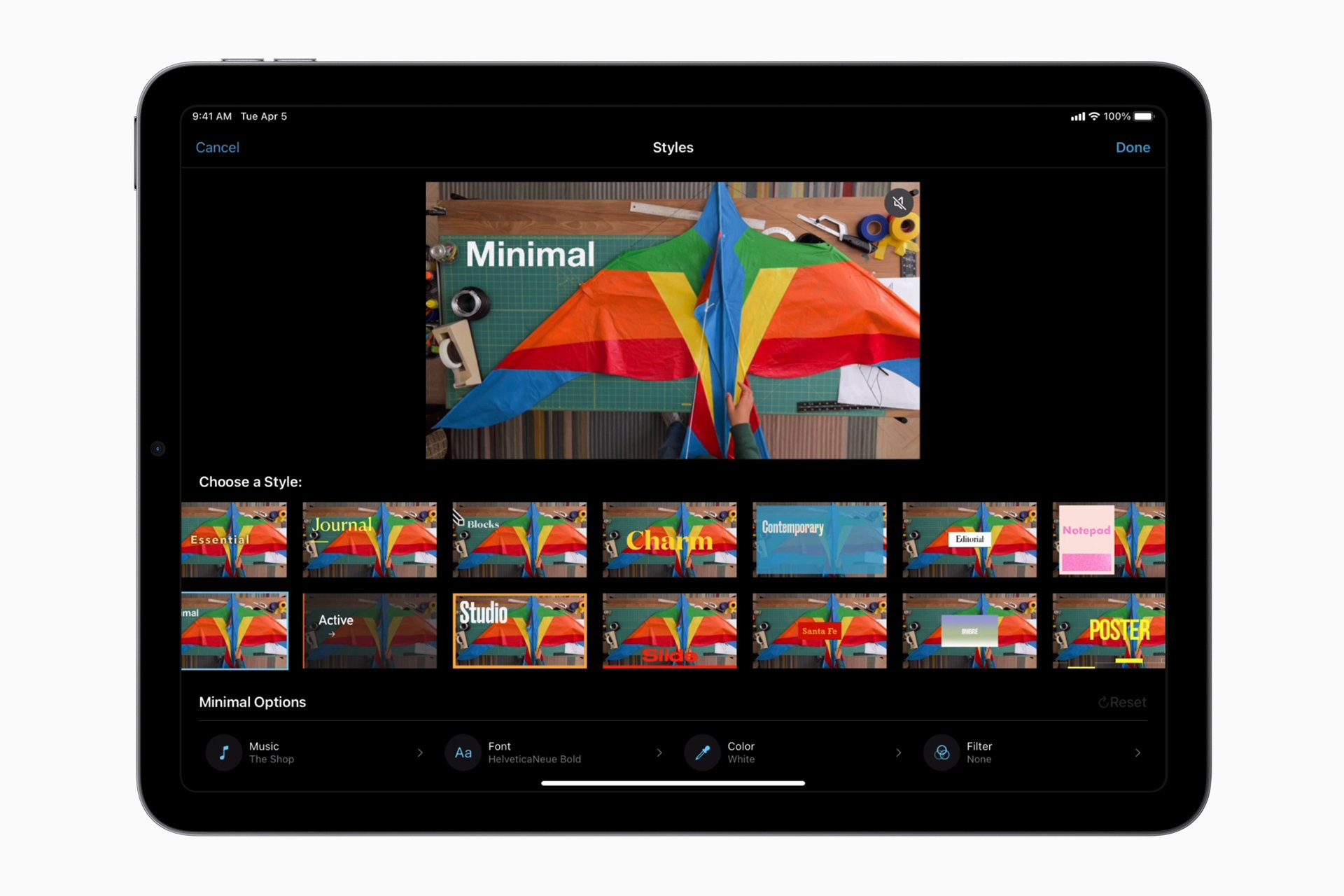
Adding music to an iMovie project on a Mac enhances the overall video experience. Music sets the tone, evokes emotions, and can turn a simple video into a compelling story. iMovie, a video editing software developed by Apple, offers a user-friendly platform that integrates seamlessly with your Mac for this purpose. Users can import their favorite tracks into the iMovie library, choose from inbuilt soundtracks, or access music purchased through iTunes, providing a variety of options to personalize their projects.
Before music can be added, it is essential to have both the music files and the iMovie project prepared. Users should ensure that the audio they wish to use is downloaded on their device. If a song is not readily available in iMovie, users may need to download it from the Music app beforehand. The process of adding and editing music in iMovie involves selecting the appropriate audio, placing it on the timeline, and making necessary adjustments such as trimming the clip or changing the volume to ensure that the music complements the video content effectively.
How to Add Music to iMovie on Mac
Adding music to your iMovie project can dramatically improve the mood, pacing, and overall impact of your video. Whether you want background music, sound effects, or a custom audio track, iMovie on Mac makes the process simple. This step-by-step guide walks you through all the ways to add music to iMovie.
What You’ll Need
Before you begin, make sure you have:
- A Mac with iMovie installed
- An iMovie project already created
- Music files stored on your Mac, Apple Music, or iMovie’s built-in sound library
Method 1: Add Music from iMovie’s Built‑In Sound Library
iMovie includes free soundtracks and sound effects you can use without copyright concerns.
- Open iMovie and load your project.
- Click Audio & Video (musical note icon) above the media browser.
- Select Sound Effects or iMovie Soundtracks.
- Preview a track by clicking the Play button.
- Drag the track to the timeline below your video clips.
The music will automatically adjust to the length of your video.
Method 2: Add Music from Apple Music or iTunes Library
If you have music in your Apple Music or iTunes library:
- Open your iMovie project.
- Click Audio & Video.
- Choose Music from the sidebar.
- Browse by Playlists, Artists, or Albums.
- Drag the song into the timeline.
Note: Songs protected by DRM (Apple Music subscription tracks) cannot be used. Only purchased or imported files will work.
Method 3: Add Music from Your Mac (MP3, WAV, AAC, etc.)
To add custom music or downloaded audio files:
- Open your iMovie project.
- Click File → Import Media.
- Select your audio file and click Import Selected.
- Drag the audio clip from My Media to the timeline.
Alternatively, you can drag the music file directly from Finder into the iMovie timeline.
How to Adjust Music in iMovie
Once your music is added, you can fine-tune it:
Trim Music Length
- Click the audio clip in the timeline.
- Drag the edges to shorten or extend it.
Adjust Volume
- Select the audio clip.
- Use the volume line to raise or lower sound levels.
- Enable Auto volume adjustment if needed.
Fade Music In or Out
- Click the audio clip.
- Drag the fade handles at the beginning or end.
Lower Music During Dialogue
- Select the music track.
- Check Lower volume of other clips to automatically reduce background music during speech.
How to Add Music to Specific Video Clips
To apply music only to certain scenes:
- Trim the audio clip so it matches the desired video section.
- Split audio clips using Command (⌘) + B.
Troubleshooting Tips
- Music won’t import: Ensure the file isn’t DRM-protected.
- Music too loud: Lower volume or enable auto ducking.
- Audio out of sync: Zoom into the timeline for precise adjustments.
Key Takeaways
- iMovie on Mac lets users add music to video projects with ease.
- Preparation involves ensuring music files are downloaded and accessible.
- Editing tools in iMovie allow users to trim and adjust music to fit their video.
Preparing Your Music and iMovie Project
When adding music to iMovie on a Mac, the process begins with choosing the right audio files and setting up your project for smooth editing.
Importing Music Files
To get started, users should import their chosen songs or audio files into iMovie. First, open iMovie and select the project you want to add music to. Then, click on File and choose Import Media. Navigate through the Files app or find your music in the iTunes Library. Select the music file you intend to use and click Import Selected. Ensure the audio file format is compatible with iMovie.
Selecting Suitable Audio for Your Project
Music significantly impacts the mood of your project, so select audio that complements your visuals. You can browse for songs in your iTunes or through iMovie’s built-in sound library. If the song you need is in the iTunes Store, download it to your Music Library first. When using music from iTunes, make sure it is authorized for use in your projects.
Setting Up the iMovie Timeline and Workspace
Organize your iMovie workspace to streamline the editing process. With your project open, you can adjust the timeline view for better control over where to place your audio. Simply drag the song from the media section to the timeline where you want it to play. You can then trim, loop, or adjust the volume of the audio track directly on the timeline to fit your project.
Adding and Editing Music in iMovie
When adding music to an iMovie project, precision and creativity go hand in hand. Whether you aim to enhance the mood or simply add background music, the following steps outline how to include tunes effectively and customize them to fit your video perfectly.
Adding Music to Your Project
To add music to your iMovie project on a Mac, start by opening your project. Click the Audio tab located at the top of the screen. From there, you can access your iTunes library or other audio files. Find the song you wish to use and drag it to your project timeline. As you drag the song, a green Add Music bar appears, indicating where the track will be placed. Drop the song to insert it into your project.
Synchronizing Music With Video Content
Getting the music synced with your video is key for an impactful experience. Watch the waveform that appears under the song in the timeline to see the beat. You can drag the song to the right position to match specific moments in your video clip. If you need to trim the music, simply drag the edges of the audio clip to the desired length. To perfectly align audio with video cuts, use key moments in the waveform as a reference.
Adjusting Music Volume and Effects
To adjust volume, click the music clip in the timeline and then the volume icon to raise or lower the level as needed. For a smooth entry or exit of a music track, use the fade handles at either end of the music clip to create a fade in or fade out effect. To enhance the overall sound or reduce background noise, select the audio clip and choose the Audio Effect option to apply different effects or use the Enhance tool for automatic improvements.





