
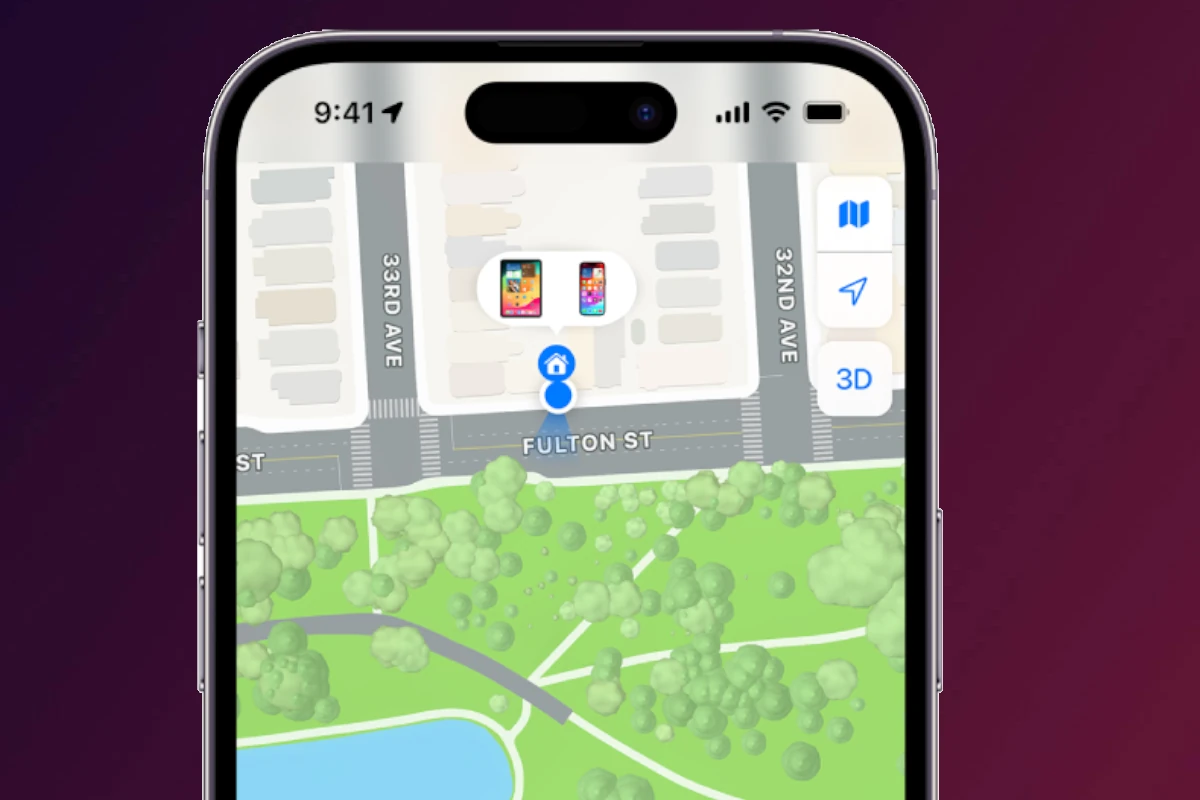
Apple makes it easy to share your location with friends and family through Find My, Messages, and other apps. But there are times when you may want more privacy without completely disconnecting from someone or making it obvious that you stopped sharing your location.
This guide explains the different ways to stop or limit location sharing on an iPhone, what notifications people may see, and how to manage your privacy settings carefully.
How Location Sharing Works on iPhone
Your iPhone can share your location through:
- Find My
- Family Sharing
- Messages
- Third-party apps like Snapchat, Facebook, or Google Maps
Most people use Apple’s Find My system, which continuously updates your location using GPS, Wi-Fi, and cellular data.
Does Someone Get Notified If You Stop Sharing Location?
Usually, yes.
If you directly stop sharing your location with someone in Find My:
- They may see “Location Not Available”
- Or receive a notification that you stopped sharing
Because of this, many people look for less obvious ways to pause or limit location sharing.
Method 1: Turn On Airplane Mode
One of the simplest methods is enabling Airplane Mode.
What Happens
- Cellular data turns off
- GPS updates stop
- Find My cannot update your live location
How To Enable It
- Open Control Center
- Tap the Airplane icon
This method is temporary and easy to reverse.
Downsides
You also lose:
- Calls
- Texts
- Internet access
Method 2: Disable “Share My Location”
You can completely stop location sharing.
Steps
- Open Settings
- Tap your Apple ID
- Select Find My
- Turn off Share My Location
This stops sharing across Apple services.
However, some contacts may notice fairly quickly.
Method 3: Stop Sharing With One Specific Person
Instead of disabling everything, you can remove one person only.
Steps
- Open the Find My app
- Tap the People tab
- Select the contact
- Tap Stop Sharing My Location
This is more targeted than disabling location entirely.
Method 4: Use Another Apple Device as Your Location
Apple allows you to share location from another Apple device tied to your Apple ID.
For example:
- An iPad at home
- Another iPhone
- A MacBook
How It Works
- Sign into the same Apple ID on the secondary device
- Open Find My
- Select Use This Device as My Location
Your shared location will now appear from that device instead of your main iPhone.
Method 5: Disable Find My iPhone Temporarily
Turning off Find My can interrupt location tracking.
Steps
- Open Settings
- Tap your Apple ID
- Select Find My
- Tap Find My iPhone
- Turn it off
You may need your Apple ID password.
Important
This also disables:
- Device tracking
- Activation Lock
- Some theft protection features
Method 6: Turn Off Location Services for Specific Apps
You can limit which apps access your location.
Steps
- Open Settings
- Tap Privacy & Security
- Select Location Services
- Choose the app
- Set access to:
- Never
- While Using App
- Ask Next Time
This works well for apps like:
- Snapchat
- Google Maps
What “Location Not Available” Means
When someone cannot see your location, they may see:
- “Location Not Available”
- “No Location Found”
- A stale or outdated location
This can happen naturally because of:
- Poor signal
- Dead battery
- Airplane Mode
- Disabled GPS
- No internet connection
Can You Freeze Your Location on iPhone?
There is no official Apple feature that freezes your location at one spot while you move elsewhere.
Many third-party apps claiming to “fake GPS” on iPhone:
- Require complicated workarounds
- May violate Apple policies
- Could introduce security risks
Be cautious with unofficial tools.
Privacy Tips for iPhone Users
If you want better privacy overall:
- Review location permissions regularly
- Disable Precise Location when unnecessary
- Limit Always-On tracking
- Audit Find My sharing lists
- Check Family Sharing settings
Final Thoughts
Apple gives users several ways to manage location privacy on iPhone, whether you want to stop sharing completely or simply reduce how much information apps and contacts can access.
The safest and most reliable methods involve adjusting Find My and Location Services settings directly through iOS rather than relying on questionable third-party tools.





