
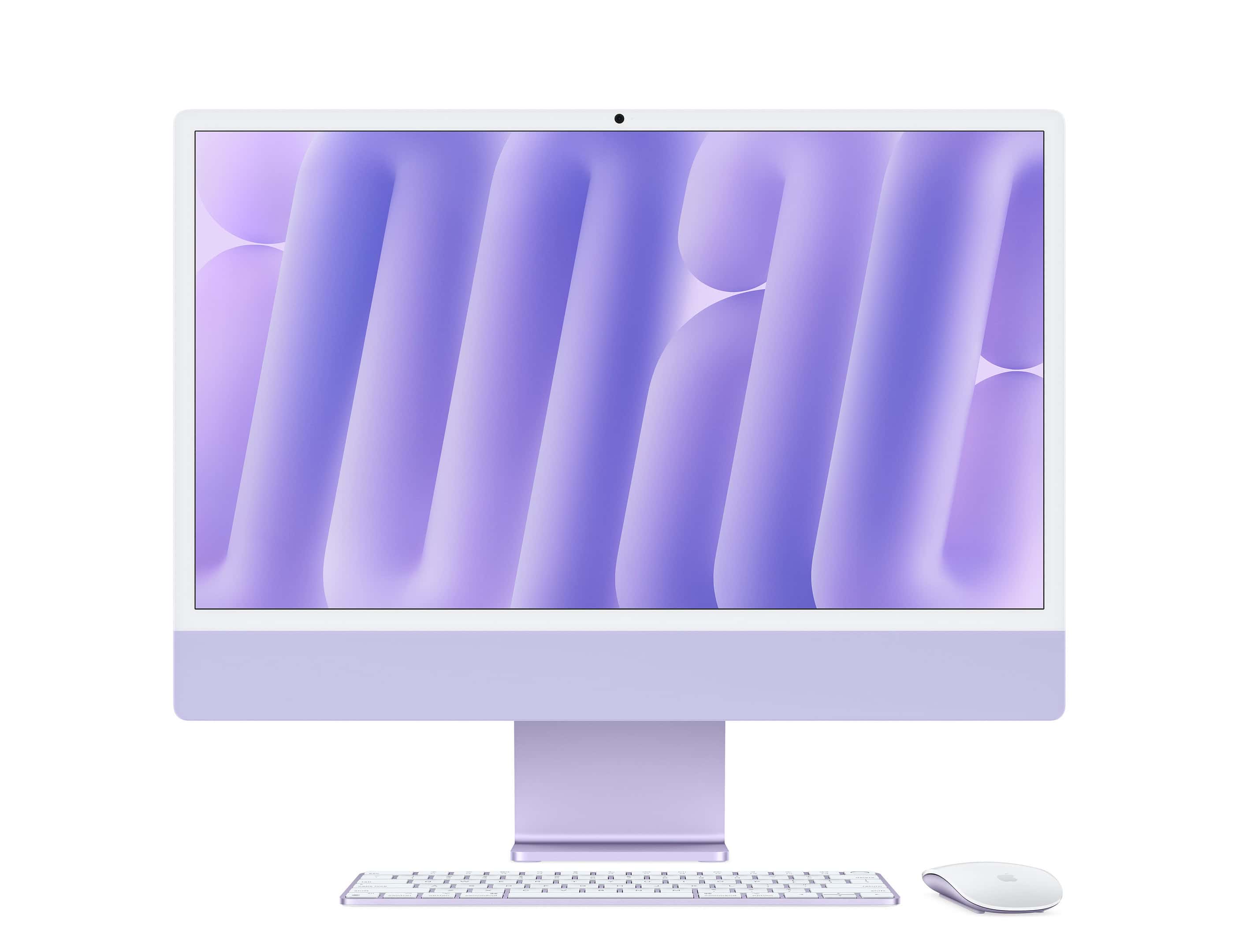
Boot Camp for Mac lets you run Windows on your Apple computer. You can install Windows 10 on Intel-based Macs using Boot Camp Assistant, a built-in utility that helps create a Windows partition. This tool guides you through the process of setting up a dual-boot system, allowing you to choose between macOS and Windows at startup.
To get started, you’ll need a Mac with an Intel processor, at least 64GB of free disk space, and a Windows 10 ISO file. Boot Camp Assistant helps you partition your hard drive and download the necessary Windows support software. After installation, you can switch between operating systems by holding the Option key during startup.
Using Boot Camp offers better performance for Windows apps compared to virtualization solutions. However, it requires rebooting to switch between macOS and Windows. Consider your needs carefully before deciding if Boot Camp is right for you.
| Feature | Boot Camp | Virtualization |
|---|---|---|
| Performance | Native | Reduced |
| Disk Space | Partitioned | Shared |
| OS Switching | Reboot Required | Instant |
| Hardware Access | Full | Limited |
Boot Camp for Mac: Guide to Windows on Apple Computers
Want to run Windows on your Mac? Boot Camp makes it possible — at least on certain Mac models.
This complete guide explains what Boot Camp is, which Macs support it, how to install Windows, and what alternatives exist today.
What Is Boot Camp?
Boot Camp is Apple’s built-in utility that allows you to install and run Microsoft Windows natively on a Mac.
Unlike virtualization software, Boot Camp lets Windows run directly on your Mac’s hardware. That means:
- Full performance
- Native graphics support
- Better gaming capability
- Direct access to system resources
You choose whether to boot into macOS or Windows when starting your computer.
Important: Boot Camp Only Works on Intel Macs
As of 2026:
✅ Supported: Intel-based Macs (2015–2020 models)
❌ Not supported: Apple Silicon Macs (M1, M2, M3, M4, etc.)
Apple Silicon Macs cannot use Boot Camp because Microsoft Windows for ARM is not officially supported via Boot Camp.
If you have a newer Apple Silicon Mac, you must use virtualization (covered below).
What You Need Before Installing
Before you begin:
- An Intel-based Mac
- At least 64GB of free storage (128GB+ recommended)
- A Windows 10 or Windows 11 ISO file
- A backup of your Mac (Time Machine recommended)
How to Install Windows Using Boot Camp
Step 1: Open Boot Camp Assistant
- Go to Applications
- Open Utilities
- Launch Boot Camp Assistant
Follow the on-screen instructions.
Step 2: Create a Windows Partition
Boot Camp will ask how much space to allocate to Windows.
Recommended minimum:
- 64GB (basic use)
- 128GB+ (gaming or heavy software)
Drag the slider to divide your drive.
Step 3: Install Windows
- Select your Windows ISO file
- Click Install
- Your Mac will restart
- Follow the Windows installation steps
When prompted:
- Select the partition labeled BOOTCAMP
- Format it (NTFS)
Step 4: Install Boot Camp Drivers
After Windows installs:
- Boot Camp installer should launch automatically
- Install all drivers
- Restart when finished
These drivers enable:
- Mac keyboard support
- Trackpad gestures
- Graphics optimization
- Audio and networking
How to Switch Between macOS and Windows
To switch operating systems:
Option 1: During Startup
- Restart your Mac
- Hold the Option (⌥) key
- Select macOS or Windows
Option 2: From System Settings
In Windows:
- Click the Boot Camp icon in the system tray
- Choose Restart in macOS
In macOS:
- Go to System Settings > Startup Disk
- Select your preferred OS
Performance: Is Boot Camp Good for Gaming?
Yes — on Intel Macs.
Because Windows runs natively, you get:
- Better gaming performance than virtualization
- Full GPU access
- Support for DirectX
However, performance still depends on your Mac’s hardware. Many Intel Macs use mobile GPUs, so they won’t match dedicated gaming PCs.
Boot Camp vs. Virtualization
If you have an Apple Silicon Mac, you’ll need virtualization instead.
Popular Virtualization Options:
- Parallels Desktop
- VMware Fusion
- UTM (advanced users)
Comparison
| Feature | Boot Camp | Virtualization |
|---|---|---|
| Performance | Native | Slightly lower |
| Requires Restart | Yes | No |
| Works on Apple Silicon | No | Yes |
| Best for Gaming | Yes | Limited |
Can You Install Windows 11?
Yes — on supported Intel Macs.
Requirements:
- TPM 2.0 workaround may be required
- Updated drivers
- Windows 11 ISO
Note: Microsoft does not officially support Windows 11 on all Intel Macs, but many users install it successfully.
Common Issues
Not Enough Space
Free up storage before partitioning.
Windows Won’t Boot
Reinstall Boot Camp drivers.
Trackpad or Keyboard Problems
Reinstall Boot Camp Support Software.
Is Boot Camp Still Worth It in 2026?
If you have an Intel Mac, Boot Camp is still one of the best ways to run Windows natively.
However:
- Intel Macs are aging.
- Apple Silicon Macs cannot use Boot Camp.
- Virtualization is now the primary solution for newer Macs.
For most modern Mac users, Parallels Desktop has become the go-to option.
Final Thoughts
Boot Camp remains a powerful tool for Intel Mac owners who need full Windows performance — especially for gaming, enterprise software, or development.
But for Apple Silicon users, virtualization is now the future of running Windows on Mac.
Before installing, always back up your data — and make sure your Mac model supports Boot Camp.
If it does, you’ll have the best of both worlds: macOS and Windows on one machine.
Preparing Your Mac for Boot Camp
Before installing Windows on your Mac using Boot Camp, you need to complete several crucial steps. These involve checking your Mac’s compatibility, creating installation media, and safeguarding your data.
Checking System Requirements
Boot Camp Assistant supports Windows 10 on Intel-based Macs from 2012 or later. Your Mac needs at least 64GB of free storage space. MacBook Pro, MacBook Air, and Mac mini models require 128GB or more.
Check your macOS version. You need OS X El Capitan or later. Update your Mac to the latest version of macOS for best results.
Make sure you have enough RAM. 4GB is the minimum, but 8GB or more is recommended for smooth performance.
| Mac Model | Minimum Storage | Recommended RAM |
|---|---|---|
| MacBook | 64GB | 8GB |
| iMac | 64GB | 8GB |
| Mac Pro | 64GB | 16GB |
Creating Installation Media
You’ll need a Windows 10 ISO file to install Windows. Download it from Microsoft’s website.
Boot Camp Assistant will help create a bootable USB drive. You need a USB flash drive with at least 16GB capacity.
Insert the USB drive into your Mac. Launch Boot Camp Assistant from Applications > Utilities.
Select “Create a Windows 10 version 10 or later version installation disk”. Follow the prompts to create the bootable drive.
This process will erase all data on the USB drive. Make sure to back up any important files first.
Backing Up Your Data
Before proceeding, back up your Mac. Use Time Machine or another backup solution.
Open Disk Utility from Applications > Utilities. Select your Mac’s drive and click “First Aid” to check for and fix any disk errors.
Consider creating a separate partition for your files. This allows easier access to your data from both macOS and Windows.
Verify all your important files are backed up. Check documents, photos, music, and any other critical data.
After backing up, you’re ready to start the Windows installation process using Boot Camp Assistant.
Installing Windows on Your Mac
Boot Camp Assistant simplifies the process of installing Windows on your Mac. This tool helps you partition your drive, set up the Windows installation, and install necessary drivers.
Partitioning Your Drive
Boot Camp Assistant handles the partitioning process for you. Launch the app from the Utilities folder. Choose the “Create a Windows version to install Windows” option. Select the size for your Windows partition. Leave enough space for both macOS and Windows.
Adjust the partition size by dragging the divider. Click “Install” to start the process. Your Mac will restart and boot into the Windows installer.
Setting Up Windows Installation
Insert your Windows installation media or connect a USB drive with the Windows ISO. Press the Option key during startup to access the Startup Manager. Select the Windows installer disk.
Follow the on-screen prompts to install Windows. Choose the BOOTCAMP partition when asked where to install Windows. Format this partition as NTFS.
Drivers and Support Software Installation
After Windows installation, your Mac will automatically boot into Windows. The Boot Camp installer will launch. This installs necessary drivers for your Mac hardware.
If the installer doesn’t start automatically, browse to the USB drive or installation media. Run “setup.exe” from the “BootCamp” folder.
| Component | Function |
|---|---|
| Boot Camp Assistant | Partitions drive and starts installation |
| Windows Installer | Installs Windows OS |
| Boot Camp Installer | Installs Mac-specific drivers |
Restart your Mac after driver installation. Use the Startup Disk preference in macOS or the Boot Camp system tray icon in Windows to switch between operating systems.
After Installation: Setting Up Windows
Once Windows is installed on your Mac via Boot Camp, you need to configure drivers and update the system. These steps ensure optimal performance and compatibility with your Mac hardware.
Configuring Windows Drivers and Peripherals
Boot Camp Assistant downloads essential Windows support software for your Mac. This software includes drivers for your keyboard, trackpad, camera, and other built-in devices. To install these drivers:
- Open the Boot Camp folder on your Windows desktop
- Run setup.exe
- Follow the on-screen instructions
After installation, restart your computer. Your Mac’s hardware should now work properly in Windows. If you encounter issues, visit the Apple support website for troubleshooting tips.
For external devices, Windows usually installs drivers automatically when you connect them. If not, check the device manufacturer’s website for compatible drivers.
Windows Activation and Updates
To activate Windows, you need a valid product key. Enter this key when prompted during setup or later in the Windows Settings.
Keeping Windows up-to-date is crucial for security and performance. To update Windows:
- Open the Start menu
- Click on Settings
- Go to Update & Security
- Click “Check for updates”
| Update Type | Frequency | Importance |
|---|---|---|
| Security | Monthly | Critical |
| Feature | Bi-annual | Recommended |
| Driver | As needed | Important |
Enable automatic updates to ensure your system stays current. Windows Update also provides drivers for many devices, improving compatibility over time.
Remember to set up antivirus software and configure your network settings. This helps protect your Windows installation from threats and ensures smooth internet connectivity.
Frequently Asked Questions
Boot Camp Assistant helps Mac users install and run Windows on their computers. This tool simplifies the process of setting up a dual-boot system. Let’s address some common queries about using Boot Camp on Mac.
How can I install Windows on a Mac with Boot Camp Assistant?
To install Windows using Boot Camp Assistant, open the application from the Utilities folder. Follow the on-screen prompts. You may need to insert a USB drive for creating a bootable Windows installer. The assistant will guide you through partitioning your hard drive and installing Windows.
Is Boot Camp Assistant available for Mac with Apple M1 chip?
Boot Camp Assistant is not available for Macs with Apple M1 chips. These newer Macs use a different architecture that doesn’t support Boot Camp. You’ll need to explore alternative virtualization solutions to run Windows on M1 Macs.
Can I use Boot Camp to install Windows 10 on a Mac?
Yes, you can use Boot Camp to install Windows 10 on Intel-based Macs. The Boot Camp Assistant User Guide provides detailed instructions for both newer and older Mac models. Ensure your Mac meets the system requirements before starting the installation process.
Are there alternatives to Boot Camp for running Windows on a Mac?
Several alternatives exist for running Windows on a Mac. Virtualization software like Parallels Desktop and VMware Fusion allow you to run Windows alongside macOS. These options don’t require rebooting but may have lower performance compared to Boot Camp.
What are the system requirements for using Boot Camp on a Mac?
To use Boot Camp, you need an Intel-based Mac with at least 64GB of free disk space. Your Mac should have macOS Catalina or later installed. Check Apple’s support page for specific model compatibility and additional requirements.
Is there a cost associated with using Boot Camp on a Mac?
Boot Camp Assistant is free, but you’ll need a valid Windows license to install and use Windows on your Mac. Windows licenses can be purchased separately from Microsoft or authorized retailers.
| Feature | Boot Camp | Virtualization Software |
|---|---|---|
| Performance | Native speed | Slightly reduced |
| Reboot Required | Yes | No |
| Mac Resources | Dedicated | Shared |
| Cost | Free (excl. Windows) | Paid software |
| M1 Mac Support | No | Yes (ARM version) |





