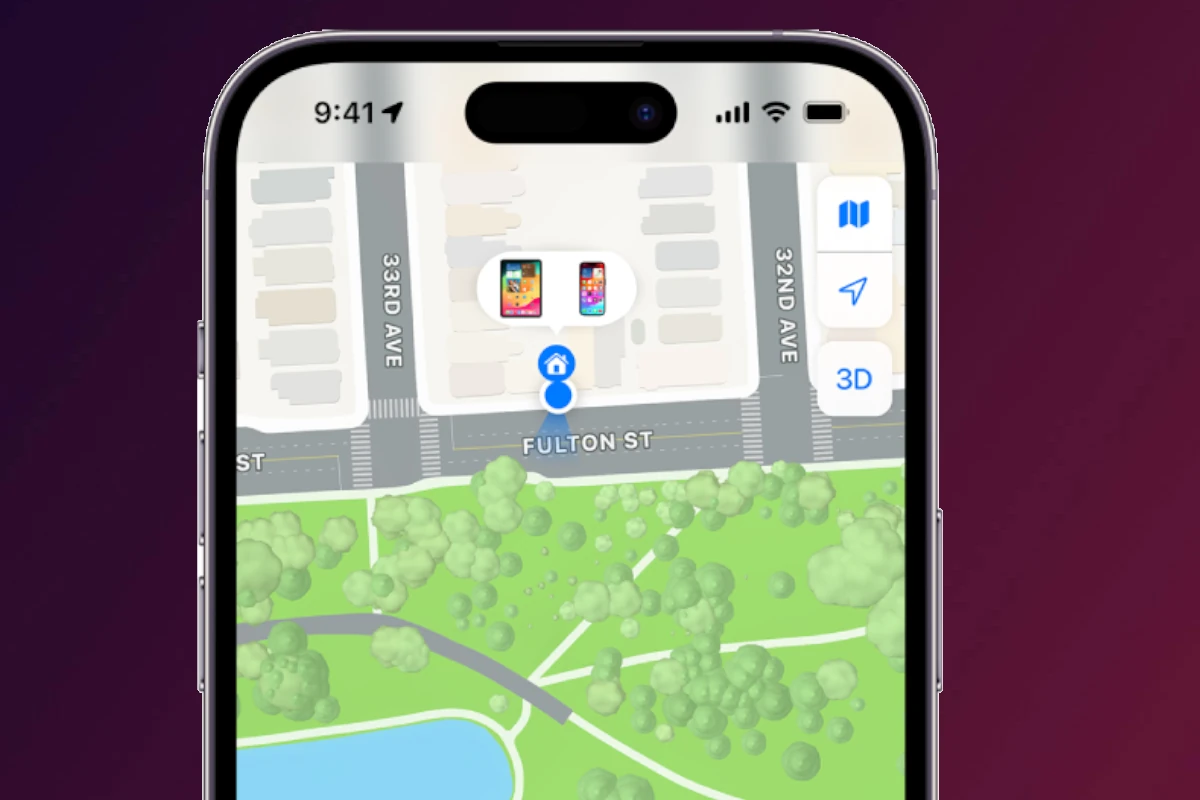
Losing your iPhone can be stressful, especially when it’s offline. You can still find your offline iPhone using the Find My app, which shows its last known location and lets you play a sound or mark it as lost.
The Find My app works even if your device is offline or has a low battery. It uses a secure network of Apple devices to relay your iPhone’s location. This feature, introduced in iOS 15, helps locate devices that aren’t connected to Wi-Fi or cellular networks.
To use Find My for an offline iPhone, you need an Apple ID and iCloud account. The app shows your device’s last known position on a map. You can then get directions or play a sound to help find it. If needed, you can also remotely lock your iPhone or erase its data for security.
| Find My iPhone Features | Offline | Online |
|---|---|---|
| View last location | Yes | Yes |
| Play sound | Yes | Yes |
| Mark as lost | Yes | Yes |
| Get directions | Yes | Yes |
| Real-time tracking | No | Yes |
How to Use Find My iPhone When the Device Is Offline
Losing an iPhone is stressful—especially when it’s offline or powered off. Fortunately, Apple’s Find My network can still help you locate, protect, and recover your device even when it isn’t connected to the internet. This guide explains how Find My iPhone works offline and what steps you can take.
What Does “Offline” Mean in Find My iPhone?
An iPhone is considered offline when:
- It’s powered off or has a dead battery
- Airplane Mode is enabled
- It’s out of Wi‑Fi or cellular range
Even in these cases, Apple may still show a last known location or an updated location using the Find My network.
How Find My iPhone Works Offline
With iOS 13 and later, Apple introduced the Find My network, which uses:
- Bluetooth signals from your lost iPhone
- Nearby Apple devices (iPhones, iPads, Macs)
- End‑to‑end encrypted location sharing
Your iPhone silently broadcasts a secure Bluetooth signal. When another Apple device passes nearby, it relays the location to Apple’s servers—without revealing identities.
How to Find an Offline iPhone
Option 1: Use the Find My App
- Open the Find My app on another Apple device.
- Tap the Devices tab.
- Select your missing iPhone.
- If offline, you’ll see:
- “Offline” status
- Last known location
- Timestamp of when it was last seen
If the phone is detected later, the location updates automatically.
Option 2: Use iCloud.com
- Go to https://www.icloud.com/find
- Sign in with your Apple ID.
- Select your iPhone from the device list.
- View the last known or updated location.
This works from any web browser.
Enable “Notify When Found”
If your iPhone is offline:
- Select the missing iPhone in the Find My app.
- Scroll down and turn on Notify When Found.
You’ll receive a notification as soon as the device reconnects to the Find My network.
Secure Your iPhone While Offline
Even if your iPhone can’t be located immediately, you can still protect your data.
Mark the iPhone as Lost
- In the Find My app, select the device.
- Tap Activate under Mark as Lost.
- Set a passcode (if not already set).
- Add a contact number or message.
Lost Mode locks your iPhone and prevents unauthorized access.
Remote Erase (Last Resort)
If recovery seems unlikely:
- Select the iPhone in Find My.
- Tap Erase This Device.
⚠️ Once erased, you can’t track the iPhone anymore unless it’s still linked to your Apple ID and comes back online.
What You Can and Can’t Do Offline
✅ You can:
- See last known location
- Enable Lost Mode
- Get notified when found
❌ You can’t:
- Play a sound
- Track live movement
- Get immediate location updates
These features require an internet connection.
Tips to Improve Offline Tracking in the Future
- Keep Find My iPhone enabled
- Turn on Find My network
- Enable Send Last Location
- Keep Bluetooth turned on
You can check these settings at: Settings → Apple ID → Find My → Find My iPhone
Summary
Even when your iPhone is offline, Find My iPhone remains a powerful recovery tool. By showing last known locations, leveraging Apple’s Find My network, and offering security features like Lost Mode, Apple helps protect your device and data until it’s found.
Setting Up Find My iPhone
Find My iPhone is a crucial feature for locating and protecting your device. It’s essential to set it up correctly and understand its privacy implications.
Enabling Find My iPhone on Your Device
To enable Find My iPhone, go to Settings on your iOS device. Tap your name at the top, then select iCloud. Scroll down and tap Find My iPhone. Turn on Find My iPhone by toggling the switch.
Next, enable “Send Last Location.” This sends your device’s location to Apple when the battery is critically low. It’s helpful if your iPhone dies before you can locate it.
Make sure you’re signed in with your Apple ID. If not, you’ll need to sign in or create an account. Find My iPhone works with iCloud, so keep your iCloud settings up to date.
Remember to set up Find My iPhone on all your Apple devices for comprehensive protection.
Understanding Location Services and Privacy
Find My iPhone relies on Location Services to work effectively. To check if it’s on, go to Settings > Privacy > Location Services. Ensure it’s enabled for the Find My app.
Apple prioritizes your privacy. Your device’s location isn’t continuously tracked. It’s only sent to Apple when you actively try to locate your device through the Find My app or iCloud website.
Location data is encrypted and stored securely on Apple’s servers. Only you can access this information with your Apple ID and password.
| Feature | Privacy Measure |
|---|---|
| Location Sharing | End-to-end encryption |
| Data Storage | Secure Apple servers |
| Access Control | Apple ID authentication |
You can review which apps use Location Services and adjust permissions as needed. This gives you control over your privacy while still benefiting from Find My iPhone’s security features.
Locating an Offline iPhone
Finding your iPhone when it’s offline requires using specific features and tools. These methods can help you track down your device even if it’s not connected to the internet or powered off.
Using the Find My Network to Locate Your Device
The Find My Network is a powerful tool for locating offline iPhones. It uses nearby Apple devices to detect your lost iPhone’s Bluetooth signal. This works even if your device is offline or powered down.
To use this feature:
- Open the Find My app on another Apple device
- Select your offline iPhone from the device list
- Check its last known location on the map
The network updates your iPhone’s location when it’s detected by other Apple devices. This increases your chances of finding it quickly.
Accessing Location Information via iCloud.com/find
If you don’t have another Apple device, you can use iCloud.com/find to locate your offline iPhone. This web-based tool offers similar features to the Find My app.
To use iCloud.com/find:
- Visit the website and sign in with your Apple ID
- Click on “All Devices” and select your iPhone
- View its last known location on the map
You can also enable Lost Mode or erase your device remotely through this interface. These actions will take effect when your iPhone comes back online.
Last Known Location and Send Last Location Feature
Your iPhone’s Last Known Location is crucial when it’s offline. This is the last place your device was connected to the internet. The Send Last Location feature automatically sends this information to Apple when your battery is critically low.
To enable Send Last Location:
- Go to Settings > [Your Name] > Find My
- Tap “Find My iPhone”
- Turn on “Send Last Location”
This feature increases your chances of finding your iPhone if it goes offline due to a dead battery. The last location is stored for 24 hours, giving you time to track it down.
| Feature | Offline Capability | Battery Requirement |
|---|---|---|
| Find My Network | Yes | Minimal |
| iCloud.com/find | Last Known Location | N/A |
| Send Last Location | Yes | Activates at low battery |
Protecting Your Information on a Lost iPhone
Safeguarding your data is crucial when your iPhone goes missing. These steps can help secure your personal information and prevent unauthorized access.
Activating Lost Mode and its Implications
Lost Mode is a powerful tool for protecting your iPhone. When activated, it locks your device and displays a custom message on the screen. This feature disables Apple Pay and hides sensitive notifications.
To turn on Lost Mode:
- Go to iCloud.com/find
- Select your lost iPhone
- Click “Mark as Lost”
- Follow the on-screen instructions
Lost Mode tracks your device’s location when it comes online. It also prevents Activation Lock from being turned off, making it harder for thieves to use or sell your iPhone.
Erasing Personal Data Remotely
If you’re certain your iPhone won’t be recovered, erasing it remotely is the best option. This process removes all your personal data from the device.
To erase your iPhone:
- Visit iCloud.com/find
- Choose your device
- Select “Erase iPhone”
This action is irreversible. Make sure you have a backup before proceeding. Erasing your device doesn’t remove Activation Lock, so your Apple ID is still required to set up the iPhone.
Using Passcode and Apple Pay Settings for Security
A strong passcode is your first line of defense. Use a complex passcode with at least six digits. Enable Face ID or Touch ID for an extra layer of security.
Apple Pay settings:
- Suspend cards in your iPhone Wallet
- Remove payment methods from iCloud.com
To enhance privacy:
- Use two-factor authentication
- Limit Lock screen notifications
- Disable Siri when the phone is locked
These measures help protect your information if your iPhone falls into the wrong hands.
| Security Feature | Function |
|---|---|
| Lost Mode | Locks device, displays message |
| Remote Erase | Deletes all data on iPhone |
| Passcode | Prevents unauthorized access |
| Apple Pay Suspension | Stops contactless payments |
Additional Tips and Features for Device Recovery
Apple provides several useful tools to help locate and secure your lost devices. These features can assist in recovering offline devices and offer extra protection for your valuable electronics.
Playing Sound or Mark As Lost Features
You can use the Play Sound feature to locate a nearby device. This works even if your iPhone is offline or in silent mode. The sound plays at full volume for two minutes.
To use this feature:
- Open the Find My app
- Select your device
- Tap “Play Sound”
If your device is far away, use Mark as Lost. This locks your device and displays a custom message with your contact info. It also:
- Disables Apple Pay
- Prevents Siri access on the lock screen
- Tracks the device’s location
To activate:
- Go to Find My app
- Choose your device
- Select “Mark as Lost”
- Follow the prompts
Family Sharing and the Help a Friend Feature
Family Sharing lets you track devices for up to six family members. Set it up in Settings > [Your Name] > Family Sharing. Once enabled, you can view and locate family devices in Find My.
The Help a Friend feature allows you to assist others in finding their lost Apple devices. To use it:
- Open Find My app
- Tap “Me” tab
- Select “Help a Friend”
- Sign out of your account
- Let your friend sign in
This helps without giving access to your personal information.
Troubleshooting Common Issues with Offline Finding
If Find My shows your device as offline, try these steps:
- Check device battery: It may be dead
- Verify internet connection: Ensure Wi-Fi or cellular data is on
- Update iOS: Older versions may have bugs
- Check Find My settings: Confirm it’s enabled
If issues persist:
- Sign out and back into iCloud
- Reset network settings
- Contact Apple Support
Remember, offline finding works best when enabled before the device is lost. Keep your software updated and Find My turned on for optimal performance.
| Feature | Works Offline? | Requires Setup? |
|---|---|---|
| Play Sound | Yes | No |
| Mark as Lost | Yes | No |
| Family Sharing | Yes | Yes |
| Help a Friend | No | No |
Frequently Asked Questions
Find My iPhone offers several features to help locate lost devices even when offline. Users can access various options through iCloud and the Find My app to track their iPhone’s last known location and take necessary actions.
How can I locate my iPhone when it’s offline?
You can still find your offline iPhone using its last known location. Open the Find My app on another device or visit iCloud.com. Select your iPhone to view its most recent position on the map.
The app may show the device’s location up to 24 hours after it went offline. You can also enable notifications to alert you when the iPhone comes back online.
Why does Find My iPhone display ‘offline’ when I try to locate my device?
Find My iPhone shows ‘offline’ when your device can’t connect to Apple’s network. This happens if your iPhone is turned off, has a dead battery, or hasn’t connected to the internet in over 24 hours.
Other reasons include Airplane Mode being on, the SIM card removed, or incorrect date and time settings.
What are the steps to access Find My iPhone through iCloud?
To use Find My iPhone via iCloud:
- Go to icloud.com in a web browser
- Sign in with your Apple ID and password
- Click on the “Find iPhone” icon
- Select your device from the list
- View its location or take actions like playing a sound or erasing data
How can I check the last known location of my iPhone using Find My iPhone?
To view your iPhone’s last known location:
- Open the Find My app on another Apple device
- Select your iPhone from the device list
- Look for the map showing its most recent position
- Check the time and date of the last location update
This information can help narrow down where you last had your device.
What should I do if Find My iPhone is not updating the location of my device?
If Find My iPhone isn’t updating:
- Verify your iPhone is turned on and connected to the internet
- Check that Location Services are enabled in Settings
- Ensure Find My iPhone is activated in your iCloud settings
- Try signing out and back into your iCloud account
- Update your iPhone’s software if possible
Is there a way to use Find My iPhone for free when the device is offline?
Yes, Find My iPhone is a free service for all Apple device owners. It works for offline devices by showing the last known location before it went offline. You can access this information through the Find My app or iCloud.com at no cost.
| Feature | Online iPhone | Offline iPhone |
|---|---|---|
| Real-time location | Yes | No |
| Last known location | Yes | Yes |
| Play sound | Yes | No |
| Lost mode | Yes | Yes (activates when online) |
| Erase iPhone | Yes | Yes (executes when online) |