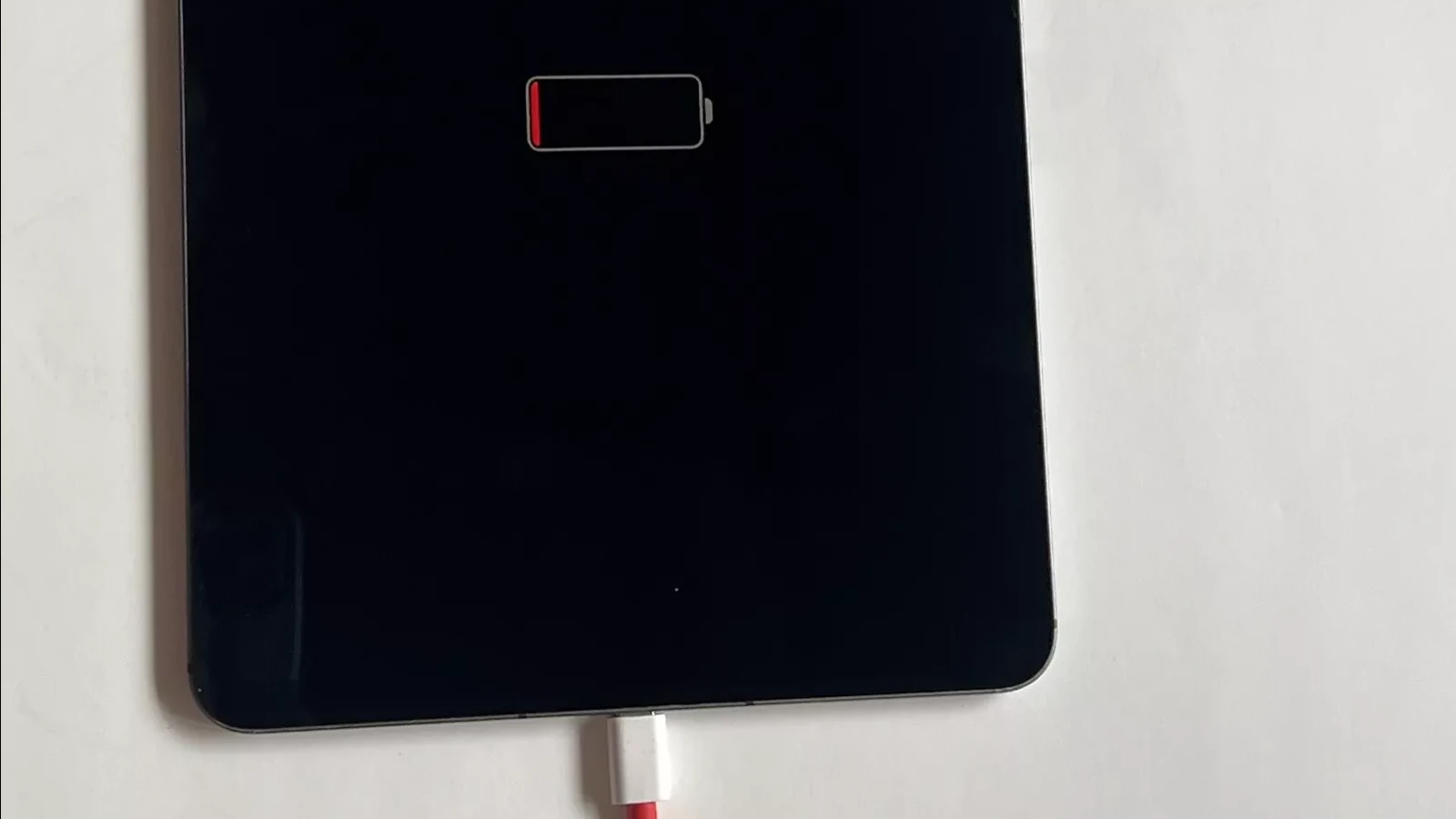
Is your iPad not charging? This common issue frustrates many users but often has simple solutions. Maybe you’ve left your iPad plugged in overnight only to find the battery still dead in the morning. Most iPad charging problems can be fixed by checking your cable, power adapter, port, or simply restarting your device.
Before rushing to an Apple Store, try some basic troubleshooting steps at home. Your charging issues might be caused by a faulty charging brick or cable, software glitches, or even something as simple as dirt in the charging port. Many users find that checking if the cable is fully inserted into both the power adapter and iPad solves their problem.
How to Fix an iPad That Won’t Charge
An iPad that refuses to charge can be frustrating, especially if you rely on it daily. Fortunately, most charging issues can be resolved with some simple troubleshooting. This guide will walk you through the common causes and effective solutions to get your iPad charging again.
Common Reasons Why Your iPad Won’t Charge
- Faulty or damaged charging cable or adapter
- Dirty or obstructed charging port
- Software glitches or bugs
- Battery completely drained
- Power source problems
- Hardware issues with the iPad
Step-by-Step Solutions to Fix Charging Issues
1. Check Your Charging Cable and Adapter
- Use the original Apple charging cable and adapter if possible.
- Inspect the cable for any visible damage, fraying, or kinks.
- Try a different cable and adapter to rule out faulty accessories.
- Avoid using third-party chargers that aren’t Apple-certified.
2. Clean the Charging Port
- Inspect the iPad’s charging port for lint, dust, or debris.
- Use a flashlight to look inside the port.
- Carefully clean the port using a dry, soft-bristled brush or a toothpick.
- Avoid using metal objects that might damage the port.
3. Try a Different Power Source
- Plug your charger into a different wall outlet.
- Avoid charging through a computer USB port initially, as it may supply insufficient power.
- Use a known working power source or a different power strip.
4. Force Restart Your iPad
- Sometimes software glitches prevent charging.
- For iPads with a Home button: Press and hold the Home and Power buttons simultaneously until the Apple logo appears.
- For iPads without a Home button: Quickly press Volume Up, then Volume Down, then press and hold the Power button until the Apple logo appears.
5. Let Your iPad Charge for a While
- If the battery is completely drained, it may take a few minutes before the charging icon appears.
- Leave your iPad plugged in for at least 30 minutes before trying to turn it on.
6. Update or Restore Your iPad Using a Computer
- Connect your iPad to a computer with the latest version of iTunes or Finder.
- If recognized, try updating the iPad’s software.
- If updating doesn’t help, consider restoring the iPad (backup your data first).
7. Check for Liquid or Physical Damage
- Water or physical damage can cause charging issues.
- If your iPad has been exposed to liquid, let it dry completely and avoid charging until it’s fully dry.
- Physical damage may require professional repair.
8. Contact Apple Support or Visit an Authorized Service Provider
- If none of the above steps work, your iPad may have a hardware fault.
- Visit Apple Support or an authorized service center for diagnosis and repair.
Summary
If your iPad won’t charge, start by checking your cables, cleaning the charging port, and trying different power sources. Force restarting and updating software can fix many issues. For persistent problems, professional repair may be necessary.
Key Takeaways
- Check your charging cable and power adapter for damage before trying other fixes.
- A simple restart often fixes iPad charging issues caused by software problems.
- Clean the charging port gently and try different power outlets to rule out connection issues.
Understanding the Issue
When an iPad won’t charge, finding the root cause can save you time and frustration. Many different factors can prevent proper charging, from simple hardware problems to complex software issues.
Common Causes for iPad Not Charging
A faulty cable or adapter is often the culprit when an iPad won’t charge. Cables can fray or break internally even when they look fine on the outside. Try using different charging accessories to rule this out.
Power source problems are also common. Not all wall outlets provide consistent power, and some USB ports (especially on older computers) don’t deliver enough power to charge an iPad.
Physical issues with the charging port can block proper connection. Look for:
- Lint or debris in the port
- Bent pins inside the connector
- Physical damage to the port
Overheating is another key factor. iPads have temperature protection systems that pause charging when the device gets too hot or too cold. If your iPad feels warm, let it cool down before charging.
iOS System Errors as a Factor
Software glitches can prevent proper charging even when hardware is working correctly. These iOS issues often appear after updates or when certain background processes get stuck.
A common software issue occurs when the iPad doesn’t recognize that it’s connected to power. This can happen with newer versions like iOS 17 and often shows up as:
- The charging icon briefly appears then disappears
- iPad only charges when unlocked, not when locked
- Battery percentage doesn’t increase despite being plugged in
Simple fixes for iOS system errors include restarting the device or performing a forced restart. These actions clear temporary memory and reset system processes that might be interfering with charging.
For more stubborn problems, iOS system repair tools can fix deeper software issues without losing data. These specialized applications can repair the charging system when regular restarts don’t work.
Troubleshooting Steps
When your iPad won’t charge, a methodical approach can quickly identify and solve the problem. Most charging issues stem from simple causes that you can fix yourself without technical expertise.
Inspecting the Charging Cable and Wall Adapter
Check your charging cable first. Look for visible damage like fraying, bending, or exposed wires. These problems often cause charging failures.
Try using a different charging cable to see if that resolves the issue. Many charging problems are caused by faulty cables rather than the iPad itself.
Next, examine your wall adapter. Make sure it has enough power output for your iPad model. iPads need more power than iPhones to charge properly.
Test the adapter with another device to confirm it works. If possible, try a different wall outlet too. Sometimes the outlet itself is the problem.
Clean the charging port on your iPad. Lint and dust can block connections. Use a soft brush or compressed air—never insert metal objects into the port.
Force Restarting Your iPad
Sometimes your iPad needs a complete restart to fix charging issues. This refreshes the system without deleting any data.
For most iPad models, press and hold both the Top button and Home button simultaneously for at least 10 seconds. Release when you see the Apple logo.
For newer iPads without Home buttons, press and release the Volume Up button, then press and release the Volume Down button, then press and hold the Top button until restart occurs.
After restarting, connect your iPad to power again. Wait about 20 minutes to see if charging begins. Sometimes the battery icon won’t appear immediately if the battery was completely drained.
If your iPad still won’t charge after a restart, try putting it in recovery mode as a more advanced troubleshooting step.
Checking for Software Issues and Updates
Outdated software can cause charging problems. Check if your iPad needs an iOS update by going to Settings > General > Software Update.
If an update is available, connect to Wi-Fi and a power source before installing. Updates often fix bugs that affect charging.
Some apps might drain your battery faster than it can charge. Check battery usage in Settings > Battery to identify power-hungry apps. Delete or update problematic apps.
Try charging your iPad in Safe Mode if you suspect a software issue. This loads only essential system processes.
Temperature affects charging. If your iPad feels hot, let it cool down before charging. iPads have temperature protection that prevents charging when too hot or too cold.
Advanced Solutions
When basic fixes fail, more technical approaches can help solve iPad charging issues. These methods involve using special modes and software tools to repair system-level problems that prevent charging.
Putting iPad into DFU Mode
DFU (Device Firmware Update) Mode can fix serious software issues that prevent your iPad from charging. This deep recovery state allows your device to connect to iTunes or Finder without loading the operating system.
To enter DFU Mode on most iPads:
- Connect your iPad to a computer with iTunes or Finder open
- Press and hold the Power button and Home button together for 10 seconds
- Release only the Power button but keep holding the Home button for 5 more seconds
- Your screen should stay completely black if done correctly
- iTunes/Finder will detect an iPad in recovery mode
For newer iPad models without a Home button, the process is different:
- Press Volume Up button quickly
- Press Volume Down button quickly
- Hold the Top button until the screen goes black
- While still holding the Top button, press and hold Volume Down button
After successful restoration through DFU Mode, your iPad may resume normal charging. This works by completely refreshing the device’s firmware.
Using Third-Party Tools for iOS System Repair
Several specialized software tools can fix iPad charging problems caused by system failures. These programs can repair iOS without data loss in many cases.
Tenorshare ReiBoot offers a user-friendly interface with both free and paid options. It can fix over 150 iOS system issues including charging problems. The software works by reinstalling the operating system framework without affecting your personal data.
UltFone iOS System Repair provides similar functionality with additional features for battery health diagnostics. It can identify if your charging issue is software or hardware related before attempting repairs.
Dr.Fone – System Repair works well for older iPad models with persistent charging problems. Its step-by-step wizard makes it easy to use even for people with limited technical skills.
These tools connect to your iPad and run diagnostics before suggesting the best repair method. Most offer free trial versions that can diagnose the problem before you commit to purchasing.
Professional Support Options
If your iPad won’t charge, getting expert help may be necessary after trying basic troubleshooting. Apple offers several ways to get professional assistance for charging issues.
Contacting Apple Support
Apple Support can help solve iPad charging problems remotely. You can reach them by:
- Phone: Call 1-800-MY-APPLE (1-800-692-7753)
- Online chat: Visit the Apple Support website
- Apple Support app: Download it from the App Store
- Twitter: Contact @AppleSupport
When contacting support, have your iPad’s serial number ready. This is found in Settings > General > About. Also note when the charging problem started and what solutions you’ve tried.
Apple Support may guide you through additional troubleshooting steps. They can check if your device is covered under warranty or AppleCare+, which might include battery service at no extra cost.
Booking an Appointment with Apple Genius Bar
For hands-on help, the Genius Bar at Apple Stores offers in-person technical support. To book an appointment:
- Visit apple.com/retail
- Select your nearest store
- Choose “Make a Reservation”
- Select “iPad” as your device
- Pick “Battery & Charging” as your issue
- Choose an available time slot
Bring your iPad, charging cable, and power adapter to your appointment. The technician will run diagnostics to find the problem. They can check if your iPad needs battery service or if there’s damage to the charging port.
If your iPad Pro has a USB-C port, the technician can also check if the port contains debris or has physical damage. Wait times for appointments vary by location, so booking ahead is recommended.
Maintenance Tips
Keeping your iPad’s charging system working smoothly requires regular care and attention to both hardware and software elements. These simple habits can prevent many common charging problems before they start.
Preventing Charging Issues
Clean your charging port regularly to remove lint and debris. Dust and pocket lint often build up in the port, blocking proper connection. Use a wooden toothpick or soft brush to gently clean it out.
Protect your charging cable from damage by avoiding sharp bends and tears. Frayed cables are a common cause when an iPad won’t charge.
Store your iPad in moderate temperatures. Extreme heat or cold can harm the battery and cause overheating issues that stop charging.
Unplug your iPad once it reaches 100%. Keeping it constantly plugged in may reduce battery life over time.
Use Apple-certified cables and adapters. Cheap knockoffs might save money now but can damage your battery or cause poor charging performance.
Regular Software Updates
Keep your iPad updated to the newest iOS version. Apple regularly fixes software issues that can affect charging in system updates.
Check for updates by going to:
- Settings
- General
- Software Update
Updates often include battery optimization improvements that help your iPad charge more efficiently. This is especially important with newer versions like iOS 17.
Turn off unused features while charging for faster results. Background apps, Bluetooth, and location services use power that slows down the charging process.
Reset settings if charging problems persist after updates. Go to Settings > General > Reset > Reset All Settings (this won’t delete your data).
Frequently Asked Questions
iPad charging issues can be frustrating but most problems have simple solutions. Here are answers to common questions about iPad charging problems.
Why is my iPad not charging despite displaying the lightning bolt icon?
When your iPad shows the charging icon but isn’t actually charging, you may have a software issue. Try restarting your iPad to reset any glitches.
Another common cause is using an underpowered charger. iPads need more power than iPhones to charge properly. Switch to the original Apple charger or one with similar power output.
Heat can also prevent charging. If your iPad feels warm, let it cool down before trying again.
What steps can I take if my iPad Pro doesn’t charge when connected through USB-C?
First, check your USB-C cable for damage. Bent pins or frayed cables can prevent charging. Try a different cable to rule this out.
Next, inspect the USB-C port on both your iPad and power adapter. Look for lint or debris that might block the connection.
Try charging from different power sources. Connect to a computer, wall outlet, or power bank to determine if the power source is the problem.
How can I effectively clean my iPad’s charging port to restore proper connectivity?
Turn off your iPad before cleaning. This prevents electrical shorts during the cleaning process.
Use a wooden toothpick or plastic dental pick to gently remove lint or debris. Metal tools can damage the port, so avoid them.
A can of compressed air can help blow out dust from the charging port. Hold the can upright and use short bursts.
Never use liquids to clean the port. Even small amounts of moisture can damage your iPad.
What should I do if my iPad shows the charging symbol, but the battery percentage doesn’t increase?
Check if you’re using the right charging equipment. The original Apple charger or a high-quality alternative is best.
Close power-hungry apps that might be using energy faster than your iPad can charge. Double-click the home button (or swipe up from the bottom on newer models) to view and close apps.
Update your iOS to the latest version. Outdated software can cause charging issues.
Try charging your iPad while it’s powered off completely to see if the battery percentage increases.
How can I force my iPad to start charging if it is unresponsive?
Perform a hard reset by holding the power button and home button (or volume down button on newer models) for 10-15 seconds until the Apple logo appears.
Try a different power outlet. Some outlets may not work properly or provide enough power.
Connect your iPad to a computer instead of a wall charger. This might help wake up a completely drained battery.
Let a fully drained iPad charge for at least 20 minutes before trying to turn it on.
What are the troubleshooting methods for an iPad that won’t turn on or charge?
First, check if the charging cable is fully inserted into both the power adapter and iPad. A loose connection prevents charging.
Try the “90-minute rule” – charge your iPad for at least 90 minutes without interruption before checking if it will turn on.
Check for physical damage like a swollen battery or liquid damage. These require professional repair services.
Reset your iPad while connected to power. Hold the power button and home button (or volume buttons on newer models) for 20 seconds, then try charging again.