
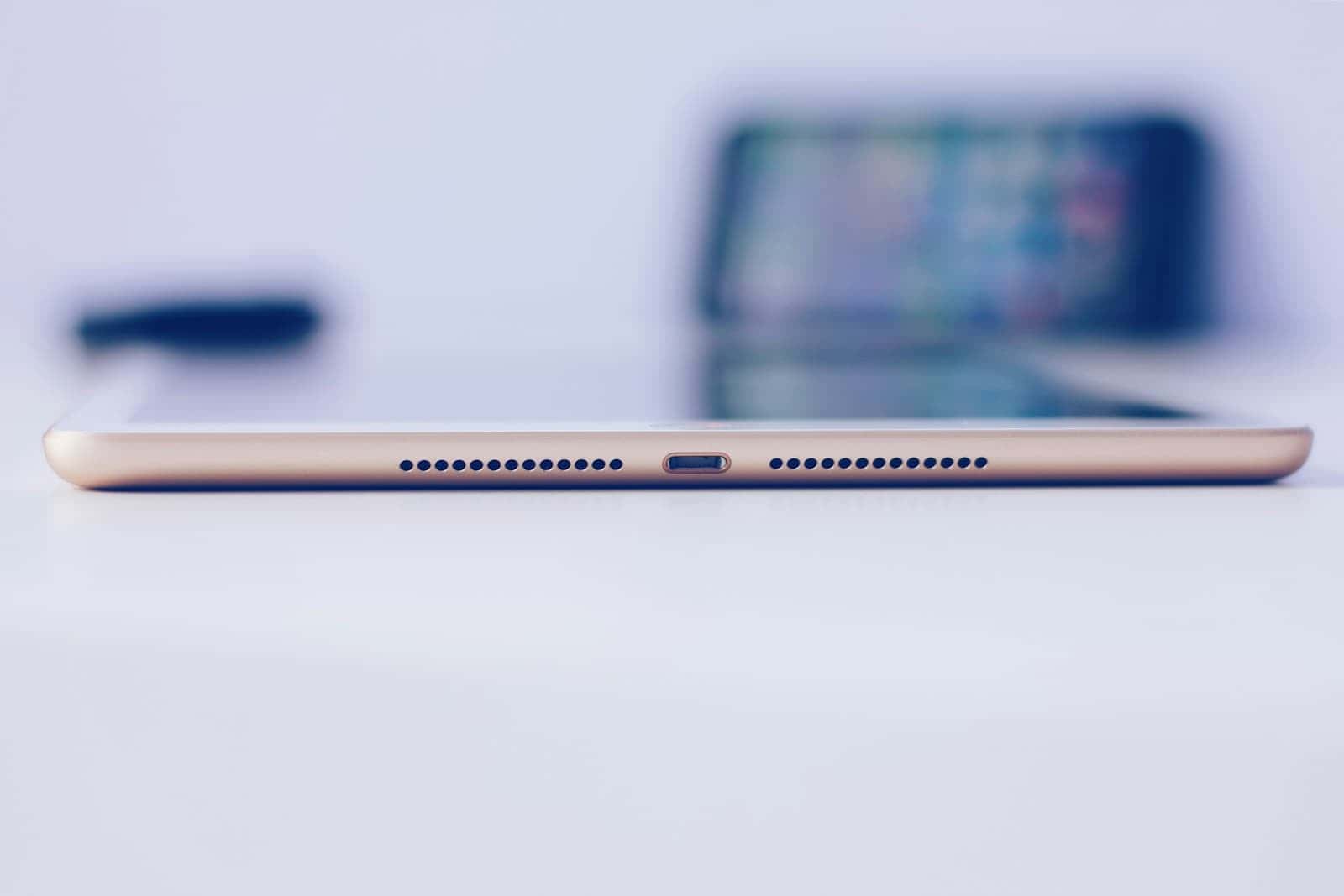
Is your iPad not charging properly? This could be a sign that your charging port needs a good cleaning. Over time, lint, dust, and debris can build up inside the small port, causing poor connections and slow charging times. To clean an iPad charging port safely, turn off your device, use a soft brush like a clean toothbrush or a bulb syringe to blow out loose debris, and carefully remove stubborn dirt with wooden toothpicks or cotton swabs lightly dampened with isopropyl alcohol.
Many people don’t realize how much gunk can collect in their iPad port. Your pocket, bag, or desk can be full of tiny particles that find their way into the small opening. When this happens, your charger may not fit properly or make a solid connection with the charging pins. You might notice your iPad charges slowly, disconnects easily, or doesn’t charge at all. A simple cleaning can often fix these issues without a trip to the Apple Store.
How to Clean Your iPad Charging Port
Over time, lint, dust, and debris can accumulate inside your iPad’s charging port, causing charging issues or connection problems. Cleaning it carefully can restore proper function.
What You’ll Need
- A flashlight or bright light
- A toothpick or a small plastic/wooden tool (non-metallic)
- A soft-bristled brush (e.g., a clean, dry toothbrush or anti-static brush)
- Compressed air (optional and used with caution)
- Isopropyl alcohol (90% or higher) – optional for stubborn grime
Step-by-Step Cleaning Guide
1. Power Off Your iPad
- Before cleaning, turn off your iPad completely to avoid any electrical damage.
2. Inspect the Charging Port
- Use a flashlight to look inside the charging port.
- Check for lint, dust, or visible debris.
3. Remove Loose Debris with a Toothpick
- Gently insert the toothpick or plastic tool into the port.
- Carefully scrape or lift out any lint or debris.
- Avoid using metal objects to prevent damaging the pins inside.
4. Brush the Port
- Use a soft-bristled brush to gently sweep inside the port.
- This helps dislodge smaller particles.
5. Use Compressed Air (Optional)
- If available, use a can of compressed air to blow out dust.
- Hold the can upright and use short bursts.
- Avoid blowing too hard or at an angle that could push debris further inside.
6. Clean with Isopropyl Alcohol (For Stubborn Grime)
- Lightly dampen a toothpick or brush with isopropyl alcohol.
- Gently clean inside the port.
- Let the port dry completely (a few minutes) before powering on or charging.
7. Test Charging
- After cleaning, power on your iPad and connect the charger.
- Check if charging or data connection has improved.
Tips and Warnings
- Never insert sharp or metal objects to avoid damaging delicate pins.
- Avoid excessive force when cleaning.
- Do not pour liquids directly into the port.
- Clean regularly if you use your iPad in dusty environments.
- If issues persist after cleaning, consider visiting an Apple Store or authorized repair center.
Summary Table
| Step | Action |
|---|---|
| Power off iPad | Prevent electrical damage |
| Inspect port | Use flashlight to check debris |
| Remove debris | Use toothpick/plastic tool gently |
| Brush port | Sweep with soft brush |
| Compressed air (optional) | Blow out dust carefully |
| Isopropyl alcohol (optional) | Clean stubborn grime gently |
| Test charging | Verify if issue is resolved |
For more detailed instructions, see guides like How to Clean iPad Charging Port.
Key Takeaways
- Always turn off your iPad before cleaning the charging port to avoid electrical damage.
- Use gentle tools like soft brushes, compressed air, or wooden toothpicks to remove debris without scratching the connections.
- Regular port cleaning can prevent charging problems and extend the lifespan of your iPad’s charging system.
Understanding the iPad Charging Port
The iPad charging port is a critical component that often gets overlooked until problems arise. Dirt buildup and physical damage can prevent proper connections, leading to frustrating charging failures.
Anatomy of the Charging Port
The iPad charging port is either a Lightning connector (on older models) or USB-C (on newer iPad Pro, Air, and mini models). This port contains several small, metal pins that make contact with the charging cable. These pins must be clean and undamaged for proper electrical connection.
The port is recessed into the iPad’s body, creating a space where lint, dust, and debris can easily collect over time. The depth of this recess makes it challenging to clean without proper tools.
Lightning ports have 8 pins arranged in a symmetrical pattern, allowing the cable to be inserted either way. USB-C ports have 24 pins and a more complex internal structure.
Common Causes of Charging Issues
Debris accumulation is the most frequent charging problem. Pocket lint, dust, and even food particles can block connections between the charger and device. This buildup prevents proper contact with the pins.
Moisture exposure can cause corrosion of the metal pins. Even small amounts of liquid can damage the port over time, leading to intermittent charging issues or complete failure.
Physical damage from using incorrect chargers or rough handling when plugging in cables can bend pins or damage the port housing. This type of damage may require professional repair.
Poor quality charging cables with damaged connectors can also create connection problems. Loose connections may cause intermittent charging or force you to hold the cable at specific angles.
Preparation Before Cleaning
Before cleaning your iPad charging port, proper preparation ensures both safety and effectiveness. Taking the right steps prevents damage to your device and helps resolve charging issues.
Turning Off the iPad
First, turn off your iPad completely before attempting any cleaning. This important safety step protects the internal components from potential damage.
To power off your iPad properly:
- Press and hold the top button until the power slider appears
- Drag the slider from left to right
- Wait about 30 seconds for the device to shut down completely
Never clean the charging port while your iPad is on or connected to power. Apple Support recommends unplugging all cables before any cleaning process begins.
Check your battery percentage before powering down. If it’s very low, you might want to charge it partially first so you can test the port after cleaning.
Gathering Necessary Tools
Having the right tools ready makes port cleaning safer and more effective. You’ll need gentle tools that can remove debris without scratching delicate components.
Recommended cleaning tools:
- Compressed air can (held upright)
- Soft, clean paintbrush or makeup brush
- Wooden or plastic toothpicks (never metal)
- Bright flashlight or magnifying glass
- Lint-free microfiber cloth
- Isopropyl alcohol (91-99% concentration)
- Cotton swabs (for gentle application)
Avoid using metal tools like pins or needles that can damage the port. For stubborn dirt, some users report success with specialized foam swabs and electronic contact cleaners. Always have your tools arranged on a clean, well-lit surface before beginning.
Inspecting the Charging Port
Before attempting to clean your iPad charging port, you need to examine it carefully to understand what you’re dealing with. Proper inspection helps identify the problem and determine the best cleaning approach.
Identifying Visible Obstructions
The first step is to look closely at the charging port. Turn off your iPad completely before inspection. Find a well-lit area and use a flashlight or phone light to peer into the port.
Look for lint, dust, or debris that might be blocking the connection points. These tiny particles can prevent the charging cable from making proper contact with the port.
Common obstructions include:
- Pocket lint or fabric fibers
- Dust particles
- Food crumbs
- Paper fragments
If you notice white residue or dark spots, this could indicate moisture damage or corrosion. This requires more careful handling and may need professional attention if severe.
Assessing for Physical Damage
After checking for debris, examine the port for any physical damage that might be causing charging issues. Physical damage can occur from rough handling or forcing the connector.
Look for these signs of damage:
- Bent pins inside the port
- Loose components that wiggle when touched
- Cracks in the surrounding plastic
- Discoloration that might indicate water damage
Try gently inserting the charging cable. If it doesn’t fit properly or feels loose, the port might be damaged. In such cases, cleaning alone won’t fix the problem, and professional repair may be necessary.
Physical damage to the port often requires service from Apple or an authorized repair center, as attempting repairs yourself might void your warranty.
Cleaning the Charging Port
A dirty charging port can cause connection problems with your iPad. Proper cleaning techniques can fix charging issues and extend the life of your device.
Using Compressed Air
Compressed air is one of the safest ways to clean an iPad charging port. Hold your iPad with the port facing downward and spray short bursts of air into the port. This position helps debris fall out rather than being pushed deeper inside.
Make sure to:
- Use only electronics-grade compressed air
- Keep the can upright while spraying
- Maintain a distance of at least 1 inch from the port
- Use short, gentle bursts rather than continuous spraying
Compressed air works well for removing loose debris like lint, dust, and small particles. If your iPad isn’t charging properly, try this method first before attempting more invasive cleaning techniques.
After cleaning with compressed air, test your charging cable to see if the connection has improved.
Gentle Brushing Techniques
When compressed air isn’t enough, gentle brushing can remove stubborn debris. Use tools that won’t damage the delicate pins inside the charging port.
Safe tools for port cleaning:
- Soft-bristled toothbrush (unused)
- Anti-static brush
- Wooden toothpick (for careful scraping)
- Needle-nose tweezers for carefully removing visible debris
Turn off your iPad completely before cleaning. Gently brush inside the port with short, light strokes. Don’t press hard or you might bend the connector pins.
For precision cleaning, some users find success with a wooden toothpick wrapped with a tiny bit of microfiber cloth. This can reach deeper without risking damage to the metal contacts.
Avoiding Liquid Cleaners
Never use liquid cleaners directly in your iPad charging port. Water and other liquids can cause short circuits and permanent damage to your device.
If you must use alcohol for cleaning, follow these strict guidelines:
- Power off your iPad completely
- Use only 90%+ isopropyl alcohol
- Apply a minimal amount to a foam swab or folded microfiber on a toothpick
- Ensure the swab is barely damp, not wet
- Let the port dry completely (at least 30 minutes) before using
Regular household cleaners, soaps, and sanitizers should never be used on charging ports. These contain chemicals that can corrode the metal contacts and cause permanent damage.
For persistent charging issues after cleaning, try different charging cables or consider having your device checked by an Apple technician.
Troubleshooting Software Issues
Sometimes charging problems aren’t related to a dirty port but stem from software glitches. Fixing these issues often requires simple steps that can restore your iPad’s charging functionality.
Restarting Your iPad
A simple restart can fix many iPad charging issues. This basic troubleshooting step clears temporary memory and resets system processes that might be preventing proper charging.
To restart your iPad with a Home button:
- Press and hold the Top button until the power slider appears
- Drag the slider to turn off your iPad
- Wait 30 seconds
- Press and hold the Top button until the Apple logo appears
For iPad models without a Home button:
- Press and hold the Top button and either volume button
- Drag the slider to turn off the device
- Wait half a minute
- Press and hold the Top button until you see the Apple logo
If your iPad won’t charge after a restart, try other software solutions.
Resetting to DFU Mode
DFU (Device Firmware Update) mode is a deeper reset option when your iPad has serious software problems affecting charging.
Warning: This process will erase all data on your iPad. Back up your device first if possible.
Steps to enter DFU mode:
- Connect your iPad to a computer with iTunes or Finder open
- For iPads with Home button:
- Hold the Power and Home buttons together for 10 seconds
- Release only the Power button while still holding Home
- Keep holding until your computer recognizes the device in recovery mode
For newer iPads:
- Press Volume Up quickly, then Volume Down quickly
- Hold the Top button until the screen goes black
- While still holding the Top button, press and hold Volume Down
- After 5 seconds, release the Top button but keep holding Volume Down
Your iPad screen should stay black during DFU mode, indicating it’s ready for restoration.
Checking for Software Updates
Outdated software can cause charging problems on iPads. Apple regularly fixes bugs related to power management in their updates.
To check for updates:
- Connect your iPad to Wi-Fi
- Plug it into power using a working cable and adapter
- Go to Settings > General > Software Update
- If an update is available, tap “Download and Install”
If your iPad battery is too low, you might need to charge it for a while before the update can begin. Sometimes using a computer to charge provides enough power to start the process.
After updating, test if charging works normally. Updated software often resolves issues with power management and battery recognition that can prevent proper charging.
Contacting Apple Support
If your iPad charging port needs professional attention, Apple offers several ways to get help. Their support team can provide guidance on cleaning methods or check if your device needs repair.
Online Troubleshooting Resources
Apple provides extensive online support for iPad charging issues. Their website features detailed guides on proper cleaning techniques for Lightning and USB-C connectors. These resources often include step-by-step instructions with helpful images.
The Apple Support Community is another valuable resource. Many users share their experiences about cleaning iPad ports and fixing charging problems. Reading through these discussions might help you find a solution that worked for others with similar issues.
Apple’s support pages clearly warn against using liquids when cleaning charging ports. They recommend using only soft, dry, lint-free cloths for port maintenance.
Scheduling an Appointment
When self-cleaning doesn’t solve charging problems, it’s time to visit professionals. Apple makes booking service appointments easy through multiple channels:
- Apple Support App: Download from App Store to schedule repairs
- Phone Support: Call Apple directly to discuss your iPad charging issues
- Apple Support Website: Book Genius Bar appointments online
At Apple Stores, technicians use specialized tools like compressed air and precision brushes to clean charging ports properly. These tools are designed to remove debris without damaging delicate components.
Before your appointment, try basic troubleshooting steps. This helps technicians better understand your issue. You can contact Apple Support to check if your device is under warranty, as this affects service costs.
Preventive Measures and Best Practices
Keeping your iPad charging port in good condition requires regular attention and proper handling. Taking simple steps now can save you from charging problems later.
Maintaining the Charging Port Cleanliness
Check your charging port regularly for lint and debris buildup. A quick inspection once a month can prevent many charging issues before they start.
Store your iPad in a clean environment away from dust, sand, and crumbs. Using a case with port covers can help keep dirt out when the device isn’t charging.
Be careful where you set your iPad down. Avoid placing it on sandy beaches, dusty surfaces, or areas with food crumbs.
When carrying your iPad in a bag, make sure the port is protected. Small particles in your bag can find their way into the charging port.
Consider using compressed air to gently blow out any loose debris once a month. This takes just seconds but can prevent buildup that causes charging problems.
Using Authorized Charging Equipment
Always use Apple-certified cables and charging adapters. Third-party chargers might be cheaper but can damage your iPad’s charging port over time.
Apple recommends against using liquids or cleaning products on the Lightning connector. Stick to soft, dry, lint-free cloths for wiping connectors.
Check your charging cables regularly for damage. Frayed cables can damage the charging port and even pose safety risks.
Never force a connector into the charging port. If it doesn’t fit easily, something might be blocking it or you may be using the wrong cable.
Unplug your charger by gripping the connector, not by pulling on the cable. This reduces strain on both the cable and your iPad’s charging port.
Frequently Asked Questions
iPad charging ports can gather dust, lint, and debris that affect charging. Here are answers to common questions about keeping your port clean and functional.
What is the safest method for cleaning an iPad charging port?
The safest way to clean an iPad charging port is using compressed air. Hold your iPad with the port facing down and give a few short bursts of air to dislodge debris.
Never insert metal objects into the port as they can damage the connections. If compressed air doesn’t work, a wooden toothpick can gently remove stubborn lint.
Always turn off your iPad before cleaning the port. This prevents any potential electrical issues during the cleaning process.
Which tools are recommended for cleaning the iPad charging port?
Compressed air is the most highly recommended tool. It provides enough force to remove dust without damaging sensitive components.
Wooden toothpicks are useful for stubborn debris. The wood is soft enough that it won’t scratch the electrical contacts inside the port.
Some users find that a small foam swab can help with cleaning. Fold a lint-free cloth like a Kimwipe around a toothpick for more precise cleaning.
Can I use isopropyl alcohol to clean the charging port on my iPad?
Apple specifically advises against using liquids or cleaning products when cleaning the charging port on an iPad. Liquid can damage the internal components.
Even isopropyl alcohol, which evaporates quickly, poses risks to the sensitive electronics in the charging port. Stick with dry cleaning methods instead.
If you must use a cleaner, specialized electronic contact cleaners designed for ports might work, but they come with risks of damage.
What should I do if my iPad is not charging even after the port is cleaned?
Check your charging cable and adapter for damage. Sometimes the problem isn’t the port but the accessories you’re using.
Try different cables and wall adapters to determine if they’re causing the charging issues. Original Apple cables and adapters often work best.
If problems persist, take your iPad to an Apple Store or authorized service provider. The port may have more serious damage that needs professional repair.
Are there any specific cleaning kits for an iPad’s charging port?
Electronics cleaning kits often include tools perfect for iPad ports. Look for kits with compressed air and non-conductive cleaning tools.
Some kits include special brushes with anti-static properties that can safely clean ports. These are better than makeshift solutions.
Avoid kits with metal tools or liquid cleaners. These can damage your iPad’s charging port rather than fix it.
How can I maintain the cleanliness of my iPad’s charging port?
Keep your iPad in a case when not in use. This helps prevent lint and dust from settling in the charging port.
Avoid using your iPad in very dusty environments. Places with lots of dirt, sand, or lint can quickly clog the port.
Check the port regularly for buildup. Clean it properly before serious clogging happens. Regular maintenance prevents charging problems.





