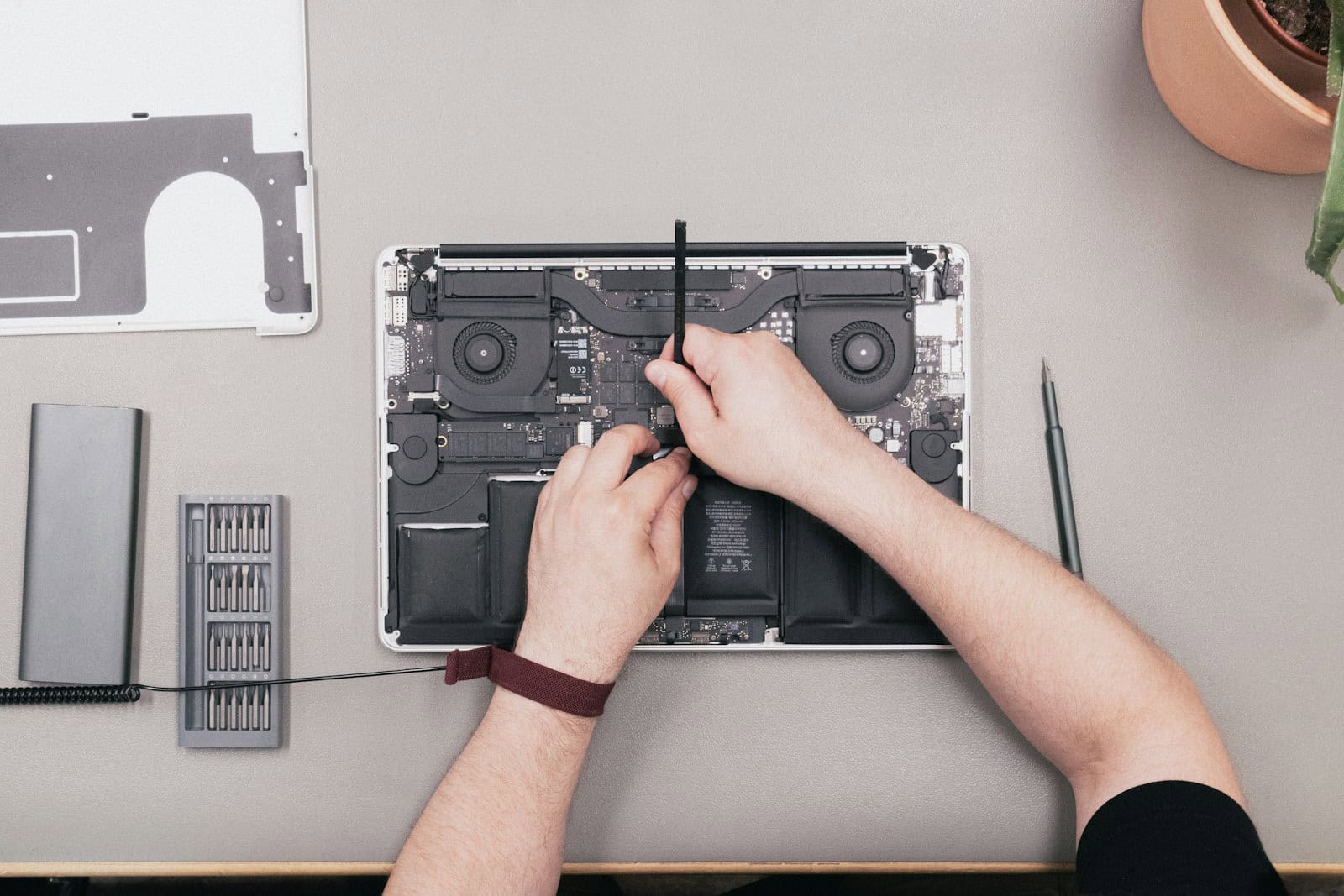
MacBook Pro users often face the frustrating issue of a battery that won’t charge. The most common causes are software glitches, faulty charging cables, or battery health problems. These can often be fixed with simple troubleshooting steps.
If your MacBook Pro isn’t charging, start by checking the basics. Make sure everything is plugged in correctly and there’s no visible damage to your cables or ports. Sometimes, dust in the charging port can prevent a proper connection. Clean it gently with a dry brush.
Software issues can also prevent charging. Try restarting your MacBook Pro or updating macOS. If the problem persists, you may need to check your battery health or contact Apple Support for further assistance.
| Common Causes | Quick Fixes |
|---|---|
| Software glitch | Restart MacBook |
| Faulty cable | Try different cable |
| Dirty port | Clean gently |
| Battery health | Check in System Settings |
Battery Not Charging MacBook Pro: Quick Troubleshooting Guide (2026)
Is your MacBook Pro plugged in but not charging? Whether it says “Not Charging,” stays stuck at a low percentage, or won’t power up at all, this guide walks you through quick, practical fixes you can try right now.
Most charging issues are caused by simple problems — not a dead battery.
First: Check What macOS Is Saying
Click the battery icon in the menu bar.
You might see:
- “Not Charging”
- “Battery Not Charging”
- “Service Recommended”
- Battery percentage not increasing
The message gives you a clue about what’s happening.
Quick Fix Checklist (Try in Order)
✅ Check power adapter and cable
✅ Try a different outlet
✅ Inspect charging port
✅ Restart your Mac
✅ Check Battery Health settings
✅ Reset SMC (Intel Macs only)
✅ Update macOS
✅ Run Apple Diagnostics
Let’s go step by step.
1. Check the Charger and Cable
This is the most common issue.
Look for:
- Frayed or bent cable
- Loose USB‑C connection
- Burn marks in the MagSafe port
- Adapter overheating
Fix:
- Try a different USB‑C cable
- Use another Apple-certified charger
- Plug directly into a wall outlet (not a power strip)
If charging works with another cable, your original one is faulty.
2. Try a Different Port (USB‑C Models)
If you have a USB‑C MacBook Pro:
- Plug the charger into another USB‑C port
- Rotate the cable direction
A single port may be damaged while others work fine.
3. Clean the Charging Port
Dust and debris can block proper connection.
How:
- Turn off your Mac
- Use compressed air to gently clean the port
- Do NOT insert metal objects
Even small debris can prevent charging.
4. Check Battery Health Settings
macOS may intentionally pause charging.
Go to: System Settings > Battery > Battery Health
If you see:
- ✅ Optimized Battery Charging enabled
- ✅ Battery health management active
Your Mac may pause at 80% to extend battery lifespan.
This is normal behavior.
You can temporarily disable it for testing.
5. Restart Your MacBook
It sounds simple — but it fixes many power management glitches.
Click: Apple Menu > Restart
Then plug the charger back in.
6. Reset SMC (Intel MacBook Pro Only)
If you have an Intel-based Mac, resetting the System Management Controller (SMC) can fix charging issues.
For MacBooks with T2 chip:
- Shut down your Mac
- Hold:
- Control (left)
- Option (left)
- Shift (right)
- Hold for 7 seconds
- While holding, press and hold the Power button
- Hold all keys for 7 more seconds
- Release and wait 10 seconds
- Turn Mac back on
⚠️ Apple Silicon (M1, M2, M3) Macs do NOT require SMC reset. A simple restart does the same function.
7. Update macOS
Charging bugs sometimes appear after software updates — or are fixed by them.
Go to: System Settings > General > Software Update
Install any available updates.
8. Check Battery Condition
Hold the Option key and click the battery icon.
If you see:
- ✅ Normal → Battery is likely fine
- ⚠️ Service Recommended → Battery may need replacement
You can also check: System Settings > Battery > Battery Health
9. Run Apple Diagnostics
To check for hardware problems:
- Shut down your Mac
- Turn it on and hold the D key
- Follow on-screen instructions
If errors appear, note the reference code.
Special Situations
🔋 MacBook Pro Says “Plugged In, Not Charging”
This is usually:
- Optimized charging
- Overheating
- Power adapter too weak
Fix:
- Let Mac cool down
- Use a higher-wattage Apple charger
- Disable optimized charging temporarily
🔌 MacBook Pro Not Charging When Plugged In
Possible causes:
- Faulty cable
- Damaged port
- Battery failure
- Logic board issue
Try another charger first before assuming hardware damage.
⚠️ MacBook Pro Won’t Turn On or Charge
If the screen is black:
- Plug into power for 30 minutes
- Try a different cable
- Check for charging sound or trackpad click
- Attempt a force restart (hold power for 10 seconds)
If still dead, service may be required.
When to Contact Apple
Contact Apple Support if:
- Battery says Service Recommended
- Mac only works when plugged in
- Battery drains extremely fast
- Charging stops completely
- Apple Diagnostics shows errors
If under warranty or AppleCare+, battery replacement may be covered.
How to Prevent Future Charging Issues
✅ Use Apple-certified chargers
✅ Avoid cheap USB‑C hubs for charging
✅ Keep ports clean
✅ Don’t let battery sit at 0% for days
✅ Avoid extreme heat
Final Thoughts
If your MacBook Pro battery is not charging, don’t panic.
In most cases, it’s caused by:
- A bad cable
- A dirty port
- Optimized battery charging
- A minor software glitch
Only a small percentage of cases are true battery failures.
Start with the simple fixes in this guide — and you’ll likely have your Mac charging again in minutes.
Understanding MacBook Charging Mechanisms
MacBook charging involves complex interactions between hardware components and software systems. These work together to manage power delivery and battery health efficiently.
Hardware Components and Functions
MacBook Pro charging relies on several key hardware elements. The charging port is your connection point for power input. Newer models use USB-C ports while older ones have MagSafe connectors.
Your power adapter converts AC power from the wall outlet to DC power for your MacBook. The USB-C or MagSafe cable carries this power to your device. Inside your MacBook, the battery stores energy for later use.
A crucial part is the System Management Controller (SMC). This chip manages power flow between the adapter, battery, and computer components. It controls charging rates and monitors battery health.
Software Regulation of Battery Charging
MacBook software plays a big role in charging. The operating system tracks battery levels and health. It adjusts power usage based on your needs and habits.
Optimized Battery Charging is a feature that learns from your daily charging habits. It delays charging past 80% when your MacBook is plugged in for long periods. This reduces battery aging.
Your MacBook’s software also manages power states. It can put unused components to sleep to save energy. The system monitors battery temperature and adjusts charging speed to prevent overheating.
| Charging Feature | Function |
|---|---|
| Optimized Charging | Delays full charge to reduce battery wear |
| Power Management | Adjusts system performance to balance power use |
| Temperature Control | Regulates charging speed based on battery heat |
Common MacBook Charging Issues and Troubleshooting
MacBook charging problems can stem from various sources. These issues often involve battery condition, hardware faults, software glitches, and environmental factors. Identifying the root cause is key to resolving charging difficulties.
Assessing the Condition of Battery and Charging Hardware
Start by checking your MacBook’s battery status. Click the battery icon in the menu bar to view its condition. If it shows “Service Battery,” your battery may need replacement.
Inspect your charging cable and adapter for damage. Look for frayed wires or bent connectors. Try a different cable or adapter to rule out hardware faults.
Clean the charging port gently with a soft, dry brush. Debris can prevent proper connection. For MagSafe adapters, remove them horizontally to avoid damage.
Check your power outlet. Plug in another device to ensure it’s working. Use a different outlet if needed.
Software-Related Charging Problems
Update your MacBook’s operating system. Software bugs can cause charging issues. Go to System Preferences > Software Update to check for and install updates.
Reset the System Management Controller (SMC). This can fix power-related problems. To reset:
- Shut down your MacBook
- Connect the power adapter
- Hold Shift + Control + Option + Power button for 10 seconds
- Release all keys and turn on your MacBook
If the battery icon shows “Not Charging,” don’t worry. Your MacBook might be using battery health management to extend battery life.
Addressing Overheating and Line Noise Issues
Overheating can cause charging problems. Ensure your MacBook has proper ventilation. Clean the vents and fans if necessary. Move your MacBook to a cool, well-ventilated area.
Line noise from other devices can interfere with charging. Unplug nearby electronics. Try charging your MacBook in a different location.
If issues persist, use Apple Diagnostics:
- Disconnect all external devices
- Restart your MacBook
- Hold the D key during startup
- Follow on-screen instructions
| Issue | Possible Solution |
|---|---|
| Not charging | Check cable, adapter, and port |
| Slow charging | Update software, reset SMC |
| Overheating | Improve ventilation, clean vents |
| Battery service | Contact Apple Support |
If problems continue, contact Apple Support or visit an Apple Store for professional assistance.
Maintenance and Optimizing Battery Health
Proper care and maintenance of your MacBook Pro battery can significantly extend its lifespan and performance. Regular checks and good habits are key to keeping your battery healthy.
Checking Battery Health
To check your MacBook Pro’s battery health, click the Apple menu and select “About This Mac.” Click “System Report” and choose “Power” from the sidebar. Look for “Cycle Count” and “Condition” in the Health Information section.
A table of battery health indicators:
| Indicator | Good | Fair | Poor |
|---|---|---|---|
| Cycle Count | < 500 | 500-1000 | > 1000 |
| Full Charge Capacity | > 80% | 60-80% | < 60% |
| Condition | Normal | Service Battery | Replace Soon |
If you notice any issues, consider visiting an Apple Store or authorized service provider for a checkup.
Best Practices for Prolonging Battery Life
To maximize your MacBook Pro’s battery life:
- Keep your device updated with the latest macOS version.
- Avoid extreme temperatures when using or storing your laptop.
- Use the optimized battery charging feature to reduce battery aging.
- Unplug your MacBook once it’s fully charged to prevent overcharging.
- Calibrate your battery every few months by fully charging and then discharging it.
Adjust your settings to save power. Dim the screen brightness and turn off Wi-Fi and Bluetooth when not in use. Close unused apps and browser tabs to reduce background processes.
Avoid leaving your MacBook plugged in constantly. This can lead to reduced capacity over time. Instead, try to keep the battery level between 20% and 80% for optimal longevity.
Professional Support and Services
When your MacBook Pro battery isn’t charging, expert help may be necessary. Apple offers various support options and authorized service providers to diagnose and fix the issue.
When to Consult Apple Support or Service Providers
Contact Apple Support if your MacBook Pro battery won’t charge after trying basic troubleshooting steps. They can run remote diagnostics and guide you through more advanced solutions.
Seek professional help if:
- Your battery shows “Service Recommended”
- The computer only works when plugged in
- Battery life is significantly shorter than before
- Apple Diagnostics indicates a battery problem
Apple Support can determine if your device needs physical repair. They may suggest bringing it to an Apple Store or authorized service provider for hands-on examination.
Locating Authorized Service and Repair Options
Apple offers several ways to get your MacBook Pro serviced:
- Apple Store: Schedule an appointment at a Genius Bar for in-person diagnosis and repair.
- Apple Authorized Service Providers: Third-party repair shops certified by Apple to work on your device.
- Mail-in service: Ship your MacBook Pro to an Apple Repair Center.
| Service Option | Pros | Cons |
|---|---|---|
| Apple Store | Direct Apple support, same-day repairs possible | Limited locations, appointments may be hard to get |
| Authorized Provider | More locations, potentially faster service | Quality may vary between providers |
| Mail-in | Convenient for remote areas | Longer turnaround time, risk during shipping |
Use Apple’s website to find nearby service options. Enter your location and select “Mac” as the product for a list of authorized repair centers.
Frequently Asked Questions
MacBook Pro charging issues can be frustrating. Here are answers to common questions about why your MacBook may not be charging and steps you can take to resolve the problem.
Why is my MacBook Pro not charging when plugged in?
Your MacBook Pro might not charge due to several reasons. These include a faulty power adapter, damaged USB-C port, or software issues. Check if the power adapter is securely connected and try a different outlet.
Inspect the charging port for debris. Clean it gently with a soft, dry brush if needed. If the issue persists, try a different charging cable or adapter to rule out hardware problems.
How do I reset the System Management Controller (SMC) on my MacBook Pro to fix charging issues?
Resetting the SMC can often resolve charging problems. To do this:
- Shut down your MacBook Pro
- Connect the power adapter
- Hold down Shift + Control + Option + Power buttons for 10 seconds
- Release all keys
- Press the power button to turn on your MacBook
This process resets the SMC, which manages power functions on your MacBook Pro.
What steps can I take to troubleshoot a MacBook Pro that is not recognizing the power adapter?
If your MacBook Pro doesn’t recognize the power adapter:
- Check the power adapter’s connection to both the MacBook and wall outlet
- Look for any visible damage to the cable or adapter
- Try a different power outlet
- Use Apple Diagnostics to check for hardware issues
If these steps don’t work, your power adapter or MacBook’s charging port may need repair.
Are there any known software issues that could prevent a MacBook Pro from charging?
Yes, software issues can affect charging. Update your macOS to the latest version. This can fix bugs that interfere with charging. Also, close resource-intensive apps that might be draining power faster than it can charge.
Check your Energy Saver settings in System Preferences. Adjust them to optimize battery performance and charging.
How can I determine if my MacBook Pro’s battery needs to be replaced due to lack of charging?
Check your battery’s health:
- Click the Apple menu
- Select “About This Mac”
- Click “System Report”
- Select “Power” in the sidebar
Look for “Cycle Count” and “Condition.” If the condition is “Service Battery,” it may need replacement. Apple recommends servicing batteries after 1000 charge cycles.
What are common reasons for the charging indicator light to be off on my MacBook when it’s plugged in?
If the charging indicator is off:
- The power adapter might not be properly connected
- Your outlet may not be working
- The power adapter could be faulty
- Your MacBook’s USB-C port might be damaged
Try a different power adapter or USB-C cable. If the problem continues, your MacBook may need professional service.
| Issue | Possible Solution |
|---|---|
| Not charging | Check connections, reset SMC |
| No power indicator | Try different adapter or outlet |
| Battery won’t hold charge | Check battery health, consider replacement |
| Intermittent charging | Clean ports, update software |