
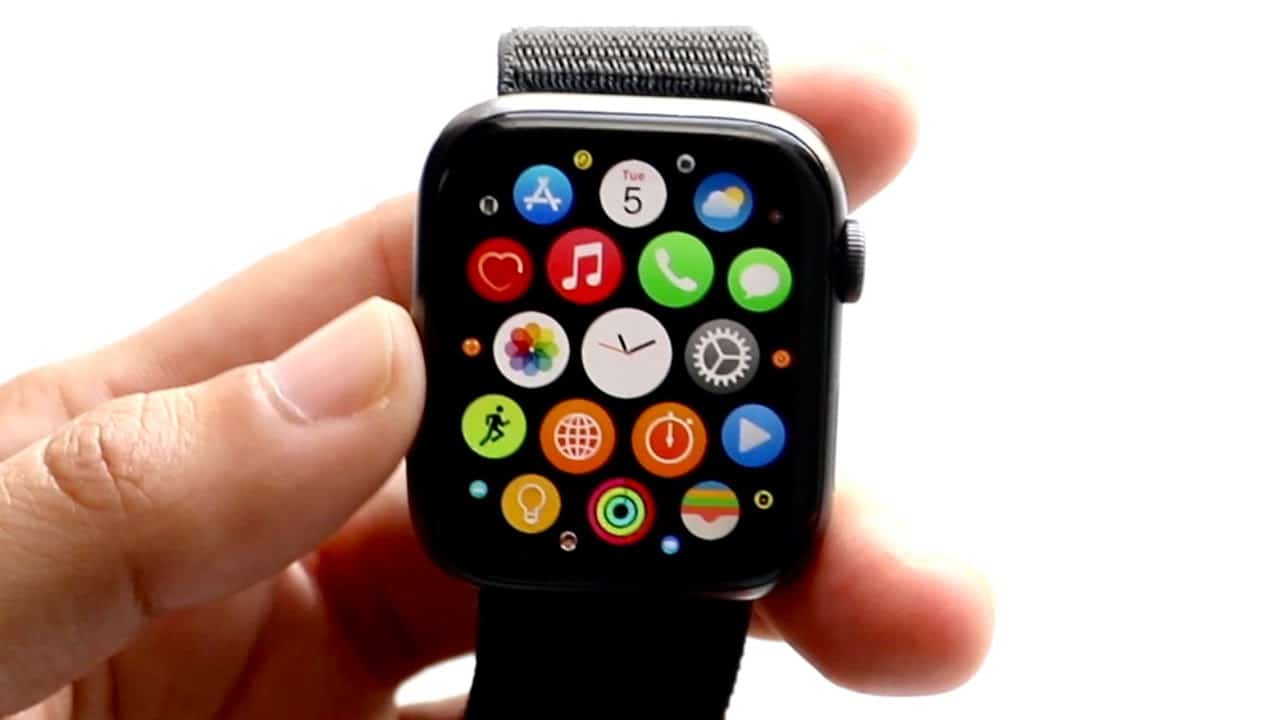
Navigating the features of an Apple Watch can be straightforward once you know where to look. Among its various handy tools, the “i” icon plays an essential role. It’s a small symbol that gives you access to important information about your watch and assists in the manual pairing process with an iPhone. This icon is especially useful if you’re setting up your watch for the first time or need to reconnect it after unpairing.
Knowing where to find the “i” icon can save time and improve your experience with the Apple Watch. It typically appears on the initial setup screen, which you can access by waking up the watch and wearing it on your wrist. If you need to unpair or manage your watch settings, the “i” icon is also accessible through the Watch app on your iPhone. There, it provides a simple path to unpair your device or begin the pairing process anew.
Where’s the “i” Icon on Apple Watch?
The “i” icon on Apple Watch is a small information button that appears during setup, pairing, and certain system menus. It’s not always visible during everyday use, which is why many users have trouble finding it.
What Does the “i” Icon Do?
The i icon provides:
- Manual pairing options
- Device information (name, serial number)
- Help during setup or troubleshooting
Where to Find the “i” Icon
1. During Apple Watch Pairing (Most Common Location)
When setting up a new or reset Apple Watch:
- Turn on the Apple Watch
- When you see the pairing screen (with the swirling animation)
- Look for a small “i” icon in the bottom‑right corner
Tapping it lets you:
- Pair the watch manually
- See the watch’s name and serial number
✅ This is the most common place users encounter the i icon.
2. If Pairing Animation Isn’t Working
If your iPhone can’t scan the animation:
- Tap the “i” icon on the Apple Watch
- Choose Pair Manually
- Enter the code shown on the watch into your iPhone
This is especially useful if:
- The camera won’t focus
- The screen is damaged
- Lighting conditions are poor
3. In Settings (Device Information)
You can also access similar information after setup, though the icon may not appear as a literal “i”:
On Apple Watch
- Open Settings
- Go to General → About
Here you’ll find:
- Watch name
- Model number
- Serial number
- watchOS version
4. On iPhone (Paired Watch Info)
If the watch is already paired:
- Open the Watch app on iPhone
- Tap General
- Tap About
This provides the same info the “i” icon shows during setup.
Why You Might Not See the “i” Icon
You won’t see the i icon if:
- The watch is already paired
- You’re on the normal watch face
- Setup has already been completed
✅ The icon is contextual, not permanent.
Quick Summary Table
| Situation | Is the “i” Icon Visible? | What It Does |
|---|---|---|
| New / reset Apple Watch | ✅ Yes | Manual pairing & device info |
| Pairing animation screen | ✅ Yes | Troubleshooting setup |
| Normal watch use | ❌ No | Not available |
| Settings → General → About | ❌ (replaced by menus) | View device details |
| Watch app on iPhone | ❌ (menu-based) | View watch info |
Common Tip
💡 If you’re stuck pairing an Apple Watch, always look for the tiny “i” in the bottom-right corner of the pairing screen—it’s easy to miss.
Key Takeaways
- The “i” icon is vital for accessing information and manually pairing your Apple Watch with an iPhone.
- You can locate the “i” icon on the setup screen after waking up your watch.
- The Watch app on your iPhone also uses the “i” icon to manage pairing and settings.
Understanding the Apple Watch Interface
The Apple Watch interface is intuitive, with a focus on easy access to its features. Icons and symbols provide information at a glance. Swiping or tapping the screen brings up different aspects of the watch’s functionality.
Identifying Icons and Symbols on the Watch Face
Icons on the watch face serve as shortcuts to apps and notifications. The screen lights up with a tap, showing information like alarms, messages, and calls. For models with the latest WatchOS, the ring or circle icons indicate fitness progress. Users can press the Digital Crown to return to the home screen from any app.
Navigating the Control Center and Settings
Swiping up from the bottom of the screen opens the Control Center. This area gives quick access to settings like Airplane Mode, Silent Mode, Do Not Disturb, Theater Mode, Focus, and Water Lock. Users toggle these features with a tap. The settings gear icon is where users can adjust more detailed options.
Interacting With Notifications and Indicators
Notifications appear on the screen with a light tap, indicating new alerts. Swiping down from the watch face reveals the Notification Center. Here, users can interact with the alerts. Icons like a bell for an alarm or a speech bubble for a text are examples of what users may find here.
Pairing and Managing Your Apple Watch
The “i” icon is a significant aspect of your Apple Watch, assisting in tasks such as pairing with an iPhone. It helps in the setup process and managing the watch’s functions, ensuring the device runs smoothly with your iPhone.
Setting Up and Pairing With iPhone
To start pairing your Apple Watch, turn it on by pressing and holding the side button. Next, open the Watch App on your iPhone and tap ‘Start Pairing’. Your iPhone’s camera will open. Position the Apple Watch in the frame to pair automatically. If automatic pairing fails, tap the ‘i’ icon on your Apple Watch for manual pairing. The watch will display a name to select in the device list on your iPhone.
Customizing and Utilizing Features
After pairing, customize your Apple Watch via the Watch App on your iPhone. Select the ‘My Watch’ tab to explore and adjust settings and applications. Customize your watch face, manage notifications, and set up shortcuts for accessibility. The Apple Watch allows easy access to features like Workout, Sleep Mode, and Siri. Regularly updating the WatchOS ensures access to the latest features.
Troubleshooting Common Issues
If your Apple Watch gets disconnected, make sure Wi-Fi and Bluetooth are enabled on your iPhone and they’re close to each other. Charging issues often stem from improper connection to the charger, so confirm that your Apple Watch is snugly attached to its charging cable and powered base. Restoring connections might require you to unpair and then re-pair the watch via the Watch App.
Monitoring Device Performance and Health
To maintain optimal performance, monitor your Apple Watch’s battery life and conserve it by enabling Low Power Mode when necessary. Check the signal strength if using cellular to ensure the watch stays connected. Regular maintenance, such as updating iOS and resetting the watch if performance issues arise, helps prolong device health. Use the ‘Settings’ app to manage functionalities like the microphone, location services, and wireless features.





