
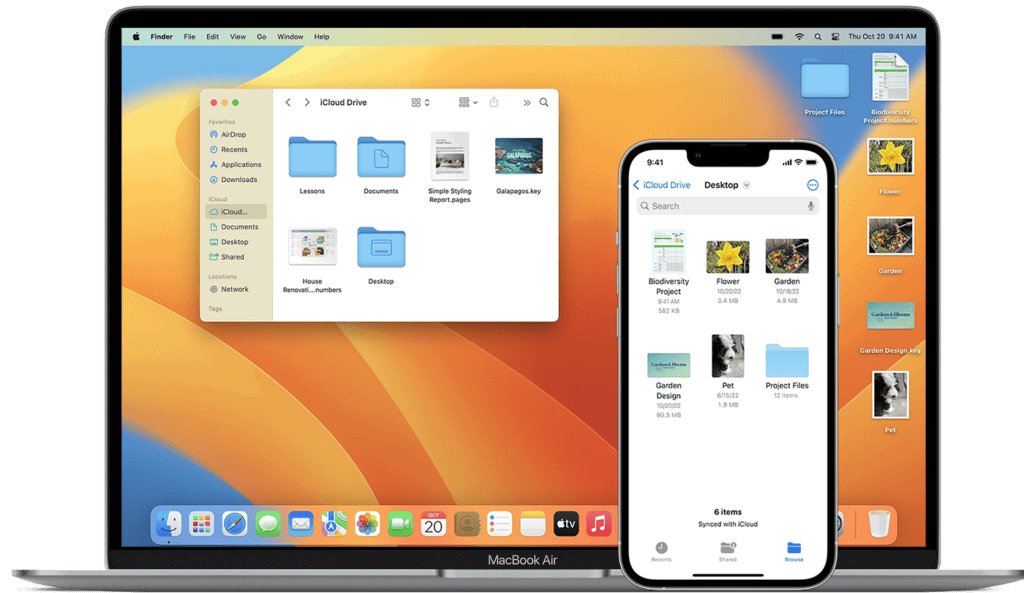
Customizing a Mac can transform the user experience, making it more personal and efficient. Mac users have a wealth of options to tailor the system settings, appearance, and functionality to their liking. From choosing a dynamic desktop picture that changes with the time of day to adjusting the Dock to show only the most used applications, personalization is at the user’s fingertips.
The process to set up a new Mac also opens doors for customization right from the start. One can transfer their data effortlessly, establish their Apple ID, and enable features like Siri which enhance the Mac’s capabilities. Accessibility options and security settings are also important aspects of the setup that can be customized for a better experience.
Whether enhancing an existing setup or personalizing a new Mac computer, fine-tuning the operating system can make the Mac feel more like an extension of oneself. The tools are built into macOS, allowing for easy adjustments without needing extensive technical knowledge.
How to Customize Your Mac: Tailoring Your macOS Experience
Your Mac is designed to be powerful and intuitive—but with a few customizations, it can become truly yours. From visual tweaks to productivity upgrades, macOS offers a wide range of options to help you work smarter and feel more at home on your device. This guide walks you through the best ways to personalize your macOS experience.
1. Personalize the Appearance
Change the Desktop Wallpaper
- Open System Settings → Wallpaper
- Choose from Apple’s built-in wallpapers or add your own images
- Use Dynamic wallpapers that shift with the time of day
Customize Colors and Theme
- Go to System Settings → Appearance
- Select an Accent color for buttons and highlights
- Choose between Light Mode, Dark Mode, or Auto
Dark Mode is especially helpful for reducing eye strain during evening use.
2. Customize the Dock
The Dock is your app command center—make it efficient.
Adjust Size and Position
- Open System Settings → Desktop & Dock
- Resize the Dock and enable Magnification
- Move the Dock to the left, right, or bottom of the screen
Clean It Up
- Drag unused apps out of the Dock to remove them
- Keep only your most-used apps for faster access
Tweak Dock Behavior
- Enable Automatically hide and show the Dock
- Choose your preferred window minimize animation
3. Control the Menu Bar
Rearrange and Remove Icons
- Hold Command (⌘) and drag icons to rearrange them
- Drag unwanted icons off the menu bar to remove them
Choose What Appears
- Open System Settings
- Select Control Center to decide which items show in the menu bar
4. Customize Finder for Better File Management
Adjust Finder Views
- Open Finder and choose Icon, List, Column, or Gallery view
- Press ⌘ + J to customize icon size, text size, and spacing
Modify the Sidebar
- Finder → Settings → Sidebar
- Show or hide folders, drives, and network locations
Enable Helpful Bars
- In Finder, click View
- Enable Path Bar and Status Bar for better navigation
5. Fine-Tune Trackpad and Mouse Settings
Trackpad Gestures
- Go to System Settings → Trackpad
- Customize gestures like:
- Tap to click
- Three-finger drag
- Mission Control
Mouse Preferences
- Adjust tracking speed and scrolling direction
- Disable Natural scrolling if you prefer traditional scrolling
6. Set Up Keyboard Shortcuts and Hot Corners
Keyboard Shortcuts
- Open System Settings → Keyboard → Keyboard Shortcuts
- Customize shortcuts for screenshots, Spotlight, and apps
Hot Corners
- Go to System Settings → Desktop & Dock → Hot Corners
- Assign actions like Lock Screen or Mission Control
Tip: Hold Option or Command while setting Hot Corners to avoid accidental triggers.
7. Manage Notifications and Focus Modes
Notifications
- Open System Settings → Notifications
- Choose how each app alerts you—or turn notifications off completely
Focus Modes
- Go to System Settings → Focus
- Create modes like Work, Personal, or Sleep
- Allow notifications only from selected apps or contacts
8. Boost Productivity with macOS Features
Mission Control and Spaces
- Use Control + Up Arrow to view all open windows
- Create multiple desktops for different tasks
Stage Manager
- Enable via Control Center
- Automatically organizes apps into manageable groups
9. Customize Security and Login Settings
Lock Screen Options
- Go to System Settings → Lock Screen
- Adjust screen lock timing and add a custom lock message
Touch ID and Passwords
- Set up Touch ID for unlocking your Mac and authorizing actions
- Manage saved passwords in System Settings → Passwords
10. Make macOS Work for You
Customizing your Mac isn’t just about aesthetics—it’s about creating a workflow that fits your habits. Start small, experiment, and refine over time. The more you tailor macOS to your needs, the more enjoyable and productive your experience will be.
Key Takeaways
- Personalization options vary from visual adjustments to functional settings.
- Initial Mac setup presents opportunities for customization.
- Built-in macOS features provide straightforward personalization without technical complexity.
Customizing Desktop and Dock
Enhancing your Mac begins with personal touches to the Desktop and Dock. These features give you quick access and a display that suits your style.
Changing Desktop Wallpaper and Screen Saver
To change your wallpaper, go to System Settings and select Desktop & Screen Saver. Choose from dynamic wallpapers that change with the time of day, a personal photo, or Apple’s collection of images. Screen savers can also be set here, offering a range of animations or photo slideshows to activate when the Mac is idle.
Adjusting Dock Preferences and Icons
The Dock provides quick access to apps and documents. To customize it, open Dock settings via System Settings. Adjust the icon size and magnification to change how icons appear when you hover over them. You can also add custom icons for a more personalized look. To add or remove apps, drag them to or from the Dock.
Utilizing Menu Bar and System Settings
The menu bar at the top offers shortcuts and status information. You can customize it by adding or removing menu bar apps through System Settings. This is where you also manage other system features, like time display and accessibility. By tailoring these settings, you ensure that your Mac fits your workflow.
Enhancing Functionality
Customizing your Mac extends beyond aesthetics to improving how you interact with your device. This can lead to a more efficient workflow and a computer that feels more intuitively yours.
Optimizing Finder Windows and System Preferences
The Finder window is where you manage and access files. Customize it by setting your default folder view and adjusting the sidebar to include frequently used locations. You can change folder icons to custom images to make them easily recognizable. In System Preferences, streamline your workflow by organizing your settings panes. Set your accent and highlight colors to ones that are pleasing and functional for you.
Integrating Accessibility and Security
Mac offers a wide range of accessibility options to cater to various needs. Adjust these settings to suit your requirements, whether that’s inverting colors for better visibility or setting up voice control. Security is also vital. Strengthen your login credentials by creating a strong Apple ID password and consider enabling two-factor authentication. Adjust Privacy settings to control the data apps can access.
Personalizing Siri, Mail, and Third-Party Apps
Invoke Siri with a unique phrase and train it to recognize your voice for tasks like sending emails or setting reminders. In Mail, tailor the layout and choose how you view incoming messages. Integrate third-party apps seamlessly into your workflow by customizing their settings within the app and in the Mac System Preferences. This way, your most used tools work exactly as you need them to.





