
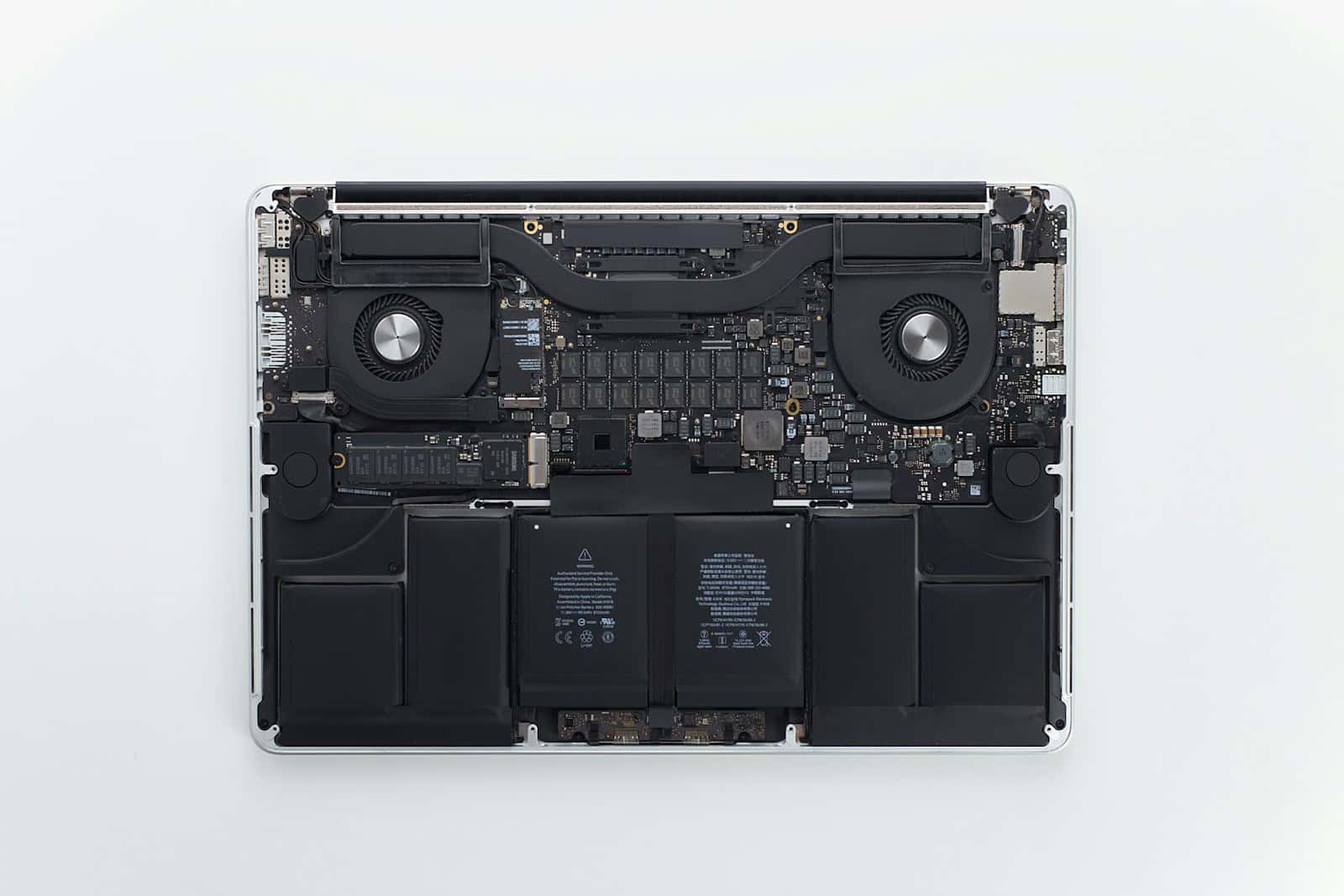
MacBook batteries are essential for portable computing. Your MacBook’s battery cycle count is a key indicator of its health and longevity. A battery cycle occurs when you use 100% of your MacBook’s battery capacity, regardless of the number of charges.
Understanding your MacBook’s battery cycle count helps you gauge its performance and plan for potential replacements. You can check your MacBook’s battery cycle count easily through the System Settings or System Information app. This number gives you insight into how much life your battery has left.
Apple designs MacBook batteries to retain up to 80% of their original capacity after a specific number of cycles. This number varies by model, ranging from 300 to 1000 cycles. Knowing your cycle count lets you decide if it’s time for a battery service or replacement.
| MacBook Model | Maximum Cycle Count |
|---|---|
| MacBook Pro | 1000 |
| MacBook Air | 1000 |
| MacBook | 1000 |
MacBook Battery Cycle Count: Complete Guide
What is a Battery Cycle Count?
A battery cycle count represents one complete charge and discharge of your MacBook’s battery. One cycle doesn’t necessarily mean one charge from 0% to 100%. For example, if you use 50% of your battery one day, recharge it fully, then use 50% the next day, that counts as one complete cycle.
Why Battery Cycle Count Matters
Your MacBook’s battery has a limited number of charge cycles before its capacity diminishes. Understanding your cycle count helps you:
- Monitor battery health
- Anticipate when you might need a replacement
- Maintain optimal performance
- Plan for potential service needs
Maximum Cycle Count by Model
Apple designs MacBook batteries to retain up to 80% of their original capacity at:
- MacBook (Retina, 2015-2017): 1,000 cycles
- MacBook Air (2018 and later): 1,000 cycles
- MacBook Air (2013-2017): 1,000 cycles
- MacBook Pro (2009-present): 1,000 cycles
- Older MacBook models: 300-500 cycles
Most modern MacBooks support 1,000 cycles before significant degradation occurs.
How to Check Your Battery Cycle Count
Method 1: System Information (Easiest)
- Hold the Option (⌥) key and click the Apple menu ()
- Select System Information or System Settings
- Click Power in the sidebar (or Hardware > Power on older macOS)
- Look for “Cycle Count” in the battery information section
Method 2: About This Mac
- Click the Apple menu ()
- Select About This Mac
- Click System Report
- Navigate to Power
- Find Cycle Count under Battery Information
Method 3: Terminal Command
- Open Terminal (Applications > Utilities > Terminal)
- Type:
system_profiler SPPowerDataType | grep "Cycle Count" - Press Enter
The cycle count will be displayed immediately.
Understanding Your Battery Health
When checking your battery information, you’ll also see:
- Condition: Normal, Replace Soon, Replace Now, or Service Battery
- Maximum Capacity: Percentage of original capacity remaining
- Full Charge Capacity (mAh): Current maximum charge vs. original design capacity
When to Replace Your Battery
Consider battery replacement when:
- Cycle count exceeds 1,000 (or your model’s maximum)
- Battery condition shows “Replace Soon” or “Service Battery”
- Maximum capacity drops below 80%
- Your MacBook shuts down unexpectedly
- Battery drains unusually fast
- Physical swelling or deformation occurs (seek immediate service!)
Tips to Extend Battery Life
- Optimize Battery Charging: Enable this feature in System Settings > Battery to reduce battery aging
- Avoid extreme temperatures: Keep your MacBook in 50°-95°F (10°-35°C) environments
- Update macOS regularly: Updates often include battery optimization improvements
- Adjust energy settings: Lower screen brightness and close unnecessary apps
- Don’t keep it plugged in 24/7: Use your battery regularly
- Calibrate occasionally: Fully charge, then fully discharge once every few months
Battery Replacement Options
Official Apple Service
- Visit an Apple Store or Apple Authorized Service Provider
- Typically costs $129-$199 USD depending on model
- Includes genuine Apple parts and warranty
Third-Party Repair
- Less expensive but may void warranty
- Ensure they use quality batteries
- Check reviews and certifications
AppleCare+
- If you have AppleCare+, battery replacement is covered if capacity drops below 80%
Checking Battery Health on Different macOS Versions
macOS Ventura (13) and later: System Settings > Battery > Battery Health
macOS Monterey (12) and earlier: System Preferences > Battery > Battery (in sidebar)
Common Battery Myths
❌ Myth: You should fully discharge before charging ✅ Reality: Lithium-ion batteries don’t have “memory effect”
❌ Myth: Leaving it plugged in damages the battery ✅ Reality: Modern MacBooks have charging management systems
❌ Myth: Third-party chargers always damage batteries ✅ Reality: Quality certified chargers are generally safe
Conclusion
Monitoring your MacBook’s battery cycle count is an important part of device maintenance. Most modern MacBooks can handle 1,000 cycles before needing replacement. By checking your cycle count regularly and following best practices, you can maximize your battery’s lifespan and ensure optimal performance.
Understanding MacBook Battery Cycle Count
Battery cycle count is a key indicator of MacBook battery health. It impacts performance and longevity. Knowing your cycle count helps you manage your device’s power more effectively.
What Is a Battery Cycle Count?
A battery cycle count represents one full use of your MacBook’s battery capacity. It occurs when you use 100% of your battery’s power, regardless of the number of charges. For example, using 50% of your battery twice counts as one cycle.
MacBooks track this number to measure battery wear. As cycles accumulate, battery capacity gradually decreases. Apple designs MacBook batteries to retain up to 80% of original capacity after a specific number of cycles.
You can check your MacBook’s cycle count easily:
- Click the Apple menu
- Hold the Option key
- Select System Information
- Navigate to the Power section
This information helps you gauge your battery’s health and plan for potential replacement.
How Battery Cycles Affect MacBook Performance
As cycle count increases, you may notice changes in your MacBook’s performance. Battery life typically shortens, requiring more frequent charging. Your device might also struggle with power-intensive tasks.
| Cycle Count | Expected Battery Health |
|---|---|
| 0-300 | Excellent |
| 301-600 | Good |
| 601-1000 | Fair |
| 1000+ | Poor |
To extend your battery’s lifespan:
- Avoid extreme temperatures
- Update your macOS regularly
- Use official Apple chargers
- Perform monthly battery maintenance
Checking your cycle count regularly helps you stay informed about your MacBook’s health. When cycles approach the maximum, consider a battery replacement to maintain optimal performance.
Monitoring and Managing Battery Health
Keeping track of your MacBook’s battery health is crucial for optimal performance and longevity. Regular monitoring and proper management can significantly extend your battery’s lifespan and maintain its efficiency.
Interpreting System Information
To check your MacBook’s battery health, access the System Information. Hold the Option key and click the Apple menu, then select System Information. Navigate to the Power section under Hardware. Here you’ll find key data about your battery:
- Cycle Count: Shows how many charge cycles your battery has undergone
- Condition: Indicates the overall health status
- Maximum Capacity: Displays the current full charge capacity
A healthy battery should maintain 80% of its original capacity after 1000 cycles. If your cycle count is high or capacity low, consider a battery replacement.
Maximizing Battery Lifespan
To extend your MacBook’s battery life:
- Avoid extreme temperatures
- Keep your MacBook updated
- Reduce screen brightness
- Close unused apps
- Use Energy Saver settings
Partial discharges and recharges are better than full ones. Try to keep your battery between 20% and 80% charged. Calibrate your battery every few months by fully charging it, then using it until it’s nearly empty.
Optimized Battery Charging Features
MacOS includes battery health management features to slow battery aging. This system learns your daily charging habits and delays charging past 80% when your Mac is plugged in for extended periods. To enable:
- Go to System Preferences
- Click Battery
- Select Battery Health
- Check “Optimized Battery Charging”
This feature reduces battery wear and improves its lifespan. You can temporarily bypass it by clicking “Charge to Full Now” when needed.
| Feature | Benefit |
|---|---|
| Optimized Charging | Reduces battery stress |
| Battery Health Management | Extends overall lifespan |
| Energy Saver Settings | Improves daily battery life |
By monitoring and managing your MacBook’s battery health, you can ensure its longevity and maintain peak performance.
Replacement and Warranty Considerations
MacBook batteries have limited lifespans. Knowing when to replace them and understanding Apple’s warranty policies can save you money and hassle.
When to Replace Your MacBook Battery
Your MacBook battery’s health affects its performance. Check your battery’s cycle count regularly. Most MacBook models have a limit of 1000 cycles.
When your battery reaches 80% of its original capacity, consider replacement. Signs of a failing battery include:
- Shorter battery life
- Unexpected shutdowns
- Slower performance when unplugged
- Battery not holding charge
Use built-in tools to monitor battery health. Go to Apple menu > About This Mac > System Report > Power. Check the “Cycle Count” and “Condition” fields.
Understanding Warranty and Apple Support
Apple’s warranty covers battery issues for one year. Free replacements are available if your battery fails before 1000 cycles during this period.
After warranty expiration, you have options:
- Apple Store service
- Authorized service providers
- Third-party repair shops
| Service Option | Cost Range | Pros | Cons |
|---|---|---|---|
| Apple Store | $129-$199 | Genuine parts, expert service | Higher cost |
| Authorized Provider | Similar to Apple | Quality assurance | May have longer wait times |
| Third-Party | $90-$120 | Lower cost | Potential quality variation |
Choose based on your budget and comfort level. Always back up your data before any repair.
Frequently Asked Questions
MacBook battery cycle counts provide crucial insights into battery health and longevity. Understanding these numbers helps users manage their device’s performance and plan for potential replacements.
How to check the battery cycle count on a MacBook?
You can check your MacBook’s battery cycle count through the System Information app. Click the Apple menu while holding the Option key. Select System Information. Then click Power under Hardware to view the cycle count.
What constitutes a normal battery cycle count range for a MacBook Pro?
A normal battery cycle count range for a MacBook Pro is typically between 300 and 1000 cycles. This varies based on the specific model and year of your MacBook Pro.
At what cycle count is a MacBook Air’s battery considered worn?
A MacBook Air’s battery is generally considered worn when it reaches around 1000 cycle counts. However, this can vary depending on usage patterns and environmental factors.
What are the expected effects when a MacBook’s battery reaches 1000 cycles?
When your MacBook’s battery reaches 1000 cycles, you may notice reduced battery life. The battery might not hold as much charge as before. You may need to charge more frequently.
Is a battery cycle count of 600 considered healthy for a MacBook?
A battery cycle count of 600 is typically considered healthy for a MacBook. It indicates the battery is still within its expected lifespan. Performance should remain relatively stable at this point.
Does a battery cycle count of 200 indicate good health for a MacBook Pro?
A battery cycle count of 200 for a MacBook Pro indicates excellent health. The battery has significant life remaining. You can expect continued optimal performance for an extended period.
| Cycle Count Range | Battery Health Status |
|---|---|
| 0-300 | Excellent |
| 301-600 | Good |
| 601-900 | Fair |
| 901-1000 | Nearing end of life |
| 1000+ | Consider replacement |





