
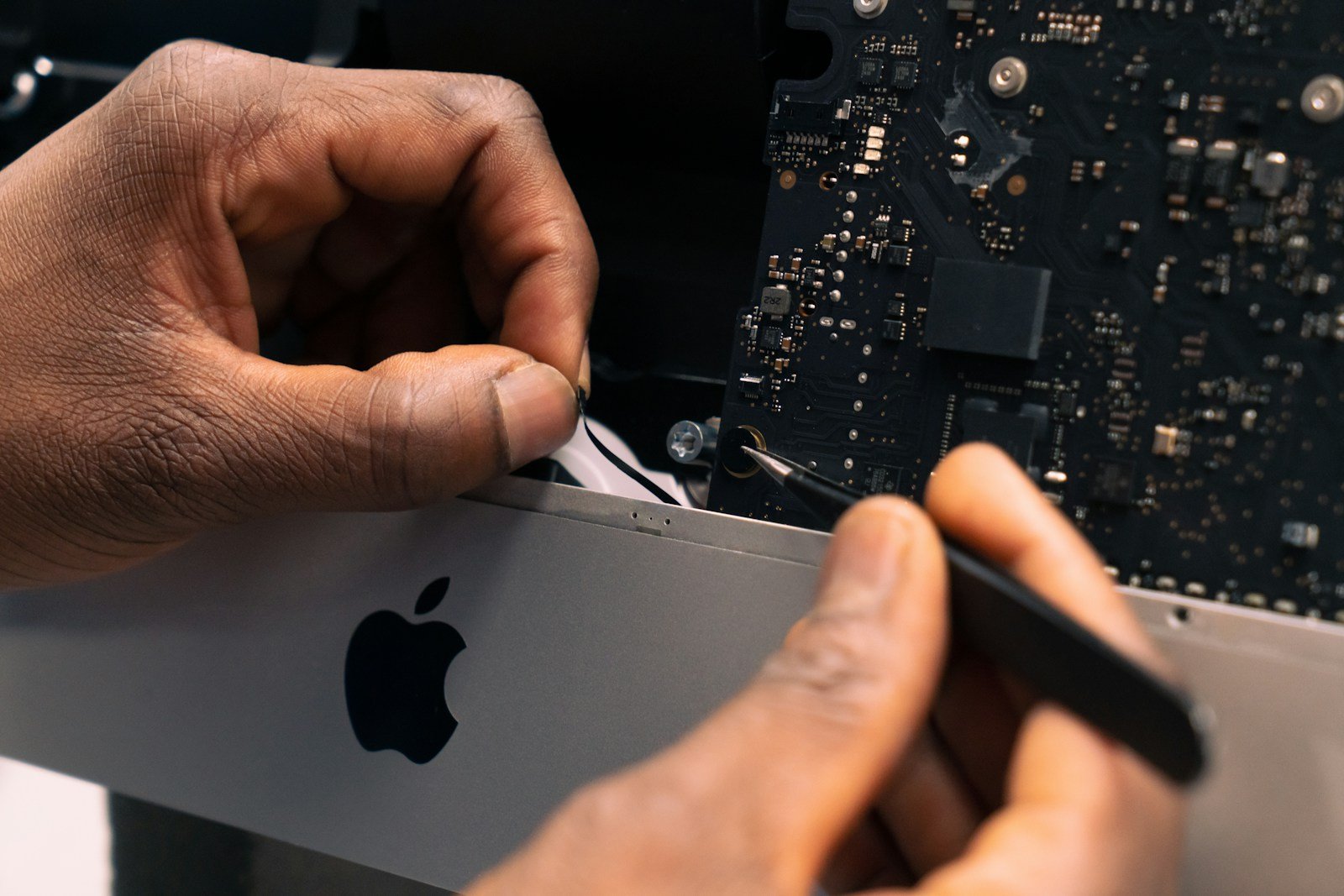
iMac SSD upgrades can boost your computer’s speed and performance. An SSD (solid-state drive) is faster than a regular hard drive. It helps your iMac start up quicker and run apps smoother. Upgrading to an SSD can make an old iMac feel new again.
Apple doesn’t always make it easy to upgrade iMac storage. Some models let you swap out the drive yourself. Others need a pro to do it. But the results are worth it. An SSD can breathe new life into an aging iMac.
There are many SSD options for iMacs. You can pick from different sizes and speeds. Some fit inside your iMac. Others connect on the outside. The right choice depends on your iMac model and needs.
iMac SSD Upgrade Guide (Complete Step‑by‑Step)
Upgrading your iMac’s SSD is one of the best ways to dramatically improve performance—faster boot times, quicker app launches, and smoother multitasking. However, not all iMac models can be upgraded, and the process varies significantly by year.
This guide explains which iMacs support SSD upgrades, what you’ll need, and how to do it safely.
Can You Upgrade an iMac SSD?
It depends on the model year.
✅ Upgradeable iMac Models
- 2009–2019 Intel iMacs
- Some models use replaceable SATA drives
- Others support NVMe SSD upgrades (with adapters)
- 2012–2019 models
- Internal upgrades possible but require screen removal
❌ Not Upgradeable
- Apple silicon iMac (M1, 2021+)
- SSD is soldered to the logic board
- Some late‑model Intel iMacs with proprietary storage
If you have an Apple silicon iMac, the only storage upgrade option is external SSD.
Before You Start (Important)
1. Back Up Your iMac
- Use Time Machine
- Or create a full bootable backup
2. Check Your Exact Model
Go to Apple Menu → About This Mac → Overview
Note the year and screen size (21.5‑inch or 27‑inch).
3. Choose the Right SSD
- SATA SSD: Older models (2009–2012)
- NVMe M.2 SSD: 2013–2019 (often with adapter)
- Recommended brands:
- Samsung (870 EVO, 970 EVO Plus)
- Crucial
- WD Black
Tools You’ll Need
- iMac opening wheel or plastic card
- Torx screwdrivers (T5, T8, T10)
- Suction cups (older models)
- Adhesive replacement strips (2012+ models)
- Anti‑static wrist strap (recommended)
- USB flash drive (macOS installer)
iMac SSD Upgrade: Step‑by‑Step
⚠️ These steps apply to 2012–2019 Intel iMacs. Older models are easier, but the concept is similar.
Step 1: Power Off and Unplug
- Shut down the iMac
- Disconnect all cables
- Lay the iMac face‑up on a soft surface
Step 2: Remove the Display
- Use the opening wheel to cut through the adhesive
- Carefully lift the display slightly
- Disconnect:
- Display power cable
- Display data cable
- Set the display aside safely
Step 3: Locate the Storage Drive
- Identify whether your iMac has:
- A SATA hard drive
- A Fusion Drive
- An existing SSD
Some models have two storage slots (SATA + NVMe).
Step 4: Remove the Old Drive
- Unscrew the drive bracket
- Disconnect the SATA or NVMe connector
- Carefully remove the drive
For Fusion Drive models, disconnect both drives if replacing entirely.
Step 5: Install the New SSD
- Install the SSD in the same orientation
- Use an adapter if installing an NVMe drive
- Secure the drive with screws
- Reconnect all cables firmly
Step 6: Reassemble the iMac
- Clean old adhesive from the frame
- Apply new adhesive strips
- Reconnect display cables
- Carefully press the display back into place
Step 7: Reinstall macOS
- Power on the iMac
- Hold Command + Option + R (Internet Recovery)
- Open Disk Utility
- Format the SSD as:
- APFS
- GUID Partition Map
- Reinstall macOS
- Restore data from Time Machine (optional)
External SSD Upgrade (Apple Silicon iMacs)
If you have an M1 or newer iMac:
Best Alternative:
- Use a Thunderbolt or USB‑C external SSD
- Install macOS on the external drive
- Set it as the startup disk
✅ Near‑internal SSD speeds
✅ No disassembly required
Common Mistakes to Avoid
- Skipping the backup
- Using cheap SSDs without DRAM
- Forgetting temperature sensors (older iMacs)
- Reusing old adhesive
- Rushing display removal
Performance Gains You Can Expect
| Upgrade | Boot Time | App Launch | Overall Speed |
|---|---|---|---|
| HDD → SSD | 70–80% faster | Dramatic | Huge |
| Fusion → SSD | 50–60% faster | Very fast | Excellent |
Final Thoughts
An iMac SSD upgrade can make an old Mac feel brand new, but it requires patience and the right tools. For Intel iMacs, internal upgrades are worth the effort. For Apple silicon models, an external SSD is the best and safest option.
If you’re unsure or uncomfortable opening the iMac, professional installation is highly recommended.
Key Takeaways
- SSD upgrades can greatly improve iMac speed and performance
- Some iMac models allow DIY upgrades while others need professional help
- Various SSD options are available to fit different iMac models and user needs
Understanding iMac SSD Upgrades
Upgrading an iMac’s SSD can boost speed and storage. Different models need specific SSDs and steps for installation.
Compatibility and Requirements
iMac models from 2012 to 2019 can get SSD upgrades. Check your iMac’s year and model number first. You can find this info in “About This Mac” or on the iMac’s base. The EMC number helps too.
Some iMacs have Fusion Drives. These mix a small SSD with a big hard drive. You can swap them for a full SSD.
Make sure to get the right SSD type. Older iMacs use SATA SSDs. Newer ones need PCIe or NVMe SSDs. The wrong type won’t fit or work.
Types of SSDs for iMac
SATA SSDs work in older iMacs. They’re slower but cheaper. PCIe and NVMe SSDs are faster but cost more. They fit in newer iMacs.
OWC makes SSDs just for iMacs. These often come with tools and parts for easy install. Some have special sensors to keep your iMac cool.
Pick an SSD with enough space. 500GB to 1TB is good for most users. Heavy users might want 2TB or more.
Performance Enhancements
SSDs are way faster than hard drives. They can make your iMac boot and load apps quicker. Some PCIe SSDs can read at 3316 MB/s. That’s super fast!
An SSD upgrade can make an old iMac feel new. Apps open faster. Files copy quicker. The whole system feels snappier.
SSDs also use less power than hard drives. This means less heat and fan noise. Your iMac might run cooler and quieter.
Installation Considerations
Installing an SSD can be tricky. iMacs are hard to open. You need special tools and care. Many folks choose pro install.
If you DIY, follow a good guide. Use the right tools. Be gentle with cables and parts. Static can harm parts, so ground yourself.
Some iMacs need a special cable or adapter for new SSDs. Check if you need these before you start. OWC often includes these with their SSDs.
After install, you might need to move your data. You can use Time Machine or clone your old drive. Then enjoy your faster iMac!
Frequently Asked Questions
SSD upgrades can boost iMac speed and storage. Here are answers to common questions about adding SSDs to iMacs.
What are the compatible SSD upgrade options for different iMac models?
iMac SSD options vary by model year. For 27-inch iMacs from 2012-2019, 2.5-inch SATA SSDs work well. Newer iMacs need custom-sized NVMe drives. Check your iMac specs to find the right fit.
How can an SSD be installed in an iMac, and what tools are required?
Installing an SSD in an iMac needs care. You’ll need a set of small screwdrivers suction cups and a pry tool. Some iMacs are trickier to open than others. If you’re not sure do it yourself get help from a pro.
What are the costs associated with upgrading an iMac to an SSD?
SSD costs for iMacs range from $50 to $300. The price depends on brand size and speed. Installation fees may add $50-$150 if you use a repair shop. DIY saves money but takes more time and skill.
What is the difference between internal and external SSD upgrades for iMacs?
Internal SSDs replace the built-in drive. They’re faster but harder to install. External SSDs plug into USB or Thunderbolt ports. They’re easier to use but not as quick. Both types boost speed over old hard drives.
Which SSD manufacturers produce drives compatible with iMacs?
Many brands make iMac-ready SSDs. Samsung Crucial and Western Digital are popular choices. OWC makes SSDs just for Macs. Look for drives that match your iMac’s specs for the best results.
How does an SSD improve the performance of an iMac compared to the original drive?
SSDs speed up iMacs a lot. They boot faster and open apps quicker. Files load in a snap. SSDs have no moving parts so they’re more reliable than hard drives. Your iMac will feel like new with an SSD upgrade.





