
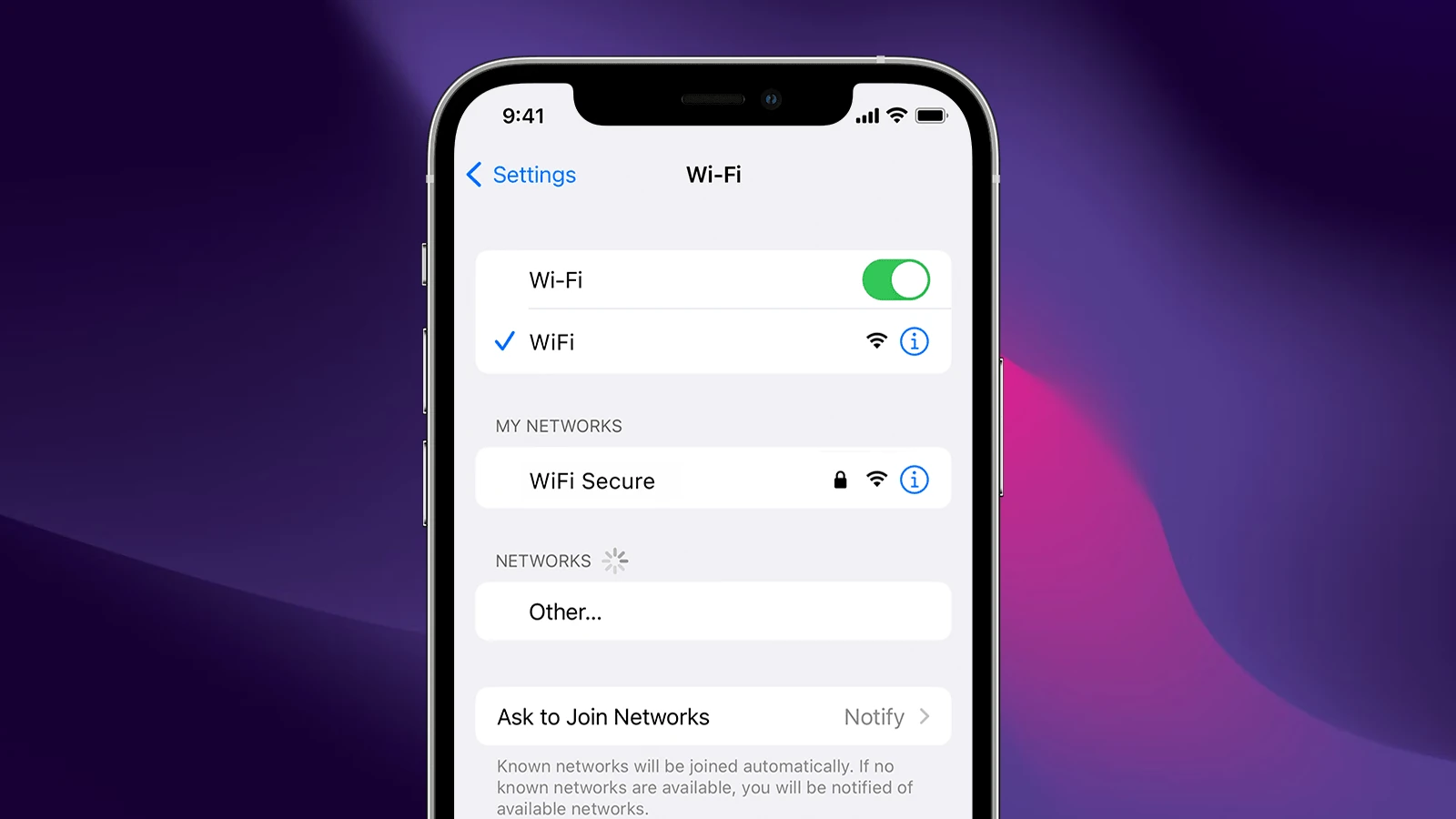
Sharing WiFi passwords between iPhones and Android phones used to be a hassle. You had to find the tiny password on your router or remember a complex string of characters. Now, there are several easy ways to share your network access across different devices.
You can share your iPhone’s WiFi password with Android devices by creating a QR code using the iOS Shortcuts app. This method bridges the gap between the two operating systems, making password sharing quick and simple. The days of typing long, complicated passwords are over.
While Apple makes it easy to share passwords between Apple devices, sharing with Android requires a few extra steps. With both devices nearby, you can create and scan a QR code or use other methods to pass your WiFi credentials safely. These tools help friends and family connect to your network without the usual frustration.
How to Share Wi‑Fi Passwords Between iPhone and Android (2026 Guide)
Sharing a Wi‑Fi password between two iPhones is easy thanks to Apple’s built‑in feature. But what about sharing Wi‑Fi between an iPhone and an Android device?
Since iOS and Android use different systems, there’s no automatic “tap‑to‑share” option across platforms. However, there are several quick and secure ways to share your Wi‑Fi password between iPhone and Android.
Here’s how to do it.
Method 1: Share Wi‑Fi via QR Code (Easiest Way)
Using a QR code is the fastest and most convenient method.
✅ If You Have the Android Phone (Recommended)
Android makes it very easy to generate a Wi‑Fi QR code.
On Android:
- Go to Settings
- Tap Network & Internet
- Select Internet or Wi‑Fi
- Tap your connected network
- Select Share
- Authenticate (PIN, fingerprint, etc.)
- A QR code will appear
On iPhone:
- Open the Camera app
- Point it at the QR code
- Tap the notification that appears
- Select Join Network
Done!
Method 2: Create a QR Code from iPhone (If iPhone Has the Password)
iPhones don’t automatically generate Wi‑Fi QR codes in Settings, but you can still create one.
Step 1: Find the Wi‑Fi Password on iPhone
- Go to Settings
- Tap Wi‑Fi
- Tap the “i” icon next to your connected network
- Tap Password
- Authenticate (Face ID / Touch ID)
- Copy the password
Step 2: Generate a QR Code
Use a trusted QR code generator and input:
WIFI:T:WPA;S:NetworkName;P:Password;;
Replace:
NetworkNamewith your Wi‑Fi namePasswordwith the actual password
Generate the QR code and let the Android phone scan it using:
- Camera app
- Google Lens
- Wi‑Fi settings scanner
Method 3: Use Google’s Nearby Share (Android to Android)
If you’re sharing between Android devices, Nearby Share works seamlessly — but this won’t directly help with iPhone. Mentioned here for completeness.
Method 4: Manually Share the Password
The old-fashioned way still works:
- View the password on iPhone (Settings → Wi‑Fi → “i” → Password)
- Type it manually on the Android device
Make sure to:
- Double-check capitalization
- Confirm special characters
- Avoid spaces at the beginning or end
Method 5: Use a Password Manager
If you use a cross-platform password manager (like 1Password, Bitwarden, etc.):
- Store your Wi‑Fi password in the app
- Access it on both devices
- Copy and paste into Wi‑Fi settings
This works well for families or shared households.
Why Doesn’t iPhone Automatically Share with Android?
Apple’s automatic Wi‑Fi sharing feature works only within the Apple ecosystem because it uses:
- Apple ID authentication
- Bluetooth proximity
- iCloud encryption
Android uses a different system for secure credential exchange, which prevents direct cross-platform tap‑to‑share.
Security Tips When Sharing Wi‑Fi
✅ Use QR codes instead of texting passwords
✅ Avoid posting screenshots publicly
✅ Change the password if it’s widely shared
✅ Use WPA3 or WPA2 encryption
For guests, consider creating a Guest Network instead of sharing your main Wi‑Fi.
Quick Comparison
| Method | Ease | Security | Best For |
|---|---|---|---|
| Android QR Code | ⭐⭐⭐⭐⭐ | High | Fast sharing |
| iPhone QR Code Generator | ⭐⭐⭐⭐ | High | Cross-platform |
| Manual Entry | ⭐⭐ | Medium | Backup option |
| Password Manager | ⭐⭐⭐⭐ | Very High | Long-term use |
Final Thoughts
While iPhone and Android don’t have a built-in cross-platform sharing feature, you can still share Wi‑Fi passwords quickly using:
- ✅ QR codes (best method)
- ✅ Manual copy/paste
- ✅ Password managers
In most cases, generating a QR code is the fastest and most secure way to share Wi‑Fi between iPhone and Android in 2026.
Key Takeaways
- Create QR codes with the iOS Shortcuts app to share WiFi passwords from iPhones to Android devices easily.
- Make sure both devices are unlocked and nearby before attempting to share WiFi passwords.
- Check your network settings on iPhone to view and share saved WiFi passwords with others.
Understanding Wi-Fi Password Sharing
Sharing Wi-Fi passwords has become much easier with modern smartphones, allowing users to connect friends and family to networks without typing complex passwords.
The Basics of Wi-Fi Security
Wi-Fi passwords protect your network from unauthorized access. These passwords are typically created when you first set up your router. They can be complex combinations of letters, numbers, and symbols.
Strong passwords help keep your network secure. But typing these long passwords on small phone screens is often frustrating and error-prone.
Modern smartphones now offer simple ways to share these passwords. This eliminates the need to remember or type them manually.
Both iPhone and Android devices have built-in features for password sharing. These features use encrypted methods to protect your password while sharing.
The network SSID (the name of your Wi-Fi network) is also important. Users need to know this name to connect to the right network.
Compatibility Between iPhone and Android Devices
Apple and Android use different methods for password sharing. This can create challenges when sharing between these platforms.
iPhones use a direct sharing method that works seamlessly with other Apple devices. When an Apple device tries to connect to a network, nearby iPhones can share the password wirelessly.
Android phones typically use QR codes for sharing Wi-Fi credentials. The phone generates a code containing the network name and password.
Fortunately, iPhones can scan Android-generated QR codes to connect to networks. This creates a bridge between the two systems.
For both systems to work, devices must be updated to recent versions. Network settings on both devices need to be properly configured for sharing.
Sharing passwords without typing not only saves time but also reduces errors when connecting to networks.
Preparation for Wi-Fi Password Sharing
Before sharing your Wi-Fi password between devices, you need to complete a few important setup steps. These preparations ensure a smooth and secure password-sharing experience without unnecessary complications.
Ensuring Device Compatibility
Wi-Fi password sharing works differently between various devices. For Apple users, sharing between iPhones requires both devices to have Apple IDs in each other’s contacts. This feature works on iPhone, iPad, and Mac devices running recent software versions.
For Android devices, compatibility depends on the Android version. Most Android phones running Android 10 or newer support QR code sharing for Wi-Fi passwords. Some manufacturers like Samsung, Google, and OnePlus have their own custom password-sharing methods built into their software.
Cross-platform sharing between iPhone and Android is more limited. Users will need to use alternative methods such as QR codes or third-party apps to bridge this gap.
Updating to the Latest Operating System
Running outdated software can prevent Wi-Fi password sharing features from working correctly. iOS users should update to the latest version through Settings > General > Software Update.
For the best experience on iPhone, iOS 16 or newer is recommended, with iOS 18 offering the most streamlined sharing options. Android users should aim for Android 10 or higher, with Android 13+ providing the most secure and convenient sharing methods.
Windows PC and macOS users should also keep their systems updated to ensure compatibility when sharing passwords with mobile devices. Recent updates have made significant improvements to Wi-Fi sharing capabilities across platforms.
Connecting to the Correct Wi-Fi Network
Before attempting to share a password, the sharing device must be connected to the Wi-Fi network. This is a critical first step that many users overlook.
On iPhone, go to Settings > Wi-Fi and select the network you want to share. Make sure the connection is active and working properly. A strong signal helps ensure successful password sharing.
For Android devices, open Settings > Network & Internet > Wi-Fi and connect to your desired network. The device must remain connected throughout the sharing process.
Both devices need to have Wi-Fi and Bluetooth turned on. Additionally, the receiving device should be nearby and have its Wi-Fi scanning active for the password-sharing prompt to appear correctly.
Methods to Share Wi-Fi Passwords from iPhone
Sharing Wi-Fi passwords from iPhone to Android devices has become easier with several built-in features. You can quickly help friends and family connect to your network without typing complicated passwords.
Using AirDrop for Password Sharing
AirDrop makes sharing Wi-Fi passwords between Apple devices simple and secure. To use this method:
- Make sure both devices have Wi-Fi and Bluetooth turned on
- Verify both devices have the latest iOS or iPadOS installed
- The person receiving the password should hold their device near yours
- They should select the Wi-Fi network they want to join
- On your iPhone, you’ll see a prompt asking if you want to share your password
- Tap “Share Password” and wait for confirmation
This feature works seamlessly between iPhones, iPads, and Macs. Both devices must be signed into iCloud and have each other saved in contacts.
Sharing Through Contacts
The contacts method is one of the easiest ways to share Wi-Fi access with friends. This process requires:
- Both devices need Bluetooth enabled
- Both users must be in each other’s contact lists
- Your friend’s Apple ID email must match what’s saved in your contacts
When someone tries to join your network, your iPhone will show a “Share Your Wi-Fi” card. Just tap it, and they’ll connect automatically. This feature works instantly without typing or saying passwords out loud.
No personal network information gets exposed during this process. It’s a secure way to grant network access.
Generating a QR Code
For sharing with Android devices, creating a QR code is most effective. Here’s how:
- On your iPhone, go to Settings → Wi-Fi
- Tap the info (i) button next to your connected network
- Look for the QR code icon and tap it
- Your iPhone will generate a QR code containing network details
Your Android friend can scan this code using their camera app. The code contains all necessary information to connect automatically.
This method works with any device that can scan QR codes, making it the most universal option. For extra security, only show the QR code to trusted people.
Steps to Share Wi-Fi Passwords to Android
Sharing Wi-Fi passwords between phones saves time and prevents typing mistakes. This is especially helpful when your password is long or complex.
Using QR Codes for Android Devices
Android phones have built-in features to create QR codes for Wi-Fi networks. To share your Wi-Fi password, go to Settings > Connections > Wi-Fi. Tap on the network you’re connected to, then select the gear icon or settings button next to it.
Look for the QR Code option in the bottom corner of your screen. This shows a scannable code containing your network details. The person receiving the password just needs to:
- Open their camera app
- Point it at the QR code
- Tap the notification that appears
Some Android phones also let you find passwords for saved networks. Go to Settings > Wi-Fi, tap the info button next to the network name, and look for the password option.
Third-Party Applications for Password Sharing
Several apps make Wi-Fi sharing even easier between different devices. Apps like Wi-Fi Password Sharing and QR Code Generator create scannable codes with your network information.
These apps often work across both Android and iOS platforms, making them useful for sharing between different phone types. Most are free to download from the Google Play Store.
Some apps use Bluetooth to transfer the password directly between phones. This method works well when you’re in areas with poor internet connection.
For extra security, many of these apps let you set an expiration time for shared passwords. This prevents unauthorized people from using your network later.
Cross-Platform Wi-Fi Password Sharing
Sharing Wi-Fi passwords between iPhones and Android devices has become easier thanks to built-in features and third-party apps. You no longer need to type long, complex passwords when switching between different operating systems.
Sharing Wi-Fi Password from iPhone to Android
iPhones don’t have a direct way to share Wi-Fi passwords with Android devices, but several workarounds exist. The simplest method is to display the QR code for your network.
To find your Wi-Fi password on iPhone:
- Open Settings
- Tap Wi-Fi
- Select your network (tap the (i) icon)
- Tap “Share Password” or “Copy Password”
Once you have the password, you can manually enter it on the Android device or use a QR code generator app. Some routers also have QR codes printed on them for easy network access.
For frequent sharing, setting up a personal hotspot from your iPhone is another option. This creates a new network that Android devices can connect to directly.
Sharing Wi-Fi Password from Android to Apple Devices
Android phones offer more flexibility when sharing Wi-Fi credentials with Apple devices. Most Android phones running recent versions can generate QR codes for networks they’re connected to.
To share a Wi-Fi password from Android:
- Go to Settings
- Select “Network & Internet” or “Connections”
- Tap “Wi-Fi”
- Select your connected network
- Tap the Share icon or QR code symbol
The iPhone user can then scan this QR code using their Camera app. The code contains all necessary network information, including the password.
Some Android devices also support sharing through Bluetooth when devices are paired. Third-party apps can further simplify this process, making cross-platform sharing almost seamless.
Best Practices for Wi-Fi Password Sharing
Sharing your Wi-Fi password safely is important for both convenience and security. Modern smartphones make this process easier, but you should follow some key guidelines.
Keep Your Network Secure
- Use WPA3 encryption when possible
- Change your Wi-Fi password regularly
- Enable guest networks for visitors
Always verify who you’re sharing your Wi-Fi password with. Not everyone needs full access to your main network.
For iPhone users, the process is simple. You can share your Wi-Fi password directly with other Apple devices nearby without typing anything. Both devices need to have Bluetooth on and be signed into iCloud.
Android users can create QR codes for easy sharing. This method works well for cross-platform sharing too, when an Android user needs to share with an Apple device.
Privacy Tips:
- Use temporary guest access when possible
- Revoke access for devices that no longer need it
- Don’t share passwords with large groups
For businesses and public spaces, consider printing QR codes instead of displaying the actual password. This limits who can access your network.
Remember that your internet connection security depends on who has access. Think twice before sharing with strangers or casual acquaintances.
When traveling or using public Wi-Fi, avoid sharing passwords you’ve saved. This helps protect both your privacy and the security of networks you’ve joined elsewhere.
Troubleshooting Wi-Fi Password Sharing Issues
When Wi-Fi password sharing doesn’t work between devices, there are several fixes you can try. Understanding common problems and knowing when to switch to alternative connection methods can save time and frustration.
Common Problems and Solutions
Wi-Fi password sharing may fail for several reasons. First, make sure both devices have Wi-Fi and Bluetooth turned on. This is essential for the sharing feature to work properly.
Check that your Apple ID is saved in the other person’s Contacts app. This is often overlooked but necessary for password sharing to function.
Keep devices close together when attempting to share. Distance can prevent the connection from establishing.
If sharing still fails, try these fixes:
- Restart both devices
- Restart your Wi-Fi router
- Turn Wi-Fi off and on again
- Remove the network and reconnect
For iPad, iPod touch, or macOS devices, the troubleshooting steps remain similar. Windows devices cannot directly use Apple’s sharing feature.
When to Use Cellular Data or Personal Hotspot
Sometimes switching to cellular data or creating a personal hotspot is the best option. If Wi-Fi sharing continues to fail after troubleshooting, using cellular data can provide immediate internet access.
To set up a Personal Hotspot on iPhone, go to Settings > Personal Hotspot and toggle it on. This creates a connection other devices can join.
Be aware that using cellular data or a hotspot may use your data plan. Check your data limits before relying on this method for long periods.
For mixed device environments (like iPhone and Android), a personal hotspot is often more reliable than trying to share Wi-Fi passwords across different operating systems.
If you’re in a public place with unreliable Wi-Fi, switching to cellular data offers better security than joining unknown networks.
Alternatives to Direct Wi-Fi Password Sharing
Not everyone can use built-in password sharing features. Some devices lack this capability, or you might need to share Wi-Fi access with multiple people efficiently.
Manual Sharing of Wi-Fi Credentials
Writing down your Wi-Fi password remains a simple solution for sharing access. Create a small card with both the network name (SSID) and password clearly printed. This method works with any device regardless of operating system.
For temporary visitors, consider placing a QR code in a visible location. Tools like QiFi.org let you generate custom QR codes containing your network information.
Many routers have a WPS (Wi-Fi Protected Setup) button. When pressed, it allows devices to connect without entering a password. This works well for single-device connections but doesn’t help with multiple devices.
Guest networks provide another excellent alternative. Set up a separate network with a simpler password through your router settings. This keeps your main network secure while offering convenient access.
Exporting and Importing Wi-Fi Credentials via CSV File
For technical users, extracting saved Wi-Fi networks as files offers greater flexibility. On Windows PCs, you can export Wi-Fi profiles using Command Prompt commands like “netsh wlan export profile”.
The exported files contain network information in XML format. These can be saved and imported on other computers running similar operating systems.
Some third-party apps can convert your Wi-Fi credentials into a CSV file format. This makes it easy to share multiple networks at once with friends or family members.
For Android users, apps like “WiFi Password Recovery” can extract saved networks from rooted devices. The information can then be shared via email or messaging apps.
Remember that these methods require some technical knowledge and may not work across different operating systems like iOS and Android.
Frequently Asked Questions
Sharing Wi-Fi passwords between different devices can save time and prevent typing errors. These common questions cover the most useful methods for iPhone and Android users.
How can one share a Wi-Fi password from an iPhone to an Android device?
The main way to share a Wi-Fi password from iPhone to Android is by using a QR code. This method works across these different operating systems.
On iPhone, users need to go to Settings, then Wi-Fi, and tap the info button next to their connected network. After tapping the password field, they can show the password on screen for the Android user to type in.
Another option is to create a QR code on the iPhone that the Android device can scan. Several QR code generator apps in the App Store can help with this task.
What steps are required to share a Wi-Fi password from an iPhone to a Mac?
Sharing Wi-Fi from iPhone to Mac is simple when both devices use the same Apple ID. The user just needs to hold the iPhone near the Mac when it tries to connect.
Both devices must have Bluetooth turned on. The iPhone must be unlocked and already connected to the Wi-Fi. When the Mac tries to join the network, a prompt will appear on the iPhone to share the password.
After tapping “Share” on the iPhone, the password transfers automatically to the Mac, which then connects to the network.
How does one share Wi-Fi passwords between iPhones and iPads?
Apple makes sharing Wi-Fi passwords between iOS devices very easy. Both devices must have iOS 11 or later and be signed in to an Apple ID.
The sharer must have the receiver’s Apple ID email saved in their contacts. When the receiving device tries to join the Wi-Fi network, a “Share Your Wi-Fi” prompt appears on the sharer’s screen.
A simple tap on “Share” sends the password securely to the other device without anyone having to type anything.
Is it possible to share a Wi-Fi password from an Android device, and if so, how?
Yes, Android devices can easily share Wi-Fi passwords through QR codes. The process is built into newer Android versions.
To share, go to Settings, then Wi-Fi, and tap the gear icon next to the connected network. Select “Share” or “QR code” option, and a QR code will appear on screen.
The receiving device can scan this code using the camera app or during the Wi-Fi setup process. Android 10 and newer versions make this process especially smooth.
What is the procedure for an iPhone user to share their Wi-Fi connection with a PC?
iPhone users can share Wi-Fi passwords with Windows PCs by showing the actual password. Go to Settings > Wi-Fi > tap the info icon next to the network.
After authenticating with Face ID, Touch ID, or passcode, the user can view and share the password. The PC user will need to type this password manually.
Another option is using a QR code generator app on the iPhone to create a code the PC can scan with its camera.
Can an iPad’s Wi-Fi password be shared, and if so, what is the method?
Yes, iPads can share Wi-Fi passwords just like iPhones. The methods are identical since both run on the iOS platform.
For sharing with other Apple devices, the quick sharing feature works when both devices use Apple IDs. Just bring them close together when the receiving device tries to connect to Wi-Fi.
For sharing with non-Apple devices, iPad users can generate a QR code or show the actual password. The password viewing process works the same as on iPhones.





