
The startup chime on Mac computers has been a familiar sound since 1984, marking the beginning of countless computing sessions. In 2023, Apple added this iconic feature to iPhones after almost four decades of Mac exclusivity. The iPhone startup chime, introduced with iOS 17, mirrors the satisfying audio confirmation of a successful boot that Mac users have enjoyed for nearly 40 years.
Many Mac features have made their way to iPhone over time, adapting desktop capabilities for mobile use. The original iPhone launched with a modified version of Mac OS X, yet lacked several key Mac features. This gradual transfer of features shows Apple’s careful approach to mobile interface design.
iPhone Features That Macs Had First: A Complete Guide
Apple is known for building a tightly integrated ecosystem, where ideas often move from one device to another. While the iPhone is Apple’s most popular product, many of its features actually originated on the Mac before making their way to iOS.
This guide highlights key iPhone features that Macs had first, explaining how they evolved and why Apple brought them to the iPhone.
1. Multitasking
Mac Came First
macOS has supported multitasking since its earliest versions, allowing users to run multiple applications simultaneously in overlapping windows.
iPhone Adoption
Early iPhones were limited to single‑app use. True multitasking arrived in iOS 4, enabling background processes, app switching, and later features like Split View on larger screens.
Why It Matters:
Multitasking made iPhones far more productive, especially for work and education.
2. Drag and Drop
Mac Came First
Drag‑and‑drop functionality has been a core part of macOS since the classic Mac OS era.
iPhone Adoption
Apple introduced drag and drop to iOS with iOS 11, allowing users to move text, images, and files between apps.
Why It Matters:
It brought desktop‑style efficiency to touch‑based workflows.
3. Clipboard Copy & Paste
Mac Came First
Copying and pasting text and files has been standard on Macs for decades.
iPhone Adoption
Copy and paste wasn’t available on the original iPhone and arrived later via a software update.
Why It Matters:
It transformed the iPhone from a simple communication device into a true productivity tool.
4. File Management
Mac Came First
macOS has always included a robust file system accessible through Finder.
iPhone Adoption
For years, iOS hid its file system. Apple finally introduced the Files app, giving users access to local storage, iCloud, and external drives.
Why It Matters:
It allowed iPhones to handle documents more like computers.
5. System‑Wide Search
Mac Came First
Spotlight Search debuted on macOS, offering fast access to apps, files, and information.
iPhone Adoption
Spotlight was later added to iOS, enabling users to search apps, contacts, messages, and the web from a single screen.
Why It Matters:
It dramatically reduced the time needed to find information.
6. Keyboard Shortcuts
Mac Came First
Keyboard shortcuts are fundamental to Mac productivity.
iPhone Adoption
With the addition of external keyboard support, iOS gained customizable keyboard shortcuts and advanced text navigation.
Why It Matters:
It made iPhones more usable for power users and professionals.
7. Trackpad and Pointer Support
Mac Came First
The Mac pioneered advanced trackpad gestures and pointer‑based navigation.
iPhone Adoption
Apple introduced pointer and trackpad support to iOS when external keyboards and mice became supported.
Why It Matters:
It blurred the line between phone, tablet, and computer workflows.
8. App Sandboxing & Security Permissions
Mac Came First
macOS implemented app sandboxing and permission‑based access for security.
iPhone Adoption
iOS refined the concept with strict permission prompts for camera, microphone, location, and files.
Why It Matters:
It improved user privacy and control over data access.
9. Continuity & Cross‑Device Features
Mac Came First
Features like desktop calling and messaging started on macOS.
iPhone Adoption
iPhones became the central hub for Continuity features such as Handoff, AirDrop, and Universal Clipboard.
Why It Matters:
It created a seamless Apple ecosystem experience.
Why Apple Brings Mac Features to iPhone
Apple often tests complex ideas on macOS first because:
- Macs have more processing power
- Desktop interfaces allow experimentation
- Professional users provide early feedback
Once refined, these features are redesigned for touch and brought to iPhone.
Final Thoughts
While the iPhone feels innovative, many of its most useful features were inspired by or directly borrowed from the Mac. Apple’s strategy of refining ideas across devices helps ensure features are stable, familiar, and deeply integrated when they arrive on iOS.
As iPhones continue to grow more powerful, this trend of Mac‑to‑iPhone feature migration is likely to continue.
Key Takeaways
- The Mac startup chime took 40 years to reach the iPhone
- Apple adapts desktop features for mobile use over time
- Mac OS X influenced early iPhone software development
Evolution of iPhone Features Influenced by Mac
The iPhone’s development drew heavily from Mac’s established features and design principles, creating a mobile device that reflected Apple’s desktop computing expertise. Many signature Mac elements found their way into iOS through careful adaptation.
Design Philosophy and User Interface
The iPhone’s interface mirrors Mac’s commitment to visual clarity and intuitive navigation. The iOS Control Center takes inspiration from the Mac menu bar, providing quick access to essential functions. App switching on iPhone uses a card-based system similar to Mission Control on macOS.
Apple’s San Francisco font family appears across both platforms, maintaining visual consistency. The iPhone’s gesture controls evolved from Mac trackpad innovations, including pinch-to-zoom and swipe navigation.
Security and Accessibility
Touch ID on iPhone 5s and Face ID on iPhone X stemmed from Mac’s security framework. These biometric systems expanded on Mac’s password protection and FileVault encryption.
VoiceOver accessibility features transferred from Mac to iPhone, helping users with visual impairments. Continuity features let users start tasks on Mac and finish them on iPhone, using iCloud as a bridge.
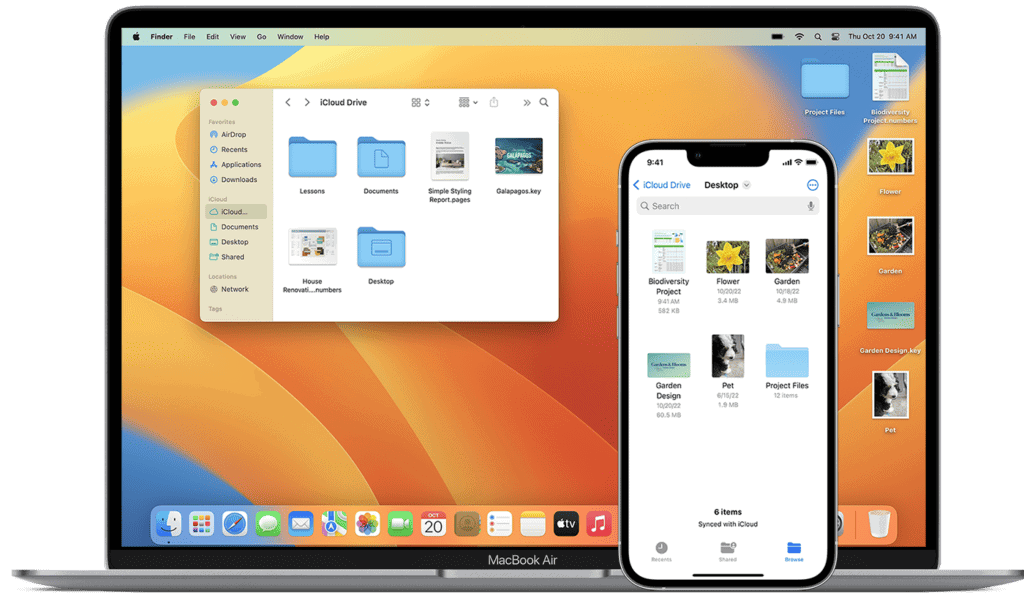
The Files app in iOS 11 recreated the Mac’s Finder experience, giving iPhone users direct control over document management. Password management and keychain access sync seamlessly between both platforms.
Frequently Asked Questions
Apple’s ecosystem connects iPhones and Macs through advanced features like Continuity, Handoff, and remote control capabilities. These integrations enable users to work seamlessly across devices.
How does Apple Continuity enhance the user experience between iPhone and Mac devices?
Continuity creates a unified experience between iPhone and Mac. Users can start tasks on one device and continue them on another without interruption.
The feature syncs clipboard content, allowing copied text or images to be pasted across devices instantly.
Messages, phone calls, and FaceTime work across both platforms. Mac users can send and receive SMS messages or make phone calls through their iPhone connection.
What are the steps to enable Handoff between my iPhone and Mac?
Sign in to iCloud with the same Apple ID on both devices. Enable Bluetooth and Wi-Fi on the iPhone and Mac.
Go to System Settings on Mac and iPhone. Select General > AirPlay & Handoff and toggle on “Allow Handoff.”
The devices must be within 30 feet of each other for Handoff to function properly.
In what ways can I use my iPhone to remotely control my Mac?
Remote Mouse turns the iPhone into a trackpad for Mac navigation. Users can control cursor movement and perform gestures.
Screen sharing lets users view and control their Mac’s display from an iPhone through the Home app.
Apple Remote Desktop provides complete Mac management from an iPhone, including file transfers and system monitoring.
What functionalities does the Continuity Camera offer for iPhone and iPad users?
Continuity Camera transforms an iPhone into a wireless webcam for Mac. It supports Center Stage, Studio Light, and Portrait mode.
Users can scan documents directly to their Mac using their iPhone camera.
The feature automatically recognizes nearby Macs and connects without manual setup.
How can I ensure seamless integration between my iPhone and the MacBook ecosystem?
Enable two-factor authentication on your Apple ID. Keep both devices updated to the latest software versions.
Connect both devices to the same Wi-Fi network. Turn on Bluetooth to enable automatic device detection.
Set up iCloud Drive to sync files and enable keychain sharing for password synchronization.
Which features were introduced in the iPhone 16 to improve compatibility with Macs?
The iPhone 16 includes enhanced AirDrop speeds for faster file transfers to Macs. The new model supports improved Continuity Camera resolution.
Advanced chipset integration enables faster device switching and reduced latency when using cross-device features.
Wi-Fi 7 compatibility provides stronger connections between iPhone 16 and newer Mac models.





