
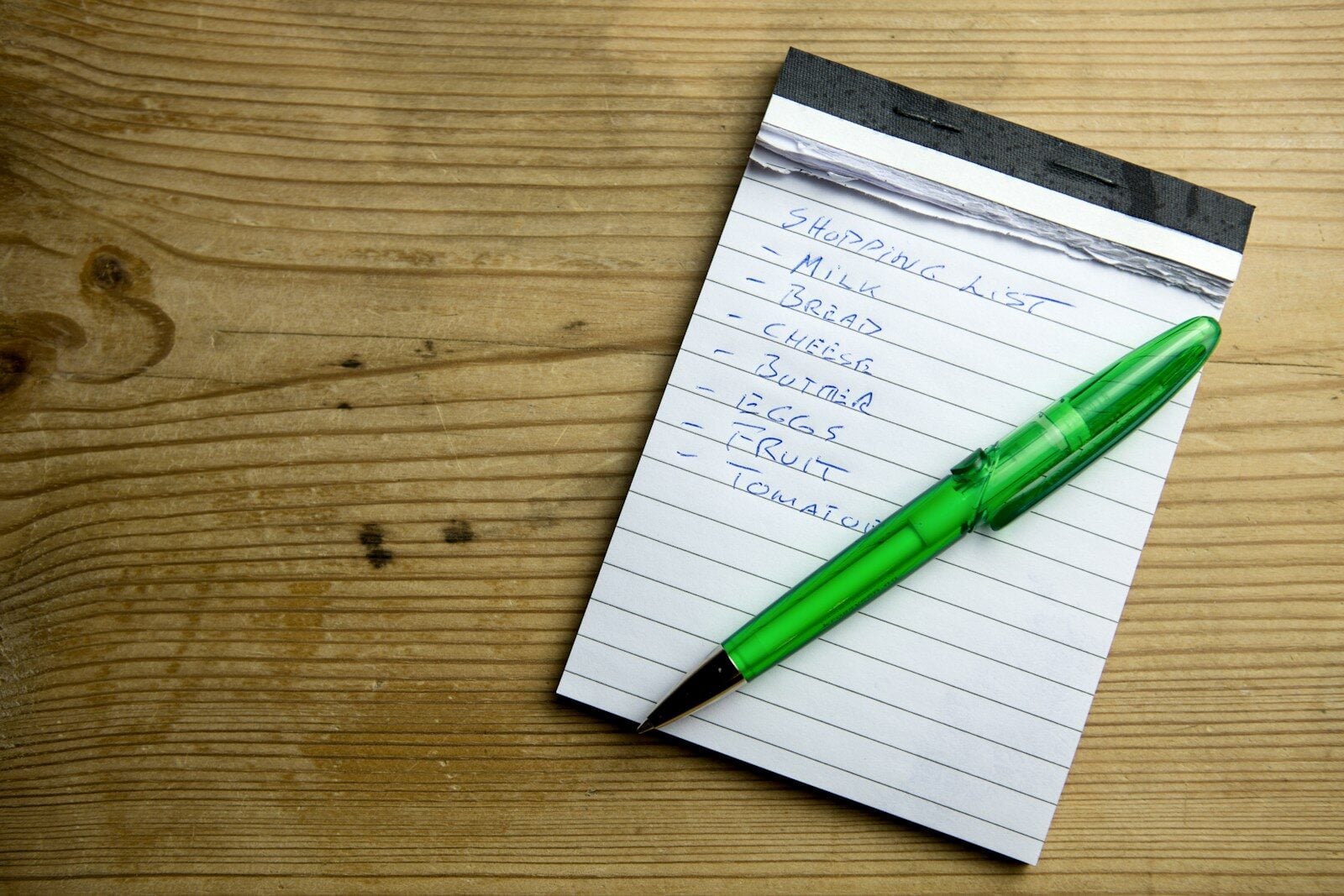
Creating a grocery list on your iPhone has never been easier. With the latest iOS 17 update, Apple has enhanced the Reminders app to make shopping a breeze. You can now create a dedicated grocery list that automatically sorts items into categories like Produce and Seafood, making your trip to the store more efficient.
The new grocery list feature in Reminders remembers your preferences and adapts to your shopping habits. You can quickly add items, share the list with family members, and check off products as you shop. This smart organization saves you time and ensures you don’t forget essential items.
For those who prefer a simpler approach, the Notes app still offers a straightforward option for jotting down your grocery needs. But the Reminders app’s new grocery-specific features make it a standout choice for most users.
| App | Auto-categorization | Sharing | Real-time updates |
|---|---|---|---|
| Reminders | Yes | Yes | Yes |
| Notes | No | Yes | Yes |
Grocery List on iPhone: Easy Tips for Digital Shopping Organization
Using your iPhone as a grocery list makes shopping faster, more organized, and easier to share with family members. With built‑in tools like Reminders and third‑party apps, you can automatically sort items, collaborate in real time, and never forget essentials again.
Here’s your complete guide to creating and managing a digital grocery list on iPhone.
🛒 Option 1: Use the Built‑In Reminders App (Best Free Method)
Apple’s Reminders app includes a dedicated Grocery List feature that automatically sorts items into categories like Produce, Dairy, Meat, and Seafood (source: Apple Support).
✅ How to Create a Grocery List
- Open Reminders
- Tap Add List
- Choose Groceries (list type)
- Name your list
- Tap Done
Now when you add items, they’ll be automatically grouped by category.
Example:
- Apples → Produce
- Milk → Dairy
- Salmon → Seafood
This auto‑sorting feature makes in‑store shopping much faster.
✅ Customize Categories
You can:
- Change how items are grouped
- Move items between sections
- Add custom categories
Apple notes that the list remembers your sorting preferences over time (source: Apple Support).
✅ Share Your Grocery List
Perfect for families or roommates.
- Open the grocery list
- Tap the Share icon
- Send an invite via Messages, Mail, or link
Everyone can:
- Add items
- Check off items in real time
- See updates instantly
🗣 Use Siri for Hands‑Free Adding
You can say:
“Hey Siri, add eggs to my grocery list.”
Siri will automatically place the item into the correct category.
This is one of the fastest ways to build a list while cooking or multitasking.
📝 Option 2: Use Notes (Simple Alternative)
If you prefer simplicity:
- Open Notes
- Create a new note
- Tap the Checklist icon
- Add items
This method doesn’t auto‑categorize but works well for quick lists.
📱 Option 3: Dedicated Grocery List Apps
If you want advanced features like coupons, meal planning, or smart suggestions, there are many grocery list apps available.
According to curated app listings, modern grocery apps offer:
- Smart item suggestions
- Custom categories
- Shared household syncing
- Meal planning integration
(source: AppsHunter)
Good Housekeeping highlights top grocery shopping list apps that make it easy to share lists across multiple users (source: Good Housekeeping).
Some popular app features include:
- Barcode scanning
- Price tracking
- Pantry inventory tracking
- Voice input
🥗 Use Your List for Meal Planning
You can combine your grocery list with weekly meal planning:
- Plan meals in Notes or a meal planning app
- Add ingredients directly to your grocery list
- Organize by store sections
Meal planning apps can help streamline both food prep and shopping (source: Affinity Cellular Blog).
🛍 Pro Tips for Better Digital Shopping
✅ Organize your list in store layout order
✅ Keep recurring staples saved
✅ Use shared lists for family coordination
✅ Check off items as you shop
✅ Review and reuse last week’s list
🔄 How to Reuse a Grocery List
In Reminders:
- Open your old list
- Uncheck completed items
- Add new items as needed
This saves time and keeps recurring groceries ready to go.
📊 Why Go Digital?
✔ No more forgotten paper lists
✔ Real‑time sharing
✔ Automatic sorting
✔ Voice control
✔ Cloud backup
✅ Final Thoughts
The easiest way to create a grocery list on iPhone is by using the Reminders app’s Grocery List type, which automatically sorts items into categories and supports real‑time sharing.
Setting up Your iPhone for Grocery Lists
The Reminders app on your iPhone offers a convenient way to manage grocery lists. Proper setup and integration with iCloud enhance its functionality across your devices.
Using the Reminders App
To start using Reminders for groceries, open the app on your iPhone. Create a new list by tapping “Add List” and selecting “Groceries” as the list type. This enables special features for grocery shopping.
Customize your list with a name and icon. Add items by tapping “New Item” and typing the product name. You can include additional details like quantities or brands by tapping “Add Note” for each item.
The Reminders app supports multiple languages. This allows you to create lists in your preferred language.
Optimizing iCloud for Reminders
To sync your grocery lists across devices, enable iCloud for Reminders. Go to Settings > [Your Name] > iCloud. Toggle on Reminders.
This ensures your lists update in real-time on all your Apple devices. It’s useful when sharing lists with family members or accessing them from different devices while shopping.
| Device | Sync Method |
|---|---|
| iPhone | iCloud |
| iPad | iCloud |
| Mac | iCloud |
Check that you’re signed in with the same Apple ID on all devices for seamless syncing.
Integrating with Other iOS Devices
Your grocery lists can be accessed on your iPad and Mac once iCloud sync is set up. On iPad, the Reminders app works similarly to the iPhone version.
For Mac users, open the Reminders app and your grocery lists will appear. You can add or edit items from your computer before heading to the store.
Siri integration allows you to add items to your list hands-free. Just say “Hey Siri, add milk to my grocery list” on any of your devices.
Creating and Managing Grocery Lists
The iPhone’s Reminders app offers powerful tools for creating and organizing grocery lists. You can easily add items, categorize them, and use subtasks for better organization.
Creating a New List
To start a new grocery list, open the Reminders app and tap “Add List” in the bottom right corner. Name your list and select “Groceries” as the list type. This enables special grocery-specific features.
You can customize the list’s appearance by choosing a color and icon. These visual cues help you quickly identify your grocery list among other reminders.
The Groceries list type automatically sorts items into categories like Produce, Dairy, and Bakery. This feature saves time when shopping by grouping related items together.
Adding Items and Details
To add items to your list, tap “New Item” and enter the product name. You can include additional details by tapping “Add Note” or the info button.
For each item, you can:
- Attach a photo
- Set a location-based reminder
- Add a due date
- Flag important items
These details help you remember specific brands, sizes, or where to find certain products in the store.
Categorizing Grocery Items
The Reminders app automatically categorizes your grocery items. As you add products, they’re sorted into relevant sections like:
- Produce
- Meat
- Frozen Foods
- Beverages
This automatic categorization streamlines your shopping experience. You can easily locate items in each store section without scrolling through a disorganized list.
If needed, you can manually adjust categories by tapping an item and selecting a different group.
Using Subtasks for Increased Organization
Subtasks offer an extra level of organization for your grocery lists. You can use them to:
- Group similar items
- Specify variations of a product
- List ingredients for a recipe
To add a subtask, swipe right on an item and tap the indent button. This creates a nested list under the main item.
For example, under “Apples” you might add subtasks for:
- Granny Smith
- Honeycrisp
- Red Delicious
This structure keeps your list tidy while providing detailed information about your shopping needs.
| Feature | Benefit |
|---|---|
| Automatic Categorization | Saves time while shopping |
| Subtasks | Organizes related items |
| Item Details | Ensures you buy the right products |
| Location Reminders | Prompts you when near the store |
Advanced Features for Grocery Shopping
The iPhone offers powerful tools to streamline your grocery shopping experience. These features use Siri’s voice commands and location-based reminders to make list management effortless.
Utilizing Siri for Grocery Lists
Siri simplifies adding items to your grocery list. Just say “Hey Siri, add milk to my grocery list” and it’s done. You can also ask Siri to read your list aloud while driving or cooking.
Siri recognizes common grocery items and categories. It can sort items automatically into sections like produce, dairy, or cleaning supplies. This organization saves time when shopping.
You can set up custom Siri Shortcuts for grocery tasks. For example, create a shortcut to add your weekly staples with one command.
Location-based Reminders for Shopping
Your iPhone can remind you about your grocery list when you arrive at the store. Set up a geofence around your usual supermarkets in the Reminders app.
When you enter the store, your phone will display your grocery list automatically. This feature ensures you never forget to check your list before shopping.
You can also set reminders for specific items at certain stores. If you only buy a particular brand at one shop, your iPhone will remind you when you’re there.
| Feature | Benefit |
|---|---|
| Siri Voice Commands | Hands-free list updates |
| Automatic Item Sorting | Organized shopping experience |
| Location-based Alerts | Timely list reminders |
| Store-specific Items | Targeted shopping reminders |
These advanced features transform your iPhone into a smart shopping assistant. They save time and reduce forgotten items, making grocery trips more efficient.
Grocery List Types and Items
Creating an organized grocery list on your iPhone helps streamline shopping trips. Customizing list types and categorizing items saves time and ensures you don’t forget essentials.
Common Grocery List Types
The Reminders app on iPhone offers various list types for groceries. You can create separate lists for weekly shopping, special occasions, or specific stores. To set up a new list, open Reminders and tap “Add List.” Choose “Groceries” as the list type.
Weekly shopping lists help you plan meals and stock up on staples. Special occasion lists are useful for holiday meals or parties. Store-specific lists let you organize items based on store layout or availability.
Consider creating recurring lists for items you buy regularly. This feature saves time and ensures you never run out of essentials.
Popular Items by Category
Organizing your grocery list by category makes shopping more efficient. Here’s a table of common categories and popular items:
| Category | Popular Items |
|---|---|
| Produce | Apples, lettuce, tomatoes |
| Dairy | Milk, cheese, yogurt |
| Meat | Chicken, ground beef, pork chops |
| Seafood | Salmon, shrimp, tuna |
| Frozen | Pizza, vegetables, ice cream |
| Bakery | Bread, bagels, muffins |
| Household | Paper towels, detergent, soap |
When adding items to your list, the Reminders app automatically categorizes them. This feature helps you quickly locate items while shopping.
You can customize categories or add new ones to fit your needs. Tap an item to edit its details or move it to a different category.
Frequently Asked Questions
The iPhone offers several ways to create and manage grocery lists. Users can utilize built-in apps or explore third-party options for a tailored shopping experience.
How can I use the grocery list feature on my iPhone?
You can use the Reminders app to create a grocery list on your iPhone. Open Reminders and tap “Add List.” Name your list and select “Groceries” as the list type. The app will automatically categorize items you add.
What steps are needed to create a grocery list in the iPhone Notes app?
To make a grocery list in Notes, open the app and tap the compose button. Title your note “Grocery List” and start adding items. You can use bullet points or checkboxes to organize your list.
Can I share my iPhone grocery list with another person, and if so, how?
Yes, you can share your grocery list. In Reminders, open your list and tap the More button. Choose “Share List” and select how you want to send the invitation. The recipient can then view and edit the list.
What should I do if my iPhone grocery list feature is not functioning properly?
If you’re having issues, first ensure your iPhone is updated to the latest iOS version. Restart the Reminders app or your device. If problems persist, check your iCloud settings to make sure syncing is enabled for Reminders.
Are there any grocery list templates available within the Apple Reminders app?
The Reminders app doesn’t offer pre-made templates. However, it automatically categorizes items in grocery lists. You can create a custom template by making a list and duplicating it when needed.
How can I effectively manage a shopping list using my iPhone?
To manage your shopping list effectively, use categories within Reminders. Add notes or photos to items for clarity. Set location-based reminders to alert you when near the store. Regularly update and clean your list to keep it current.
| Feature | Reminders App | Notes App |
|---|---|---|
| Auto-categorization | Yes | No |
| Sharing | Easy | Possible |
| Templates | No | Manual |
| Location alerts | Yes | No |
| Photo attachments | Yes | Yes |





