
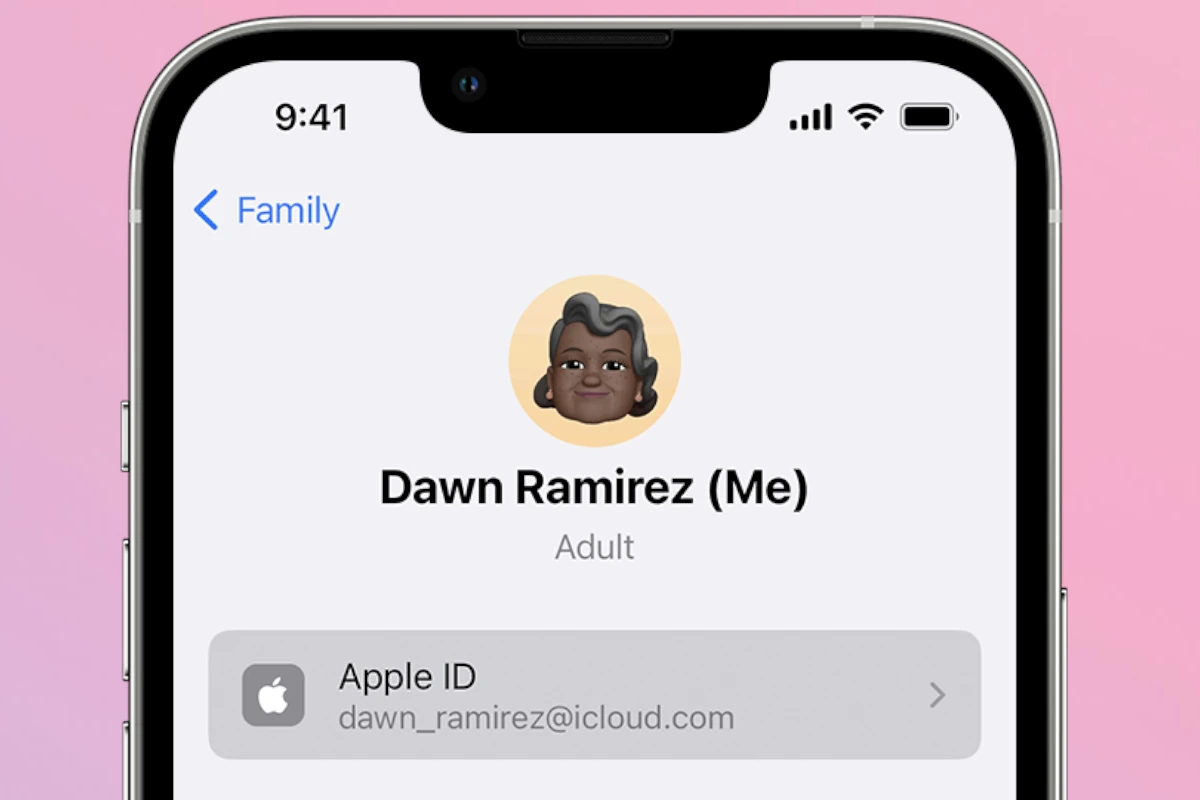
Forgetting your Apple ID can be frustrating, but there are simple ways to find it. Your Apple ID is typically the email address you use for Apple services. If you can’t remember it, don’t worry.
Apple offers several methods to recover your account information. You can check your devices, look through your emails, or use Apple’s official recovery page. These options make it easy to get back into your account quickly.
Let’s explore the most effective ways to find your Apple ID. We’ll cover steps for different devices and situations. This guide will help you regain access to your Apple services in no time.
| Device | Where to Find Apple ID |
|---|---|
| iPhone/iPad | Settings > Your Name |
| Mac | System Preferences > Apple ID |
| Web | appleid.apple.com |
Find My Apple ID: Quick Steps to Recover Your Account
Forgot your Apple ID or can’t remember the email address you used? Don’t worry — Apple provides several ways to find and recover your account quickly.
This guide walks you through step‑by‑step recovery options in 2026.
✅ What Is Your Apple ID?
Your Apple ID (now called Apple Account) is the email address you use to:
- Sign in to iCloud
- Download apps from the App Store
- Use FaceTime and iMessage
- Access Apple Music, iCloud Drive, and more
If you forget either your Apple ID email or password, follow the steps below.
🔍 Step 1: Check If You’re Already Signed In
Before starting recovery, check your device:
On iPhone or iPad:
- Go to Settings
- Tap your name at the top
- Your Apple ID email appears under your name
Apple explains you can view your Apple Account details directly in Settings if you’re signed in (source: Apple Support).
On Mac:
- Click Apple menu ()
- Select System Settings
- Click your name at the top
On Windows PC:
Open iCloud for Windows and check your account information under your name (source: Apple Support).
🔐 Step 2: Use Apple’s Account Recovery Website
If you can’t access your account:
- Go to Apple’s recovery site:
👉 https://iforgot.apple.com/
Apple’s official recovery page helps you reset your password or recover your account (source: Apple – Recover Your Apple Account).
- Enter your Apple ID (email address)
- Follow the on-screen verification steps
- Reset your password
📧 Step 3: Forgot Your Apple ID Email Address?
If you don’t remember the email:
Visit Apple’s account recovery page and choose the option to look it up.
Apple provides steps for recovering a forgotten Apple Account email or phone number (source: Apple Support).
You may need to enter:
- Your first and last name
- A recovery email address
- A phone number associated with the account
📱 Step 4: Use a Trusted Device
If you have access to a device already signed in:
Reset Password on iPhone/iPad:
- Go to Settings
- Tap your name
- Select Sign-In & Security
- Tap Change Password
Apple states you can reset your password directly from a signed-in device (source: Apple Support).
📞 Step 5: No Trusted Device? Use a Trusted Phone Number
If you don’t have access to an Apple device:
- Use the iforgot.apple.com website
- Verify using your trusted phone number
Apple notes that you can even borrow an Apple device and use the Apple Support app to recover your account (source: Apple Support).
You can also visit an Apple Store for assistance.
⏳ Step 6: Account Recovery (If Locked Out)
If you can’t verify your identity immediately, Apple may begin Account Recovery.
This process:
- May take several days
- Protects your account from unauthorized access
- Sends updates via email or text
Follow all instructions carefully and monitor your email.
🚨 Common Apple ID Issues & Fixes
| Problem | Solution |
|---|---|
| Forgot password | Use iforgot.apple.com |
| Forgot Apple ID email | Use account lookup tool |
| Locked out after failed attempts | Wait and retry or start recovery |
| Two-factor authentication issues | Use trusted device or number |
| No access to phone number | Start Account Recovery |
✅ Tips to Prevent Future Lockouts
- Add a recovery email
- Keep your trusted phone number updated
- Enable two-factor authentication
- Use a password manager
- Avoid sharing verification codes
📌 Official Apple Support Resources
- Recover your account:
https://iforgot.apple.com/ - Apple Account Support:
https://support.apple.com/apple-account - Forgot password help:
https://support.apple.com/en-us/102656 - Forgot Apple ID email help:
https://support.apple.com/en-us/102627
✅ Final Thoughts
If you’ve forgotten your Apple ID or password, don’t panic. In most cases, you can recover your account in just a few minutes using Apple’s official tools.
Start by checking if you’re signed in on an existing device. If not, use Apple’s recovery website and follow the verification steps carefully.
With the right information, you’ll be back into your Apple account quickly and securely.
Understanding Your Apple ID
Your Apple ID serves as the key to accessing Apple’s ecosystem of services and devices. It’s essential for managing your Apple account and using various features across your devices.
Definition and Importance
An Apple ID is a unique account that lets you access Apple services. It consists of an email address and password. This identifier is crucial for using iCloud, the App Store, and other Apple platforms.
Your Apple ID links your devices and data. It allows you to make purchases, sync content, and back up information. Without it, you can’t fully use your Apple products or services.
Apple IDs also enhance security. They enable two-factor authentication to protect your account. This extra layer of security helps keep your personal information safe.
Components and Usage
Your Apple ID includes several key components:
- Email address (primary identifier)
- Password
- Security questions
- Recovery information
You use your Apple ID to sign in to various Apple services. These include:
| Service | Purpose |
|---|---|
| iCloud | Sync and store data |
| App Store | Download and purchase apps |
| iTunes | Buy music and videos |
| FaceTime | Make video calls |
| iMessage | Send messages |
To manage your Apple ID, visit the Apple ID website. Here you can update your info, check your devices, and adjust security settings.
If you forget your Apple ID, you can recover it through several methods. Check your devices or ask family members if you’re part of Family Sharing. Apple Support can also help if needed.
Recovering Your Apple ID
Regaining access to your Apple ID is crucial for using Apple services and devices. Several methods are available to help you recover your account quickly and securely.
Using Iforgot.Apple.Com
Apple’s dedicated account recovery website offers a straightforward way to retrieve your Apple ID. Visit the site and enter your name, email, or phone number associated with your account. Follow the prompts to verify your identity through security questions or trusted contact information.
If you can’t remember your Apple ID, look for it in your email inbox. Apple often sends messages to the address linked to your account. Check your device settings or App Store purchases for clues.
Two-factor authentication adds an extra layer of security. If enabled, you’ll need a trusted device or phone number to complete the recovery process.
Through iOS and iPadOS Devices
Your iPhone or iPad provides built-in tools to recover your Apple ID. Open the Settings app and tap your name at the top. If you’re not signed in, tap “Sign in to your iPhone” and select “Forgot Apple ID or Password?”
Use the Apple Support app for a guided recovery process. Download it from the App Store if needed. The app walks you through each step, including resetting your password and updating account information.
If you can’t get past your device’s lock screen, use the passcode recovery option. This may require erasing your device, so ensure you have a recent backup.
On macOS and Apple Watch
Mac users can recover their Apple ID through System Preferences. Click the Apple menu, select “System Preferences,” then click “Apple ID.” Choose “Forgot Apple ID or password” and follow the instructions.
For Apple Watch, use the paired iPhone to start the recovery process. Open the Watch app and tap the “My Watch” tab. Select “Passcode” and then “Reset Passcode” to begin.
| Device | Recovery Method |
|---|---|
| iPhone/iPad | Settings app or Apple Support app |
| Mac | System Preferences |
| Apple Watch | Watch app on paired iPhone |
Remember to keep your recovery information up to date. This includes trusted phone numbers, email addresses, and security questions. Regular updates ensure you can always regain access to your Apple ID when needed.
Accessing Apple Services
Your Apple ID is the key to accessing various Apple services across multiple devices. It enables seamless integration and personalized experiences.
Using Apple ID on Various Devices
On an iPhone or iPad, go to Settings and tap your name at the top. This opens your Apple ID settings. Here you can manage your account, iCloud, and app-related preferences.
For Mac users, click the Apple menu and select System Settings. Click your name to access Apple ID settings. You can review connected devices and adjust iCloud sync options.
Windows PC owners can use iCloud for Windows to access some Apple services. Download it from the Microsoft Store and sign in with your Apple ID.
Apple Watch users can manage their Apple ID through the paired iPhone. Open the Watch app and tap the My Watch tab to adjust settings.
Managing Apple ID Across Services
The App Store uses your Apple ID for purchases and subscriptions. You can view your purchase history and manage payment methods in the account settings.
iCloud syncs data across devices. Control what syncs in your Apple ID settings. You can also manage storage and adjust backup settings.
| Service | Main Features |
|---|---|
| App Store | Purchases, subscriptions |
| iCloud | Data sync, storage, backups |
| Apple Music | Streaming, library sync |
| FaceTime | Video calls |
| iMessage | Text messaging |
To change your Apple ID email, visit appleid.apple.com. Sign in and select “Edit” in the Account section. You may need to verify your identity to make changes.
Troubleshooting and Support
Finding your Apple ID can sometimes be tricky. Here are some solutions to common issues and ways to get help if you need it.
Common Login Issues and Solutions
Can’t remember your Apple ID? Try these steps:
- Check your devices: Look in Settings on iPhone/iPad or System Preferences on Mac.
- Review your email: Search for messages from Apple.
- Use the iForgot website: Enter your name and email to recover your account.
Forgot your password? Reset it easily:
- On an Apple device: Go to Settings > [Your Name] > Password & Security > Change Password.
- On the web: Visit appleid.apple.com and click “Forgot Apple ID or password?”
Two-factor authentication problems? Make sure you have:
- A trusted device with the latest OS
- An up-to-date alternate phone number
Contacting Apple Support
Need more help? Apple offers several support options:
- Apple Support app: Download for personalized help on iOS devices.
- Phone: Call 1-800-MY-APPLE (1-800-692-7753) in the US.
- Chat: Start a live chat session on Apple’s support website.
- Twitter: Tweet @AppleSupport for quick responses.
For account security issues, it’s best to speak directly with an Apple representative. They can verify your identity and provide secure assistance with Apple ID problems.
| Support Method | Best For | Response Time |
|---|---|---|
| App/Website | General issues | Immediate |
| Phone | Complex problems | 5-10 minutes |
| Chat | Quick questions | 1-5 minutes |
| Simple inquiries | Within 24 hours |
Frequently Asked Questions
Apple ID retrieval and management can be straightforward with the right guidance. Here are answers to common questions about finding and recovering your Apple ID across different devices.
How do I retrieve my existing Apple ID information?
You can retrieve your Apple ID information by visiting the Apple ID account page. Enter your first name, last name, and email address. Apple will send you an email with your account details.
What steps are involved in finding my Apple ID on my iPhone?
To find your Apple ID on your iPhone, go to Settings. Tap your name at the top of the screen. Your Apple ID appears at the top of this page. If you’re not signed in, tap “Sign in to your iPhone” and follow the prompts.
How can I locate my Apple ID on my iPad?
The process for locating your Apple ID on an iPad is similar to the iPhone. Open Settings and look for your name at the top. Tap it to view your Apple ID. If you’re not signed in, you’ll see an option to sign in instead.
What is the process for recovering my Apple ID and password?
To recover your Apple ID and password, visit the Apple ID account recovery page. Click “Forgot Apple ID or password.” Enter your Apple ID email or phone number. Choose to reset your password or retrieve your Apple ID.
How can I find all accounts associated with my Apple ID?
Sign in to your Apple ID account page. Under the “Devices” section, you’ll see a list of all devices linked to your Apple ID. This includes iPhones, iPads, Macs, and other Apple products.
Where can I find out what my Apple ID email is?
If you’ve forgotten your Apple ID email, check your iPhone or iPad settings. Look for your name at the top and tap it. Your Apple ID email will be listed. You can also ask a family member if you’re part of Family Sharing.
| Method | Device | Steps |
|---|---|---|
| Settings | iPhone/iPad | Settings > Your Name > Apple ID |
| Account Page | Any Device | Visit appleid.apple.com |
| Family Sharing | Any Device | Ask a family member |
| App Store | iPhone/iPad | Open App Store > Profile Picture |





