
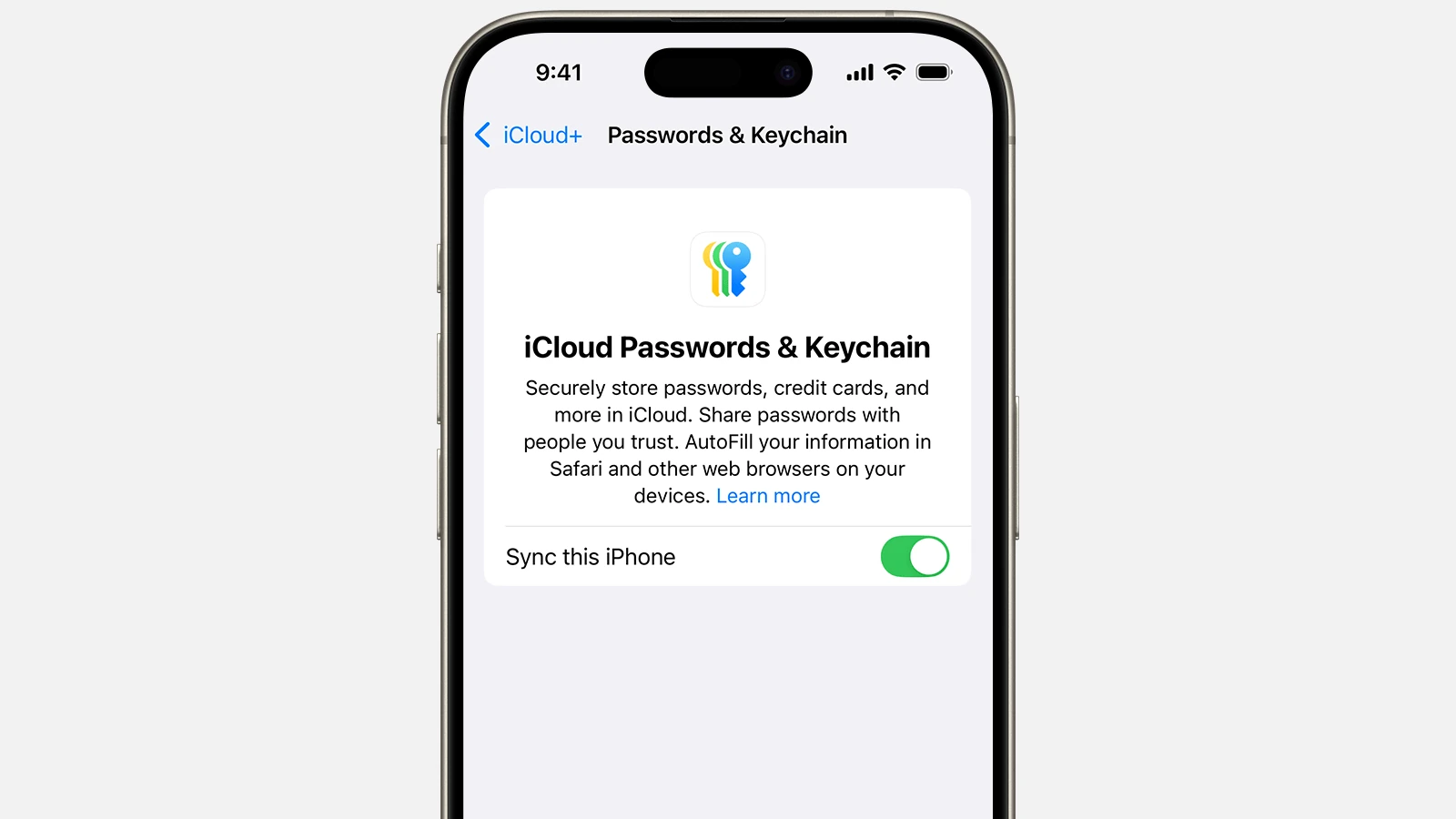
iCloud Passwords and Keychain simplify digital life. You can securely store and sync passwords across all your Apple devices. This built-in tool remembers login details so you don’t have to.
iCloud Keychain keeps your passwords, credit card info, and Wi-Fi network data up to date on all your approved devices. It works seamlessly with Safari to autofill passwords and suggest strong ones when you create new accounts. You can also use it to generate and store two-factor authentication codes.
Setting up iCloud Keychain is easy. Just turn it on in your iCloud settings and approve your devices. Your data stays secure with end-to-end encryption. You can access your passwords anytime from your iPhone, iPad, Mac, or even Windows PC.
| Feature | iCloud Keychain |
|---|---|
| Cost | Free |
| Device Support | iOS, macOS, Windows |
| Sync | Automatic |
| Security | End-to-end encryption |
iCloud Passwords and Keychain: Managing Your Digital Security (2026 Guide)
iCloud Keychain (now integrated with the Apple Passwords app) securely stores your passwords, passkeys, Wi‑Fi credentials, and other sensitive information — and keeps them updated across your Apple devices.
This guide explains how it works, how to set it up, and how to manage your digital security effectively.
🔐 What Is iCloud Keychain?
iCloud Keychain securely stores:
- Website usernames & passwords
- App logins
- Wi‑Fi passwords
- Credit card details
- Passkeys
- Two‑factor verification codes
It syncs this data across your iPhone, iPad, Mac, and even Windows (via iCloud for Windows) using end‑to‑end encryption (source: Apple Support – Set up iCloud Keychain).
In recent iOS versions, saved credentials are managed in the dedicated Passwords app.
✅ How to Turn On iCloud Keychain
On iPhone or iPad
- Open Settings
- Tap your Apple ID (your name)
- Tap iCloud
- Tap Passwords & Keychain
- Turn on Sync this iPhone
(Source: Apple Support)
On Mac
- Open System Settings
- Click your Apple ID
- Click iCloud
- Turn on Passwords & Keychain
On Windows PC
- Install iCloud for Windows
- Sign in with Apple ID
- Enable Passwords
- Install the iCloud Passwords browser extension
(Source: PCMag Guide)
🔑 How to Find Saved Passwords
On iPhone (Passwords App)
- Open Passwords
- Authenticate with Face ID / Touch ID
- Browse or search for a website/app
- Tap to view or edit login
(Source: Apple Support – Find saved passwords)
On Mac
- Open System Settings → Passwords
- Authenticate
- View, edit, or copy credentials
🌍 How Password Autofill Works
When logging into a website or app:
- Tap the username field
- Choose saved credentials
- Authenticate
- Login automatically fills
Works in:
- Safari
- Many third‑party apps
- Chrome/Edge (with extension on Windows)
(Source: Apple Support)
🔐 What Are Passkeys?
Passkeys are a password replacement that:
- Use Face ID / Touch ID
- Cannot be phished
- Are stored securely in iCloud Keychain
- Sync across Apple devices
They are now supported by many major websites in 2026.
🛡 Security Features
iCloud Keychain uses:
✅ End‑to‑end encryption
✅ Two‑factor authentication required
✅ Biometric authentication for access
✅ Security recommendations (weak/reused passwords alerts)
Apple does not have access to your passwords due to encryption (source: Apple Support).
⚠️ Security Recommendations (Password Monitoring)
Inside the Passwords app:
- Open Passwords
- Tap Security
- View:
- Weak passwords
- Reused passwords
- Data leak alerts
Apple checks compromised credentials against known breach databases privately (source: Apple Support).
💳 Managing Saved Credit Cards
- Go to Settings → Safari → Autofill
- Tap Saved Credit Cards
- Authenticate
- Add, edit, or delete cards
Credit card numbers are encrypted and not shared with websites.
🔄 How to Edit or Delete a Password
- Open Passwords
- Select account
- Tap Edit
- Modify details or tap Delete Password
👨👩👧 Family Sharing and Passwords
You can share passwords securely with trusted contacts:
- Open Passwords
- Select a password
- Tap Share
- Choose contact
Shared passwords update automatically across devices.
🔁 Sync Not Working? Try This
✅ Check iCloud is signed in
✅ Ensure Passwords & Keychain toggle is ON
✅ Enable Two‑Factor Authentication
✅ Restart device
✅ Update to latest iOS/macOS
(Source: Apple Support Setup Guide)
🚨 Lost Access to Apple ID?
If you forget your Apple ID password:
- Go to iforgot.apple.com
- Start account recovery process
Without Apple ID access, encrypted Keychain data cannot be restored.
🆚 iCloud Keychain vs Third‑Party Password Managers
| Feature | iCloud Keychain | Third‑Party (e.g., 1Password) |
|---|---|---|
| Built into Apple devices | ✅ | ❌ |
| Cross-platform | Limited (Apple + Windows) | ✅ |
| End‑to‑end encryption | ✅ | ✅ |
| Subscription required | ❌ | Usually ✅ |
✅ Best Practices for Digital Security (2026)
- Use passkeys whenever available
- Enable Two‑Factor Authentication
- Don’t reuse passwords
- Review Security Recommendations monthly
- Keep devices updated
🔎 Quick Checklist
- iCloud Keychain enabled
- Two‑Factor Authentication on
- Weak passwords updated
- Passkeys enabled where possible
- Devices running latest OS
🎯 Final Thoughts
iCloud Keychain and the Passwords app provide a powerful, secure, and convenient way to manage your digital identity across devices. With passkeys becoming more common, it’s one of the safest ways to protect your online accounts in 2026.
Understanding iCloud Keychain
iCloud Keychain simplifies password management and enhances security across Apple devices. It securely stores and syncs your passwords, credit card info, and other sensitive data.
Fundamentals of iCloud Keychain
iCloud Keychain works seamlessly on your iPhone, iPad, and Mac. It automatically fills in saved passwords and credit card details when you need them. To use it, enable iCloud Keychain in your device settings.
Key features:
- Password generation
- Autofill for websites and apps
- Secure notes storage
- Wi-Fi password syncing
iCloud Keychain also supports passkeys, a more secure alternative to traditional passwords. These digital keys are unique to each site and harder for hackers to steal.
| Feature | Benefit |
|---|---|
| Syncing | Access passwords on all devices |
| Autofill | Save time logging in |
| Password generator | Create strong, unique passwords |
Security and Encryption
Apple prioritizes your data safety with iCloud Keychain. It uses end-to-end encryption to protect your information. This means only you can access your data, not even Apple.
Your keychain is secured by a strong passcode. To recover it on a new device, you must:
- Authenticate with your Apple ID
- Respond to an SMS sent to your trusted phone number
Two-factor authentication adds an extra layer of security. It requires a second form of verification besides your password to access your account.
iCloud Keychain’s encryption makes it difficult for hackers to access your data. It keeps your passwords safe even if Apple’s servers are compromised.
Setting Up and Using iCloud Keychain
iCloud Keychain simplifies password management across Apple devices. It securely stores and syncs your login credentials, credit card details, and Wi-Fi passwords.
Enabling iCloud Keychain on Apple Devices
To activate iCloud Keychain on your iPhone or iPad:
- Open Settings
- Tap your Apple ID at the top
- Select iCloud
- Scroll down and tap Keychain
- Toggle iCloud Keychain on
For Mac users:
- Click the Apple menu
- Choose System Preferences
- Click Apple ID
- Select iCloud in the sidebar
- Check the box next to Keychain
You’ll need to enter your Apple ID password and set up a security code. This code protects your keychain data and allows you to set up iCloud Keychain on other devices.
Autofill Feature for Quick Access
Once enabled, iCloud Keychain works with AutoFill to streamline your online experience. In Safari and supported apps, you’ll see suggestions for saved passwords when logging in.
To use AutoFill:
- Tap a login field
- Select the suggested credential
- Authenticate with Face ID, Touch ID, or your passcode
On Mac, AutoFill appears as a dropdown in login fields. Click the suggestion to fill in your credentials.
| Device | AutoFill Activation |
|---|---|
| iOS/iPadOS | Settings > Passwords > AutoFill Passwords |
| macOS | System Preferences > Passwords > AutoFill Passwords |
This feature saves time and reduces the risk of typos in complex passwords.
Managing Passwords and Auto-Fill Entries
The Passwords app on iOS and iPadOS lets you view and edit your saved credentials. On Mac, use the Passwords pane in System Preferences.
To manage your passwords:
- Open the Passwords app or preferences
- Authenticate with your device passcode or Touch ID
- Browse or search for specific entries
You can add new passwords, edit existing ones, or delete outdated entries. The app also flags weak or reused passwords, helping you improve your online security.
For shared password groups, iOS 17 introduced a new feature. You can now set up shared password groups with family members or trusted contacts, making it easier to manage shared accounts securely.
iCloud Passwords on Different Platforms
Apple’s iCloud Passwords feature works across various devices and operating systems. It syncs your login credentials and keeps them secure. Let’s explore how to use iCloud Passwords on different platforms.
iCloud Keychain on macOS and iOS
On Apple devices, iCloud Keychain integrates seamlessly with the operating system. To enable it, go to Settings > Your Name > iCloud > Passwords and Keychain on iOS. For macOS, access System Preferences and click on Apple ID, then iCloud.
Once activated, your passwords sync across all your Apple devices. Safari automatically fills in saved credentials when you visit websites. You can also view and manage your passwords in the Settings app on iOS or the Keychain Access app on macOS.
Key features:
- Automatic password generation
- Two-factor authentication code autofill
- Secure notes storage
Accessing iCloud Passwords on Windows PC
Apple offers iCloud for Windows, allowing you to access your iCloud Passwords on a PC. After installation, you can use the iCloud Passwords extension for Chrome or Edge browsers.
To set it up:
- Download iCloud for Windows from the Microsoft Store
- Sign in with your Apple ID
- Enable the Passwords option
- Install the browser extension
The extension lets you autofill passwords and access your iCloud Keychain on Windows. It syncs changes back to your Apple devices, ensuring your passwords stay up-to-date across all platforms.
| Feature | macOS/iOS | Windows |
|---|---|---|
| Autofill | Yes | Yes (with extension) |
| Password generation | Yes | Yes |
| 2FA code support | Yes | Limited |
| Native app integration | Yes | No |
Advanced Features and Best Practices
iCloud Keychain offers powerful tools to enhance your password security. You can generate strong passwords, share them securely, and manage recovery options. These features help protect your accounts and simplify password management across devices.
Generating Strong Passwords
iCloud Keychain can create strong, unique passwords for your accounts automatically. When signing up for a new service, tap the password field and choose “Suggest Strong Password.”
The generated password will include a mix of uppercase and lowercase letters, numbers, and symbols. This complexity makes it much harder for hackers to guess or crack.
You can customize password requirements if a site has specific rules. Simply tap “Password Options” to adjust length or character types.
For added security, enable two-factor authentication on your Apple ID. This adds an extra layer of protection to your iCloud Keychain.
Sharing Passwords Securely
iCloud Keychain allows you to share passwords safely with family or trusted contacts. To share a password:
- Open the Passwords app
- Select the password you want to share
- Tap “Share Password”
- Choose your sharing method (AirDrop, Messages, etc.)
The recipient must be using an Apple device with the latest OS to accept shared passwords securely. Shared passwords are encrypted end-to-end for maximum protection.
You can also create shared password groups for family accounts or work teams. This simplifies managing access to shared services.
Password Recovery and Deletion
If you forget your iCloud Keychain password, you have several recovery options:
- Use Face ID or Touch ID on your devices
- Answer security questions you set up previously
- Use your Apple ID password as a fallback
To delete a saved password:
- Open the Passwords app
- Find the password you want to remove
- Swipe left and tap “Delete”
You can also ask Siri to delete passwords for you. Just say “Hey Siri, delete my password for [website name].”
Regularly review your saved passwords and delete any you no longer need. This helps keep your keychain organized and secure.
| Feature | Benefit |
|---|---|
| Strong Password Generation | Creates complex, unique passwords |
| Secure Sharing | Safely share passwords with trusted contacts |
| Recovery Options | Multiple ways to regain access if you forget |
| Easy Deletion | Quickly remove outdated or unused passwords |
Frequently Asked Questions
iCloud Keychain offers password management across Apple devices. Users often have questions about accessing and using this feature on different platforms and devices.
How can I access my iCloud Keychain passwords on an Android device?
iCloud Keychain is not natively supported on Android. You can’t directly access your passwords on Android devices. As a workaround, you may use a third-party password manager that syncs with iCloud.
Is it possible to view and manage my iCloud Keychain passwords on a Windows PC?
Yes, you can view and manage your iCloud Keychain passwords on Windows. Install iCloud for Windows from the Microsoft Store. After setup, you can access your passwords through the iCloud Passwords Chrome extension.
What steps should I follow to see my passwords stored in iCloud Keychain on an iPhone?
To view your iCloud Keychain passwords on iPhone:
- Open Settings
- Tap on your Apple ID at the top
- Select “Passwords & Accounts”
- Tap “Website & App Passwords”
- Use Face ID or Touch ID to authenticate
You can now see and manage all your stored passwords.
How can I use iCloud Keychain with Google Chrome?
To use iCloud Keychain with Chrome:
- Install iCloud for Windows
- Add the iCloud Passwords extension to Chrome
- Sign in with your Apple ID
- Enable the extension
Your passwords will now sync between Chrome and iCloud Keychain.
Is iCloud Keychain considered secure for storing passwords?
Yes, iCloud Keychain is secure. It uses 256-bit AES encryption for stored data. Apple’s end-to-end encryption ensures only you can access your information.
How can I find my iCloud account password?
If you’ve forgotten your iCloud password:
- Go to iforgot.apple.com
- Enter your Apple ID
- Choose to reset your password
- Select either email authentication or security questions
- Follow the prompts to create a new password
Always use a strong, unique password for your iCloud account.
| Feature | iCloud Keychain | Third-Party Password Managers |
|---|---|---|
| Cost | Free | Often paid subscriptions |
| Platform | Apple ecosystem | Cross-platform |
| Security | 256-bit AES | Varies by provider |
| Sync | Automatic | Manual or automatic |
| Features | Basic | Advanced options available |





