
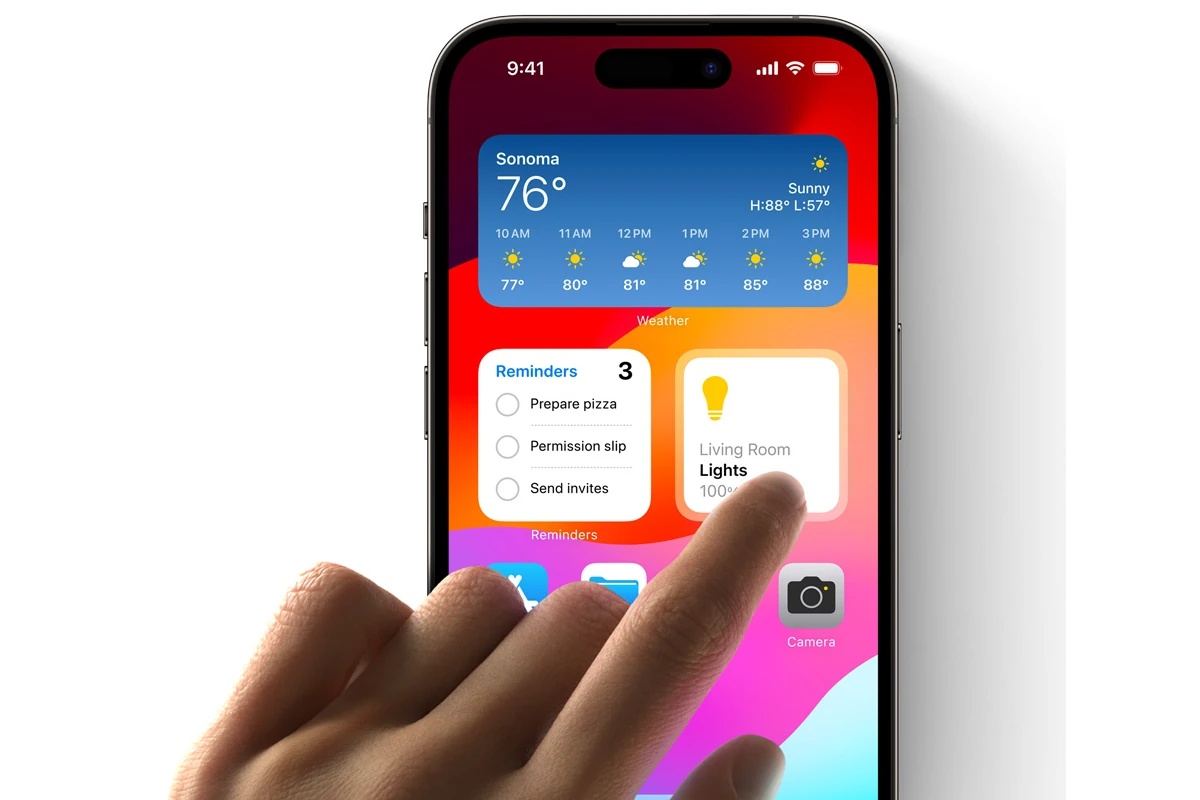
With iOS 16 and later, Apple introduced a customizable Lock Screen that lets you add widgets for quick access to information like weather, calendar events, battery levels, and more—without unlocking your iPhone. This guide walks you through how to add, remove, and customize Lock Screen widgets on iOS, plus tips to get the most out of them.
What Are Lock Screen Widgets on iOS?
Lock Screen widgets are small, glanceable information panels that appear:
- Below the time (compact widgets like weather or battery)
- Above the time (date-style widgets from some apps)
They’re designed to show useful info at a glance, not full interactions.
✅ Available on iOS 16, iOS 17, and newer
How to Add Widgets to the Lock Screen on iOS
Step-by-Step Instructions
- Wake your iPhone (Face ID or Touch ID devices)
- Press and hold on the Lock Screen until customization mode appears
- Tap Customize
- Select Lock Screen
- Tap the widget area below the time
- Choose a widget from Apple or third‑party apps
- Tap or drag the widget into place
- Tap Done to save
That’s it—your widget is now live on the Lock Screen.
Types of Lock Screen Widgets
| Widget Size | Location | Examples |
|---|---|---|
| Small | Below the time | Weather, Battery, Fitness rings |
| Medium | Below the time | Calendar, Clock, Reminders |
| Inline | Above the time | Date, temperature, next event |
You can mix and match widgets as long as they fit in the available space.
How to Remove or Replace Lock Screen Widgets
- Long‑press the Lock Screen
- Tap Customize → Lock Screen
- Tap the widget you want to remove
- Select Remove or replace it with another widget
- Tap Done
How to Add Third‑Party Widgets
Many apps support Lock Screen widgets, including:
- Spotify
- Google Maps
- Todoist
- Carrot Weather
- Widgetsmith
✅ Make sure the app is installed and updated—its widgets will automatically appear in the widget list.
Create Multiple Lock Screens with Different Widgets
You can create multiple Lock Screens and switch between them.
How to Add a New Lock Screen:
- Long‑press the Lock Screen
- Swipe to the end
- Tap + Add New
- Customize wallpaper and widgets
- Tap Done
Swipe between Lock Screens anytime.
Lock Screen Widgets vs Home Screen Widgets
| Feature | Lock Screen Widgets | Home Screen Widgets |
|---|---|---|
| Interaction | Limited | Full interaction |
| Size | Small/compact | Small, medium, large |
| Access | No unlock required | Requires unlock |
| Customization | Tied to Lock Screen | App-based |
Tips for Using Lock Screen Widgets Effectively
- Prioritize glanceable info (weather, battery, calendar)
- Avoid overcrowding—clarity matters
- Match widgets to Focus modes (Work, Sleep, Personal)
- Use dark wallpapers for better widget contrast
Why Can’t I Add Widgets to My Lock Screen?
If widgets aren’t showing:
- Ensure your iPhone is running iOS 16 or later
- Unlock with Face ID before customizing
- Update apps that provide widgets
- Restart your iPhone if widgets fail to load
Final Thoughts
Lock Screen widgets on iOS make your iPhone more personal, functional, and efficient. Once set up, you can see important information at a glance—no unlocking required.





