
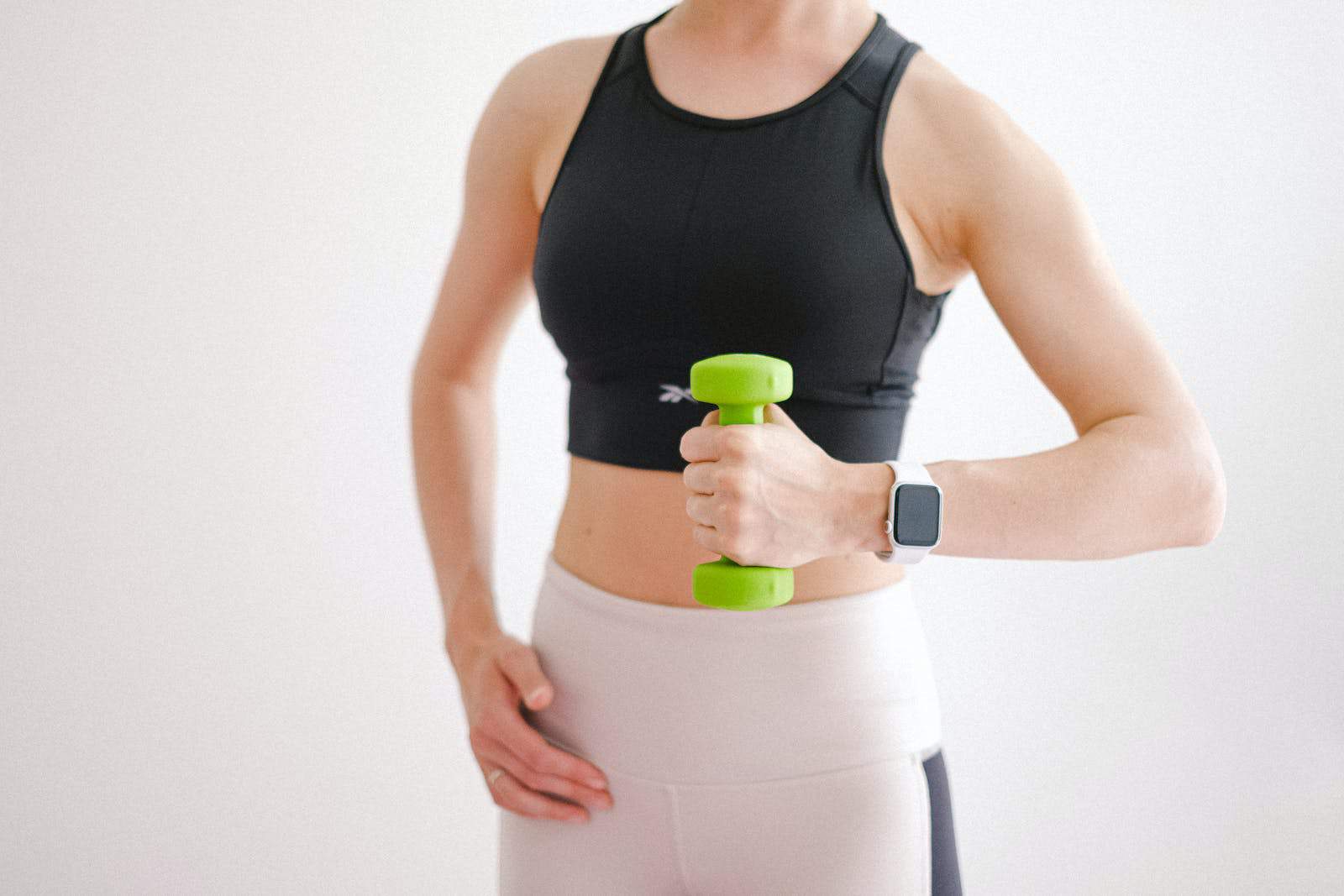
Adding a workout to your Apple Watch is simple. You can manually log your exercise in the Health app on your iPhone if you forget to start a workout on your watch. This ensures you get credit for your efforts and maintain an accurate fitness record.
The process takes just a few taps. Open the Health app, go to the Browse tab, and select Activity. Scroll down to find the Workouts section. There, you can add data for various exercise types, including duration and calories burned.
Keep in mind that manually added workouts don’t count towards your Activity rings. But they still contribute to your overall fitness tracking. This feature helps you maintain a complete picture of your physical activity, even when technology slips your mind.
| Workout Type | Calories/Hour | Impact Level |
|---|---|---|
| Walking | 280-460 | Low |
| Running | 560-840 | High |
| Swimming | 400-700 | Low |
| Cycling | 450-750 | Low |
| Yoga | 180-460 | Low |
Add a Workout to Apple Watch
A complete step-by-step guide for customizing and tracking workouts
The Apple Watch is designed to be a powerful fitness companion, offering built-in workout tracking across dozens of exercise types. Whether you want to start a workout, add a new workout type, or customize your metrics, this guide walks you through everything you need to know.
✅ Before You Start
Make sure:
- Your Apple Watch is updated to the latest version of watchOS
- Your iPhone is paired and nearby (if required)
- Activity tracking is enabled
To check for updates:
- Open the Watch app on your iPhone
- Tap General
- Select Software Update
📌 Method 1: Add a Workout Directly on Apple Watch
This is the most common way to add a new workout type.
Step 1: Open the Workout App
- Press the Digital Crown
- Tap the Workout app (green running figure icon)
Step 2: Scroll to the Bottom
- Swipe down
- Tap Add Workout
Step 3: Choose a Workout Type
You’ll see a list including:
- HIIT
- Pilates
- Barre
- Kickboxing
- Yoga
- Dance
- Strength Training
- Rowing
- Core Training
- And many more
Tap the workout you want to add.
✅ Once selected, it automatically appears in your main Workout list for future use.
📌 Method 2: Start an “Other” Workout (If Your Activity Isn’t Listed)
If your workout type isn’t available:
- Open the Workout app
- Tap Other
- Start the workout
When you finish:
- Swipe right
- Tap End
- Scroll down
- Tap Name Workout
- Choose the correct workout category
This saves it as a proper workout type moving forward.
📌 Method 3: Customize Workout Views (Optional but Powerful)
You can customize the metrics shown during workouts.
On iPhone:
- Open the Watch app
- Tap Workout
- Select Workout View
- Choose a workout type
- Tap Edit
- Add or remove metrics like:
- Heart Rate
- Calories
- Distance
- Pace
- Cadence
- Power (for cycling)
- Elevation
- Activity Rings
You can also choose:
- Single Metric view (one large stat)
- Multiple Metric view (several stats at once)
📌 Method 4: Add a Workout to Complications (Quick Access)
To launch workouts faster, add it to your watch face.
On Apple Watch:
- Press and hold the watch face
- Tap Edit
- Swipe to Complications
- Tap a complication slot
- Choose Workout
Now you can start workouts with one tap.
📌 Set Goals for Workouts
Before starting a workout:
- Tap the workout type
- Tap the three dots (•••) in the top corner
- Choose a goal:
- Open (no goal)
- Time
- Calories
- Distance
- Pace (running)
- Custom (varies by workout)
Setting goals helps improve tracking accuracy and motivation.
📌 Add Custom Workouts (Structured Training)
On newer watchOS versions, you can create structured workouts for running and cycling.
On Apple Watch:
- Open Workout
- Select a workout type (e.g., Outdoor Run)
- Tap the three dots
- Scroll down
- Tap Create Workout
- Build intervals like:
- Warm-up
- Work
- Recovery
- Cool down
You can base intervals on:
- Time
- Distance
- Calories
- Pace
- Heart rate zones
📊 Where to View Completed Workouts
On iPhone:
- Open the Fitness app
- Tap Summary
- Scroll to Workouts
You can view:
- Heart rate graphs
- Elevation data
- Splits
- Calories burned
- VO₂ Max (for supported workouts)
- Training load (newer versions)
🔋 Tips for Better Workout Tracking
✅ Wear your watch snugly above the wrist bone
✅ Enable Heart Rate Tracking in Settings
✅ Calibrate your watch for outdoor walking/running
✅ Turn on Precision Start for better accuracy (if available)
✅ Keep Motion & Fitness enabled on iPhone
🏃 Popular Workout Types Available
Apple Watch supports dozens of workouts including:
- Running (Indoor/Outdoor)
- Walking
- Cycling
- Swimming (Pool/Open Water)
- Hiking
- Elliptical
- Rowing
- Stair Stepper
- Functional Strength Training
- HIIT
- Dance
- Pilates
- Yoga
- Martial Arts
- Snow Sports
- Wheelchair workouts
If unsure which to choose, select the closest match—Apple Watch will still track heart rate and calories accurately.
❓ Troubleshooting
Workout Not Showing?
- Restart your Apple Watch
- Check for software updates
- Make sure you added it from “Add Workout”
Heart Rate Not Recording?
- Tighten the band slightly
- Clean the sensor
- Check wrist detection in Settings
🎯 Final Thoughts
Adding a workout to Apple Watch is quick and flexible. Whether you’re tracking strength training, running intervals, or a unique fitness routine, the Workout app adapts to your needs. With customizable metrics, goal tracking, and advanced interval features, Apple Watch turns everyday movement into measurable progress.
Getting Started with Workout Tracking on Apple Watch
The Apple Watch offers powerful workout tracking features to help you achieve your fitness goals. You can easily monitor your activity and start workouts using the built-in apps.
Understanding Your Apple Watch Capabilities
Your Apple Watch comes equipped with sensors to track various workouts. It measures heart rate, calories burned, and distance traveled. The device also uses GPS to map your routes during outdoor activities.
Different Apple Watch models have unique features. The Apple Watch Series 8 includes an always-on display and blood oxygen monitoring. The Apple Watch SE offers core fitness tracking at a lower price point.
All models use activity rings to visualize your daily movement goals. These rings track your standing hours, exercise minutes, and active calories burned.
Configuring the Workout App on Your Watch
To set up the Workout app, press the Digital Crown to access your apps. Tap the Workout app icon, which looks like a running figure.
You can customize workout views in the Watch app on your iPhone. Choose which metrics to display during activities.
To start a workout:
- Open the Workout app
- Scroll to select your activity
- Tap to begin or set a goal
| Workout Type | Metrics Tracked |
|---|---|
| Running | Pace, Distance |
| Swimming | Laps, Strokes |
| Cycling | Speed, Elevation |
You can also use Siri to start workouts by saying “Hey Siri, start a 30-minute run.” After your workout, review your stats in the Fitness app on your iPhone.
Adding Workouts to Your Watch
You can easily add workouts to your Apple Watch using Siri or the Health app on your iPhone. These methods allow you to track your exercise and stay on top of your fitness goals.
How to Use Siri for Workout Logging
Siri makes it simple to start and stop workouts on your Apple Watch. Just raise your wrist and say “Hey Siri, start a run” or “Hey Siri, begin an outdoor walk.” Siri will open the Workout app and start tracking your chosen activity.
To end a workout, tell Siri to “stop my workout” or “end my exercise.” You can also ask Siri about your workout stats during the activity. For example, say “How far have I run?” or “What’s my heart rate?”
Siri can log various workout types including running, cycling, swimming, and more. This hands-free option is ideal when you’re in the middle of exercising.
Manually Adding a Workout via the Health App
If you forget to log a workout or want to add one after the fact, you can do so through the Health app on your iPhone. Here’s how:
- Open the Health app
- Tap “Browse” at the bottom
- Select “Activity”
- Scroll to “Workouts” and tap “Add Data”
- Choose your workout type
- Enter details like duration, calories, and distance
- Tap “Add” to save the workout
This method lets you manually add workouts and ensures all your exercise data is captured. You can add details like calories burned and heart rate to get a complete picture of your activity.
| Logging Method | Pros | Cons |
|---|---|---|
| Siri | Quick, hands-free | Requires voice commands |
| Health App | Detailed data entry | Manual process after workout |
By using these methods, you can keep your fitness tracking accurate and comprehensive on your Apple Watch.
Monitoring and Understanding Your Activity Data
Tracking your workouts and fitness progress helps you stay motivated and reach your goals. The Apple Watch and Health app provide powerful tools to analyze your activity data.
Interpreting Workout History and Health Data
The Apple Health app offers a comprehensive view of your workout data. You can see details for each activity type like running, cycling, and swimming. The app tracks metrics such as distance covered, steps taken, and calories burned.
To review your data:
• Open the Health app on your iPhone
• Tap the Browse tab
• Select “Activity” or “Workouts”
You’ll see colorful charts and graphs showing your trends over time. Pay attention to your average workout duration and frequency. Look for improvements in metrics like pace or distance to gauge your progress.
The Summary tab gives you a quick overview of your recent activity. You can customize which data points appear here for easy access.
Setting and Achieving Your Fitness Goals
The Apple Watch makes it easy to set and track fitness goals. You can create targets for metrics like:
• Daily move goal (active calories)
• Exercise minutes
• Stand hours
| Goal Type | Recommended Starting Point |
|---|---|
| Move | 300-400 active calories |
| Exercise | 30 minutes |
| Stand | 12 hours |
Adjust these goals as you progress. Gradually increase your move goal by 10-20% when you consistently meet it. For exercise, aim to build up to 150 minutes of moderate activity per week.
Try new workout types to keep things interesting. The Apple Watch supports a variety of activities like HIIT, yoga, and basketball. Mixing up your routine helps target different muscle groups and improves overall fitness.
Use the Activity rings to visualize your daily progress. Closing all three rings indicates a well-rounded day of movement. Celebrate your streaks and achievements to stay motivated on your fitness journey.
Customizing Workout Types for Various Activities
Apple Watch allows you to tailor workouts to your specific activities. You can add new workout types and customize existing ones to track your progress accurately.
Tailoring Workouts for Strength and Core Training
To add strength and core training workouts to your Apple Watch, open the Workout app and scroll down to “Add Workout.” You’ll find options for Functional Strength Training and Core Training. These workouts track your heart rate and calories burned during sessions.
For strength training, you can set time or calorie goals. The watch monitors your movements and provides real-time metrics. Core training focuses on exercises that target your midsection.
You can create custom interval workouts for both strength and core training. This feature lets you design workouts with specific work and rest periods tailored to your fitness level.
Tracking Specialized Sports Like Tennis or Basketball
Apple Watch offers built-in workout types for tennis and basketball. To add these, browse the workout list in the Workout app and select your sport.
For tennis, the watch tracks your active calories, heart rate, and workout duration. It also counts toward your daily activity rings. Basketball tracking includes similar metrics, helping you monitor your performance on the court.
You can view your workout history to analyze your progress over time. The Activity app on your iPhone displays detailed data from your sports sessions, including average heart rate and distance covered.
| Sport | Metrics Tracked |
|---|---|
| Tennis | Active calories, heart rate, duration |
| Basketball | Calories, heart rate, duration, distance |
Frequently Asked Questions
Adding workouts to your Apple Watch and Fitness app is straightforward. Here are some common questions and answers to help you track your activities effectively.
How do I manually add a workout to the Fitness app?
You can add a workout manually in the Health app on your iPhone. Open the Health app and tap Browse. Select Activity, then Workouts. Tap Add Data in the top-right corner. Enter your workout details, including calories burned and duration.
What steps are involved in adding a workout to an Apple Watch from an iPhone?
To add a workout to your Apple Watch from your iPhone, use the Health app. Open it and go to the Browse tab. Tap Activity, then Workouts. Select Add Data and input your workout information. This will sync with your Apple Watch.
Is it possible to add activity to the Apple Watch after the workout is completed?
Yes, you can add completed workouts to your Apple Watch through the Health app on your iPhone. Follow the steps for manually adding a workout, and make sure to set the correct date and time for the activity.
Can I edit workout details on my Apple Watch after recording it?
You can’t edit workout details directly on your Apple Watch. However, you can make changes using the Health app on your iPhone. Find the workout in the Health app and tap it to edit the details.
How can I add a custom workout to my Apple Watch?
To add a custom workout, use the “Other” workout type on your Apple Watch. Start a workout and scroll to “Add Workout.” Choose “Other” and name your custom activity. This allows you to track unique exercises not listed in the default options.
What is the process for adding a workout to the Apple Fitness app on an iPhone?
To add a workout to the Apple Fitness app on your iPhone, open the Health app. Tap Browse, then Activity. Select Workouts and tap Add Data. Enter your workout details, including type, duration, and calories burned. This information will then appear in your Fitness app.
| Workout Type | Calories Burned (30 min) | Benefits |
|---|---|---|
| Running | 300-400 | Cardio, leg strength |
| Swimming | 200-300 | Full-body, low impact |
| Cycling | 250-350 | Leg strength, endurance |
| Yoga | 100-200 | Flexibility, stress relief |
| Weight Training | 150-250 | Muscle building, metabolism boost |





