
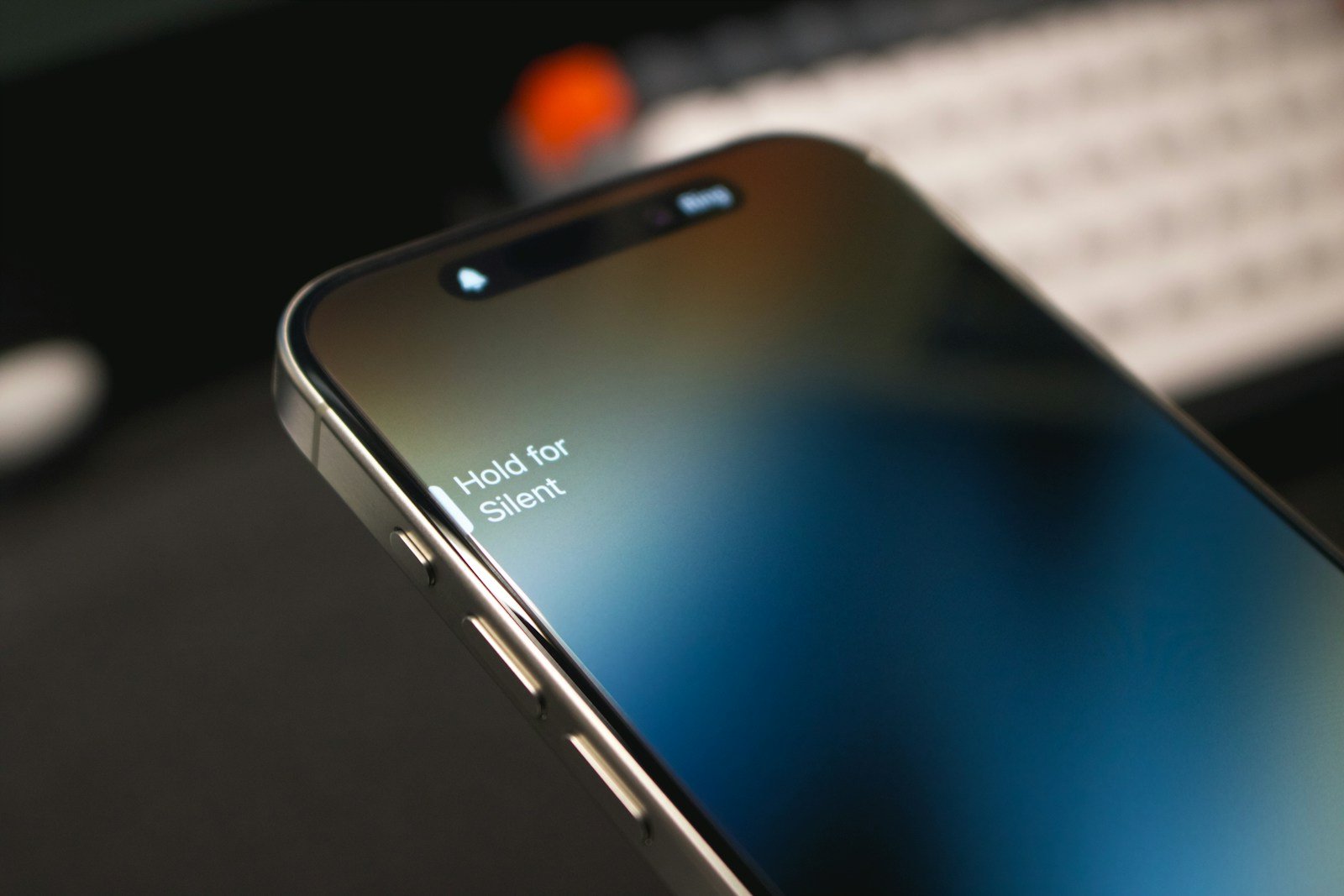
The iPhone 15 Pro introduced a new feature that’s changing how we interact with our devices: the Action button. This small but mighty addition replaces the traditional mute switch, offering a range of customizable functions at your fingertips. You can customize the Action button to perform tasks like launching the camera, toggling Focus modes, or activating shortcuts with a single press.
Want to take the perfect photo in a snap? Set the Action button to open your camera. Need to switch to Do Not Disturb mode quickly? Program it for instant Focus activation. The possibilities are vast, with options including silent mode, voice memos, magnifier, and even custom shortcuts for more advanced users.
Let’s explore some popular Action button settings:
| Function | Description |
|---|---|
| Camera | Launch camera app instantly |
| Focus | Toggle Do Not Disturb or other Focus modes |
| Flashlight | Turn on/off the flashlight |
| Voice Memo | Start/stop voice recording |
| Shortcut | Run a custom iOS shortcut |
Action Button on iPhone 15 Pro and Newer: Complete Guide
Starting with the iPhone 15 Pro and iPhone 15 Pro Max, Apple replaced the classic Ring/Silent switch with a customizable Action Button. On newer Pro models, the Action Button continues to expand in capability, giving users faster access to their most-used features.
Here’s everything you need to know about how it works, what it can do, and how to customize it.
What Is the Action Button?
The Action Button is a programmable physical button located above the volume buttons on supported iPhone Pro models.
Instead of only toggling Silent Mode, the button can now trigger a wide range of actions — from launching the camera to running custom Shortcuts.
By default, it still controls:
- 🔕 Silent Mode (press and hold)
But you can change it to do much more.
Which iPhones Have the Action Button?
The Action Button is available on:
- ✅ iPhone 15 Pro
- ✅ iPhone 15 Pro Max
- ✅ iPhone 16 Pro models and newer (Pro lineup only)
Standard iPhone models (non‑Pro) may not include this feature depending on the generation.
How to Customize the Action Button
To change what the button does:
- Open Settings
- Tap Action Button
- Swipe through available options
- Select the action you want
- Exit Settings (changes save automatically)
Apple provides a visual preview showing what the button will do.
What Can the Action Button Do?
Here are the main options available:
🔕 Silent Mode
Switch between Silent and Ring (default behavior).
📸 Camera
Quickly launch the Camera app.
- Can be set to open in Photo, Selfie, Video, Portrait, or other modes.
🔦 Flashlight
Turn the flashlight on or off instantly.
🎙 Voice Memo
Start recording a voice memo immediately.
🎵 Recognize Music
Use Shazam to identify songs.
🌙 Focus Mode
Turn a specific Focus mode on or off (Work, Sleep, Personal, etc.).
🌐 Translate
Quickly open the Translate feature for conversations.
🔎 Magnifier
Use your iPhone camera to zoom in on small text or objects.
⚙ Accessibility
Trigger an accessibility feature like:
- VoiceOver
- Zoom
- AssistiveTouch
- Background Sounds
🚀 Shortcut (Most Powerful Option)
Run any Shortcut you’ve created in the Shortcuts app.
This unlocks nearly unlimited possibilities.
Using Shortcuts with the Action Button
The Shortcut option makes the Action Button extremely powerful.
You can configure it to:
- Open your favorite app
- Send a text to a specific contact
- Start a workout
- Turn on smart home lights
- Play a specific playlist
- Log water intake
- Trigger a multi-step automation
Example:
Press and hold →
- Turn on Do Not Disturb
- Send “I’m driving” text
- Start Maps navigation
All from one button.
How to Use the Action Button
Unlike the old mute switch, the Action Button works by:
- ✅ Press and hold to activate
- 🔔 You’ll feel haptic feedback
- 📱 A visual indicator appears on screen
It does not activate with a simple tap — you must press and hold briefly.
Can the Action Button Do Different Things at Different Times?
Yes — using Shortcuts.
You can create conditional shortcuts based on:
- Time of day
- Location
- Focus mode
- Device orientation
For example:
- At work → Opens Notes
- At night → Turns on Flashlight
- At the gym → Starts workout playlist
This makes it adaptable to your routine.
Action Button vs. Silent Switch
| Feature | Silent Switch (Old) | Action Button |
|---|---|---|
| Toggle Silent Mode | ✅ Yes | ✅ Yes |
| Customizable | ❌ No | ✅ Yes |
| Launch Apps | ❌ No | ✅ Yes |
| Run Shortcuts | ❌ No | ✅ Yes |
| Accessibility Options | ❌ No | ✅ Yes |
The Action Button is far more versatile.
Tips for Getting the Most Out of It
✅ Assign it to something you use daily
✅ Use Shortcuts for advanced automation
✅ Combine with Focus filters for smarter triggers
✅ Avoid assigning something you might press accidentally
Many users find the best options are:
- Camera
- Flashlight
- Custom Shortcut
Can You Disable the Action Button?
You cannot completely disable the button, but you can set it to an action you rarely use if you prefer not to rely on it.
Is the Action Button Worth Using?
Absolutely — especially if you customize it.
Instead of digging through apps or Control Center, you get one-click access to something important. Over time, this can significantly speed up everyday tasks.
For power users, the Shortcut integration makes it one of the most flexible hardware buttons Apple has ever introduced.
Final Thoughts
The Action Button transforms a simple hardware switch into a powerful productivity tool. Whether you want quick access to the camera, instant flashlight control, or advanced automation, it adds meaningful customization to the iPhone Pro experience.
If you own an iPhone 15 Pro or newer, it’s worth taking a few minutes to set it up — once you tailor it to your workflow, you may wonder how you lived without it.
Design and Hardware Features
The iPhone 15 Pro and Pro Max introduce significant upgrades in design and hardware. These changes enhance user experience and device functionality through innovative features and improved components.
Action Button on iPhone 15 Pro and Pro Max
The Action Button replaces the mute switch on the iPhone 15 Pro and Pro Max. This customizable button offers versatile functionality. You can set it to perform various tasks like launching the camera, turning on the flashlight, or activating Siri.
The button supports haptic feedback, providing a tactile response when pressed. This feature improves user interaction and confirms button presses.
You can also use the Action Button to trigger complex actions through Shortcuts. This allows for advanced customization and quick access to your most-used functions.
Dynamic Island Integration
Dynamic Island continues to evolve on the iPhone 15 Pro series. This feature blends hardware and software seamlessly. It displays important information and ongoing activities at the top of your screen.
The integration now supports more third-party apps. This expands its usefulness for multitasking and quick information access.
Dynamic Island also works in tandem with the Action Button. It can display relevant information based on the Action Button’s current function.
Camera Enhancements
The iPhone 15 Pro and Pro Max boast significant camera improvements. The main camera now features a larger sensor, capturing more light for better low-light performance.
Portrait mode has been upgraded. It now automatically activates when it detects a person, pet, or object in focus. This feature works seamlessly with the main and telephoto lenses.
The Camera app interface has been refined for easier access to advanced controls. You can quickly adjust settings like exposure and focus with intuitive gestures.
| Feature | iPhone 15 Pro | iPhone 15 Pro Max |
|---|---|---|
| Main Camera | 48MP | 48MP |
| Telephoto | 3x optical zoom | 5x optical zoom |
| Action Button | Yes | Yes |
| Dynamic Island | Yes | Yes |
Software and Accessibility
The Action Button on iPhone 15 Pro integrates deeply with iOS 17. It offers extensive customization options through the Shortcuts app and enhances accessibility features. Users can tailor the button’s functionality to their specific needs and preferences.
iOS 17 Customization
iOS 17 allows you to customize the Action Button for various functions. You can set it to toggle silent mode, activate the camera, or launch specific apps. The Settings app provides a dedicated menu for Action Button configuration.
To customize:
- Go to Settings
- Tap Action Button
- Choose your preferred function
You can assign up to 9 different actions. This flexibility lets you adapt your iPhone to your daily routines and boost productivity.
Shortcuts and Automation
The Action Button works seamlessly with the Shortcuts app. You can create complex automations triggered by a single press. For example, you might set up a shortcut that:
- Turns on Do Not Disturb
- Dims the screen
- Starts a focus timer
The possibilities are vast. You can link multiple actions to create powerful workflows tailored to your needs.
Focus Modes and Do Not Disturb
Action Button integration with Focus Modes enhances your ability to manage distractions. You can use it to quickly toggle Do Not Disturb or switch between custom Focus Modes. This feature proves invaluable in meetings or while studying.
A single press can activate your “Work” focus, silencing notifications from social media and personal contacts. Another press can switch you back to “Personal” mode when you’re done.
Enhanced Accessibility Features
The Action Button significantly improves accessibility on iPhone 15 Pro. It can be set to activate various accessibility features with a single press. Some key options include:
| Feature | Description |
|---|---|
| VoiceOver | Screen reader for visually impaired users |
| Magnifier | Turns your iPhone into a digital magnifying glass |
| Live Speech | Speaks typed text aloud |
You can also use it to toggle Guided Access, which limits your iPhone to a single app. This feature is particularly useful for users with attention or sensory challenges.
The Action Button’s versatility in accessibility settings makes iPhone 15 Pro more inclusive and user-friendly for people with diverse needs.
Connectivity and Control
The Action Button on iPhone 15 Pro enhances device connectivity and control. It offers quick access to various functions and integrates with smart home devices and accessibility features.
Control Center Functionality
The Action Button provides fast access to Control Center. You can customize the button to launch Control Center with a single press. This gives you instant control over device settings and features.
Control Center lets you adjust brightness, volume, and Wi-Fi. You can also toggle Airplane Mode, Bluetooth, and Do Not Disturb. The Action Button makes these controls more accessible than ever.
A useful feature is the ability to add custom controls. You can include shortcuts to your favorite apps or smart home controls. This allows for a personalized experience tailored to your needs.
Voice Control and Sound Recognition
The Action Button can activate Voice Control, making your iPhone more accessible. This feature lets you control your device entirely with voice commands.
You can set up Voice Control through the Accessibility settings. Once activated, you can open apps, type messages, and navigate your iPhone hands-free.
Sound Recognition is another useful feature. It alerts you to important sounds like doorbells or alarms. This is especially helpful for users with hearing impairments.
| Feature | Description | Activation Method |
|---|---|---|
| Voice Control | Control iPhone with voice commands | Press Action Button |
| Sound Recognition | Get alerts for important sounds | Configure in Settings |
Smart Device Integration
The Action Button can be configured to control smart home devices. This turns your iPhone into a powerful remote for your connected home.
You can set up the button to toggle lights, adjust thermostats, or lock doors. This integration works through the Home app and compatible smart devices.
For advanced users, the Shortcuts app allows for complex automations. You can create custom actions that control multiple devices with a single press. This feature greatly expands the Action Button’s capabilities for smart home control.
Frequently Asked Questions
The Action Button on the iPhone 15 Pro and Pro Max offers versatile functionality. Users can customize it for various tasks and accessibility features. Here’s what you need to know about using and troubleshooting this new hardware feature.
How can I use the Action Button on my iPhone 15 Pro Max?
You can use the Action Button for many tasks. It can toggle silent mode, launch the camera, or start a voice memo. You can also set it to open your favorite app or run a custom shortcut.
To change its function, go to Settings > Action Button. Pick the action you want from the list. You can even create complex workflows using the Shortcuts app.
Where can I find the Action Button settings on the iPhone 15?
The Action Button settings are easy to locate. Open the Settings app on your iPhone 15 Pro or Pro Max. Scroll down and tap on “Action Button”. This menu lets you choose and customize the button’s function.
You’ll see options like Silent Mode, Camera, Flashlight, and more. Tap on any option to set it as the Action Button’s task.
Is there a way to assign multiple actions to the Action Button on the iPhone 15?
Yes, you can assign multiple actions to the Action Button. Use the Shortcuts app to create a custom workflow. This allows you to run several tasks with a single press.
For example, you could create a shortcut that turns on Do Not Disturb, dims the screen, and starts a timer. Assign this shortcut to the Action Button for quick access.
What should I do if the Action Button on my iPhone 15 is not responding?
If your Action Button isn’t working, try these steps:
- Restart your iPhone.
- Check for software updates in Settings > General > Software Update.
- Reset your Action Button settings to default.
- If problems persist, contact Apple Support or visit an Apple Store.
Remember to keep your iPhone’s software up to date for optimal performance.
How does the Action Button on the iPhone 15 differ from previous models?
The Action Button is a new feature on the iPhone 15 Pro and Pro Max. It replaces the mute switch found on earlier models. Unlike the mute switch, the Action Button is customizable and can perform various functions.
Previous iPhones didn’t offer this level of hardware customization. The Action Button gives you quick access to features that required multiple taps before.
Can the Action Button on the iPhone 15 be used for accessibility purposes?
Yes, the Action Button supports several accessibility features. You can set it to toggle Voice Control or activate the Magnifier. This makes the iPhone more user-friendly for those with specific needs.
To set up accessibility features, go to Settings > Action Button > Accessibility. Choose the feature you want to assign to the button.
| Action Button Functions | Description |
|---|---|
| Silent Mode | Mute or unmute your iPhone |
| Camera | Quick launch the camera app |
| Flashlight | Turn the flashlight on or off |
| Voice Memo | Start or stop a voice recording |
| Accessibility | Activate features like Voice Control |
| Shortcuts | Run custom-made shortcuts |
| Focus | Switch between Focus modes |





