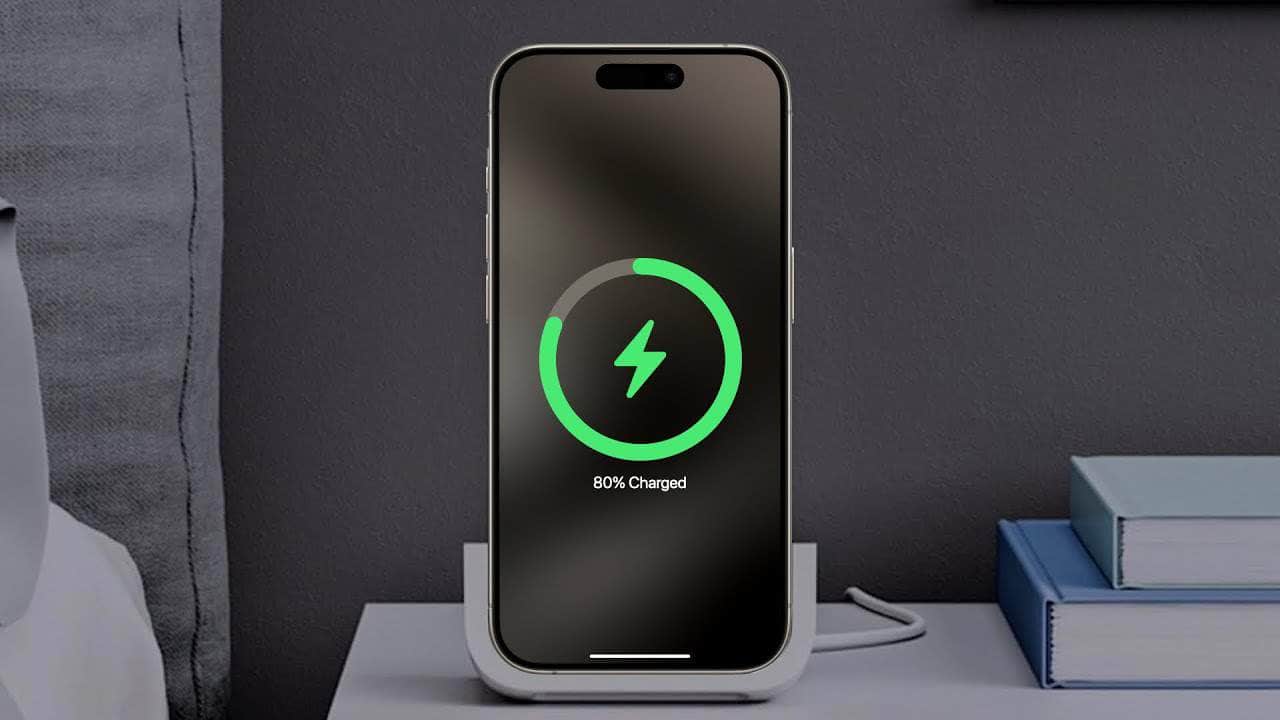
Many people want to know if using Low Power Mode on their iPhone can help it charge faster. The simple answer is no, Low Power Mode does not make your iPhone charge faster. Instead, it helps your battery last longer by reducing background tasks and dimming the screen.
When it comes to charging your phone quickly, using the right accessories is key. Fast chargers, compatible cables, and even wireless chargers can significantly boost charging speed. Some tricks like turning on Airplane Mode can also help.
That said, Low Power Mode is useful for extending battery life. It limits power-hungry processes, helping your phone last longer on a single charge. Understanding how Low Power Mode works can help you get the most out of your iPhone.
Does Your Phone Charge Faster on Low Power Mode?
Low Power Mode is one of the most commonly used features on modern smartphones—but does turning it on actually make your phone charge faster?
The short answer: sometimes—but not in the way most people think.
Let’s break down how Low Power Mode works, what it really does during charging, and when it can actually help your phone reach 100% sooner.
What Is Low Power Mode?
Low Power Mode is designed to reduce background power consumption when your battery is low.
When enabled, your phone typically:
- Reduces CPU and GPU performance
- Limits background app refresh
- Pauses automatic downloads and syncing
- Lowers screen brightness and refresh rate
- Reduces visual effects and animations
It’s not a charging feature—it’s a power-saving feature.
Does Low Power Mode Make Your Phone Charge Faster?
✅ The Technical Answer
Low Power Mode does not increase charging speed or wattage coming from your charger.
Your phone still charges at the same maximum rate allowed by:
- The charger
- The cable
- The phone’s battery management system
✅ The Practical Answer
Low Power Mode can help your battery reach a higher percentage faster in certain situations by reducing power usage while charging.
In simple terms:
Less power being used = more power available to charge the battery
When Low Power Mode Actually Helps
Low Power Mode can make a noticeable difference when:
1. You’re Using Your Phone While Charging
If you’re texting, browsing, or using apps:
- Low Power Mode limits background processes
- Less energy is drained while charging
- Net battery gain is higher
2. You’re Charging From a Low-Power Source
Examples:
- Laptop USB port
- Car charger
- Public charging station
In these cases, reducing power usage helps maximize the limited input.
3. Your Battery Is Already Low
Phones charge fastest between 0–50%. Low Power Mode reduces thermal and CPU strain, allowing the phone to stay in its optimal fast-charging range longer.
When Low Power Mode Won’t Help Much
Low Power Mode makes little to no difference when:
❌ You’re not using the phone
❌ You’re using a fast charger (USB‑C PD / proprietary fast charging)
❌ The screen is off and apps are idle
❌ The phone is already above 80% (charging slows intentionally)
Charging Speed vs. Charging Efficiency
It’s important to separate two ideas:
| Concept | What It Means |
|---|---|
| Charging Speed | How fast power enters the battery |
| Charging Efficiency | How much power goes into the battery vs. being used |
Low Power Mode improves efficiency, not raw speed.
Low Power Mode vs. Airplane Mode
If your goal is fastest possible charging, here’s how modes compare:
| Mode | Charging Benefit |
|---|---|
| Normal | Baseline |
| Low Power Mode | Slight improvement |
| Airplane Mode | Moderate improvement |
| Airplane + Low Power | Best efficiency |
Airplane Mode reduces cellular, Wi‑Fi, and Bluetooth power usage, which can have a bigger impact than Low Power Mode alone.
Best Ways to Make Your Phone Charge Faster
If speed is your priority, try this:
✅ Use the fastest charger your phone supports
✅ Use a high-quality cable
✅ Enable Low Power Mode
✅ Turn on Airplane Mode (optional)
✅ Stop heavy apps and games
✅ Keep your phone cool
✅ Avoid charging above 80% if you’re in a hurry
Does This Apply to iPhone and Android?
iPhone
- Low Power Mode limits background activity
- Does not increase charging wattage
- Helps most when the phone is in use while charging
Android
- Behavior varies by manufacturer
- Some brands reduce CPU speed more aggressively
- Results can be slightly more noticeable on budget or older devices
Battery Health Considerations
Using Low Power Mode while charging: ✅ Reduces heat
✅ Lowers CPU strain
✅ Can be better for long‑term battery health
This makes it a smart habit—even if the speed gain is small.
Final Verdict
Does Low Power Mode make your phone charge faster?
✅ It doesn’t increase charging speed
✅ It improves charging efficiency
✅ It helps most when you’re using your phone or charging from weak sources
If you want the fastest charge possible, Low Power Mode is a helpful supporting tool—not a magic switch.
TL;DR
Low Power Mode won’t make your charger faster—but it helps your battery gain power more efficiently.
Key Takeaways
- Low Power Mode does not speed up charging.
- Use fast chargers or Airplane Mode for quicker charging.
- Low Power Mode helps save battery life.
Understanding Low Power Mode on iPhone
Low Power Mode helps your iPhone save battery by reducing power usage. It affects how your phone works by adjusting several settings. It can also impact battery health.
How Low Power Mode Affects iPhone Performance
When Low Power Mode is on, your iPhone changes how it uses energy. Your screen brightness will dim, and auto-lock happens faster. Your iPhone will lock the screen after just 30 seconds.
Some features stop working when Low Power Mode is active. Automatic downloads and email fetch are paused. Background app refresh also stops. This can make apps slower.
Visual effects are reduced to save power. Your phone might feel less smooth. The battery icon turns yellow to show Low Power Mode is on. You can turn this mode on or off in Settings or Control Center.
The Impacts of Low Power Mode on Battery Health
Low Power Mode can help your iPhone battery last longer between charges. It does this by lowering energy use. This can be useful if you need your phone to last a long time.
Using Low Power Mode often can affect your battery’s lifespan. It lowers stress on the battery, which can be good. To enable Low Power Mode, go to Settings, then Battery. You will see the option there. You can also add it to Control Center for easy access. Adjusting how you use Low Power Mode can help manage battery health better.
Charging Your iPhone Effectively
Use specific settings and habits to make your iPhone charge faster. Adjust features that often drain power and choose the right accessories to get the most from your charging.
Optimizing iPhone Settings for Faster Charging
To charge your iPhone quicker, turn on Airplane Mode. This stops your phone from searching for Wi-Fi and Bluetooth signals, reducing power drain.
Also, turn off Wi-Fi and Bluetooth in settings separately. Each of these uses energy even when not actively in use which can slow charging.
Another tip is to dim your screen brightness. Go to Settings -> Display & Brightness to lower it. A dim screen uses less power during charging.
If your phone has Low Power Mode, enable it. This mode decreases background activity and lowers power usage. Go to Settings -> Battery to find this option.
Finally, use a USB-C Power Delivery adapter. This type of charger can speed up charging times compared to standard chargers. Also, consider MagSafe wireless chargers for newer iPhones as they support faster charging.