
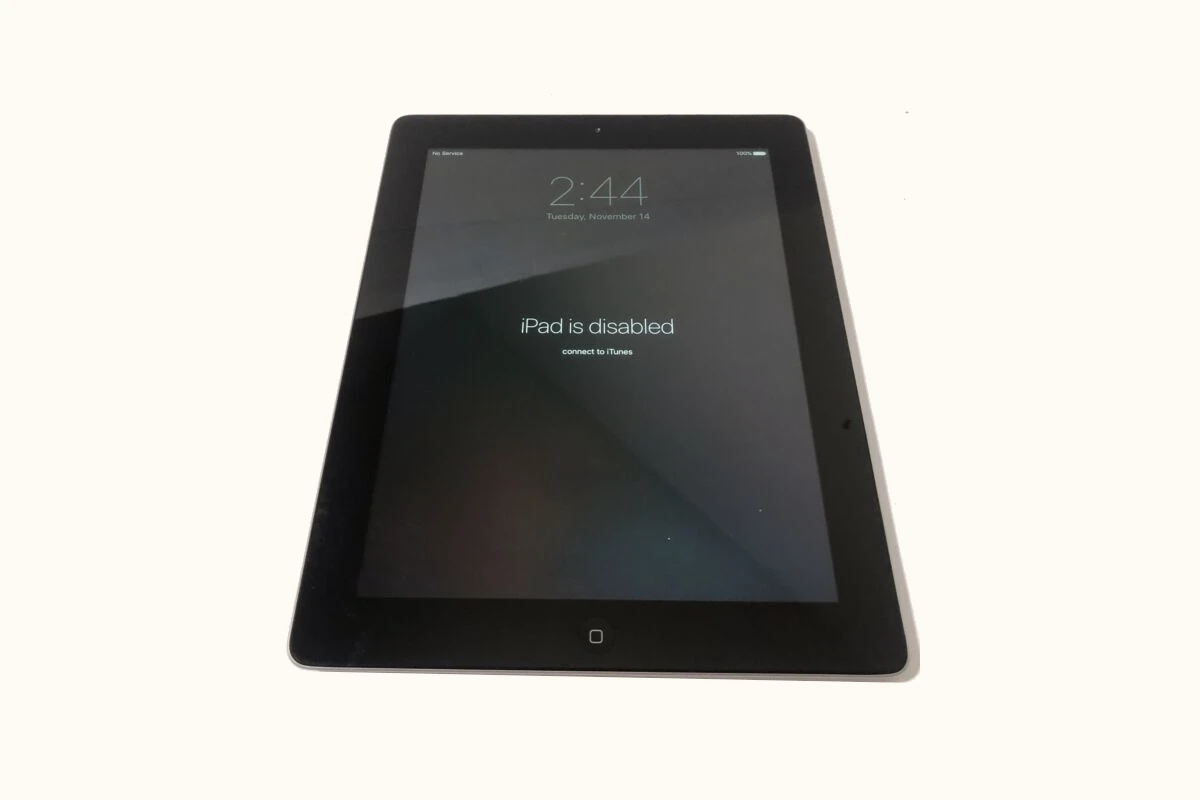
Seeing “iPad is disabled” on your screen can cause panic, especially when you need to use your device right away. This error happens after too many wrong passcode attempts, a safety feature that protects your data from strangers. If your iPad is disabled, you can fix it by putting your device in recovery mode and then restoring it using iTunes or Finder on your computer, or by using iCloud’s Find My feature to erase it remotely.
Getting your iPad back to working order doesn’t have to be complicated, though it will require erasing your device. The good news is that if you’ve backed up your iPad recently, you can restore all your data after the reset process is complete. Apple has built these security measures to keep your personal information safe.
Don’t worry if you’ve never dealt with recovery mode before. The steps are simple to follow, and the process works for all iPad models – whether you have the latest iPad Pro or an older version. With the right approach, you’ll have your iPad working again in no time.
How to Fix a Disabled iPad
If your iPad is disabled, it means that the device has been locked due to multiple incorrect passcode attempts. When this happens, you won’t be able to access your iPad until it is unlocked or reset. This guide will walk you through the steps to fix a disabled iPad and regain access.
Why Does an iPad Get Disabled?
- Entering the wrong passcode too many times triggers the iPad’s security feature.
- The iPad will show messages like “iPad is disabled, try again in X minutes” or “iPad is disabled, connect to iTunes.”
- This is to protect your data from unauthorized access.
How to Fix a Disabled iPad
Method 1: Use iCloud’s Find My iPad to Erase the Device (No Computer Needed)
If Find My iPad is enabled on your device and you know your Apple ID credentials, you can erase your iPad remotely:
- Go to iCloud.com on another device or computer.
- Sign in with your Apple ID.
- Click Find iPhone (it also works for iPads).
- Select your disabled iPad from the list of devices.
- Choose Erase iPad to remotely reset it.
- After erasing, you can restore your iPad from an iCloud backup during setup.
Note: This method erases all data on your iPad.
Method 2: Use Recovery Mode to Restore Your iPad (Requires a Computer)
If you cannot use iCloud or Find My iPad, you can restore your iPad via recovery mode:
- Connect your iPad to a Mac or Windows PC with iTunes installed (or Finder on macOS Catalina and later).
- Put your iPad into Recovery Mode:
- For iPads with a Home button: Press and hold the Home button and the Top (or Side) button simultaneously until the recovery mode screen appears.
- For iPads without a Home button (Face ID models): Quickly press and release the Volume Up button, then the Volume Down button, then press and hold the Top button until recovery mode appears.
- On your computer, iTunes or Finder will detect the iPad in recovery mode and prompt you to Restore or Update.
- Choose Restore to erase the iPad and remove the passcode.
- After the restore completes, set up your iPad and restore from a backup if available.
Method 3: Use Third-Party Unlocking Software
There are third-party tools designed to unlock disabled iPads without iTunes or iCloud, such as:
- Tenorshare 4uKey
- Dr.Fone – Repair
- iMyFone LockWiper
These tools can help bypass the disabled screen but usually require a computer and may involve data loss.
Important Considerations
- Data Loss: Restoring or erasing your iPad will delete all data unless you have a backup.
- Apple ID & Activation Lock: After erasing, you’ll need your Apple ID and password to reactivate the iPad due to Activation Lock.
- Regular Backups: To avoid losing important data, back up your iPad regularly via iCloud or iTunes.
Summary
| Method | Requirements | Data Loss | Notes |
|---|---|---|---|
| Find My iPad (iCloud) | Apple ID, Find My enabled | Yes | No computer needed |
| Recovery Mode Restore | Computer with iTunes/Finder | Yes | Useful if Find My iPad not enabled |
| Third-Party Unlock Tools | Computer | Usually yes | May have costs, use trusted tools |
By following these methods, you can fix your disabled iPad and regain access. If you encounter issues or need help, contacting Apple Support or visiting an Apple Store is recommended.
Key Takeaways
- A disabled iPad can be fixed by using recovery mode and restoring with iTunes or Finder on a computer.
- You can also use iCloud’s Find My feature to erase a disabled iPad remotely without a computer.
- Always keep regular backups of your iPad to avoid losing data when you need to restore a disabled device.
Assessing the Situation
When your iPad shows a “disabled” message, understanding what happened is the first step. Your device likely entered this state after too many incorrect passcode attempts.
There are different levels of iPad lockouts. You might see messages like “iPad is disabled” or “Security Lockout” followed by a waiting period.
For mild cases, you’ll need to wait before trying again. The waiting times increase with each wrong attempt:
- 1 minute (after 5 wrong attempts)
- 5 minutes (after 6 wrong attempts)
- 15 minutes (after 7 wrong attempts)
- 1 hour (after 8 wrong attempts)
After too many failed attempts, you’ll see the message “iPad is disabled, connect to iTunes.” This means your device is completely locked.
Check if you have a backup of your iPad data. This is important because fixing a disabled iPad usually requires erasing all content and settings.
If you remember your passcode but just entered it wrong too many times, wait for the timeout period to end. Then enter the correct code carefully.
For completely locked iPads showing “iPad is disabled” with no timer, you’ll need to use recovery methods through iTunes or iCloud.
Before starting any recovery process, make sure your iPad has enough battery life. Connect it to power if needed to prevent interruptions during the reset process.
Understanding iPad Disabled Error Messages
When your iPad gets disabled, specific error messages appear on the screen. These messages help you understand what happened and guide you toward the right fix.
Common Error Messages and Their Meanings
When your iPad becomes disabled, you’ll see one of several messages on your screen. The most common is “iPad is disabled, try again in X minutes.” This appears after a few wrong passcode attempts. The waiting time increases with each failed try.
After six failed attempts, you’ll need to wait 1 minute. The waiting period grows longer with more mistakes:
- 7 attempts: 5-minute wait
- 8 attempts: 15-minute wait
- 9 attempts: 60-minute wait
After 10 wrong tries, you’ll see “iPad is disabled, connect to iTunes” on your screen. This is the most serious error message, meaning your iPad is completely locked.
If you have a newer iPad, the message might say “iPad unavailable” instead. Both messages mean the same thing—your device needs to be reset.
The Role of Passcode Entries in Disabling iPads
Your iPad gets disabled as a security measure to protect your data from unauthorized access. Every wrong passcode entry counts toward potential disabling.
Apple designed this system to prevent someone from guessing your passcode through repeated tries. After 5 wrong attempts, the iPad starts tracking failures more seriously.
This protection system works in stages, giving you chances to remember your passcode before a complete lockout happens. The 10-attempt limit exists because with more tries, someone could potentially guess even complex passcodes.
If you’ve forgotten your passcode, you’ll need to restore your iPad using iTunes or iCloud. Your iPad tracks passcode attempts even when turned off between tries, so restarting won’t reset the counter.
Children sometimes lock parents’ iPads by entering wrong passcodes repeatedly while playing with the device.
Immediate Actions to Fix a Disabled iPad
When your iPad shows the “iPad is disabled” message, you need to take specific steps to regain access. These methods range from simple restarts to using iTunes or recovery mode depending on your situation.
Trying a Simple Restart
Before trying complex solutions, attempt a basic restart of your iPad. This might work if the device isn’t completely locked.
For newer iPads with Face ID, press and hold the top button and either volume button until the power off slider appears. For older iPads with a Home button, hold the top button until you see the slider.
Drag the slider to turn off your device. Wait about 30 seconds, then press and hold the top button again until the Apple logo appears.
If your iPad still shows “disabled,” check if it displays a waiting period like “iPad is disabled, try again in 5 minutes.” In this case, simply wait for the specified time before trying your passcode again.
Accessing iPad via iTunes
When a simple restart doesn’t work, connecting to iTunes is often the next best solution.
First, connect your iPad to a computer with iTunes installed (or Finder on macOS Catalina and later). If your iPad isn’t completely locked, iTunes might recognize it immediately.
Once connected, select your iPad when it appears in iTunes. You’ll see options to “Restore iPad” or “Update.” Choosing “Update” tries to reinstall iOS without erasing your data, which is worth trying first.
If updating doesn’t work, you’ll need to restore your iPad. This erases all content but fixes the disabled state. After restoration, you can restore from a backup if you have one.
Remember that this process requires your Apple ID password to disable Activation Lock.
Using Recovery Mode for Older iOS Versions
For severely locked iPads or older iOS versions, recovery mode may be necessary.
To enter recovery mode on iPads with Face ID, quickly press and release the Volume Up button, then Volume Down button, then press and hold the Top button until you see the recovery screen.
For iPads with a Home button, press and hold both the Home and Top buttons simultaneously until you see the recovery screen (not the Apple logo).
Once in recovery mode, connect to a computer and open iTunes or Finder. You’ll see a message saying, “There is a problem with the iPad that requires it to be updated or restored.”
Choose “Restore” to completely reset your device. This wipes all data but fixes the disabled state. After restoration completes, set up your iPad as new or restore from a backup.
Using iCloud to Erase and Unlock a Disabled iPad
If your iPad is disabled, you can use iCloud to unlock it. This method works when you have Find My iPad enabled and know your Apple ID credentials. The process completely erases your device but allows you to regain access.
Utilizing Find My iPad Feature
To use iCloud to unlock a disabled iPad, you need to have Find My iPad enabled before the device became disabled. This feature is part of Apple’s security system that protects your data if your iPad is lost or stolen.
You’ll need:
- Access to a computer or another device
- Your Apple ID and password
- Internet connection
Find My iPad gives you the ability to track, lock, or erase your device remotely. For unlocking a disabled iPad, the erase function is what helps get past the disabled screen.
Note that you cannot enable this feature after your iPad is already disabled. It must have been set up in advance.
Process of Erasing iPad Through iCloud
To erase and unlock your disabled iPad:
- Go to iCloud.com in a web browser
- Sign in with your Apple ID and password
- Click on “Find iPhone” (this feature works for all Apple devices)
- Select “All Devices” at the top of the screen
- Choose your disabled iPad from the list
- Click “Erase iPad”
- Confirm your decision
The process will completely wipe your iPad clean. After erasing, your iPad will restart as new, allowing you to set it up again. You can then restore your data from a backup if you have one.
Remember that this method erases all content and settings on your iPad. Make sure you have backups of important data before proceeding with this option.
Restoring iPad to Factory Settings
When your iPad is disabled, a factory reset can help you regain access. This process erases all data and removes the passcode lock, giving you a fresh start with your device.
When to Opt for Factory Reset
A factory reset is the best solution when your iPad shows “iPad is disabled” and won’t accept your passcode. You might need this option after too many incorrect passcode attempts.
If you can’t remember your passcode at all, a reset is your only choice. This is also helpful when your iPad is completely locked out and showing “connect to iTunes” on the screen.
Before resetting, try to back up your data if possible. Remember that a factory reset will erase everything on your iPad. If you’ve backed up to iCloud or iTunes before, you can restore your data after the reset.
Steps to Follow for Factory Resetting an iPad
There are two main methods to reset a disabled iPad: using a computer with iTunes or using recovery mode.
Using iTunes:
- Connect your iPad to a computer with iTunes installed
- If asked for a passcode, use recovery mode instead
- Select your iPad when it appears in iTunes
- Click “Restore iPad” in the Summary tab
- Confirm and wait for the process to complete
Using Recovery Mode:
- Disconnect your iPad from any computer
- Press and hold the Top button until the power-off slider appears
- Turn off your iPad by sliding the power off
- Connect to a computer while holding the Home button (or Volume Down button on newer models)
- Keep holding until you see the recovery mode screen
- Choose “Restore” when prompted in iTunes or Finder
After the reset completes, your iPad will restart as new. You can then set it up and restore your backup if you have one.
iPadOS Update and Disabled iPads
The relationship between your iPad’s operating system and lockout issues is important to understand. Keeping your device updated can help prevent future problems and offer better recovery options when your iPad becomes disabled.
Relevance of iPadOS Version to Disabled iPads
Different iPadOS versions handle security lockouts in various ways. For instance, iPadOS 15.2 introduced a feature allowing users to reset their iPad without a computer if they forget their passcode.
This update makes a huge difference if your iPad gets disabled. Before iPadOS 15.2, users needed to connect to a computer with iTunes to unlock a disabled device.
Older versions require more steps to fix a disabled iPad. They force users to use recovery mode through a computer connection. Newer iPadOS versions offer more user-friendly solutions.
When an iPad shows “iPad is disabled,” the specific recovery steps depend on your iPadOS version. Check which version you’re running before attempting any fixes.
Updating iPadOS to Prevent Future Issues
Regular iPadOS updates help avoid disabled iPad problems. Apple constantly improves security features and fixes bugs that might cause lockout issues.
To update your iPad:
- Go to Settings > General > Software Update
- Download and install any available updates
- Keep Automatic Updates turned on
Updating provides better recovery options if your iPad becomes disabled. For example, newer versions offer the option to reset directly from the iPad without connecting to a computer.
Make sure to back up your iPad before updating. This protects your data if something goes wrong during the update process or if you need to restore later.
Setting a passcode you can easily remember but others can’t guess helps prevent lockouts caused by too many wrong attempts.
Professional Help and Technical Support
Sometimes fixing a disabled iPad is beyond a simple DIY solution. When you’ve tried the basic methods without success, getting expert help can save time and prevent data loss.
Contacting Apple Support
Apple offers several ways to get help with a disabled iPad. You can contact Apple Support directly through their website or the Apple Support app. Phone support is available in most countries, and you can schedule a call at a convenient time.
Apple Stores provide in-person help through the Genius Bar. It’s best to make an appointment before visiting to avoid long wait times. The staff can help unlock disabled iPads using specialized tools.
For quick answers, Apple’s support website has step-by-step guides for common iPad issues. They explain how to use recovery mode when your device is disabled.
Apple Support can help even without proof of purchase, but having your Apple ID information ready speeds up the process.
Using Third-Party Help Services
When Apple Support isn’t available, third-party services can help with disabled iPads. Many tech repair shops offer iPad unlocking services at various price points.
Online platforms like JustAnswer connect you with verified experts who can guide you through fixing your disabled iPad. These services use a multi-step expert quality process to ensure you get accurate advice.
Be careful when choosing third-party help. Look for services with good reviews and clear pricing. Avoid technicians who claim they can bypass Apple security without proper methods.
Some third-party services offer remote support, which can be convenient if you can’t visit a store. They might use screen sharing to guide you through recovery steps.
Frequently Asked Questions
iPad users often face the frustrating “iPad is disabled” message after multiple incorrect passcode attempts. Here are solutions to the most common questions about fixing this problem.
What are the steps to restore a disabled iPad using iTunes?
Restoring a disabled iPad with iTunes requires a few simple steps. First, connect your iPad to a computer with iTunes installed.
Then open iTunes with the iPad disconnected. Next, put your iPad into recovery mode by pressing and holding the appropriate buttons for your iPad model.
Once in recovery mode, iTunes will detect your device and prompt you to restore it. Click “Restore” to erase your iPad and install a fresh version of iOS.
Is it possible to unlock a disabled iPad without the passcode, and if so, how?
Yes, you can unlock a disabled iPad without knowing the passcode. The most common method is using recovery mode with iTunes or Finder.
If you previously synced your iPad with your computer, you might be able to back up and restore without entering recovery mode first.
Another option is using iCloud’s Find My feature to remotely erase your iPad if it’s connected to the internet and you know your Apple ID credentials.
How can I recover access to a disabled iPad without using iTunes?
If you don’t have iTunes, you can use iCloud to regain access to your disabled iPad. Sign in to iCloud.com with your Apple ID and use the Find My feature.
From there, select your iPad and choose the “Erase iPad” option. This will remove the passcode along with all data.
After erasing, you can restore from a previous iCloud backup during setup if you had one.
What methods are available to unlock a disabled iPad without a computer?
Without a computer, your main option is using iCloud’s Find My feature from another device. Visit iCloud.com from a phone or borrow someone else’s computer.
You can also try updating iOS in recovery mode which sometimes bypasses the disabled screen without erasing data.
If your iPad has cellular connectivity, it might connect to the internet even while disabled, allowing remote erasure through iCloud.
How can one reset a disabled iPad without erasing stored data?
Unfortunately, there’s no guaranteed way to fix a disabled iPad without data loss. The security system is designed this way to protect your information.
Your best option is having a recent backup. Always back up your iPad regularly to iCloud or your computer to minimize data loss in these situations.
If you had automatic iCloud backups enabled, you’ll be able to restore most data after the reset process.
What should be done to resolve the ‘iPad is disabled connect to iTunes’ issue?
When you see “iPad is disabled connect to iTunes,” you need to follow the on-screen instructions. Connect your iPad to a computer with iTunes or Finder (on macOS Catalina or newer).
Put your device in recovery mode by holding the correct buttons for your iPad model. For newer iPads without a Home button, press and quickly release the Volume Up button, then Volume Down, then hold the Top button.
Once iTunes recognizes your device in recovery mode, follow the prompts to restore your iPad to factory settings.





