
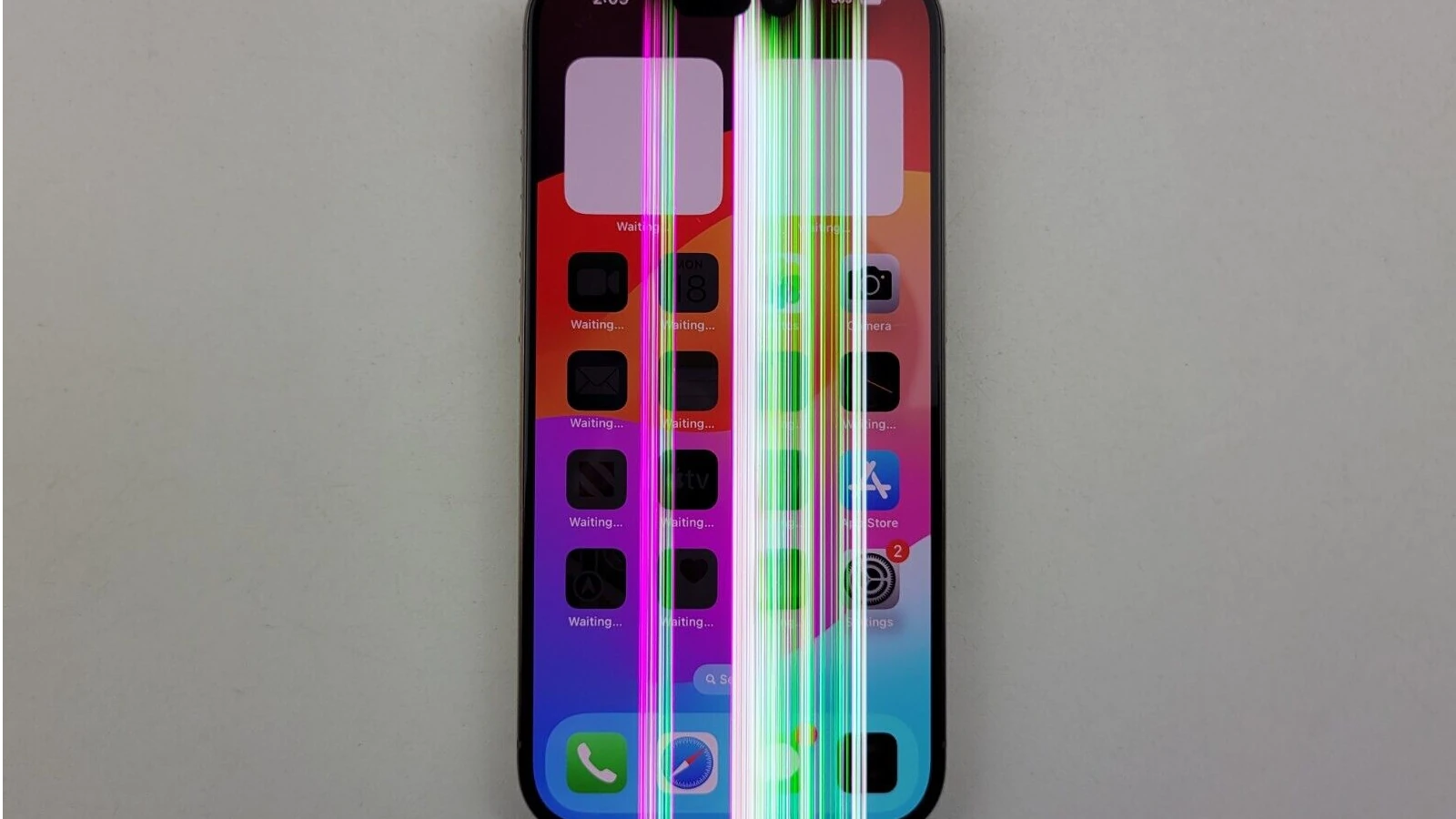
Seeing vertical lines on your iPhone screen can be frustrating. They appear suddenly and can make your phone hard to use. The good news is that many solutions exist, from simple fixes you can try at home to professional repair options.
You can often fix vertical lines on your iPhone screen by trying basic troubleshooting steps like restarting your device, updating iOS, or reducing the white point in accessibility settings. Sometimes the problem is just a loose display connector that can be fixed by pressing gently on the sides of the screen or doing a force restart. In other cases, you may need to try more advanced fixes or seek help from Apple Support.
Before rushing to the repair shop, it’s worth trying the easy fixes first. These steps have helped many iPhone users get rid of those annoying vertical lines without spending money on repairs. If they don’t work, you can still explore other options like factory resets or professional repairs.
Ways to Fix Vertical Lines on iPhone Screen
Seeing vertical lines on your iPhone screen can be alarming. These lines may appear as thin stripes running from top to bottom and can be caused by software glitches or hardware issues. Here’s how you can diagnose and fix vertical lines on your iPhone screen.
Common Causes of Vertical Lines on iPhone Screen
- Software glitches or bugs
- Loose or damaged display connectors
- Physical damage to the screen or internal components
- Water or liquid damage
- Faulty display hardware
Step-by-Step Fixes for Vertical Lines on iPhone Screen
1. Restart Your iPhone
- Sometimes, a simple restart can clear temporary software glitches.
- Hold the Side button and either Volume button until the slider appears.
- Slide to power off, wait a few seconds, then press the Side button to turn it back on.
2. Force Restart Your iPhone
- For iPhone 8 and later:
- Quickly press and release Volume Up.
- Quickly press and release Volume Down.
- Press and hold the Side button until the Apple logo appears.
- For iPhone 7/7 Plus:
- Hold Volume Down and Side button simultaneously until the Apple logo appears.
- For iPhone 6s and earlier:
- Hold Home button and Side (or Top) button simultaneously until the Apple logo appears.
3. Check for iOS Updates
- Go to Settings > General > Software Update.
- Install any available updates to fix potential software bugs causing display issues.
4. Remove Screen Protector or Case
- Sometimes, a poorly fitted screen protector or case can cause pressure on the screen.
- Remove them and check if the lines disappear.
5. Reset All Settings
- Go to Settings > General > Reset > Reset All Settings.
- This resets system settings without deleting data and can fix software conflicts.
6. Restore Your iPhone via iTunes/Finder
- Backup your iPhone first.
- Connect to a computer and restore your iPhone to factory settings.
- This can fix serious software issues causing display problems.
7. Inspect for Physical or Water Damage
- Check for cracks or signs of liquid exposure.
- If damaged, professional repair is likely needed.
8. Contact Apple Support or Authorized Repair
- If the lines persist after software fixes, it’s likely a hardware issue.
- Screen replacement or internal repairs may be necessary.
Preventive Tips
- Use a high-quality case and screen protector.
- Avoid dropping or exposing your iPhone to moisture.
- Keep your iOS updated.
- Handle your iPhone carefully to prevent hardware damage.
Summary Table
| Fix Method | When to Use | Notes |
|---|---|---|
| Restart iPhone | Minor glitches | Quick and easy |
| Force Restart | Unresponsive screen | Hard reset |
| Update iOS | Software bugs | Keep system updated |
| Remove Screen Protector | Physical pressure suspected | Simple check |
| Reset All Settings | Persistent software issues | Does not erase data |
| Restore iPhone | Severe software problems | Backup first |
| Check for Physical Damage | Visible damage or water exposure | Requires professional repair |
| Contact Apple Support | Hardware faults | Official repair recommended |
By following these steps, you can often fix vertical lines on your iPhone screen or determine if professional repair is needed.
Key Takeaways
- Simple fixes like restarting your iPhone or adjusting display settings often remove vertical lines on the screen.
- Vertical lines may indicate a loose connector that can sometimes be fixed by applying gentle pressure to the screen edges.
- If basic solutions fail, backup your data and contact Apple Support for professional repair options.
Understanding Vertical Lines on iPhone Screen
Vertical lines on an iPhone screen can be alarming when they suddenly appear. These display issues can stem from various causes, ranging from minor software glitches to serious hardware damage.
Differences Between Hardware and Software Causes
Software-related vertical lines often appear after an iOS update or app installation. These lines might flicker, change position, or disappear temporarily when you restart your device.
Software causes typically include:
- Outdated iOS versions
- App conflicts
- System crashes
- Corrupted display data
Hardware issues create more persistent lines that don’t change with restarts. These lines typically appear after physical damage or component failure.
Common hardware causes include:
- Damaged LCD screen connections
- Loose display cables
- Water damage to internal components
- Physical impact causing screen damage
- Component failure due to age
You can often tell the difference by trying a force restart. If lines disappear even briefly, it’s likely software-related.
Identifying Common Triggers of Screen Issues
Several specific events often trigger vertical lines on iPhone screens. Knowing these can help prevent future problems.
Physical triggers include:
- Dropping your iPhone on hard surfaces
- Exposing it to extreme temperatures
- Getting the device wet or exposing it to humidity
- Putting excessive pressure on the screen
Water damage is particularly harmful, as moisture can seep into the display connectors. Even small amounts of liquid can cause vertical lines to appear as connections corrode.
Software triggers often occur during:
- iOS updates
- Battery drainage to 0%
- Installing incompatible apps
- Restoring from backups
Aging iPhones are more susceptible to display issues as components wear out over time. Devices older than 3-4 years may develop screen problems even without obvious triggers.
Troubleshooting Steps for Vertical Lines Error
Vertical lines on your iPhone screen can be frustrating, but several effective solutions exist before considering expensive repairs. These troubleshooting steps range from simple restarts to software resets that can resolve display issues.
Basic Troubleshooting Before Repairs
Start with a simple restart of your iPhone. This often fixes minor display glitches including vertical lines. Go to Settings > General > Shut Down, then drag the slider to power off your device. Wait 30 seconds before turning it back on.
If a regular restart doesn’t work, try a force restart. For iPhone 8 or newer models:
- Press and quickly release the volume up button
- Press and quickly release the volume down button
- Press and hold the side button until the Apple logo appears
Next, clean your screen with a soft, lint-free cloth. Sometimes dirt or moisture can cause display issues that look like lines.
Remove your screen protector if you have one. Damaged or poorly applied screen protectors can sometimes create the appearance of lines on the display.
Software-Related Fixes
Update your iOS to the latest version. Outdated software can cause display problems. Go to Settings > General > Software Update to check if an update is available.
If the lines appeared after an app installation, try deleting that app. Sometimes new apps can conflict with your system and cause display issues.
Try resetting all settings on your iPhone. Go to Settings > General > Reset > Reset All Settings. This won’t delete your data but will return all settings to factory defaults.
For more stubborn cases, you might need to restore your iPhone using iTunes or Finder. Back up your data first! Connect your iPhone to a computer and follow the restore prompts.
Safe Mode Diagnosis
While iPhones don’t have an official “Safe Mode,” you can simulate it to test if the problem is hardware or software related.
Start by turning off your iPhone. Then turn it on while holding the volume down button until you see the Apple logo. This prevents certain background processes from loading.
If the lines disappear in this mode, the issue is likely software-related. Try removing recently installed apps one by one to identify the culprit.
Check if the lines appear only when using specific apps. If so, update or reinstall those apps. If lines appear everywhere including the startup screen, it’s more likely a hardware issue requiring professional repair.
Try connecting your iPhone to an external display via AirPlay. If the lines don’t appear on the external screen, this confirms a hardware problem with your iPhone’s display panel.
Recovery Methods for Data and Settings
When fixing vertical lines on your iPhone screen, it’s crucial to protect your data while applying solutions. The right approach can save your information even when major repairs are needed.
How to Prevent Data Loss While Solving Screen Issues
Before attempting any fixes for vertical lines, back up your iPhone to iCloud or your computer. This simple step provides peace of mind.
To back up to iCloud:
- Connect to Wi-Fi
- Go to Settings > your name > iCloud > iCloud Backup
- Tap “Back Up Now”
For computer backups:
- Connect your iPhone to your computer
- Open iTunes (Windows/older Macs) or Finder (newer Macs)
- Select your device and click “Back Up Now”
Enable automatic backups to keep data safe. If your screen has lines but is still responsive, try taking screenshots of important information that hasn’t been backed up yet.
Using a trusted third-party app can help extract data when the screen is partially unusable. Remember to check that the backup completed successfully before trying any major fixes.
Performing a Factory Reset on Your iPhone
A factory reset often fixes vertical lines caused by software issues. This erases all content and settings, returning your iPhone to its original state.
Before resetting:
- Back up your device
- Note your Apple ID password
- Make sure your iPhone has sufficient battery (or is plugged in)
- Go to Settings > General > Reset
- Select “Erase All Content and Settings”
- Enter your passcode if prompted
- Confirm the reset
If your screen is too damaged to navigate settings, use iCloud. Visit iCloud.com, sign in with your Apple ID, select “Find iPhone,” choose your device, and click “Erase iPhone.”
After the reset, the setup assistant will appear. You can choose to restore from a backup or set up as new. Most software-related screen issues resolve after this process.
Utilizing DFU Restore and Recovery Tools
Device Firmware Update (DFU) mode is a deeper reset option when standard methods fail. It completely refreshes the iPhone’s software system.
To enter DFU mode:
- Connect your iPhone to a computer
- Press and quickly release Volume Up
- Press and quickly release Volume Down
- Hold the Side button until the screen goes black
- While continuing to hold the Side button, press and hold Volume Down
- After 5 seconds, release the Side button but keep holding Volume Down
Your computer should detect your iPhone in recovery mode. iTunes or Finder will offer to restore it.
For stubborn vertical line issues, specialized tools like TunesKit iOS System Recovery can help. These programs fix system issues without data loss in many cases.
These tools work by reinstalling iOS while preserving user data when possible. They can be especially useful when physical repairs aren’t immediately available.
Apple Support and Repair Options
When vertical lines appear on your iPhone screen, Apple offers several official support channels that can help resolve the issue. These options ensure your device gets proper professional care and might be covered under warranty depending on your situation.
Seeking Assistance from Apple Support
Apple Support provides multiple ways to get help with screen issues. You can contact Apple Support directly through their website, phone line, or the Apple Support app on another device.
The support team can guide you through basic troubleshooting steps first. They might suggest:
- Restarting your iPhone
- Updating to the latest iOS version
- Resetting settings to rule out software problems
For screen line issues that persist, they’ll help determine if the problem is hardware-related. Apple’s support representatives can schedule appointments at Apple Stores or direct you to authorized service providers.
Remember to back up your iPhone before sending it for repair. This ensures your data stays safe during the repair process.
Understanding AppleCare Coverage for Your iPhone
AppleCare+ extends your iPhone’s warranty and adds coverage for accidental damage. For screen line issues:
Standard warranty (1 year) covers:
- Manufacturing defects
- Hardware failures not caused by damage
AppleCare+ benefits include:
- Extended coverage (2+ years)
- Lower screen repair costs ($29 service fee instead of $149+)
- Express replacement service
Check your coverage status by entering your iPhone serial number on Apple’s website. If your iPhone displays vertical lines after dropping it, AppleCare+ significantly reduces your repair costs compared to out-of-warranty fixes.
How to Find Authorized Repair Centers
Apple offers several repair options beyond the Apple Store. Authorized repair centers maintain Apple’s repair standards and use genuine parts.
To find a nearby center:
- Visit Apple’s support website
- Enter your location and select “iPhone” as your product
- Choose “Bring in for repair”
Major retailers like Best Buy serve as authorized service providers in many locations. Independent shops in Apple’s Independent Repair Provider program are another option.
Always verify a repair shop’s authorization status before service. Unauthorized shops may use non-genuine parts that could cause further display issues. Repair costs vary based on your iPhone model and whether your device is covered under warranty.
Preventative Measures and iPhone Care
Taking proper care of your iPhone can help prevent screen issues like vertical lines before they happen. Regular maintenance and protection from physical damage are key to extending your device’s life.
Protecting Your iPhone Against Water Damage
Water is one of the biggest threats to your iPhone’s screen health. Even small amounts of moisture can damage internal components and cause vertical lines to appear. Always keep your iPhone away from water sources like sinks, bathtubs, and pools.
Use a high-quality protective case that offers water resistance. Many modern cases provide excellent protection against accidental spills and light rain.
If your iPhone gets wet, turn it off immediately. Don’t try to charge it or press buttons. Gently dry the exterior with a soft cloth and place it in a container of uncooked rice or silica gel packets for 24-48 hours to draw out moisture.
Know how to check for water damage by looking at the liquid contact indicator inside the SIM card tray. A red indicator means water has entered the device.
Regular Maintenance Tips for iPhone Screen Care
Clean your iPhone screen regularly with a soft, lint-free cloth. Avoid paper towels or rough materials that might scratch the surface. For stubborn smudges, use a slightly damp cloth with no soap or chemicals.
Keep iOS updated to the latest version. Software updates often include fixes for display issues and can prevent screen glitches. Go to Settings > General > Software Update to check for updates.
Avoid extreme temperatures as they can damage your screen. Don’t leave your iPhone in hot cars or expose it to freezing conditions for long periods.
Use a screen protector to guard against scratches and minor impacts. Tempered glass protectors offer the best protection and feel similar to the original screen.
Handle your phone with clean hands to prevent oils and dirt from affecting the screen’s performance over time.
Specific Solutions for Different iPhone Models
Different iPhone models may require unique approaches when dealing with vertical lines on the screen. The fix often depends on your specific model, as hardware and software differences affect troubleshooting steps.
Troubleshooting the iPhone 5, 6 and 7 Series
For older iPhone models like the 5, 6, and 7 series, vertical lines often stem from outdated software or display connection issues. Try these fixes:
Simple fixes first:
- Restart your iPhone by pressing and holding the side button and volume button until the slider appears
- Clean the screen with a microfiber cloth to remove any dirt that might cause visual distortions
For iPhone 6 users, a specific setting might help. Go to Settings > General > Accessibility > Display Accommodations > Reduce White Point to fix the lines on your screen.
If these don’t work, try a force restart:
- On iPhone 6 and earlier: Press and hold Home + Power buttons for 10 seconds
- On iPhone 7: Press and hold Volume Down + Power buttons until Apple logo appears
Addressing Vertical Lines on iPhone 8 and 11
iPhone 8 and 11 models often show vertical lines due to software glitches or physical damage. Here’s what you can try:
Update iOS to the latest version through Settings > General > Software Update. Outdated iOS can cause display problems.
Try a hard reset – quickly press Volume Up, then Volume Down, then press and hold the Side button until the Apple logo appears.
Reset display settings by going to Settings > General > Reset > Reset All Settings. This won’t delete your data but can fix screen issues.
If your iPhone 11 shows white lines after getting wet, put it in a bag of rice for 24-48 hours first. Then try the above solutions.
Solving Display Glitches on the Latest iPhone 13
The iPhone 13 series has advanced display technology, but can still develop vertical lines. Try these model-specific solutions:
Software fixes:
- Restart your device first (press and hold side button + either volume button)
- Check for iOS updates – the iPhone 13 needs current software for optimal display performance
- Enter and exit Safe Mode by restarting while holding the volume down button
If the problem started after a drop or water exposure, the screen may need professional repair. For persistent issues, try resetting all settings through Settings > General > Transfer or Reset iPhone > Reset > Reset All Settings.
The iPhone 13’s OLED screen is more sensitive than older models, so even minor pressure can cause lines. Remove any case and check for screen protector bubbles that might be causing pressure points.
Frequently Asked Questions
Vertical lines on iPhone screens often appear due to hardware issues or software glitches. These common screen problems have several potential solutions ranging from simple restarts to more advanced repairs.
What are the steps to resolve vertical lines appearing on an iPhone display?
You can fix vertical lines on your iPhone screen by trying several methods. First, restart your iPhone as this often solves minor display issues.
Next, try adjusting your display settings. Go to Settings > General > Accessibility > Display Accommodations and toggle the Reduce White Point option. This has helped many users fix line problems on their screens.
If these steps don’t work, update your iOS to the latest version. Software updates often include fixes for display problems.
Is it possible to repair vertical lines on an iPhone screen caused by accidental drops?
Yes, vertical lines from drops can sometimes be fixed without replacing the screen. These lines often appear because the display connector loosens after impact.
Try pressing gently on the sides of your iPhone screen. This might reconnect a loose display cable. A force restart might also help in this situation.
If simple fixes don’t work, you may need professional repair. The screen or its connector might be damaged and require replacement by a technician.
What troubleshooting methods can address vertical lines on an iPhone 11?
For iPhone 11 with vertical lines, first try a force restart. Press and quickly release the volume up button, then volume down, and hold the side button until the Apple logo appears.
Clean your screen carefully with a microfiber cloth. Sometimes dirt or debris can cause display issues that look like lines.
If these don’t work, reset all settings by going to Settings > General > Reset > Reset All Settings. This won’t delete your data but will return all settings to factory defaults.
Are there any fixes for persistent green vertical lines on the iPhone screen post-impact?
Green vertical lines often indicate hardware damage to the display. Try a force restart by following the button sequence for your iPhone model.
Check if the green lines appear only in certain apps. If so, the problem might be software-related rather than physical damage.
For persistent green lines after impact, you might need screen replacement. However, first try pressing gently on the screen edges as this sometimes reconnects loose display components.
How can one eliminate vertical lines on an iPhone screen due to moisture exposure?
If your iPhone was exposed to water, turn it off immediately. Do not charge it while wet as this can cause more damage.
Place your iPhone in a container of dry rice or silica gel packets for 24-48 hours. This helps absorb moisture from inside the device.
After drying, turn on your phone to check if the lines remain. If they do, try a force restart before seeking professional repair.
What techniques can be used to remove vertical lines without replacing the iPhone’s screen?
Try factory resetting your iPhone if other methods fail. Back up your data first, then go to Settings > General > Reset > Erase All Content and Settings.
Check if your iPhone case is too tight. Sometimes pressure from cases can cause display issues that look like lines on the screen.
If your iPhone is still under warranty, contact Apple Support. They might repair or replace your device at little or no cost depending on your coverage.





