
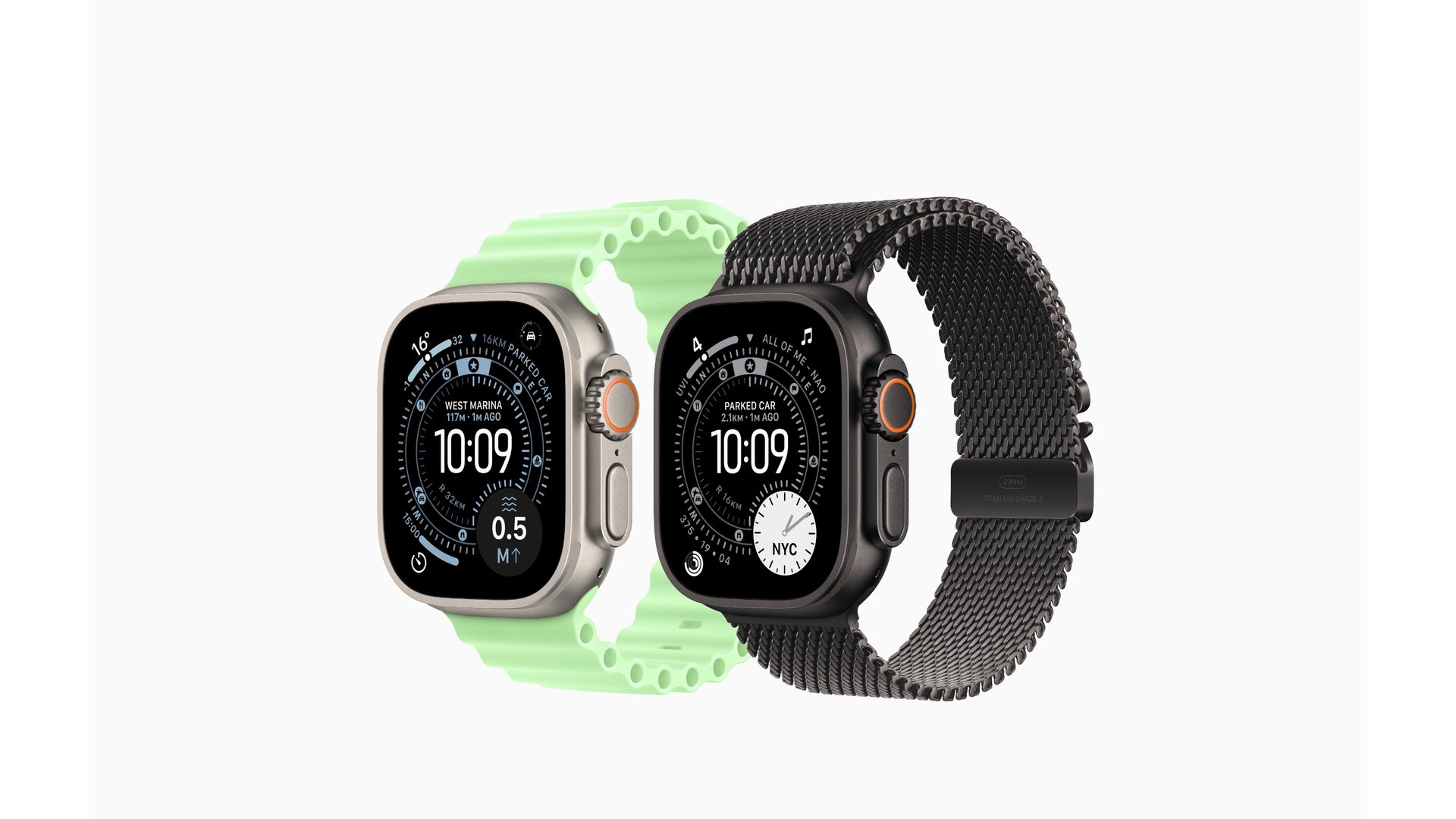
Is your Apple Watch not receiving texts? Fixing this common issue often involves checking your connection, updating settings, or restarting your devices. Many Apple Watch users face this problem, which can disrupt communication and productivity.
Your Apple Watch should seamlessly receive text messages from your paired iPhone. When this doesn’t happen, it can be frustrating. The good news is that most text reception issues have simple solutions. These range from checking your Messages settings to ensuring your watch is properly connected to your phone.
Before diving into more complex fixes, try basic troubleshooting steps. These include checking your Wi-Fi and Bluetooth connections, restarting both your watch and iPhone, and making sure your software is up to date. If these don’t work, you may need to look at your iMessage settings or reset your network settings.
| Common Causes | Quick Fixes |
|---|---|
| Poor connection | Check Wi-Fi and Bluetooth |
| Outdated software | Update watchOS and iOS |
| Incorrect settings | Review Messages settings |
| Sync issues | Restart both devices |
Apple Watch Not Receiving Texts: Troubleshooting Guide
If your Apple Watch is not receiving text messages, it can be frustrating—especially if you rely on it for quick communication. This guide walks you through the most common causes and step-by-step solutions to help restore message notifications on your Apple Watch.
Common Reasons Apple Watch Isn’t Receiving Texts
Before troubleshooting, it helps to understand why the issue may be happening:
- iPhone and Apple Watch are not properly connected
- Message notifications are turned off
- Do Not Disturb or Focus mode is enabled
- Software is outdated
- Cellular or Bluetooth connection issues
- iMessage or SMS settings are misconfigured
Step-by-Step Troubleshooting
1. Check Apple Watch and iPhone Connection
Your Apple Watch must be connected to your iPhone (unless it’s a cellular model operating independently).
How to check:
- On your Apple Watch, swipe up to open Control Center
- Look for a green iPhone icon (connected)
- If disconnected, ensure:
- Bluetooth is on (iPhone: Settings → Bluetooth)
- Wi‑Fi is enabled
- Your iPhone is nearby
2. Make Sure You’re Signed In to iMessage
If iMessage isn’t working on your iPhone, texts won’t reach your watch.
Steps:
- On iPhone, go to Settings → Messages
- Ensure iMessage is turned on
- Tap Send & Receive and confirm your phone number is selected
3. Check Notification Settings
Your Apple Watch mirrors your iPhone’s notification settings.
On iPhone:
- Open the Watch app
- Tap Notifications → Messages
- Select Mirror my iPhone
Also check:
- iPhone: Settings → Notifications → Messages
- Ensure notifications are allowed
- Sounds and banners are enabled
4. Disable Do Not Disturb or Focus Mode
Focus modes can silence text notifications.
To check:
- On Apple Watch: Open Control Center
- Turn off Do Not Disturb / Focus
- On iPhone: Settings → Focus and disable any active focus mode
5. Restart Both Devices
A simple restart often resolves syncing issues.
Steps:
- Restart your iPhone
- Restart your Apple Watch:
- Hold the side button
- Slide to power off
- Turn it back on
6. Check for Software Updates
Outdated software can cause message delivery problems.
On iPhone:
- Settings → General → Software Update
On Apple Watch:
- Open the Watch app
- General → Software Update
Install any available updates.
7. Test iPhone Message Notifications
If texts appear on your iPhone but not your watch, the issue is likely with watch notifications.
Tip:
- Lock your iPhone and send a test message
- Apple Watch notifications usually appear only when the iPhone screen is locked
8. Reset Apple Watch Notification Settings
If notifications are misconfigured, resetting them may help.
Steps:
- On iPhone, open the Watch app
- Go to Notifications
- Turn off and then re-enable Mirror my iPhone
9. Unpair and Re-Pair Apple Watch (Last Resort)
If nothing else works, re-pairing can fix deep syncing issues.
How to unpair:
- Open the Watch app on iPhone
- Tap All Watches
- Select your watch → Unpair Apple Watch
- Re-pair and restore from backup
Cellular Apple Watch Users
If you have a cellular model:
- Ensure your cellular plan is active
- Check signal strength
- Confirm Messages are allowed over cellular
When to Contact Apple Support
If your Apple Watch still isn’t receiving texts after trying these steps:
- Contact Apple Support
- Visit an Apple Store for diagnostics
Final Thoughts
Most Apple Watch text message issues are caused by connection problems, notification settings, or Focus modes. By following this troubleshooting guide step by step, you can usually resolve the issue quickly and get your messages back on your wrist where they belong.
Initial Troubleshooting Steps
When your Apple Watch isn’t receiving texts, a few basic steps can often resolve the issue. These steps focus on checking connections, restarting devices, and ensuring your software is up to date.
Checking Connections
Start by verifying your Apple Watch’s connection to your iPhone. Open the Control Center on your watch by swiping up from the bottom of the screen. Look for a green iPhone icon, which indicates a successful connection. If you see a red X, your devices aren’t connected.
To fix this:
• Ensure Bluetooth is on for both devices
• Keep your iPhone and watch close together
• Check that Airplane Mode is off on both devices
If problems persist, try toggling Airplane Mode on and off on your watch. This can help refresh the connection.
Restarting Devices
A simple restart can often solve text reception issues. Here’s how to restart your devices:
Apple Watch:
- Press and hold the side button
- Slide the Power Off slider
- Wait 30 seconds, then press the side button to turn it back on
iPhone:
- Press and hold the power button
- Slide to power off
- Wait 30 seconds, then turn it back on
After restarting, check if you can send or receive messages on your watch.
Updating Your WatchOS and iOS
Outdated software can cause messaging problems. Check for updates on both devices:
Apple Watch:
- Open the Watch app on your iPhone
- Tap General > Software Update
- Download and install if an update is available
iPhone:
- Go to Settings > General > Software Update
- Install any available updates
| Device | Current Version | How to Update |
|---|---|---|
| Apple Watch | watchOS 9 | Watch app > General > Software Update |
| iPhone | iOS 16 | Settings > General > Software Update |
After updating, test your messaging function again. These steps often resolve text reception issues on Apple Watches.
Notification Settings and Issues
Configuring your Apple Watch’s notification settings and addressing common issues can help ensure you receive text messages promptly. Proper setup and troubleshooting of key features like Do Not Disturb and Wrist Detection are essential for smooth operation.
Reviewing Notification Settings
To review your Apple Watch notification settings:
- Open the Watch app on your iPhone
- Tap “Notifications”
- Scroll through the list of apps
- Enable or disable notifications for each app
Customize notifications for specific apps by tapping on them. You can choose to mirror your iPhone settings or set custom options. For text messages, ensure “Show Alerts” is turned on.
Check that your Apple Watch is connected to your iPhone. If not, notifications may not come through. Verify the connection by looking for a green iPhone icon in Control Center.
Dealing with Do Not Disturb and Airplane Mode
Do Not Disturb and Airplane Mode can prevent text notifications. To check these settings:
- Swipe up on your watch face to open Control Center
- Look for the crescent moon (Do Not Disturb) and airplane icons
If either icon is colored, the mode is active. Tap to deactivate. Turn off Do Not Disturb to allow notifications.
For scheduled Do Not Disturb:
- Open Settings on your Apple Watch
- Tap “Focus”
- Select “Do Not Disturb”
- Adjust the schedule or turn it off
Remember to check Focus modes on your iPhone, as they sync with your Apple Watch.
Addressing Wrist Detection and Cover to Mute Features
Wrist Detection ensures notifications appear when you’re wearing your watch. To enable it:
- Open Settings on your Apple Watch
- Tap “Passcode”
- Turn on “Wrist Detection”
Cover to Mute silences alerts when you cover your watch face. To disable:
- Open the Watch app on your iPhone
- Tap “Sounds & Haptics”
- Turn off “Cover to Mute”
These features can affect how you receive notifications. Adjust them based on your preferences and needs.
| Feature | Purpose | How to Access |
|---|---|---|
| Wrist Detection | Ensures alerts when worn | Apple Watch Settings > Passcode |
| Cover to Mute | Silences alerts | iPhone Watch App > Sounds & Haptics |
| Do Not Disturb | Blocks notifications | Control Center or Settings > Focus |
| Airplane Mode | Disables all wireless | Control Center |
iMessage Configuration and Apple ID
Proper setup of iMessage and Apple ID is crucial for receiving texts on your Apple Watch. These settings ensure seamless communication between your devices.
Ensuring iMessage Settings Are Correct
To check your iMessage settings, start on your iPhone. Go to Settings > Messages and toggle iMessage on. Next, tap Send & Receive. Make sure your Apple Watch’s Apple ID matches the one listed here.
If you don’t see your Apple ID, sign in. This step is vital for syncing messages across devices.
On your Apple Watch, verify these settings:
- Open the Watch app on your iPhone
- Tap My Watch > Messages
- Ensure “Mirror my iPhone” is selected
This mirroring option keeps your watch and phone messages in sync.
Verifying Apple ID and Sign In Status
Your Apple ID links your devices. To verify it:
- Open the Watch app on your iPhone
- Tap My Watch > General > Apple ID
If you’re not signed in, do so now. Use the same Apple ID as your iPhone.
| Device | Where to Check Apple ID |
|---|---|
| iPhone | Settings > Your Name |
| Watch | Watch app > General |
Sometimes, signing out and back in fixes syncing issues. To do this:
- On your iPhone, go to Settings > Messages
- Tap Send & Receive > Apple ID > Sign Out
- Sign back in with your Apple ID
This process often resolves message syncing problems between your iPhone and Apple Watch.
Apple Watch Pairing and Support
Pairing your Apple Watch with your iPhone is essential for receiving texts. When issues arise, unpairing and re-pairing can often resolve them. Apple Support offers additional help if needed.
Unpairing and Re-Pairing the Apple Watch
To unpair your Apple Watch, open the Watch app on your iPhone. Tap “All Watches” at the top of the screen. Select the info button next to your watch. Choose “Unpair Apple Watch” and confirm.
Next, to re-pair:
- Turn on your Apple Watch and place it near your iPhone
- Wait for the pairing screen to appear on your iPhone
- Tap “Continue” and follow the on-screen instructions
This process resets your watch to factory settings. It can fix many text-related issues.
Seeking Further Assistance from Apple Support
If unpairing doesn’t solve the problem, contact Apple Support. You have several options:
- Visit apple.com/support
- Use the Apple Support app on your iPhone
- Call Apple Support directly
Prepare your device information before contacting support. This includes:
- Apple Watch model
- watchOS version
- iPhone model
- iOS version
Apple Support can guide you through additional troubleshooting steps. They may suggest updating your software or checking your iMessage settings.
| Support Option | Pros | Cons |
|---|---|---|
| Online Chat | Quick, convenient | Limited to text communication |
| Phone Call | Direct, personal assistance | May involve wait times |
| Genius Bar | In-person help, hardware checks | Requires appointment, travel |
Remember to check your warranty status before seeking support. Some services may incur fees if your device is out of warranty.
Frequently Asked Questions
Apple Watch users may encounter various issues with receiving text messages. These problems can stem from connectivity issues, software glitches, or incorrect settings. Let’s address some common concerns and their solutions.
Why is my Apple Watch failing to receive text messages from some contacts?
This issue often relates to contact-specific settings. Check if the problematic contacts are blocked on your iPhone. Unblock them if necessary. Also, ensure their contact information is up-to-date in your phone’s address book.
What steps can I take if my Apple Watch does not show text messages when I am away from my phone?
First, verify that your watch has an active cellular or Wi-Fi connection. If it’s connected, restart both your Apple Watch and iPhone. This often resolves syncing issues. Also, check if your iCloud account is signed in on both devices.
How can I troubleshoot my Apple Watch not mirroring text notifications from my iPhone?
Start by checking your notification settings. On your iPhone, open the Watch app and go to Notifications. Ensure “Mirror my iPhone” is enabled for Messages. If the problem persists, toggle iMessage off and on in your iPhone’s Settings.
What should I do if my Apple Watch is not receiving texts on its cellular data connection?
Verify that your cellular plan includes Apple Watch support. Next, check if cellular data is enabled on your watch. Go to Settings > Cellular and turn on Cellular Data. If issues persist, contact your carrier to ensure your plan is properly configured.
How can I resolve issues with my Apple Watch not receiving text messages or calls?
First, disable and re-enable iMessage on your iPhone. Then, sign out of your Apple ID on both devices and sign back in. If problems continue, reset your network settings on your iPhone and re-pair your watch.
In what situations would an Apple Watch not display text messages, although they appear on the paired iPhone?
This can happen if Do Not Disturb or Focus mode is active on your watch. Check for a moon icon on your watch face. If present, press the side button and tap the moon icon to disable it. Also, ensure Airplane Mode is off on your Apple Watch.
| Common Issues | Quick Fixes |
|---|---|
| No texts from specific contacts | Check blocked contacts list |
| Messages not syncing | Restart both devices |
| Notifications not mirroring | Verify notification settings |
| Cellular connection issues | Enable cellular data on watch |
| General text reception problems | Toggle iMessage, reset network settings |
| Messages on iPhone but not watch | Check Do Not Disturb and Airplane Mode |





