Keeping your Mac updated is a critical step to ensure that your device runs smoothly and securely. Apple frequently releases updates for macOS, their desktop operating system, which include new features, performance improvements, and important security patches. Users can easily update their systems through the Software Update feature. Before initiating an update, one should verify their Mac’s compatibility with the newest version and back up their files to prevent any potential data loss.
Executing the update process itself is straightforward. Once you’ve ensured your files are backed up and your Mac is compatible, you can proceed to the Software Update section within System Preferences. Apple has designed the process to be user-friendly, typically involving just a few clicks to start the download and installation of the latest macOS version. The system will guide you through the necessary steps and may require a restart to complete the installation.
How to Update macOS
Keeping your Mac up to date ensures you get the latest features, security patches, and performance improvements.
Before You Update (Recommended)
- Back up your Mac
- Use Time Machine or another backup method.
- This protects your data if anything goes wrong.
- Check compatibility
- Some older Macs may not support the newest macOS version.
- Apple will show compatibility info before installation.
- Plug in your Mac
- For MacBooks, connect to power to avoid interruptions.
- Stable internet connection
- Updates can be several gigabytes in size.
How to Update macOS (Current Versions)
Step 1: Open System Settings
- Click the Apple menu () in the top‑left corner.
- Select System Settings.
Step 2: Go to General → Software Update
- In the sidebar, click General.
- Select Software Update.
Step 3: Check for Updates
- Your Mac will automatically check for available updates.
- If an update is available, you’ll see:
- Update Now (for minor updates)
- Upgrade Now (for a major macOS version)
Step 4: Download and Install
- Click Update Now or Upgrade Now.
- Enter your Mac’s administrator password if prompted.
- Your Mac may restart several times during installation.
How to Enable Automatic Updates
- Open System Settings
- Go to General → Software Update
- Click the ⓘ (Info) button next to Automatic Updates
- Turn on:
- ✅ Check for updates
- ✅ Download new updates when available
- ✅ Install macOS updates
This helps keep your Mac secure without manual checks.
Updating Older macOS Versions
If you’re using an older macOS version:
- Open System Preferences (instead of System Settings)
- Click Software Update
- Follow the on‑screen instructions
Troubleshooting Common Issues
Not enough storage
- Free up space by deleting unused apps or files.
- macOS usually needs 15–25 GB of free space.
Update stuck or frozen
- Restart your Mac and try again.
- Ensure a stable internet connection.
Update doesn’t appear
- Your Mac may not support the latest macOS.
- Check Apple’s compatibility list.
After the Update
- Sign in and allow background processes to finish.
- Check System Settings → General → Software Update to confirm installation.
- Update apps via the App Store if needed.
Summary
Updating macOS is simple:
- Apple menu → System Settings
- General → Software Update
- Download and install
Regular updates keep your Mac fast, secure, and reliable.
Key Takeaways
- Regularly updating macOS is important for security and functionality.
- Before updating, check compatibility and back up important files.
- The update can be done through System Preferences with guided steps.
Preparing for macOS Update
Updating your Mac is crucial for accessing the latest features and enhancing security. Before initiating the update process, ensure compatibility and back up important data.
Checking Compatibility and System Requirements
First, verify that your Mac is eligible for the update. The latest macOS versions usually support Macs from certain years onward. Check Apple’s official website for a list of compatible models which typically includes MacBook Air, MacBook Pro, iMac, Mac Mini, and Mac Pro. Newer macOS editions often require a specific amount of RAM and storage space. For example, updating to macOS Monterey requires at least 4 GB of RAM and 26 GB of storage.
Backing Up Your Data
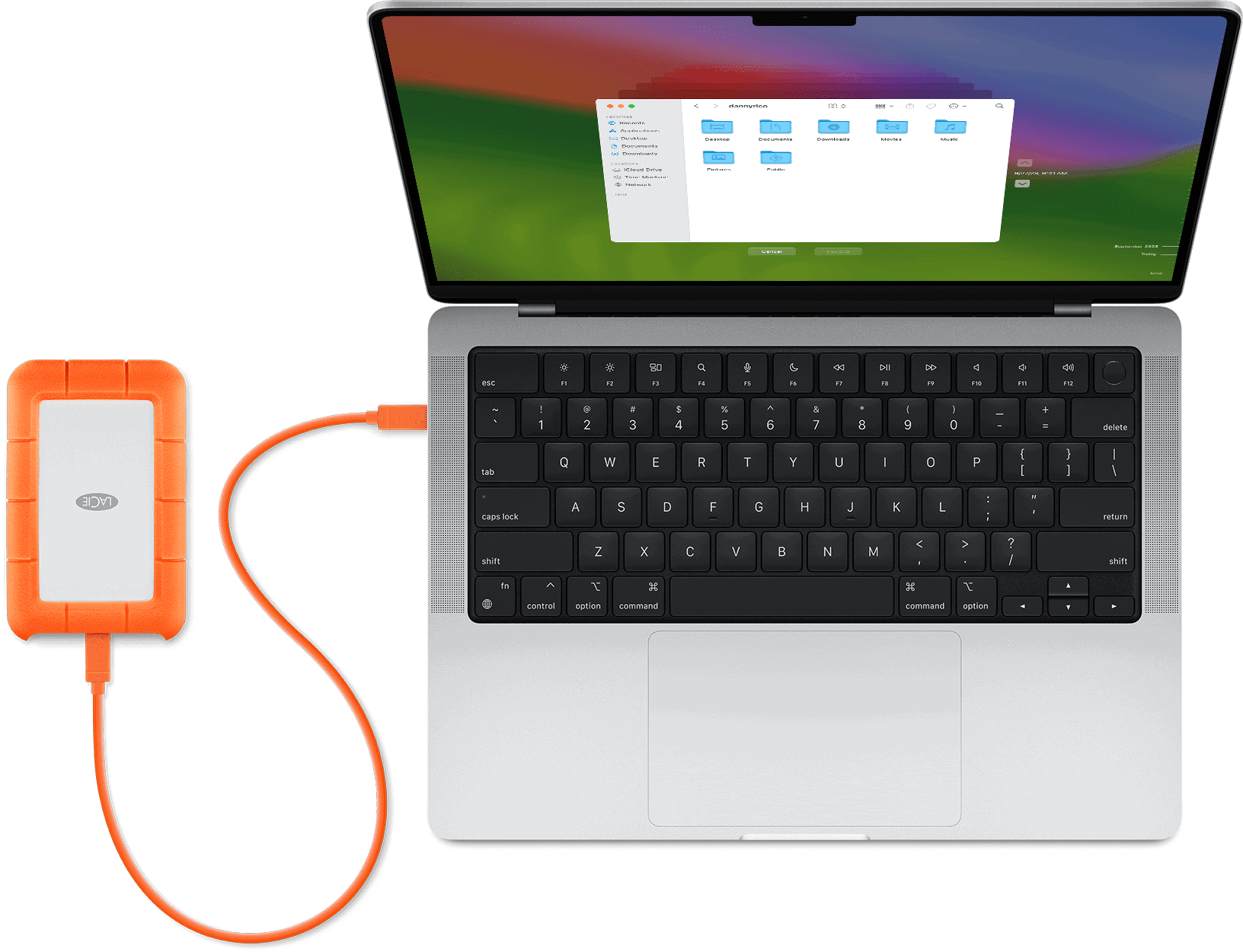
It’s vital to back up your Mac before updating. Use Time Machine, which is a built-in backup software, to securely store your files on an external hard drive. This step protects your data in case the update encounters problems. To start, connect an external drive to your Mac, then open Time Machine from System Preferences and select the drive as your backup disk. Time Machine will automatically begin creating a backup of your files. Having a current backup ensures that you can restore your system if needed.
Executing macOS Update
Updating macOS is essential to access new features, improve security, and get software updates that make your Mac run better. This guide will walk you through the steps.
Using Software Update
To start an update, click the Apple menu on your screen’s top-left corner. Then choose System Settings and select Software Update. You may see System Preferences instead, depending on your macOS version. If there’s an update available, click Upgrade Now or Download and Install.
Downloading and Installing macOS
Your Mac connects to the App Store and starts to download the macOS update. During this time, you can use your Mac as the download happens in the background. A progress bar shows how the download is going. Once the download is complete, your Mac may ask you to restart to continue with the installation process.
Finalizing Installation
After your Mac restarts, the installation process begins. Be patient as this can take some time, during which your Mac may restart several times. Do not turn off your Mac during this stage. Once the installation is complete, your Mac will start with an upgraded operating system, like macOS Ventura or Monterey, ready to use. If you set up automatic updates, your Mac can handle future updates on its own.