
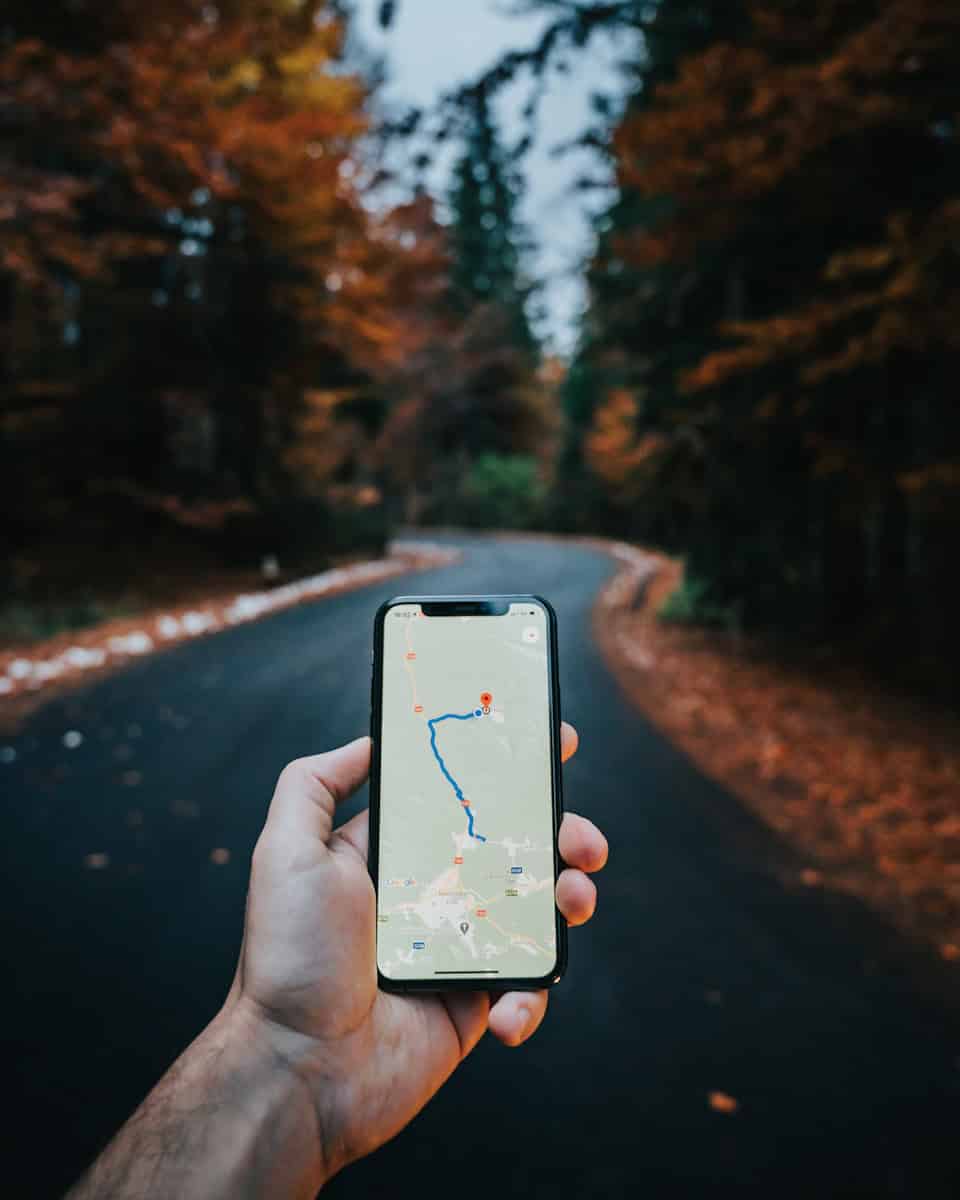
Staying connected with family and friends has never been easier, thanks to location sharing features available on both iPhone and Android devices. Whether you’re coordinating meetups, checking if your teenager made it to school, or making sure your elderly parent got home safely, sharing your location across different phone platforms is simple. You can share your location between iPhone and Android devices using apps like Google Maps, Life360, or WhatsApp, all of which work seamlessly across both operating systems.
Many people don’t realize how easy it is to bridge the iPhone-Android gap when it comes to location sharing. Gone are the days when Apple users could only share locations with other Apple users. Now, with just a few taps, anyone can see where their loved ones are, regardless of what phone they use. This cross-platform capability makes planning get-togethers and ensuring family safety much more convenient.
How To Share Location Between iPhone and Android
Sharing your location between an iPhone and an Android phone is useful for staying connected with family, meeting friends, or ensuring safety while traveling. While Apple and Android use different ecosystems, several simple methods make cross‑platform location sharing easy.
Best Ways to Share Location Between iPhone and Android
The most reliable methods work on both platforms:
- Google Maps
- Telegram
- Facebook Messenger
- Life360
Below are step‑by‑step instructions for each option.
Method 1: Share Location Using Google Maps (Recommended)
Google Maps works seamlessly on both iPhone and Android.
Steps on iPhone
- Install Google Maps from the App Store
- Open the app and sign in with your Google account
- Tap your profile picture
- Select Location sharing
- Tap Share location
- Choose a duration (e.g., 1 hour or Until you turn it off)
- Select the Android contact or copy the share link
Steps on Android
- Open Google Maps
- Sign in with the same or a different Google account
- Tap Location sharing
- Accept the location‑sharing invite
✅ Works in real time
✅ Adjustable sharing duration
Method 2: Share Location via WhatsApp
WhatsApp supports live location sharing across platforms.
Steps (iPhone & Android)
- Open WhatsApp
- Start or open a chat
- Tap the Attach (+ / paperclip) icon
- Select Location
- Tap Share Live Location
- Choose how long to share (15 minutes, 1 hour, or 8 hours)
Method 3: Share Location Using Telegram
Telegram allows live location sharing with contacts or groups.
Steps
- Open Telegram
- Open a chat
- Tap the Attach icon
- Choose Location
- Select Share My Live Location
- Set the sharing duration
Method 4: Share Location via Facebook Messenger
This method is best for short‑term sharing.
Steps
- Open Messenger
- Open a conversation
- Tap the Location icon
- Select Start Sharing Live Location
⏱️ Location sharing lasts up to 60 minutes.
Method 5: Use a Family Location App (Life360)
Life360 is ideal for families or long‑term tracking.
Steps
- Install Life360 on both devices
- Create an account or sign in
- Create a Circle
- Invite family members
- Enable location sharing
✅ Continuous tracking
✅ Safety alerts and driving data (some features require a subscription)
Privacy & Safety Tips
- 🔒 Share your location only with trusted contacts
- ⏳ Set time limits whenever possible
- 📍 Turn off location sharing when it’s no longer needed
- ⚙️ Review app permissions regularly
Troubleshooting Tips
Location not updating?
- Check that Location Services are enabled
- Ensure the app has permission to access location
- Disable battery‑saving modes temporarily
Can’t see the other person?
- Confirm they accepted the sharing invite
- Make sure both devices have internet access
Key Takeaways
- Google Maps offers built-in location sharing that works between iPhones and Android phones without extra apps.
- Third-party apps like Life360 and WhatsApp provide additional features beyond basic location sharing.
- Always check your privacy settings and set time limits when sharing your location with others.
Understanding Location Sharing
Location sharing has transformed how we stay connected with friends and family across different devices. This technology uses GPS signals and smartphone sensors to pinpoint and share our whereabouts with chosen contacts.
Evolution of GPS Technology
GPS technology began as a military tool in the 1970s. The US Department of Defense created it to track troops and equipment. By 2000, civilian use expanded when the government removed accuracy restrictions.
Early phone GPS was basic and battery-draining. It often took minutes to get a fix on your location. Modern smartphones use assisted GPS (A-GPS), which combines cell tower data, Wi-Fi signals, and satellite information.
This combination makes location finding:
- Faster – often within seconds
- More accurate – within a few meters
- Less power-hungry – using 90% less battery than early systems
Today’s GPS chips in phones can work even in challenging environments like tall buildings or dense forests.
Location Services on Smartphones
Both iPhone and Android devices include built-in location services. These systems use a mix of technologies to track position:
- GPS satellites
- Cell tower triangulation
- Wi-Fi networks
- Bluetooth beacons
On iPhones, location services are managed through Settings > Privacy > Location Services. Users can grant apps three permission levels: “Never,” “While Using,” or “Always.”
Android offers similar controls through Settings > Location. Both platforms notify users when apps access location in the background.
Location accuracy varies based on your environment. Outdoors with clear skies, GPS can be accurate to within 3-5 meters. Indoors, phones rely more on Wi-Fi and Bluetooth signals, with accuracy around 5-15 meters.
Enabling Location Sharing on iOS and Android
Setting up location sharing on both iPhones and Android devices is simple once you know the right settings to adjust. Both platforms offer built-in options and third-party apps that make it easy to share your whereabouts with family and friends.
Location Sharing with iOS Devices
On an iPhone, you can share your location using the built-in Find My app. This app comes pre-installed on all iOS devices.
To enable location sharing:
- Open the Find My app
- Tap the People tab at the bottom
- Select Share My Location
- Enter the contact’s name or phone number
- Choose how long to share (one hour, until end of day, or indefinitely)
For location sharing to work properly, make sure your location settings are correctly configured. Go to Settings > Privacy > Location Services > Find My and select Always to keep sharing active.
You can also use Google Maps on iOS. Open the app, tap your profile picture, select Location sharing, and choose who can see your location and for how long.
Location Sharing with Android Devices
Android phones offer several ways to share your location with others.
The simplest method is using Google Maps:
- Open Google Maps
- Tap your profile picture in the top right
- Select Location sharing
- Tap Share location
- Choose how long and with whom you want to share
Android users can manage location sharing settings by going to Settings > Location > Google Location Sharing.
For cross-platform sharing between iPhones and Android devices, Google Maps works well since it’s available on both systems. Third-party apps like Life360 also offer reliable options for families using different devices.
Remember to check your battery settings, as constant location sharing may drain your battery faster.
Cross-Platform Location Sharing
Sharing location between different operating systems has become easier with several apps that work on both iPhone and Android devices. These tools help families stay connected and friends coordinate meetups regardless of what phones they use.
Sharing Between iPhone and Android
Sharing your location between iPhone and Android devices is simpler than many people think. Both platforms support several methods to track loved ones across different operating systems.
Google Maps offers a built-in location sharing feature that works seamlessly between iPhones and Android phones. Users can share their location temporarily or indefinitely.
For iPhone users sharing with Android contacts, they need to:
- Go to Settings > Privacy > Location Services
- Select Google Maps
- Choose “Always” for location access
Android users should check that location permissions are enabled for Google Maps in their device settings.
WhatsApp and Facebook Messenger also support cross-platform location sharing. These apps are helpful when communicating with friends who use different phone types.
Utilizing Common Apps for Location Sharing
Several apps make sharing locations between different phone types easy and reliable. These tools offer various features beyond basic location tracking.
Life360 stands out with its cross-platform capabilities. The app works equally well on iPhones and Android devices, making it perfect for mixed-device families. Life360 offers:
- Real-time location updates
- Location history
- Battery monitoring
- Safety notifications
Google Maps remains one of the most popular choices due to its wide availability. Users can share their location for specific time periods or until they manually stop sharing.
For families with both iPhone and Android users, AirDroid provides reliable location tracking with additional parental control features.
WhatsApp works well for temporary location sharing during meetups or travel, letting users share their current location or a specific place they want others to find.
Using Location-Based Services for Enhanced Functionality
Location-based services can take your phone experience to the next level by connecting you with friends, family, and services based on where you are. These tools use GPS technology to create helpful ways to share your location and find what you need nearby.
Real-Time Location Sharing Apps
Many apps now offer cross-platform capabilities between iOS and Android for sharing your location in real time. Life360 stands out as a popular choice that works equally well on both systems.
Unlike temporary sharing options, apps like Life360 allow for ongoing location sharing without the 24-hour limitations found in some other services. This makes them perfect for families who want to keep track of each other.
Other options include Glympse, which lets you share your location temporarily with specific people. You can set exact time limits—perfect for when you’re meeting someone or heading to an appointment.
When choosing a location sharing app, look for these key features:
- Cross-platform compatibility
- Battery efficiency
- Privacy controls
- Custom notifications
Sharing Your Location Through Social Media
Popular messaging apps make location sharing simple between iPhone and Android users. WhatsApp offers an easy way to share where you are with contacts during a conversation.
Facebook Messenger includes a live location feature that works across both platforms. Tap the location icon in a chat to share your position for a specific time period—usually up to an hour.
These social media options work well for casual meetups. They’re simpler than dedicated location apps but offer fewer features.
Remember to check your privacy settings before sharing. Most apps let you control who sees your location and for how long.
Location-Based Apps for Specific Needs
Beyond simple location sharing, many apps use your position to provide targeted recommendations and services. Restaurant finders can show you nearby dining options based on where you are.
Travel apps can suggest local attractions and provide directions that work across different phone platforms. Ridesharing services use location data to connect you with nearby drivers regardless of your phone type.
Shopping apps can alert you to deals when you’re near certain stores. This works by using location-based services that both Android and iPhone support.
For business travelers, location-based meeting apps can help coordinate gatherings by showing everyone’s ETA based on their current position.
Privacy Considerations and Best Practices
Sharing your location between iPhone and Android devices offers convenience, but it comes with important privacy implications. Understanding how to manage settings, recognize potential risks, and follow safety practices can help protect your personal information.
Managing Privacy Settings
Both iPhones and Android phones have built-in controls to manage who sees your location. On iPhone, go to Settings > Privacy > Location Services to control which apps can access your location data. You can choose “Never,” “While Using,” or “Always” for each app.
For Android users, navigate to Settings > Location > App permissions to review and modify which apps can access your location data.
Both platforms let you temporarily pause location sharing. This is useful when you want privacy without permanently turning off the feature.
Remember to regularly review your shared locations. Many people forget which apps have access to their whereabouts. Set a monthly reminder to check these settings and revoke permissions for apps you no longer use.
Understanding Risks and Permissions
When you share your location, you’re giving away sensitive data about your habits and whereabouts. This information could be used by third parties if not properly protected.
Apps may request either “precise” or “approximate” location access:
- Precise location: Shows your exact position (within a few meters)
- Approximate location: Shows your general area (neighborhood level)
Choose the appropriate level for each app. A weather app might only need approximate location, while navigation needs precise coordinates.
Be aware that some services might store your location history. Google Maps and Apple Maps both keep records of places you’ve been unless you disable this feature. Regularly review your shared locations to ensure your privacy.
Best Practices for Location Sharing
Share selectively: Only share your location with trusted people. Most apps let you set time limits for sharing—use this feature when possible.
Check battery impact: Location services can drain your battery. Close unused apps that request location data when not needed.
Use virtual locations: For enhanced privacy, consider using VPN services that can mask your actual location in some apps.
Turn off location history: Disable the storage of your past locations if you don’t need this feature.
Review app permissions regularly: Apps may update their policies. Check their location permissions every few months.
Always share your whereabouts only with trusted people or apps. If traveling somewhere sensitive, consider temporarily disabling location sharing altogether.
When lending your phone to someone, remember they might see your saved locations and history. Use guest mode if available.
Advanced Location Sharing Features
Modern location sharing apps offer sophisticated features that go beyond basic tracking. These tools allow users to share their whereabouts for extended periods, create fake locations for privacy, and keep tabs on loved ones with precision and control.
Indefinite Location Sharing
Sharing your location between iPhone and Android devices permanently is now possible with several apps. Google Maps offers this feature, but many users report the links expire after 24 hours. To share location indefinitely between these platforms, specialized apps work better.
Life360 stands out as a reliable option. It works seamlessly across both iOS and Android devices with no time limits. The app refreshes location data automatically without requiring manual updates.
Find360 also provides excellent real-time location sharing with an intuitive interface. Users can set up permanent sharing with specific contacts without worrying about expiration dates.
For best results when setting up indefinite sharing:
- Ensure both devices have location permissions enabled
- Check that battery optimization is turned off for the app
- Verify that background data usage is permitted
Creating Virtual Locations for Privacy
Virtual location features let users protect their privacy while still using location-based apps. This tool is helpful when you want to share an approximate location rather than your exact position.
Popular apps like Life360 include “circles” where you can create general areas instead of pinpoint locations. This helps maintain privacy while still letting loved ones know you’re safe.
Some key benefits of virtual locations:
- Privacy control: Share general neighborhoods instead of exact addresses
- Safety planning: Arrange meetup spots without revealing your current position
- App testing: Developers can test location-based features without traveling
iPhone users can access this feature through third-party apps, while Android offers more built-in options for location spoofing. Remember that some services might detect and flag virtual locations.
Tracking Friends and Family
Modern apps make it easy to track friends and family members across different device types. These tools work by creating shared groups where everyone can see each other’s positions on a map.
Life360 offers “circles” for different groups—one for immediate family and another for friends. This helps organize contacts and control who sees your location.
Most tracking apps show:
- Real-time position updates
- Travel history (where permitted)
- Battery levels of connected devices
- Arrival/departure notifications
Find360 and Google Maps also offer cross-platform solutions. Google Maps allows users to share their location through their profile picture menu, though some users report connection issues between iOS and Android.
For families with children, these apps often include additional safety features like SOS buttons and geofencing that sends alerts when someone enters or leaves a designated area.
Frequently Asked Questions
Location sharing between iPhone and Android devices offers multiple options through various apps and platforms. These methods allow users to track each other across different operating systems with varying degrees of permanence and privacy features.
How can one use Google Maps to share their location across iPhone and Android devices?
Google Maps provides a straightforward way to share location between different devices. Open Google Maps on your device and tap on the blue dot showing your current location. Then select “Share Location” from the menu that appears.
Next, choose how long you want to share your location and select the person you want to share with. You can share your location for a set time period or until you manually turn it off.
Both iPhone and Android users can receive and view shared locations through Google Maps, making it a universal solution.
What are the best apps for cross-platform location sharing between iPhone and Android?
Google Maps ranks among the most popular cross-platform location sharing apps. It works seamlessly between iPhone and Android devices and is free to use.
Life360 is another excellent option for families wanting constant location updates. The app offers real-time tracking, location history, and crash detection features.
AirDroid offers location sharing capabilities between iPhone and Android devices. Users need to install the app on both devices to enable this function.
WhatsApp and Telegram also allow temporary location sharing through their messaging platforms, which works across both operating systems.
Is it possible to share location indefinitely from an iPhone to an Android device, and how?
Yes, indefinite location sharing is possible, though Google Maps may not always work permanently. For truly permanent sharing, dedicated family tracking apps are more reliable.
Life360 allows continuous location sharing without time limits. After creating an account and adding family members, your location will be shared indefinitely until you disable the feature.
Google Maps also offers an “Until you turn this off” option when sharing location. However, some users report issues with links expiring after 24 hours despite selecting this option.
How does one share their location from an Android to an iPhone without incurring any charges?
Most location sharing methods between Android and iPhone are free of charge. Google Maps offers free location sharing for all users with Google accounts.
Free messaging apps like WhatsApp, Telegram, and Facebook Messenger all include location sharing features at no cost. These apps use internet data rather than SMS.
Third-party apps like Life360 offer basic location sharing features for free. Premium features require subscription payments, but the core sharing functionality remains free.
Are there any limitations when sharing location across different mobile operating systems, such as from iPhone to Android?
Apple’s built-in Find My service does not work with Android devices. This limits iPhone users who want to share their location with Android users through Apple’s native system.
Battery optimization settings on both platforms may interrupt background location tracking. Users should check these settings if location updates seem inconsistent.
Privacy settings on either device can block location sharing. Both users need to grant appropriate permissions for location sharing to work properly.
Network connectivity issues affect location accuracy and update frequency. Poor signals may result in outdated location information.
What methods are available to find someone’s location when they are using an Android device and I am using an iPhone?
Cross-platform apps provide the best solutions for finding someone’s location across different operating systems. Google Maps works reliably for both iPhone and Android users.
Family safety apps like Life360 or Family Locator allow real-time tracking regardless of device type. These apps create private groups where members can see each other’s locations.
Social media apps including Snapchat’s Snap Map feature allow friends to share locations across different devices. This works as long as both parties have the same app installed.





