
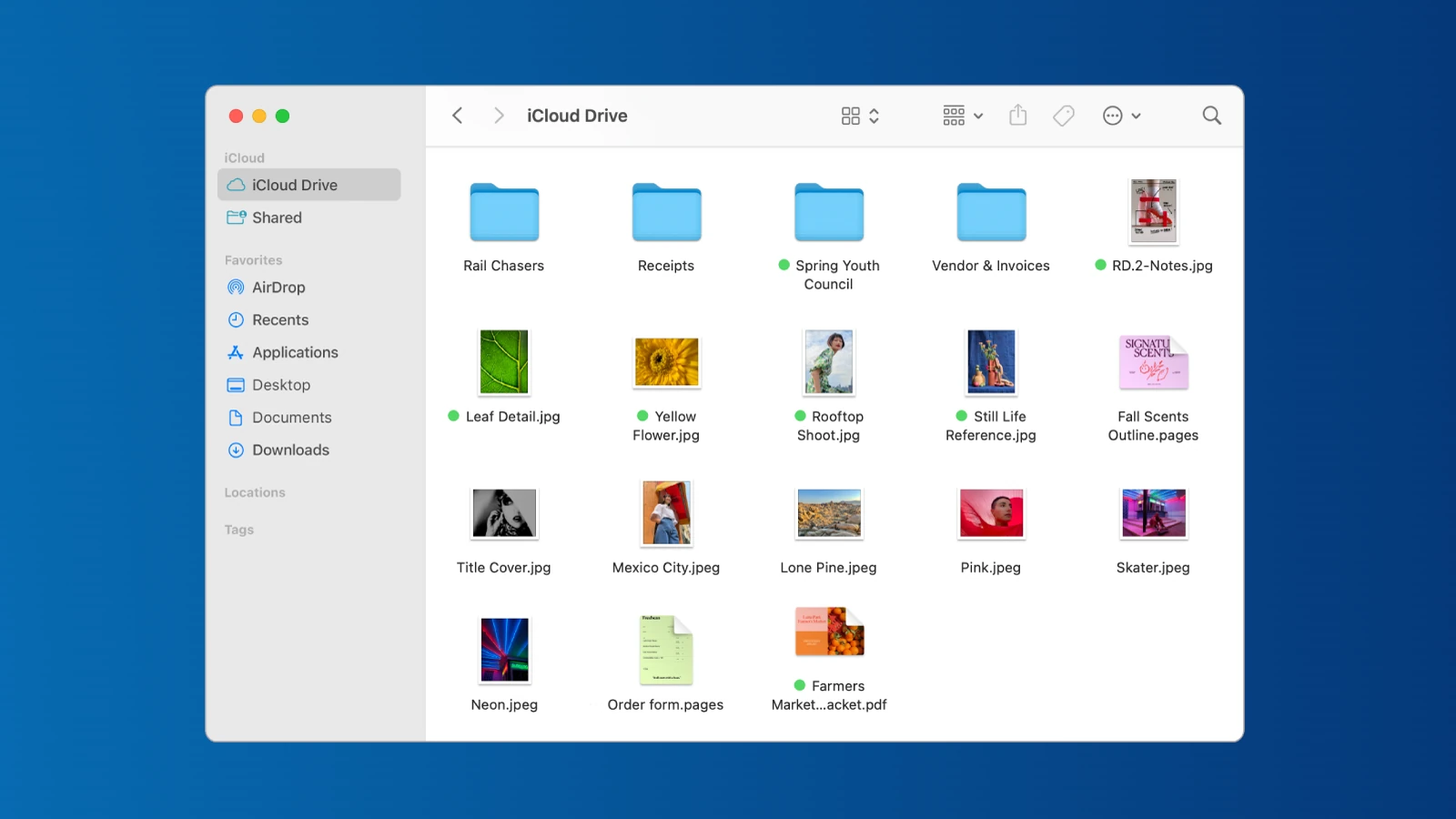
Navigating files on a Mac is simpler than you might think. The Finder app is your gateway to browsing and managing files on macOS. You can easily access Finder by clicking its smiling face icon in the Dock or pressing Command+N on your keyboard.
Finder offers a user-friendly interface for exploring your Mac’s file system. You’ll find familiar elements like a sidebar for quick access to common locations, a search bar for finding specific files, and different view options to suit your preferences. Customizing the Finder sidebar allows you to add or remove locations for faster navigation.
Mac’s file explorer goes beyond basic browsing. You can use tags to organize files across folders, create smart folders that automatically update based on search criteria, and even access files on other Apple devices through iCloud Drive. These features make Finder a powerful tool for keeping your digital life organized.
| Feature | Description |
|---|---|
| Quick Look | Preview files without opening them |
| Tags | Organize files with color-coded labels |
| Smart Folders | Auto-update based on search criteria |
| iCloud Integration | Access files across Apple devices |
File Explorer on Mac: Navigating Your System Efficiently (2026 Guide)
If you’re coming from Windows, you might look for File Explorer on Mac. On macOS, the equivalent is called Finder — and it’s the central hub for managing files, folders, drives, AirDrop, iCloud, and more.
This guide will show you how to navigate your Mac efficiently using Finder, including tips, shortcuts, and advanced tricks.
What Is File Explorer on Mac?
On macOS, Finder is the file management system — similar to File Explorer on Windows.
With Finder, you can:
- Browse files and folders
- Copy, move, and delete files
- Search your Mac
- Access external drives
- Connect to network servers
- Manage iCloud Drive
- Use AirDrop
Finder is always running and can be accessed from the smiling face icon in your Dock.
(Overview of Finder basics: How-To Geek – Browse Files on a Mac)
How to Open Finder
✅ Click the Finder icon in the Dock
✅ Press Command (⌘) + N (opens new Finder window)
✅ Click on your desktop
Understanding the Finder Interface
A Finder window includes:
1. Sidebar
Located on the left. It includes:
- Favorites (Desktop, Documents, Downloads)
- iCloud Drive
- Locations (Macintosh HD, external drives)
- Network devices
- AirDrop
You can customize the sidebar:
Finder → Settings → Sidebar
(See customization tips: TechPP – Finder Tips)
2. Toolbar
At the top:
- Back/Forward buttons
- View options
- Search bar
- Share button
- More (•••) menu
You can customize the toolbar:
View → Customize Toolbar
3. View Modes (Very Important)
Finder has four main views:
✅ Icon View (⌘ + 1)
Best for images and visual browsing.
✅ List View (⌘ + 2)
Shows file details (size, date modified, kind).
✅ Column View (⌘ + 3)
Shows folder hierarchy in columns. Great for fast navigation.
✅ Gallery View (⌘ + 4)
Large preview panel for photos and videos.
Column View is often praised as one of macOS’s most powerful navigation tools (source: Medium – Mac navigation comparison).
Navigating Folders Efficiently
Go Back or Forward
- ⌘ + [ (Back)
- ⌘ + ] (Forward)
Jump to a Specific Folder
Press: ⌘ + Shift + G
Enter a path like:
codeCopy
/Applications
~/Documents
This is similar to typing a path in Windows File Explorer.
Use Spotlight Search Inside Finder
In the top-right corner, use the Search bar.
You can search by:
- File name
- File type
- Date modified
- Tags
- Contents inside documents
You can also use: ⌘ + F to start an advanced search.
Tags: A Powerful Organization Tool
Mac allows you to color-tag files.
To tag a file:
- Right-click → Tags
- Or use the Tags section in Finder
Then click the tag in the sidebar to instantly filter files.
Tags are one of the easiest ways to organize projects across multiple folders.
Quick File Management Shortcuts
| Action | Shortcut |
|---|---|
| New Folder | ⌘ + Shift + N |
| Rename File | Return key |
| Delete | ⌘ + Delete |
| Copy | ⌘ + C |
| Paste | ⌘ + V |
| Move File (Cut Alternative) | ⌘ + Option + V |
| Quick Look Preview | Spacebar |
| Get Info | ⌘ + I |
Use Quick Look (Huge Time Saver)
Select a file and press: Spacebar
You can preview:
- PDFs
- Images
- Videos
- Word docs
- Spreadsheets
Without opening the full app.
Show Hidden Files
To toggle hidden files: ⌘ + Shift + . (period)
Hidden files will appear slightly faded.
Access External Drives & Network Locations
Finder lets you:
- Mount USB drives
- Access external SSDs
- Connect to shared computers
To connect to a server:
Go → Connect to Server
Or press: ⌘ + K
Customize Finder for Speed
Set Default Folder
Choose what opens when Finder launches:
Finder → Settings → General
Change “New Finder windows show”
Many users set this to:
- Downloads
- Documents
- Recents
Enable Path Bar
To see file location at bottom:
View → Show Path Bar
Enable Status Bar
Shows item count and storage info:
View → Show Status Bar
Using Finder with iCloud
If iCloud Drive is enabled:
- Files sync automatically
- You can access files across Apple devices
- Cloud icon = file not fully downloaded
- Right-click → Download Now
Advanced Navigation Tips
Use Smart Folders
Create dynamic folders:
File → New Smart Folder
Example:
- All PDFs created this week
- All images larger than 5MB
Split View in Finder
Open two Finder windows side-by-side for easier file transfers.
Use Tabs
Open multiple folders in one window: ⌘ + T
Finder vs Windows File Explorer
| Feature | Finder (Mac) | File Explorer (Windows) |
|---|---|---|
| Column View | ✅ Yes | ❌ No |
| Quick Look | ✅ Built-in | Limited |
| Tags | ✅ Native | Limited |
| Cut-Paste | ⌘ + Option + V | Ctrl + X |
Finder’s Column View and Quick Look give it a unique navigation advantage (source: Medium comparison article).
Common Finder Problems & Fixes
Finder Not Responding
- Right-click Finder icon in Dock
- Select Relaunch
Can’t See Hard Drive
Finder → Settings → Sidebar
Enable “Hard disks”
Final Thoughts
Finder is more than just a file browser — it’s a powerful system navigation tool.
To navigate efficiently:
✅ Use Column View
✅ Learn keyboard shortcuts
✅ Use Quick Look
✅ Enable Path Bar
✅ Use Tags and Smart Folders
Once mastered, Finder can be faster and more intuitive than traditional file explorers.
Navigating the Finder Interface
The Finder interface offers intuitive tools for managing files and folders on your Mac. Its sidebar, toolbar, and Dock integration streamline navigation and organization.
Understanding the Sidebar and Toolbar
The Finder sidebar provides quick access to frequently used locations. You can customize it by dragging items in or out. Add folders, drives, or network locations for easy access.
The toolbar offers useful buttons for common actions. To modify it, right-click and select “Customize Toolbar.” Add or remove items to suit your workflow.
Finder views let you see files differently. Choose from icon, list, column, or gallery view using the toolbar buttons. Each view has unique benefits:
- Icon: Visual browsing
- List: Detailed file info
- Column: Hierarchical navigation
- Gallery: Large previews
Working with the Dock and Menu Bar
The Dock gives quick access to the Finder. Click its icon to open a new Finder window or right-click for options like “New Finder Window.”
Force click a file icon in the Finder to preview contents without opening. This saves time when browsing multiple files.
The Finder menu bar offers advanced options. Use “Go” to jump to specific folders or “View” to change how files display.
| Finder Element | Key Features |
|---|---|
| Sidebar | Quick access, customizable |
| Toolbar | Common actions, view options |
| Dock | Finder shortcuts, previews |
| Menu Bar | Advanced navigation, view settings |
These tools work together to help you navigate and manage files efficiently on your Mac.
Managing Files and Folders
The Finder on Mac offers powerful tools to handle your documents efficiently. You can quickly locate files, set up custom views, and use advanced techniques to keep everything organized.
Finding and Organizing Documents
The Finder sidebar provides quick access to key locations. You can customize it by dragging folders you use often. To create a new folder, press Cmd+Shift+N or select File > New Folder from the menu bar.
Use Smart Folders to automatically gather files based on criteria you set. To make one, go to File > New Smart Folder and specify your search terms.
Rename multiple files at once by selecting them and choosing File > Rename. You can add sequential numbers or replace text in bulk.
The column view helps you navigate through folder hierarchies quickly. Enable it by clicking the column view icon in the Finder toolbar.
Customizing Views and Using Tags
Adjust how files appear by selecting View > Show View Options. You can change icon sizes, sort order, and visible columns in list view.
Tags offer a flexible way to categorize files across folders. To add a tag:
- Right-click a file
- Select Tags
- Choose an existing tag or create a new one
Use the sidebar to filter files by tag colors for quick access.
The Cover Flow view lets you flip through visual previews of your files. Enable it from the View menu or by pressing Cmd+4.
Advanced Techniques for File Management
Keyboard shortcuts speed up file operations:
| Action | Shortcut |
|---|---|
| Copy | Cmd+C |
| Paste | Cmd+V |
| Move | Cmd+Opt+V |
| New Folder | Cmd+Shift+N |
Drag and drop works for moving files between folders or applications. Hold Option while dragging to copy instead of move.
Use stacks on the desktop to automatically group similar files. Right-click the desktop and choose Use Stacks to enable this feature.
The Path Bar shows the full directory path of your current location. Enable it from View > Show Path Bar to always know where you are in the file system.
File Operations
File operations on Mac encompass various tasks for managing your data efficiently. These include opening files, modifying them, and organizing your digital space.
Opening and Accessing Files
The Mac offers several ways to open and access your files. Double-clicking a file is the quickest method to launch it in its default application. For more options, right-click the file to see a context menu.
You can also use the Open Finder command (Command+N) to browse your files in a new window. The Search Box in Finder helps you locate specific files quickly.
To preview file contents without fully opening them, use the Preview Pane. Select a file and press Space bar to activate Quick Look.
File Modifications and Quick Actions
Mac provides tools to modify files directly from Finder. Rename files by selecting them and pressing Return. You can also use batch renaming for multiple files.
Quick Actions allow you to perform tasks without opening applications. Right-click a file to access these options:
- Convert images
- Rotate photos
- Create PDFs
- Trim audio/video
Colored labels help organize your files visually. Assign them by right-clicking and selecting a color.
Deleting, Moving, and Archiving Data
To delete files, drag them to the Trash Can icon in the Dock. You can also use the keyboard shortcut Command+Delete.
Moving files is simple. Drag and drop them between folders or use the Cut (Command+X) and Paste (Command+V) commands.
For archiving, compress files by right-clicking and selecting “Compress.” This creates a zip file, reducing storage space and making sharing easier.
To free up space, use the “Optimize Storage” feature in About This Mac > Storage. It helps you identify and remove large files you no longer need.
| Operation | Keyboard Shortcut | Finder Action |
|---|---|---|
| Open File | Command+O | Double-click |
| Delete File | Command+Delete | Drag to Trash |
| Copy File | Command+C | Option+Drag |
| Move File | Command+X, Command+V | Drag and Drop |
| Compress | N/A | Right-click > Compress |
Search and Accessibility Features
The File Explorer on Mac offers powerful search capabilities and accessibility options. These features help you locate files quickly and customize your experience for easier navigation.
Utilizing Built-In Search Capabilities
Spotlight is Mac’s system-wide search tool. Click the magnifying glass icon in the top-right corner or press Command + Space to open it. Type your query to find files, apps, and more.
Finder Search offers more targeted file searches. Click the search bar in any Finder window to start. Use filters like file type, date modified, or size to narrow results.
To find hidden files, use Command + Shift + . in Finder. This toggles hidden file visibility.
| Search Tool | Best For |
|---|---|
| Spotlight | Quick system-wide searches |
| Finder Search | Detailed file searches |
Exploring Smart Folders and Quick Look
Smart Folders automatically update based on search criteria you set. To create one, choose File > New Smart Folder in Finder. Select your search parameters and save.
These folders help organize files that match specific rules. For example, create a Smart Folder for all PDFs modified in the last week.
Quick Look lets you preview files without opening them. Select a file and press the Space bar. This works for images, videos, documents, and more.
To use Quick Look on multiple files, select them and press Option + Space. This opens a slideshow view for easy browsing.
Frequently Asked Questions
Mac users often have questions about file management tools and techniques. Here are some common inquiries and helpful answers to improve your file navigation experience.
How can I access the file management tool on a Mac?
You can access the Finder, Mac’s built-in file manager, by clicking its icon in the Dock. It’s the smiling blue face icon typically located at the far left of the Dock.
Another way to open Finder is by clicking on your desktop and pressing Command + N on your keyboard.
What shortcuts are available to open the file management utility on macOS?
Several keyboard shortcuts can quickly open Finder:
- Command + N: Opens a new Finder window
- Option + Command + Space: Opens a Finder search window
- Shift + Command + C: Opens the Computer folder
- Shift + Command + H: Opens your Home folder
Is there a way to view hidden files within the file manager on a Mac?
Yes, you can view hidden files in Finder. Press Command + Shift + . (period) while in a Finder window. This toggle shows or hides hidden files.
To make hidden files visible permanently, open Terminal and enter:
defaults write com.apple.finder AppleShowAllFiles TRUE
killall Finder
Can I install a similar file explorer tool on my Mac that I used on Windows 10?
Yes, you can install alternative file managers on your Mac. Many options offer features similar to Windows File Explorer.
Popular choices include Commander One and Path Finder. These apps provide dual-pane interfaces and advanced file management features.
What are the steps to downloading a third-party file explorer application for macOS?
To download a third-party file explorer:
- Research and choose a compatible app from the Mac App Store or developer’s website
- Download the installation file (.dmg or .pkg)
- Open the downloaded file and follow the installation prompts
- Grant necessary permissions when prompted
- Launch the app from your Applications folder
How do I use the native file management application on a MacBook Air?
Using Finder on a MacBook Air is straightforward:
- Click the Finder icon in the Dock
- Navigate folders using the sidebar or double-click to open them
- Use the search bar to find specific files
- Right-click (or Control-click) for additional options
- Drag and drop to move or copy files
You can customize Finder’s view options by clicking View in the menu bar and selecting your preferred layout.





