
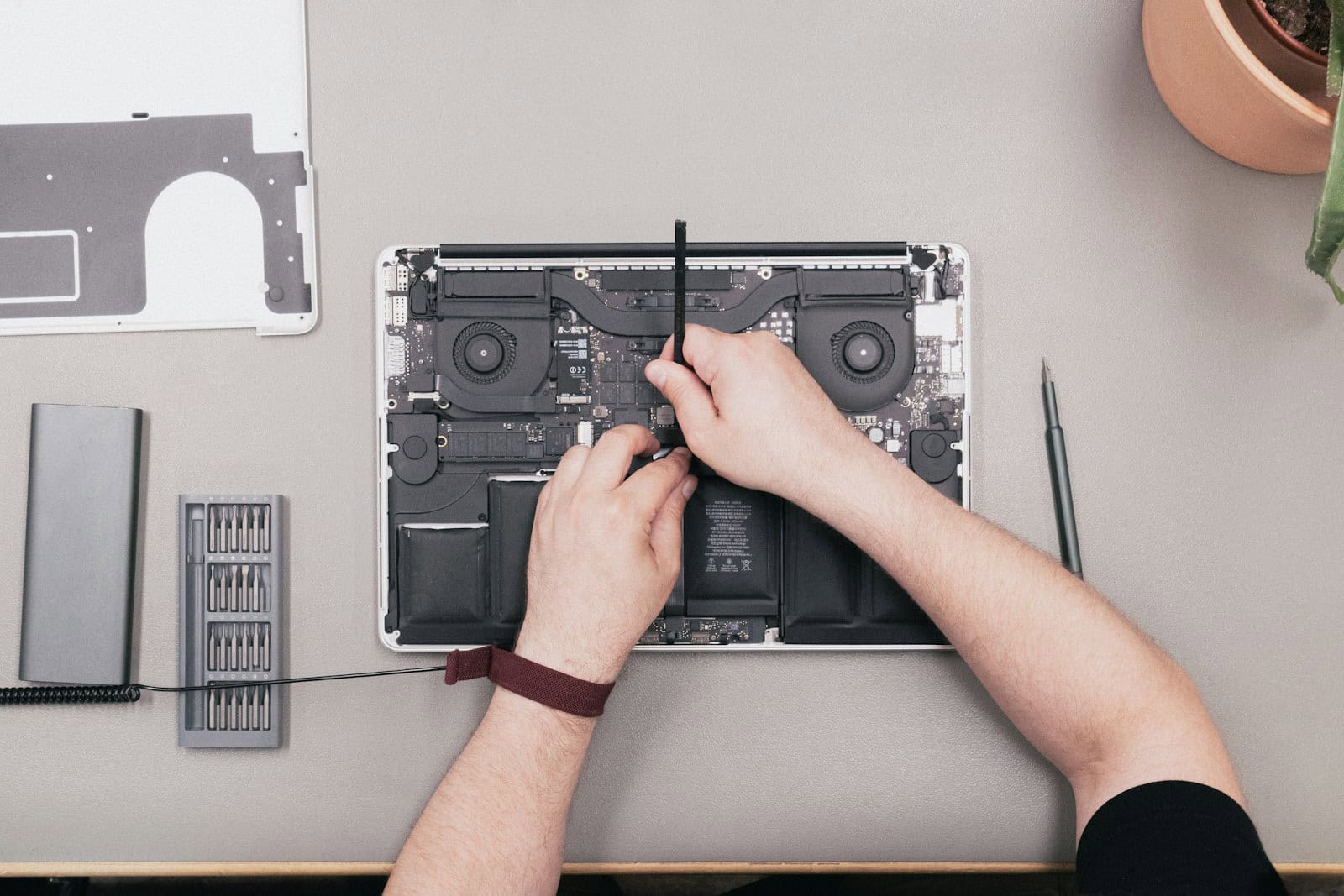
Is your MacBook fan making a lot of noise? A loud fan can be annoying and may signal a problem with your laptop. Loud fan noise often means your MacBook is working hard to stay cool. This can happen when you run demanding apps or have too many programs open at once.
There are a few things you can try to quiet a noisy MacBook fan. First, check what apps are using the most power. Close any you don’t need. Make sure your MacBook has good air flow by using it on a hard, flat surface. Cleaning out dust and debris can also help the fan run better.
If the fan stays loud after trying these tips, your MacBook may need a checkup. Apple stores and certified repair shops can test the fan and fix any issues. Regular care can keep your MacBook running smoothly and quietly for years to come.
MacBook Fan Loud: Quick Fixes for a Quieter Laptop
Is your MacBook fan suddenly roaring like a jet engine? A loud fan can be distracting, worrying, and a sign that your laptop is working harder than it should. The good news: in many cases, the fix is simple. This guide explains why your MacBook fan gets loud and offers quick, practical solutions to quiet it down.
Why Is My MacBook Fan So Loud?
MacBook fans spin faster when the system needs to cool down. Common reasons include:
- High CPU or GPU usage (heavy apps, too many browser tabs)
- Poor ventilation or heat buildup
- Dust inside the fan or vents
- Outdated software or bugs
- High ambient temperature
- Battery or hardware issues
Understanding the cause helps you apply the right fix.
Quick Fixes to Quiet a Loud MacBook Fan
1. Check Activity Monitor for Heavy Apps
Some apps can overload your CPU without you realizing it.
How to check:
- Open Activity Monitor (Applications → Utilities)
- Click the CPU tab
- Look for apps using unusually high CPU percentages
- Quit or restart those apps
Common culprits include browsers with many tabs, video editing software, and virtual machines.
2. Close Unnecessary Browser Tabs
Each open tab consumes memory and processing power—especially sites with videos or animations.
Quick tip:
Close tabs you’re not actively using, or use a tab-suspending extension to reduce load.
3. Improve Airflow and Cooling
MacBooks rely on proper ventilation to stay cool.
Do this:
- Place your MacBook on a flat, hard surface
- Avoid using it on beds, couches, or laps
- Elevate the rear slightly using a stand for better airflow
Better airflow = quieter fans.
4. Restart Your MacBook
It sounds simple, but a restart can instantly solve fan noise caused by runaway background processes.
When to restart:
- Fan suddenly gets loud for no clear reason
- Mac feels hot while doing light tasks
5. Update macOS and Apps
Software bugs can cause excessive CPU usage.
Check for updates:
- System Settings → General → Software Update
- Update frequently used apps via the App Store or developer websites
Updates often include performance and thermal management improvements.
6. Reset SMC (Intel Macs Only)
If you’re using an Intel-based MacBook, resetting the System Management Controller (SMC) can help fix fan behavior.
What SMC controls:
- Fan speed
- Thermal management
- Power functions
Note: Apple silicon Macs (M1, M2, M3) do not require or support SMC resets.
7. Reduce Background Startup Items
Too many startup apps can stress your Mac as soon as it boots.
How to manage them:
- System Settings → General → Login Items
- Remove apps you don’t need running constantly
8. Clean Dust from Vents and Fans
Dust buildup forces fans to work harder.
What you can do:
- Use compressed air to gently clean vents
- For internal cleaning, consider professional servicing
If your MacBook is several years old, this can make a big difference.
9. Monitor Temperature with Trusted Apps
Temperature-monitoring tools can help identify overheating issues.
They allow you to:
- See real-time CPU temperatures
- Track fan speeds
- Identify overheating patterns
If temperatures are consistently high during light use, hardware servicing may be needed.
When to Worry About a Loud MacBook Fan
You should consider professional help if:
- The fan is loud even when idle
- Your Mac overheats frequently
- Performance drops significantly
- The fan noise started after liquid damage or a drop
These could indicate failing hardware or thermal paste issues.
Final Thoughts
A loud MacBook fan doesn’t always mean something is wrong—it’s often your laptop protecting itself from heat. By closing heavy apps, improving airflow, keeping software updated, and maintaining your device, you can usually restore peace and quiet in minutes.
If the noise persists despite these fixes, a professional checkup may be the best long-term solution for your MacBook’s health—and your sanity.
Key Takeaways
- Loud fan noise often means your MacBook is working hard to cool itself
- Closing unused apps and improving air flow can help quiet a noisy fan
- Professional help may be needed if fan noise persists after basic fixes
Understanding MacBook Fan Dynamics
MacBook fans keep your device cool. They work harder when the computer gets hot. This can make them loud.
Components and Functions
MacBook fans are part of the cooling system. They move hot air out of the computer. The fans sit near vents on the sides and back. They spin faster when the computer does more work.
Sensors check the temperature inside. They tell the fans when to speed up. The fans work with other parts like heat sinks. These parts help spread heat away from key parts.
MacBooks have one or two fans. It depends on the model. Newer Apple Silicon Macs may run cooler than older Intel ones.
Common Causes of Loud Fan Noise
Fans get loud when your Mac works hard. This happens with big tasks like video editing or gaming. Too many open apps can also make fans noisy.
Dust can clog vents and make fans work harder. Old software or viruses might make your Mac run hot too. Sometimes a broken fan is the problem.
Hot rooms make your Mac warm up faster. This causes fans to run more often. Putting your Mac on soft surfaces can block airflow and cause extra heat.
Optimizing Air Circulation
Good airflow helps keep your Mac cool and quiet. Keep your Mac on a hard flat surface. This lets air move freely under it.
Clean the vents often with a soft brush or cloth. Make sure nothing blocks the vents when you use your Mac.
Use your Mac in cool places when you can. Avoid direct sunlight or very warm rooms. Consider a cooling pad for extra airflow during heavy tasks.
Close apps you’re not using. This reduces how hard your Mac works. Update your software to fix any bugs that might cause overheating.
Frequently Asked Questions
MacBook fans can get loud for various reasons. These questions cover common issues and solutions for noisy fans on different MacBook models.
What could cause my MacBook’s fan to become excessively loud when it’s being charged?
Charging can make a MacBook’s fan louder. This happens when the laptop gets hot from the power input. Heavy tasks or a warm room can add to this heat. Try using your MacBook in a cool place when charging. Also check for apps that use a lot of power.
How can I troubleshoot sudden increases in fan noise on my MacBook Pro?
Check your MacBook Pro’s running apps. Open Activity Monitor to find programs using lots of CPU. Close these apps to reduce fan noise. If the fan stays loud restart your MacBook. This can fix software issues that make the fan run fast.
What are the common reasons for a MacBook Air’s fan to emit loud noise unexpectedly?
Dust buildup is a big cause of loud fans in MacBook Airs. The fan has to work harder to cool the laptop when it’s dusty. Old or broken fans can also make more noise. Sometimes a software bug can make the fan run too fast. Keep your MacBook Air clean and up to date to avoid these issues.
Is there a connection between rapid battery drain and increased fan noise on a MacBook?
Yes fan noise and fast battery drain often go together. Both can mean your MacBook is working too hard. Check for apps that use a lot of power. These apps make your MacBook hot and drain the battery. Closing them can help both problems.
What steps should I take to properly clean the fan in my MacBook to reduce noise?
Turn off your MacBook first. Use a can of compressed air to blow out dust. Hold the fan still while you do this. Don’t let it spin from the air. Blow air into the vents on the back of your MacBook. Do this in short bursts. Be gentle to avoid damage.
What methods are available to manage and control MacBook fan noise?
Use built-in tools to check your MacBook’s health. Activity Monitor shows which apps use lots of power. Quit these apps to reduce fan noise. Keep your MacBook on a hard flat surface for good airflow. Update macOS to get the latest fan control fixes. For more control try apps made to manage fan speed.





