
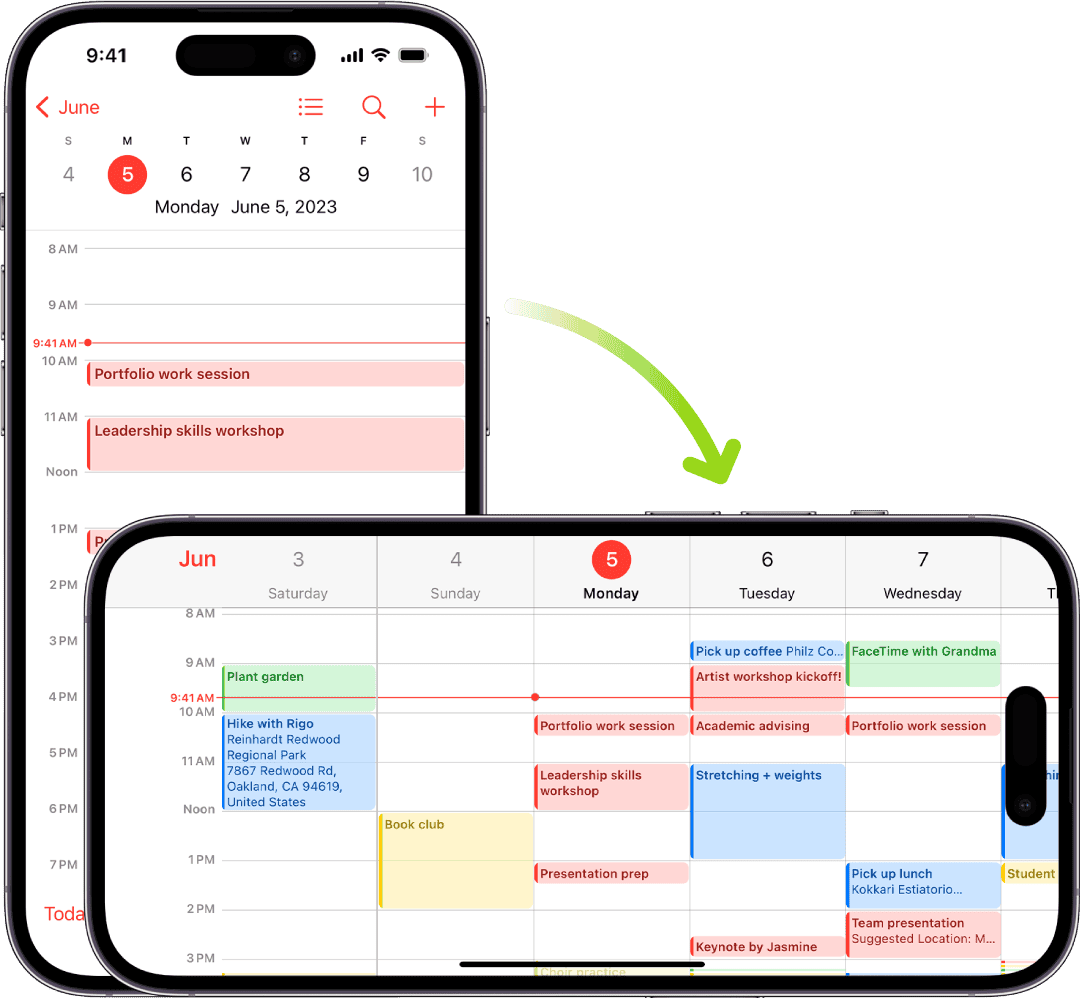
Have you ever found your iPhone stuck in one viewing position? Rotating your iPhone screen can make apps and content easier to view. You can rotate your iPhone screen by swiping down from the top-right corner to open Control Center and tapping the Portrait Orientation Lock button to turn it off.
Some iPhone apps work better in landscape mode, like watching videos or playing games. Others work best in portrait mode. Apple designed iOS to automatically switch between these views when you turn your phone. If your screen won’t rotate, it’s likely because Portrait Orientation Lock is on.
iPhone rotation features help you enjoy content the way it was meant to be seen. Whether you’re watching videos, reading articles, or browsing photos, knowing how to control screen rotation makes using your iPhone more comfortable.
Rotate iPhone Screen: Complete Guide
If your iPhone screen won’t rotate—or keeps rotating when you don’t want it to—you’re not alone. Screen rotation depends on settings, apps, and sensors, and a small change can make it stop working.
This guide explains how to rotate your iPhone screen, why rotation sometimes doesn’t work, and how to fix common issues.
How iPhone Screen Rotation Works
Your iPhone uses a gyroscope and accelerometer to detect how you’re holding the device. When rotation is enabled, the screen automatically switches between portrait and landscape modes.
✅ Screen rotation works in supported apps like:
- Safari
- Messages
- Photos
- YouTube
❌ Some apps only support portrait mode and won’t rotate.
How to Rotate iPhone Screen On or Off
Use Control Center (Fastest Method)
- Swipe down from the top‑right corner (iPhone X or later)
(Swipe up from the bottom on iPhone 8 or earlier) - Look for the lock with a circular arrow icon
- Tap it to turn Rotation Lock OFF
✅ When rotation lock is off, the icon will not be highlighted.
Why Your iPhone Screen Won’t Rotate (Common Causes)
1. Rotation Lock Is Enabled
This is the most common reason.
✅ Fix: Turn off Rotation Lock in Control Center.
2. The App Doesn’t Support Rotation
Some apps are designed for portrait mode only.
✅ Fix: Try rotating the screen in Safari or Photos to test if rotation works.
3. iPhone Is in Zoomed Display Mode
Display Zoom can limit rotation on some models.
✅ Fix:
- Go to Settings → Display & Brightness
- Tap Display Zoom
- Select Standard
- Restart your iPhone
4. Orientation Lock Is Enabled by Focus Mode
Certain Focus modes can restrict screen behavior.
✅ Fix:
- Go to Settings → Focus
- Disable Focus mode or adjust settings
5. Software Glitch or iOS Bug
Minor system issues can interfere with rotation.
✅ Fix:
- Restart your iPhone
- Update iOS via Settings → General → Software Update
6. Gyroscope or Hardware Issue
If rotation never works in any app, the sensor may be faulty.
✅ Test:
- Open Compass or Measure app
- Move your phone and see if orientation changes
❌ If not, contact Apple Support or visit an Apple Store.
How to Rotate iPhone Screen Manually (Photos & Videos)
Rotate Photos
- Open Photos
- Select an image
- Tap Edit
- Tap the rotate icon
Rotate Videos
- Edit the video in Photos
- Rotate until it displays correctly
- Save changes
iPhone Screen Rotation Tips
✔ Hold the phone upright (not flat)
✔ Remove thick cases or mounts interfering with sensors
✔ Lock rotation when reading in bed
✔ Use landscape mode for videos and games
Which iPhones Support Screen Rotation?
✅ All modern iPhones support rotation
❌ Home screen rotation is limited to Plus and Max models
Quick Fix Checklist
✔ Rotation Lock OFF
✔ Try a different app
✔ Restart iPhone
✔ Update iOS
✔ Check Display Zoom
✔ Test sensors
Key Takeaways
- Turn off Portrait Orientation Lock in Control Center to allow your iPhone screen to rotate freely.
- Not all apps support rotation, as some are designed to work only in portrait or landscape mode.
- If your screen still won’t rotate after unlocking orientation, try restarting your iPhone or checking for iOS updates.
Understanding iPhone Screen Rotation
iPhone screen rotation lets your device switch between vertical and horizontal views based on how you hold it. This feature uses built-in sensors to detect movement and changes the screen layout to match how you’re holding your phone.
The Role of Accelerometer
The accelerometer is a tiny sensor inside your iPhone that detects motion and position changes. This sensor works by measuring the force of gravity on your device in different directions. When you turn your iPhone, the accelerometer sends signals to the operating system about the new position.
Your iPhone uses these signals to decide if the screen should rotate. The accelerometer can tell if you’re holding your phone upright, sideways, or even upside down. This happens instantly, which is why your screen rotates so quickly when you turn your device.
Not all apps support rotation. Some apps are designed to work only in portrait mode, while others work in both orientations.
Orientation Modes: Portrait vs. Landscape
Portrait orientation is the vertical view where your iPhone screen is taller than it is wide. This is how most people hold their phones for texting, calling, and scrolling through social media. It’s perfect for reading articles or viewing feeds.
Landscape orientation turns your screen sideways, making it wider than tall. This mode is great for:
- Watching videos
- Playing games
- Typing longer messages
- Viewing websites
- Looking at photos
To switch between these modes, simply turn your iPhone sideways. If your screen doesn’t rotate, check if rotation lock is on by opening Control Center and looking for the rotation lock icon. If it’s red, tap it to turn it off.
Some apps automatically choose the best orientation for their content. For example, video apps often switch to landscape mode when you play a video.
Managing Screen Rotation Settings
iPhone screen rotation can be controlled through quick settings or deeper system preferences. Knowing how to adjust these settings helps you use your device in the way that works best for your needs.
Using Control Center
Control Center gives you quick access to rotation settings. To check if rotation is locked:
- Swipe down from the top-right corner (iPhone X or later) or up from the bottom edge (iPhone 8 or earlier)
- Look for the Rotation Lock icon (a lock with a circular arrow)
- Tap this icon to toggle Portrait Orientation Lock on or off
When the icon is highlighted, your screen is locked in portrait mode. When it’s not highlighted, your screen will rotate as you turn your iPhone.
If the rotation lock button isn’t showing up in Control Center, you can add it. Go to Settings → Control Center → find “Orientation Lock” and tap the plus icon to add it.
Adjusting Display Settings
Some iPhone models offer extra rotation settings through Display options. Here’s how to check these settings:
First, make sure Auto Rotate is working by turning off Portrait Orientation Lock in Control Center. If your screen still won’t rotate, check Display Zoom settings.
Display Zoom can affect rotation behavior. To adjust this:
- Open Settings
- Tap Display & Brightness
- Select View under Display Zoom
- Choose between Standard and Zoomed
The Standard view allows more apps to rotate to landscape mode. Some apps only rotate in Standard view.
If rotation problems continue after trying these steps, you might need to restart your iPhone or check for iOS updates in Settings.
Troubleshooting Rotation Issues
When your iPhone screen won’t rotate, it’s usually due to settings issues or occasionally hardware problems. Most rotation problems can be fixed with simple solutions that take just seconds to try.
When iPhone Screen Won’t Rotate
The most common reason an iPhone screen won’t rotate is that Portrait Orientation Lock is turned on. Check Control Center by swiping down from the top-right corner (or up from the bottom on older iPhones). Look for the lock icon with a circular arrow – if it’s highlighted, tap it to turn it off.
Some apps only work in portrait mode. Try opening apps known to work in landscape mode like Safari or Messages to test if rotation works there.
Make sure nothing is blocking the phone’s sensors. Remove any thick cases that might interfere with rotation detection.
Try closing all apps. Double-tap the home button or swipe up and hold on newer models, then swipe up on all apps to close them.
Resetting Device Settings
If basic fixes don’t work, try restarting your iPhone. Press and hold the side button and either volume button, then slide to power off. Wait 30 seconds before turning it back on.
Update iOS to the latest version. Outdated software can cause rotation problems. Go to Settings > General > Software Update.
Reset all settings if the issue continues. Go to Settings > General > Reset > Reset All Settings. This won’t delete your data but will restore default settings.
If nothing works, the problem might be hardware-related. The gyroscope or accelerometer that detects rotation might be failing. In this case, contact Apple Support for professional help.
Leveraging Assistive Features for Rotation
Apple offers helpful tools for those who need different ways to rotate their iPhone screen. These features make screen rotation possible even when physical movement isn’t an option.
Utilizing AssistiveTouch
AssistiveTouch is a powerful accessibility feature that helps control screen rotation without physically turning your iPhone. To enable it:
- Open Settings on your iPhone
- Tap “Accessibility”
- Select “Touch”
- Tap “AssistiveTouch” and toggle it on
Once enabled, a small button appears on your screen. Tap this button to access rotation controls. You can rotate two fingers on the screen around a point between them. The great thing about AssistiveTouch is that you can do this with just one finger or a stylus.
This tool is especially useful when your hands are full or when physical limitations make turning the device difficult. The rotation works in any app that supports landscape mode.
Accessibility Options
iOS includes several other accessibility options that work with screen rotation. The Screen Orientation Lock in Control Center is the most basic tool. Swipe down from the top-right corner to access it.
For more control, try these settings:
- Zoom: Enables rotating the screen with a three-finger gesture
- Voice Control: Lets you say “rotate screen” to change orientation
- Switch Control: Allows rotation through external adaptive devices
These features work across apps and iOS versions. They’re designed to make iPhones more usable for everyone, regardless of physical ability. iOS updates often bring improvements to these tools.
Screen rotation uses the iPhone’s accelerometer by default, but these accessibility options give you alternatives when needed.
Handling Rotation with Other Apple Devices
Apple offers screen rotation features across its mobile device lineup. While iPhones get most attention, iPads and iPod Touch devices have their own unique rotation capabilities worth knowing about.
iPad Screen Rotation Differences
iPads handle screen rotation in ways that differ from iPhones. The larger screen size makes rotation especially useful for different tasks. Unlike iPhones, iPads support rotation in all four directions – portrait, portrait upside down, landscape left, and landscape right.
To control rotation on an iPad, swipe down from the top-right corner to open Control Center. Look for the rotation lock button (showing a lock with a circular arrow). If it’s highlighted, tap it to unlock rotation.
Many iPad apps are specifically designed to take advantage of both orientations. For example, Mail shows a sidebar in landscape mode but hides it in portrait mode.
Some iPad models with home buttons show the rotation lock switch on the side instead of in Control Center. This physical switch can be toggled to lock or unlock rotation quickly.
iPod Touch Rotation Capabilities
iPod Touch devices follow similar rotation rules as iPhones. The screen rotates between portrait and landscape modes, but doesn’t support upside-down portrait orientation by default.
To manage rotation on an iPod Touch, open Control Center by swiping down from the top-right corner. Tap the Portrait Orientation Lock button to toggle it on or off. When the icon is red, rotation is locked.
Not all iPod Touch apps support landscape mode. Core apps like Photos, Safari, and Videos do rotate, while others remain fixed in portrait view.
If your iPod Touch screen won’t rotate even with lock off, check if the app supports rotation. Try the Photos app as a test since it definitely rotates. Some older iPod Touch models may also have less reliable rotation sensors.
User Account and Security Implications
Your iPhone’s screen rotation settings connect to your Apple ID and can affect your privacy settings. These preferences sync across devices and interact with your phone’s security features in ways you might not realize.
Managing Rotation Preferences via Apple ID
Your Apple ID stores your screen rotation preferences when you sync your iPhone settings to iCloud. This means when you log into a new iPhone with your Apple ID, your rotation settings will transfer automatically.
To check if your rotation settings are syncing:
- Open Settings
- Tap your name at the top
- Select iCloud
- Look for “Display & Brightness” toggle
Some users notice their rotation lock resets after updating iOS or signing in on a new device. This happens because these settings refresh when your account syncs.
Apple’s privacy features can also affect rotation. For example, when using Face ID, your iPhone might keep the screen from rotating if it detects you’re looking at it while lying down.
Understanding iPhone Cookies Policy
The iPhone’s rotation features can interact with cookies stored by websites and apps that use your screen orientation. When you visit websites that play videos, cookies may save your preferred viewing orientation.
These cookies help remember if you like to watch videos in landscape mode even when your rotation lock is on. Games often use this feature too – some games like Zynga Poker can override rotation lock settings through specific cookies.
To manage these cookies:
- Go to Settings > Safari > Privacy & Security
- Find “Block All Cookies” option
Important note: Blocking all cookies may affect how some apps handle screen rotation, especially those that remember your viewing preferences.
When an app requests to change your rotation settings, iOS will ask for permission first. This security feature prevents apps from changing your display without consent.
Additional Resources
If you need extra help with iPhone screen rotation issues, Apple offers several support options. They can solve problems that you can’t fix on your own.
Visiting the Apple Store for Support
When online troubleshooting doesn’t work, visiting an Apple Store can be the best solution. Apple’s trained technicians can examine your iPhone in person and identify hardware or software problems affecting screen rotation.
Before your visit:
- Make a Genius Bar appointment to avoid long waits
- Bring your Apple ID and password
- Back up your iPhone to iCloud or computer
- Charge your iPhone battery to at least 50%
Apple technicians can check if your device has any physical damage affecting the gyroscope sensor. They might also update your iOS to the latest version if needed. Some stores offer free workshops about iPhone basics that include tips on screen rotation and Control Center settings.
Contacting Apple Support Online
Apple offers several ways to get help without leaving home. You can contact Apple Support online through their website or the Support app on your iPhone.
Support options include:
- Live chat with Apple experts
- Phone support for step-by-step guidance
- Email support for non-urgent issues
- Twitter through @AppleSupport
The Apple Support website has many helpful articles about screen rotation problems. It explains how to use Control Center to unlock rotation and troubleshoot apps that won’t rotate. The support team can help determine if the issue is with specific apps like Safari or if it’s a system-wide problem.
For complex problems, support staff might use screen sharing to see exactly what’s happening on your iPhone and guide you through fixes.
Frequently Asked Questions
iPhone screen rotation issues happen to most users at some point. Here are answers to the most common questions about managing and fixing screen rotation on your iPhone.
How can I enable screen rotation on my iPhone?
To enable screen rotation, first make sure the rotation lock is turned off. Swipe down from the top-right corner of your screen to open Control Center.
Look for the Portrait Orientation Lock button (it looks like a lock with a circular arrow). If it’s highlighted, tap it to turn off the lock.
Your iPhone should now rotate when you turn it sideways. Some apps only work in portrait mode, so rotation may not work in all apps.
Where can I find the screen rotation lock settings on my iPhone?
The screen rotation lock is located in Control Center. To access it, swipe down from the top-right corner of your screen (or swipe up from the bottom on older iPhone models).
The rotation lock icon looks like a lock with a circular arrow around it. When the button is highlighted (usually white or red), rotation lock is on. When it’s gray, the lock is off.
There is no separate setting for rotation in the Settings app. Control Center is the only place to manage this feature.
What should I do if my iPhone screen won’t rotate?
If your iPhone screen won’t rotate, first check if Portrait Orientation Lock is turned off in Control Center. If the lock is already off, try these fixes:
Restart the app you’re using. Some apps may have glitches that affect rotation functionality.
Restart your iPhone. Press and hold the side button and either volume button, then slide to power off. After a minute, turn it back on.
Check if the app supports rotation. Some apps are designed to work only in portrait mode.
Make sure nothing is blocking the iPhone’s sensors. Remove any case or screen protector that might interfere with the gyroscope.
How do I disable auto-rotate on my iPhone?
To disable auto-rotate and keep your screen in portrait mode, you’ll need to turn on Portrait Orientation Lock. Open Control Center by swiping down from the top-right corner of your screen.
Tap the Portrait Orientation Lock button (lock with a circular arrow). When it’s highlighted, rotation is locked.
With this feature enabled, your screen will stay in portrait mode even when you turn your iPhone sideways.
Is there a way to control screen rotation for specific apps on an iPhone?
Currently, iOS doesn’t offer a built-in way to control rotation settings for individual apps. The Portrait Orientation Lock applies to all apps system-wide.
Some apps have their own rotation settings within the app’s preferences. Check the settings menu inside the app you’re using.
For better control, you can use the Accessibility features. Go to Settings > Accessibility > Touch > AssistiveTouch to create custom gestures that might help manage rotation in specific situations.
What troubleshooting steps can I take if my iPhone’s screen rotation is not functioning correctly?
If your screen rotation isn’t working properly, try these troubleshooting steps in order:
Toggle the Portrait Orientation Lock off and on again through Control Center. Sometimes the setting gets stuck.
Force close all open apps by swiping up from the bottom and holding, then swiping up on app cards.
Check for iOS updates by going to Settings > General > Software Update. Outdated software can cause rotation issues.
Reset all settings by going to Settings > General > Transfer or Reset iPhone > Reset > Reset All Settings. This won’t delete your data but will reset system settings.
If nothing works, contact Apple Support as there might be a hardware issue with your device’s gyroscope or accelerometer.





