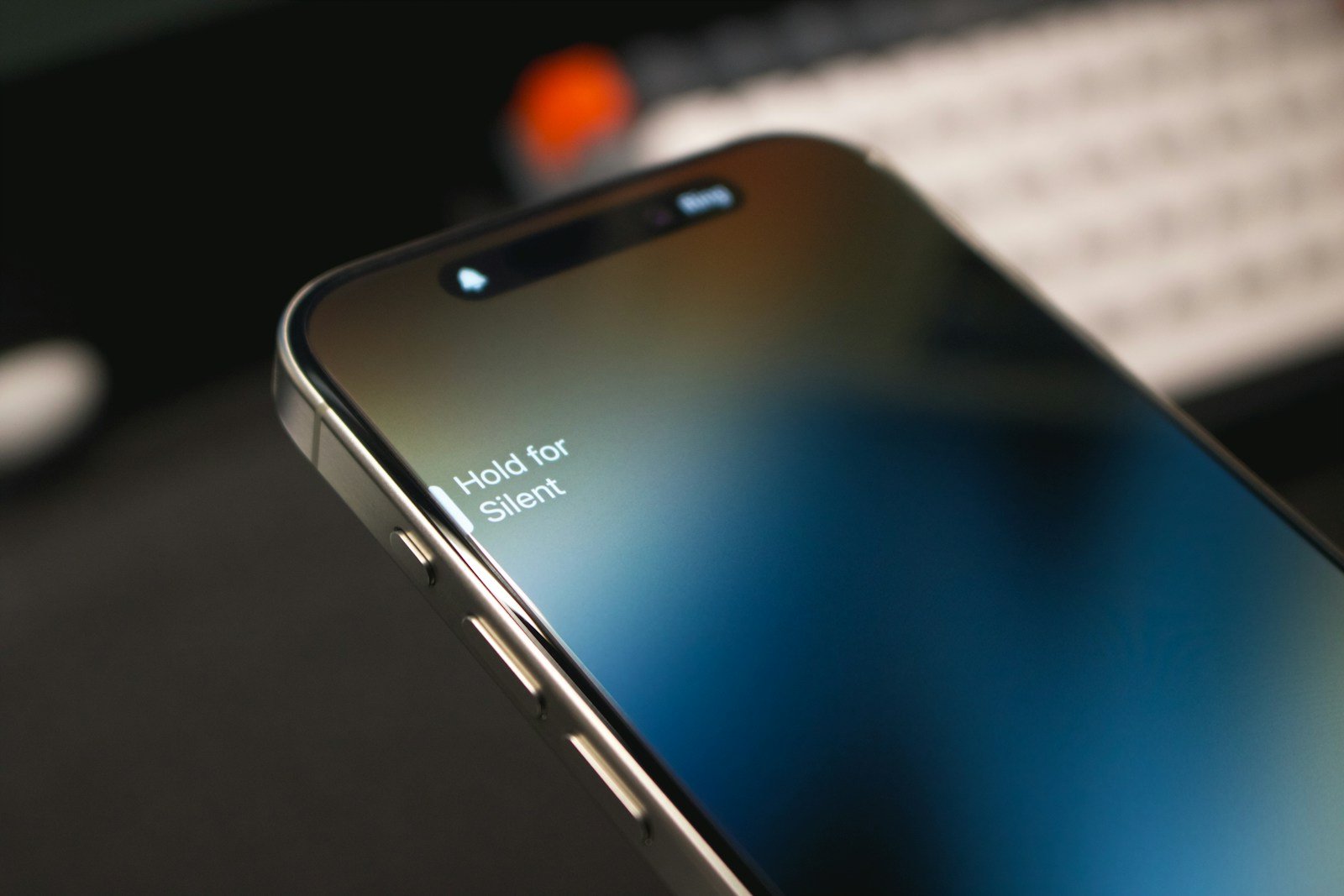
A malfunctioning power button on an iPhone can be frustrating. This issue prevents users from easily turning their device on or off, accessing certain features, or performing a hard reset. Fortunately, several solutions exist to address a non-working iPhone power button, including software fixes and alternative methods to control the device.
While a faulty power button may seem like a major problem, it doesn’t always mean a trip to the repair shop is necessary. Apple has built-in features that allow users to work around this issue. These include AssistiveTouch, which provides on-screen options for various functions usually controlled by physical buttons.
For those facing this problem, it’s important to first determine if the issue is software or hardware related. Software glitches can often be resolved with a simple restart or update. Hardware problems may require professional repair, but many users can continue using their iPhone effectively with built-in accessibility features.
Power Button Not Working iPhone: Quick Fixes and Solutions
A non-functional power button on your iPhone can be incredibly frustrating, but don’t panic! There are several workarounds and potential fixes you can try before heading to the Apple Store. This guide will walk you through practical solutions to help you regain control of your device.
Quick Workarounds While Your Power Button Isn’t Working
1. Use AssistiveTouch (Essential Temporary Solution)
AssistiveTouch creates a virtual power button on your screen:
To Enable:
- Go to Settings > Accessibility > Touch > AssistiveTouch
- Toggle it ON
- A floating button will appear on your screen
What You Can Do:
- Tap the floating button > Device > Lock Screen (to lock your phone)
- Tap the button > Device > Hold Lock Screen (to access power off/restart options)
- Take screenshots by tapping the button > Device > More > Screenshot
2. Wake Your iPhone Without the Power Button
- Raise to Wake: Go to Settings > Display & Brightness > Enable Raise to Wake
- Tap to Wake: Tap your screen to wake it (iPhone X and later)
- Press Home Button: If you have a Home button, press it to wake the device
3. Use “Hey Siri” Voice Commands
Activate Siri with your voice to perform various tasks without touching any buttons.
Solutions to Fix Your Power Button
Solution 1: Force Restart Your iPhone
Sometimes a software glitch can make the power button appear broken. Try a force restart:
iPhone 8 and later:
- Quickly press and release Volume Up
- Quickly press and release Volume Down
- Press and hold the Side Button until the Apple logo appears
iPhone 7/7 Plus:
- Press and hold Volume Down + Side Button until you see the Apple logo
iPhone 6s and earlier:
- Press and hold Home Button + Power Button until the Apple logo appears
Solution 2: Clean Around the Power Button
Dirt, dust, and debris can prevent the button from working:
- Power off your iPhone (use AssistiveTouch if needed)
- Use a soft-bristled brush or toothbrush to gently clean around the button
- Apply a small amount of isopropyl alcohol (90%+) to a cotton swab
- Gently clean around the button edges
- Let it dry completely before turning on
Solution 3: Check for Physical Damage
Inspect your power button for:
- Cracks or visible damage
- If the button feels loose or stuck
- Water damage indicators (if you recently got the phone wet)
Solution 4: Update iOS
Software bugs can sometimes affect hardware functionality:
- Go to Settings > General > Software Update
- Download and install any available updates
- Restart your device after updating
Solution 5: Reset All Settings
This won’t delete your data but will reset system settings:
- Go to Settings > General > Transfer or Reset iPhone
- Select Reset > Reset All Settings
- Enter your passcode and confirm
- Test the power button after the reset completes
Solution 6: Check Your iPhone Case
Sometimes a thick or misaligned case can:
- Block the power button
- Make it harder to press
- Prevent proper button function
Remove your case and test the button.
How to Turn Off Your iPhone Without the Power Button
Using AssistiveTouch:
- Tap the AssistiveTouch button
- Go to Device > Lock Screen (press and hold)
- Slide to power off
Using Settings:
- Go to Settings > General
- Scroll to the bottom and tap Shut Down
- Slide to power off
Using Siri:
- Say “Hey Siri, turn off my iPhone”
- (Note: This may not work on all iOS versions)
How to Take Screenshots Without the Power Button
Method 1: AssistiveTouch
- Tap AssistiveTouch > Device > More > Screenshot
Method 2: Back Tap (iPhone 8 and later)
- Go to Settings > Accessibility > Touch > Back Tap
- Choose Double Tap or Triple Tap
- Select Screenshot
- Now tap the back of your iPhone to take screenshots
Method 3: Siri
- Say “Hey Siri, take a screenshot”
Preventing Your iPhone From Auto-Locking
To avoid needing the power button frequently:
- Go to Settings > Display & Brightness > Auto-Lock
- Set it to Never (Note: this will drain your battery faster)
When to Seek Professional Help
Visit an Apple Store or authorized repair center if:
- The button is physically broken or stuck
- None of the software solutions work
- Your iPhone is still under warranty or AppleCare+
- You notice other hardware issues
Repair Options:
- Apple Store: Official repairs with genuine parts
- Authorized Service Providers: Apple-certified repairs
- Third-Party Repair Shops: Usually cheaper but may void warranty
Typical Costs (Out of Warranty):
- Apple repairs: $100-$300+ depending on model
- Third-party repairs: $50-$150
Prevention Tips
- Use a quality protective case with good button coverage
- Avoid exposing your iPhone to moisture and extreme temperatures
- Clean your device regularly
- Consider AppleCare+ for future hardware issues
Final Thoughts
While a broken power button is inconvenient, AssistiveTouch provides an excellent temporary solution that allows you to use almost all power button functions. If you’re comfortable with this workaround, you can continue using your iPhone indefinitely. However, if you prefer physical buttons or the issue stems from hardware damage, professional repair is your best long-term solution.
Remember to back up your iPhone regularly using iCloud or iTunes, especially before attempting any repairs or major troubleshooting steps!
Key Takeaways
- Several solutions exist for a non-working iPhone power button
- AssistiveTouch provides on-screen alternatives to physical buttons
- Determining if the issue is software or hardware related is crucial
Diagnosing the Issue
When an iPhone power button stops working, it’s crucial to pinpoint the cause. This helps determine whether a simple fix is possible or if professional repair is needed.
Hardware vs Software Malfunction
Power button issues can stem from hardware damage or software glitches. To check for software problems, try a force restart. On iPhone 8 and newer models, press and release volume up then volume down quickly. Then press and hold the side button until the Apple logo appears. For older models like iPhone 7 or 6s, hold the power and home buttons together for 10 seconds.
If a force restart doesn’t work, the problem may be hardware-related. Look for visible damage around the button. Dirt or debris can also cause issues. Clean gently with a soft brush. If the button feels stuck or unresponsive, it might need repair.
Common iPhone Models Affected
Power button problems can occur in various iPhone models. The iPhone 6s and 7 series often face this issue due to their age and wear. iPhone 8 and SE (2nd gen) may experience power button failure from heavy use or accidental drops.
Newer models like iPhone X and later are less prone to button issues. But they can still happen. If your iPhone is under warranty, Apple may cover repairs. For out-of-warranty devices, third-party repair shops offer more affordable options. Always check repair costs against the price of a new phone before deciding.
Frequently Asked Questions
iPhone users may encounter issues with unresponsive power buttons. These common questions address solutions and causes for this problem.
How can I turn off my iPhone if the power button is unresponsive?
Use AssistiveTouch to turn off your iPhone. Go to Settings > Accessibility > Touch. Turn on AssistiveTouch. Tap the floating button on your screen. Select Device > More > Restart. This will shut down and restart your iPhone without using the power button.
What should I do if my iPhone’s lock button is stuck?
Try cleaning the button with a soft cloth. If that doesn’t work force restart your iPhone. On newer models press and release the volume up button then the volume down button. Next press and hold the side button until the Apple logo appears.
What are the potential causes for an iPhone power button to become unresponsive?
Dirt or debris can cause button issues. Physical damage from drops or impacts may also affect the power button. Software glitches can sometimes make the button seem unresponsive. In rare cases internal hardware problems may be the cause.
How can you operate an iPhone if its power button is not functioning?
Use AssistiveTouch as an alternative. Enable it in Settings > Accessibility > Touch. The on-screen button lets you access many functions including locking the screen and restarting. You can also use “Raise to Wake” to turn on the screen and swipe up to unlock.
Is there a way to fix an iPhone power button that isn’t working?
Try a force restart first. Clean the button area gently. Update your iOS software. If these steps don’t work contact Apple Support or visit an Apple Store. They can diagnose the issue and repair or replace the button if needed.
Why doesn’t my iPhone turn off when I press the side button?
Your iPhone may need a force restart. The button could be stuck or damaged. A software issue might prevent normal shutdown. Try holding the side button with either volume button. If that fails use AssistiveTouch or contact Apple Support for help.